


Using relevant and high-quality images and visuals can instantly boost the effectiveness of your presentation. Images are an important part of PowerPoint presentations as they make your message clearer and memorable. The challenge is to find royalty-free images for presentations.
You did a quick Google search, copied an image from the search results, and added it to the slides. This might work for classroom projects or small events. When you are at bigger events, using royalty-free images is a must. Using licensed and copyrighted data without proper credit can get you into legal and ethical trouble.
In this article, we will explore the best practices to find royalty-free images for presentations and how to use AI to find free images for PowerPoint presentation slides.
What are Royalty-Free Images?
Royalty-free doesn’t always mean completely free. Users can sign up for a website, complete the registration process, and then use royalty-free images without paying any additional costs. In these cases, the website administration has already acquired the license, and you can use these images for personal use.
Unsplash, Pexels, Pixabay, and many similar sites are the best places to find royalty-free images for presentations. Even with the royalty-free images, you need to follow some protocols to ensure safe and smooth use of the data.
- Is it free for commercial use?
- Is attribution required?
- Are there restrictions
How to Find Royalty-Free Images for Presentations?
You understand the concept of royalty-free images. The next task is to learn how to find high-quality free images for presentations. There are different options available for getting images for PPTs.
The easiest way to find royalty-free images for presentations lies inside PowerPoint. We will explain at the end how anyone can get free images or generate custom images with AI inside PowerPoint.
Websites for Royalty Free Images
There are many sites that you can visit to download royalty-free images for personal projects, including PowerPoint presentations. These websites have premium media, too. For most projects, free images are enough. Some of the popular sites to find royalty-free images include:
- Unsplash
- Pexels
- Pixabay
- Burst
- Canva
Google Images
Google is an awesome source to find your desired materials, media, or information. When you search for any query in Google Images, different results appear. But you cannot use all these images for your presentations.
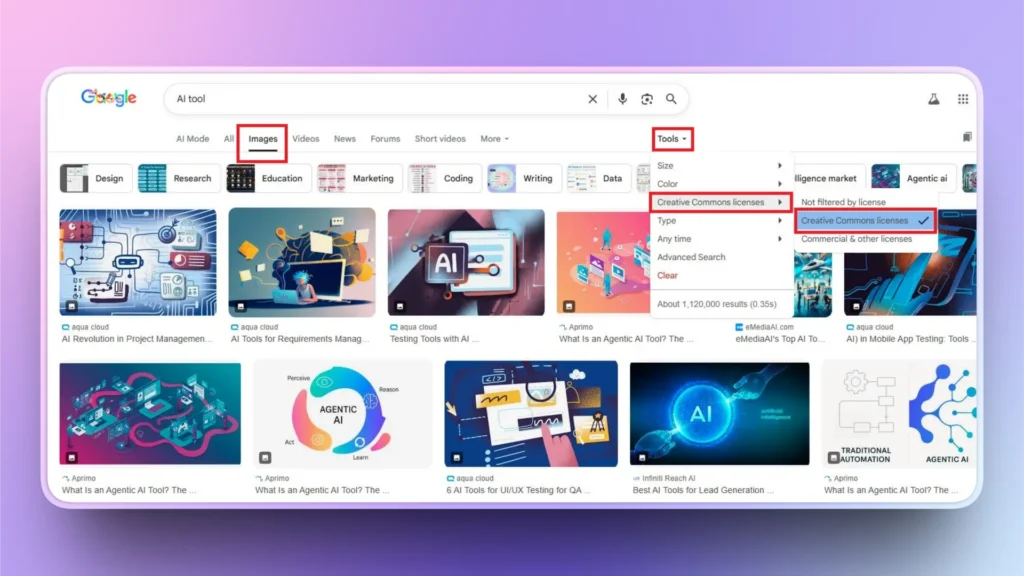
In the search results, click on the Tools option >> User Rights >> Creative Commons. Once this filter is applied, the filtered results are available for personal use. It is still advised to visit the image source to understand if there are any special terms and conditions to use that image.
Built-in Presentation Add-ins and Tools
PowerPoint has different add-ins by 3rd party developers that make it easier for users to find and add free images to slides, without leaving the PowerPoint software.
The most popular add-in for PowerPoint is Twistly, which not only helps you fetch royalty-free images for presentations but also has a built-in AI image generator.
Twistly is not just for visuals or AI images, but a complete ChatGPT for PowerPoint that can generate slides, write content, design PPTs, and do many other cool tasks for PowerPoint users.
How does Twistly Add Images to PowerPoint?
Twistly has different options for images regarding PPT slides. When you make a presentation from scratch, Twistly automatically adds images to the slides according to the context of the slide.
The other option is to create AI images for an existing slide and then insert them into the slide with one click. You can also replace any image in the slides.
If you want to learn how to find royalty-free images for presentations without leaving PowerPoint, follow these simple steps.
Step 1: Open the PPT Slide and Launch Twistly
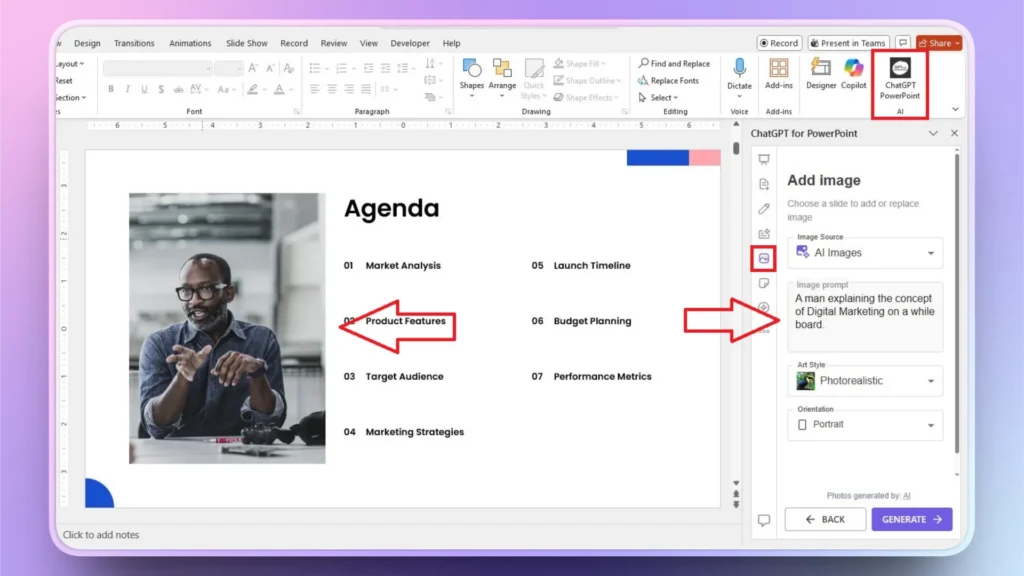
We will be adding a royalty-free image to an existing slide. We will replace the existing image in the slide with Twistly. Open your slide with the image and then launch Twistly.
Click the Add Image option as shown in the image. Now, choose an image source and write a prompt to create the image. Also, select the Art Style and orientation for the image. Click Generate.
Step 2: Insert an AI Image into the Slide
Twistly will generate two AI images for you. Users can view the image, instantly insert it into the slide, or regenerate images for more ideas.
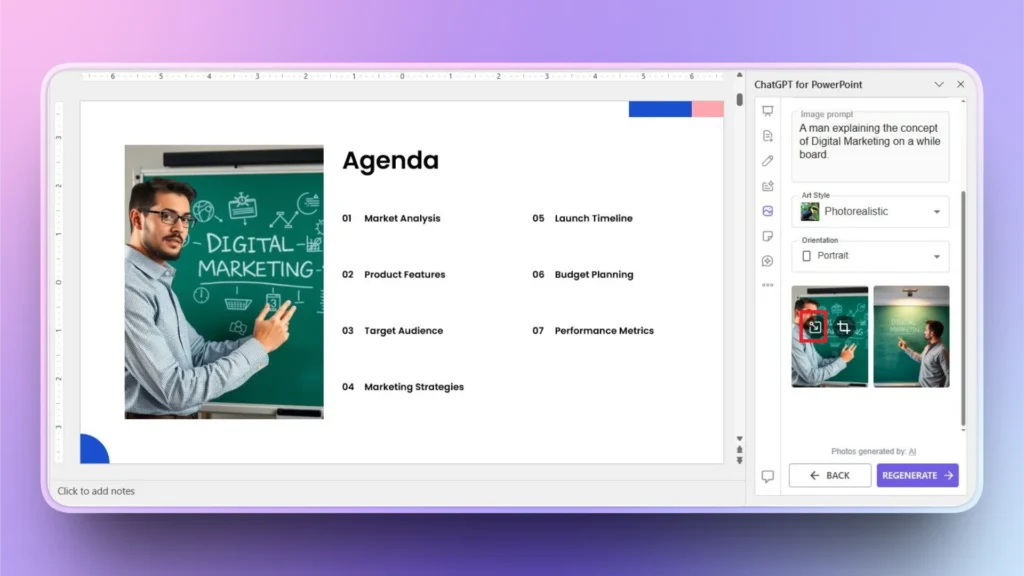
With one click, Twistly will replace the image in the slide, and you won’t have to make any manual changes, edits, or size modifications to the new image.
Best Practices to Use Royalty-Free Images in Presentations
Most presenters don’t focus on the quality or relevance of the images. The goal is not to add random images, but meaningful, accurate, and high-quality images only. Here are some tips that can help you optimize your PowerPoint slides with the right royalty-free images.
- Use trusted sites only for images.
- Check the license before downloading the images
- Prioritize high-quality and relevant images only
- Search with relevant terms and keywords for more accurate results
- Use Twistly for royalty-free and AI images inside PowerPoint
Get Access to Millions for High-quality Images with Twistly
Download Twistly now for free and claim a limited-time free trial. With many other amazing AI tools and features, you also get access to millions of royalty-free images and an accurate AI image generator.
Instead of downloading images, then editing and adding them to the slides manually, use Twistly to add images to the slides with one click. Use the link below to claim your free trial of Twistly.
Create PowerPoint Slides with AI
Build AI-powered presentations from any prompt, doc, or video

Conclusion
Finding royalty-free images is easy when you know where to look and what to avoid. Twistly can make it even easier for you. If you’re creating a PowerPoint deck using AI tools like Twistly, these best practices help you confidently add visuals that enhance your message.











Start Making AI Presentations in Seconds
Instant Access
Begin exploring Twistly’s full suite of features immediately
No Commitments
No credit card required, and you can cancel anytime
Dedicated Support
Our team is here to assist you every step of the way during your trial.