


Creating a high-impact presentation does not require filling every slide with long essays and paragraphs. An ideal presentation serves as an aid to the presenter.
Relying solely on the slides affects the stage presence of the presenter. Twistly is known to have optimized AI PowerPoint templates that are perfect for content-light and high-impact slides.
Designing minimalistic yet attractive slides is the dream of every PowerPoint user. In this article, we will learn how to design content-light, high-impact slides with Twistly. Before going into the details, let’s see what it means by content-light slides.
Why are Content-light Slides more Effective?
The idea of content-light slides does not work for every topic or presentation. Sometimes you have to explain concepts in detail, with more data and text. But for a normal presentation, audiences want fast, distraction-free, and smooth communication.
Adding too much data and text to slides makes it harder for viewers to grasp the main idea. In content-light slides, highlight the most important information only.
This way, the audience can easily determine which information is most important. Apart from this, here are some other practical reasons why content-light slides perform better than content-heavy slides.
- Reduced cognitive load
- Highlighted key ideas and concepts
- Improved visual appeal and aesthetics
- Better and more interactive storytelling
How to Design Content-light Slides with Twistly?
In this article, we will discuss the detailed process of making attractive and content-light slides with Twistly. Even if you are a newbie with no experience with PowerPoint presentations, Twistly will help you create professional and attractive slides with the help of AI.
All you need to do is install the Twistly add-in for your PowerPoint. You can download and install Twistly by clicking the link below.
Create PowerPoint
Slides with AI
Build AI-powered presentations from
any prompt, doc, or video


Once you are done with the installation process, follow these instructions to make content-light slides with Twistly.
Step 1: Open PowerPoint and Launch Twistly
Start a blank PowerPoint presentation and click the Twistly icon from the top right corner. A dedicated Twistly pane will appear. Here you have different input methods to make a presentation from:
- A topic
- Text
- YouTube link
- File or document
Choose any input method that you like and move to the next step.

Step 2: Input your PowerPoint Topic or Data
Choose any input method, and let’s create a presentation on a topic. Now, provide the topic for presentation and select other settings. You can define the content length, change language, change image settings, and set the tone and style of presentation.

Step 3: Review Slide Outline
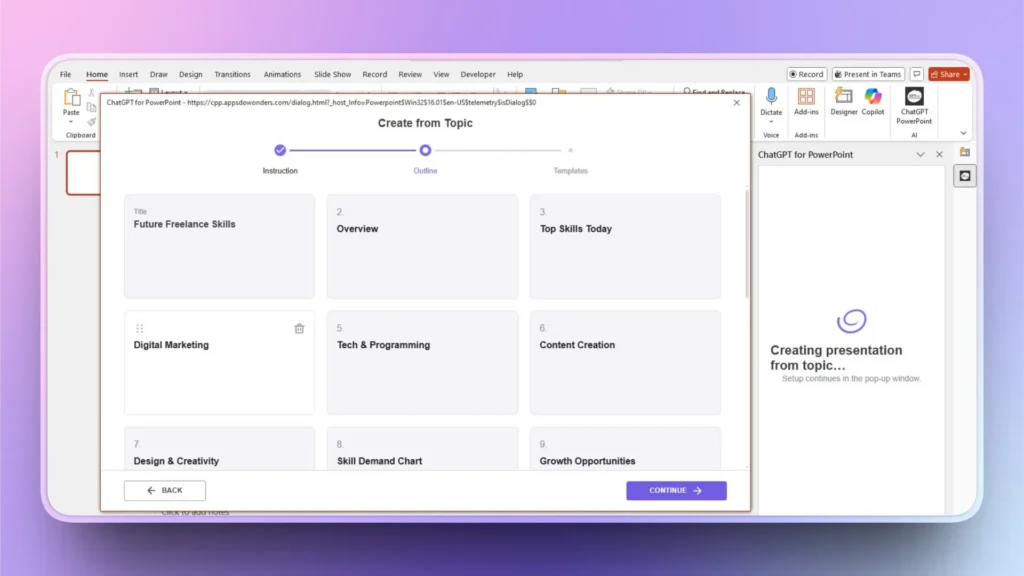
Twistly will generate an outline for the slides. You can view slide titles, delete, rearrange, or add slides at this step.
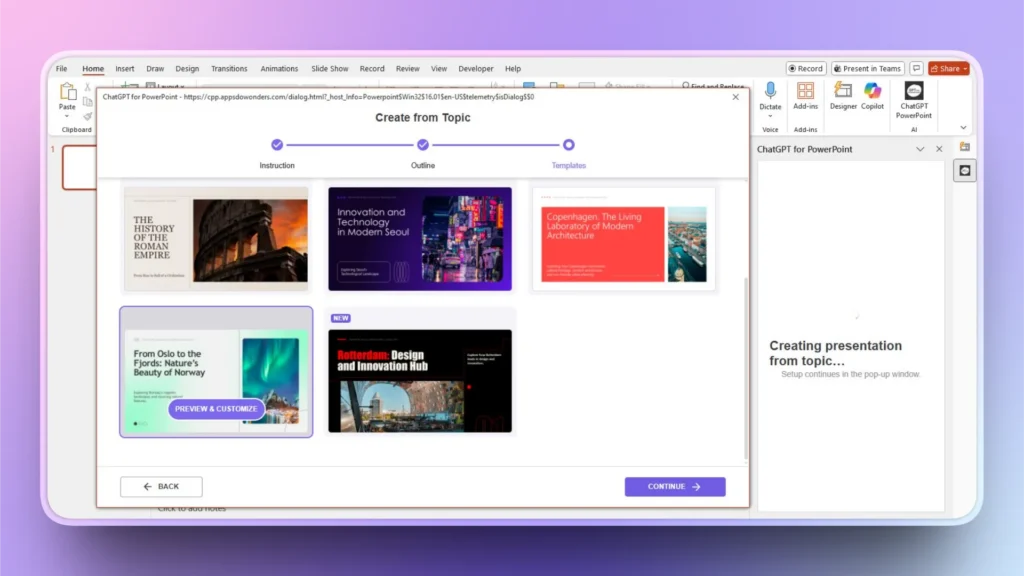
Step 4: Select an AI PowerPoint Template
Twistly has an impressive library of AI templates. These are unique and fully optimized templates for content-light and high-impact slides. Select any template that you like and press continue.
Users can also change the color of the template to match the presentation color with the overall branding.
Step 5: Review, Edit, or Present your Presentation
Within seconds, your content-light and high-impact slides will be ready. You can edit these slides by using Twistly AI features or PowerPoint tools.
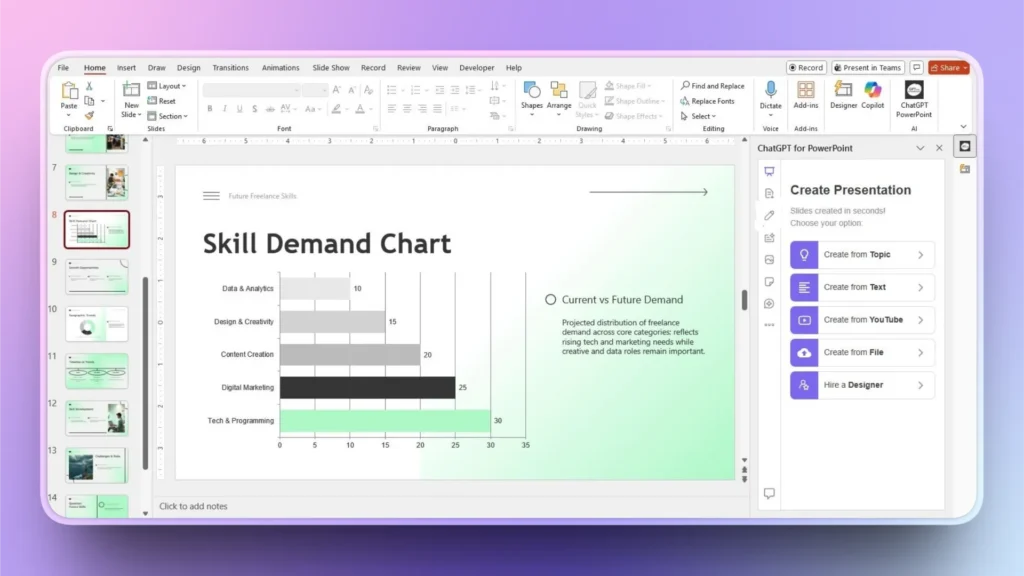
This whole process does not take more than a minute or two. On average, users can make a professional presentation with Twistly in less than 90 seconds after providing the topic.
How to Improve Content for Slides with Twistly?
You created a presentation with Twistly, but something does not seem right. It can happen, and there is nothing wrong with making edits to your content. You can rewrite text, make it longer, fix grammar mistakes, and perform other content-related tasks all inside Twistly.
Follow these steps to make any type of editing or changes to the content of any slide.
Step 1: Select Slide >> Rewrite Text
Open Twistly dashboard, select the target slide, and then choose the Rewrite Text option from the Twistly window.
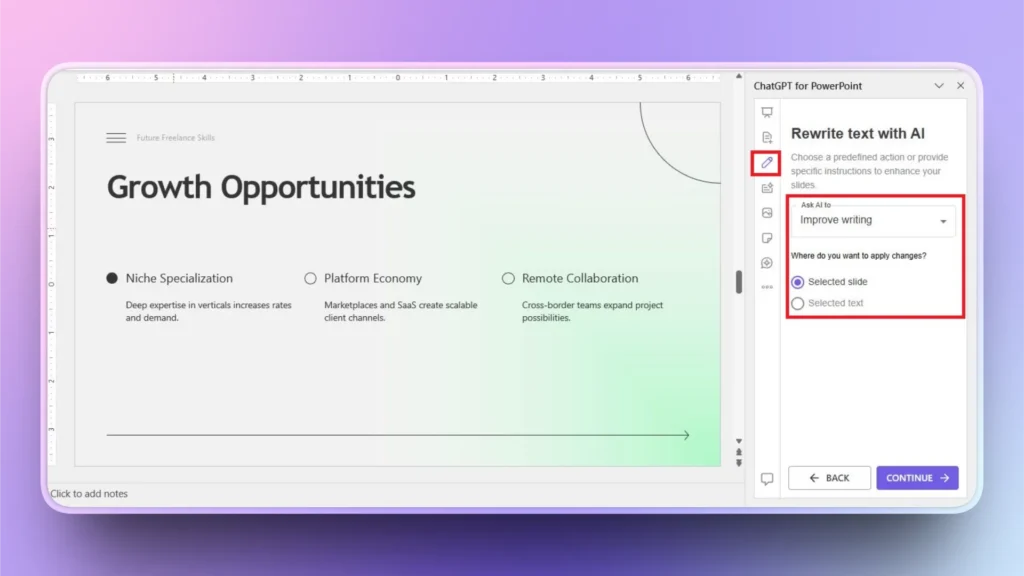
Step 2: Ask AI to Optimize Text
From the dropdown menu, choose the action that you want to perform on this slide. Let’s say we want to make the text longer for this slide.
You can also apply changes to the selected text or the entire slide.
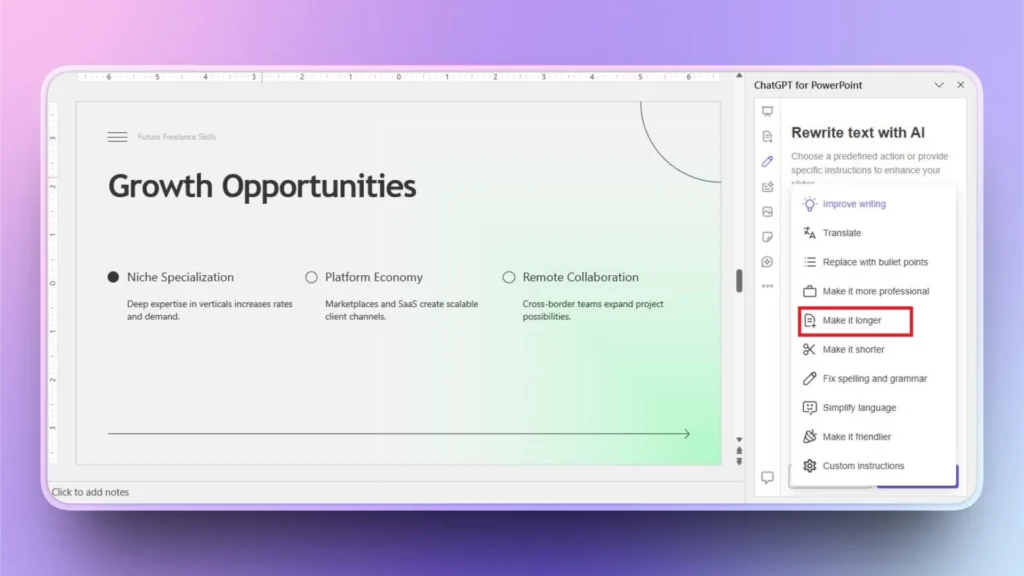
Step 3: Your Improved Text is Ready
Within a few seconds, a new version of the slide text will be ready. You can clearly see that the text is more detailed, polished, and still relevant to the topic of the slide.

Tips for Content-light, High-impact Slides
Twistly is designed to meet the needs of the diversity of PowerPoint users. Millions of people use Twistly to generate presentations for classrooms, online classes, business meetings, investment pitches, marketing campaigns, and lots of other tasks.
There is something for everyone. Whenever you feel that a presentation needs some additional touches or edits, let Twistly do the hard work for you. While creating content-light and high-impact slides, follow these tips:
- Stick to the “one slide, one message” rule for maximum engagement
- Use the rewrite feature in Twistly to improve, expand, or optimize your text
- Choose a PowerPoint template that matches the topic and audience
- Use a mix of text and images
- Include charts where possible. Twistly can also take care of charts and graphs.
- Add high-quality images only
- Keep a consistent color scheme throughout the slides
Conclusion
Twistly has AI PowerPoint templates that are designed for content-light, high-impact slides on any presentation topic. Not every user is good at designing professional slides, and even professional designers hate the time-consuming process of making.
Download Twistly now and claim your free trial version. To unlock all premium features and ChatGPT-like capabilities for PowerPoint, upgrade your Twistly subscription anytime.
Create PowerPoint Slides with AI
Build AI-powered presentations from any prompt, doc, or video












Start Making AI Presentations in Seconds
Instant Access
Begin exploring Twistly’s full suite of features immediately
No Commitments
No credit card required, and you can cancel anytime
Dedicated Support
Our team is here to assist you every step of the way during your trial.