



Presentations are not just about slides with a text box, images, and attractive colors. In the business world, a professional presentation is a strong communication tool that helps in strategic planning and decision-making.
McKinsey-style presentations are popular for their persuasive storytelling, structured layout, and clarity. Each slide in a McKinsey-style presentation has a single powerful insight, backed by clean design, logic, and data.
Creating a McKinsey-style presentation takes time, a deep understanding of the topic, and a smarter approach. Manual methods can take hours to create, edit, and review slides. We will learn how to create McKinsey-style presentations with AI.
What is a McKinsey-style Presentation?
Top management consultants and professional strategists use McKinsey-style presentations for highly disciplined communication. Core characteristics of a McKinsey-style presentation include:
- Each slide has one message only
- Top-down storytelling, which means that you give a conclusion first and explain later
- Mutually Exclusive, Collectively Exhaustive (MECE structure)
- Data-driven insights for clear decision-making
- Relevant visuals and action-oriented takeaways
In terms of structure, content, and layout, McKinsey-style presentations are harder to make and more detailed than conventional presentations.
Benefits of Using AI for McKinsey-style Presentations
The use of AI is not limited to McKinsey-style presentations only, but almost everyone is somehow making use of AI tools in daily tasks. Tools like Twistly can help you create McKinsey-style presentations with AI. A presentation made with Twistly requires the least editing.
Consulting firms and offices hire dedicated PowerPoint experts to create executive-level slides. AI ensures the same level of quality and effectiveness with the least effort. AI tools like Twistly can help you:
- Create, style, and finalize presentations quickly
- Generate compelling and executive-level headlines
- Convert raw data into statements
- Maintain the same formatting and logic for all slides
- Create and follow a hierarchy throughout the presentation
- Minimize the review cycles by generating accurate results
Creating McKinsey-style Presentations with AI
With any AI tool for presentations, the accuracy and detail of your AI prompts define the output. Make sure to spend some time on crafting prompts that cover every aspect that you want to explain in the slides.
Here are some simple steps that you can follow to create McKinsey-style presentations with AI or any other tool.
If you are not sure which AI tool works best for creating smart PowerPoint presentations, we will explain that in detail at the end. We have an amazing AI PPT maker that will totally change your PowerPoint experience.
Step 1: Start with the Pyramid Principle
In the pyramid principle, the main message comes first. You should start by focusing on the outcome first. Other parts of the slide should support your claim or outcome.
You can ask AI tools like ChatGPT, Gemini, or Twistly to create an outline for the topic for your presentation with supporting insights and data.
A sample AI prompt can be something like “Create a pyramid-structured outline for a board presentation recommending AI PPT maker entry into teaching industry for an online school.”
Step 2: Apply MECE Thinking
This approach ensures that arguments are complete and insights don’t overlap. You can also ask AI to turn messy paragraphs into organized bullet points.
If you are using Twistly to create McKinsey-style presentations with AI, turning a chaotic paragraph into bullet points is easy.
Go to the slide where you need structured content or data and then open Twistly >> Rewrite Text >> Replace with Bullet Points.
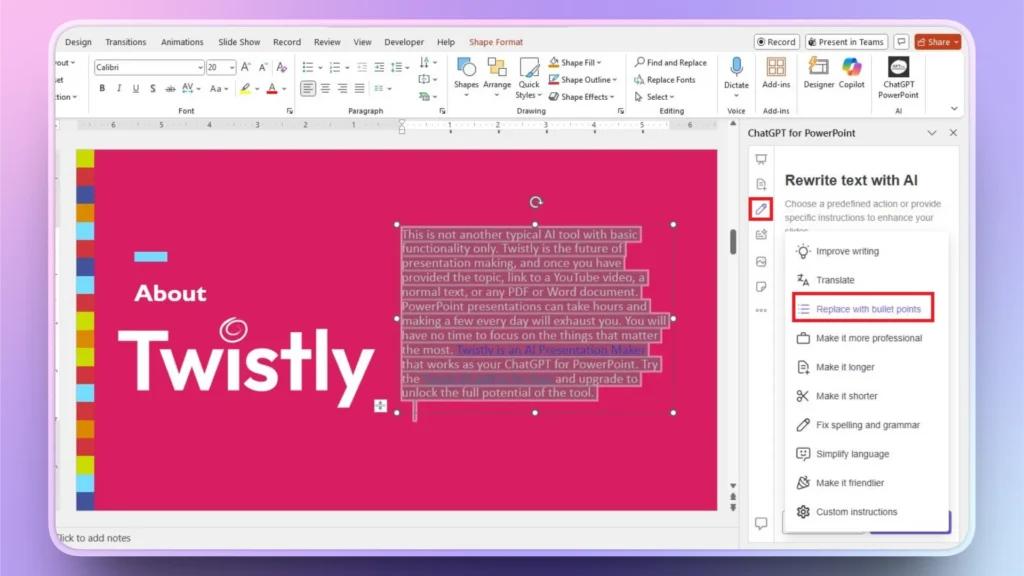
Choose the desired action from the list and click continue. Twistly will automatically turn a long paragraph into a clean and organized bullet list.
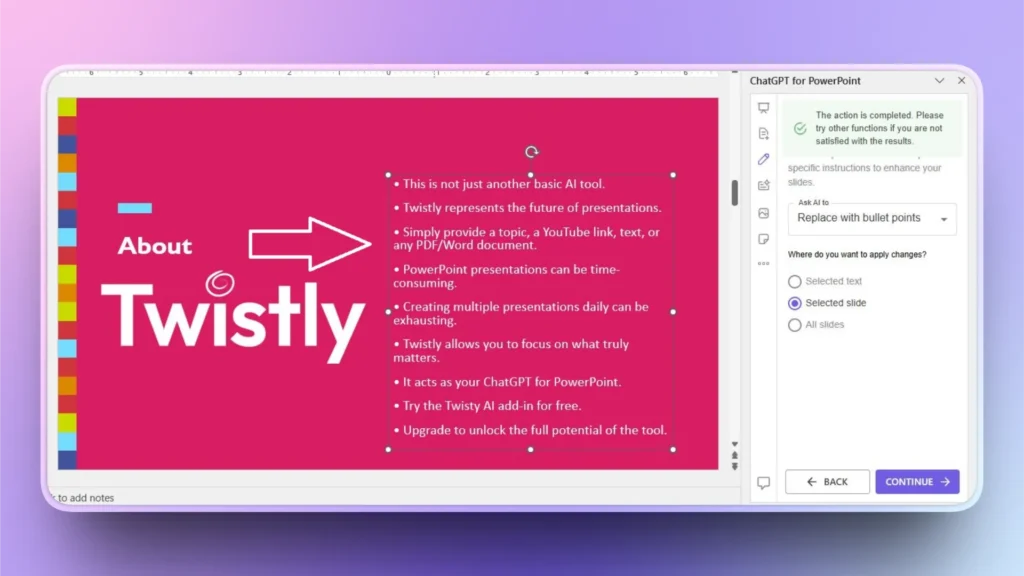
Step 3: Create Headlines with AI
Headlines are an important part of every slide. Headlines need to be short, compelling, and precise. Shorter and relevant headlines work the best, and you can ask ChatGPT to create different headlines for all slides.
While working with Twistly, users don’t have to worry about generating or creating every element separately. From writing content to writing headlines, everything happens smoothly, thanks to AI.
Step 4: Turn Data into Insights
Viewers and clients may not be as quick a learner as you. Consultants need to meet the understanding level of the audience. Instead of adding random figures and complicated reports, turn that data into charts and timelines.
Twistly has pre-defined slide structures for timelines, charts, and tables. You can explain your data in plain text or paste data into Twistly, and instant results will be offered.
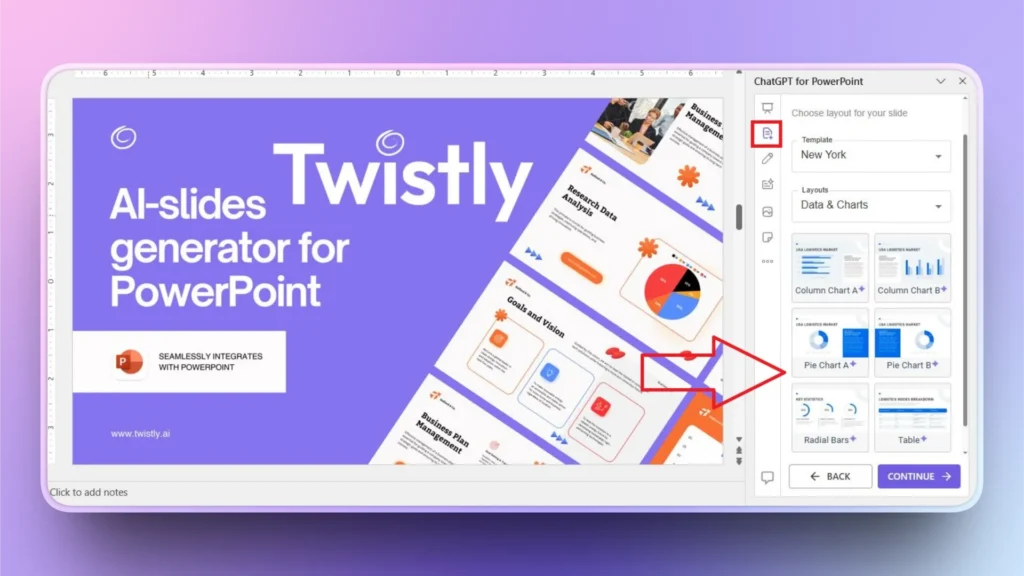
Step 5: Finalize Presentation Slides
Follow these same steps for every slide in your presentation and make sure each slide adds value, serves a special purpose, and explains one point only.
Once created, carefully review slides and check for grammar or spelling mistakes. Luckily, Twistly can review your existing presentations for any grammatical and spelling mistakes.
Step 6: Add Executive Summary
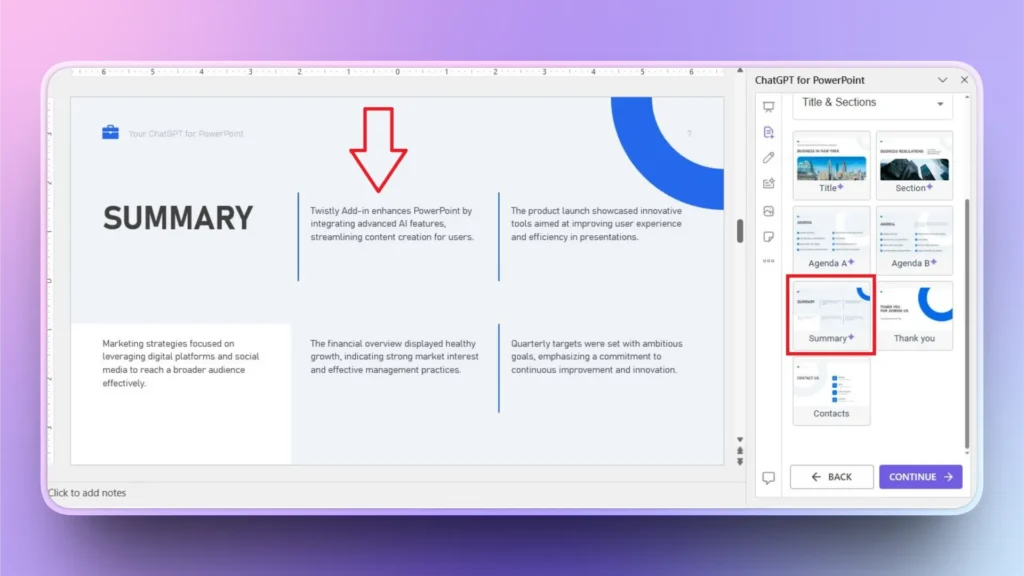
If your presentation has 50 slides, not all members have hours to sit through the presentation sessions. For such an audience, adding an executive summary is a smart move. Twistly allows users to add an executive summary to their presentation with one click.
Click the ” Add Slide option in Twistly and then select the Summary slide layout. Twistly will automatically analyze the context of all slides and instantly generate an executive summary that explains the core idea of all slides.
Best AI Tool for Creating McKinsey-style Presentations
Twistly is one of the most powerful and flexible AI tools for creating any type of PowerPoint presentation. Once your presentation is ready, you can easily edit it for a more personalized experience.
Try Twistly to create McKinsey-style presentations with AI for free. The trial version is available for new users for free. Click the link below to claim your free trial version.
Create PowerPoint
Slides with AI
Build AI-powered presentations from
any prompt, doc, or video


Final Words
Creating McKinsey-style presentations no longer requires years of consulting experience or endless late-night slide revisions. Use Twistly and get instant results. You can use AI to think, collect data, manipulate data, and simplify the overall design process.
Do you need a single AI tool that can take care of all needs related to PowerPoint presentations? Try Twistly for free and experience the true power of ChatGPT for presentations.











Start Making AI Presentations in Seconds
Instant Access
Begin exploring Twistly’s full suite of features immediately
No Commitments
No credit card required, and you can cancel anytime
Dedicated Support
Our team is here to assist you every step of the way during your trial.