



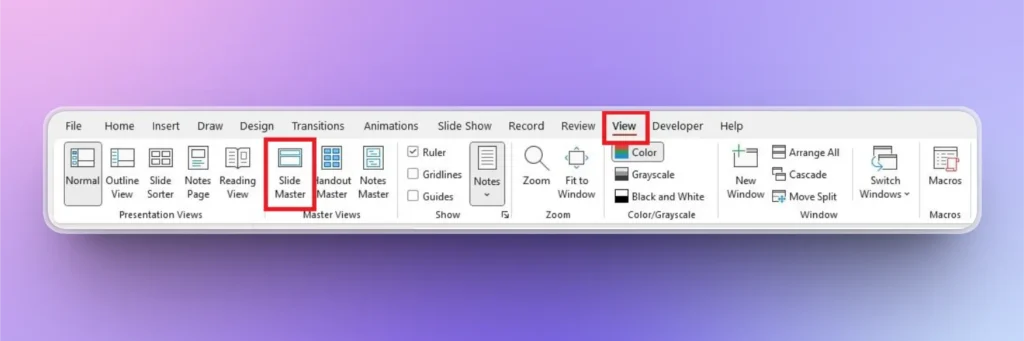
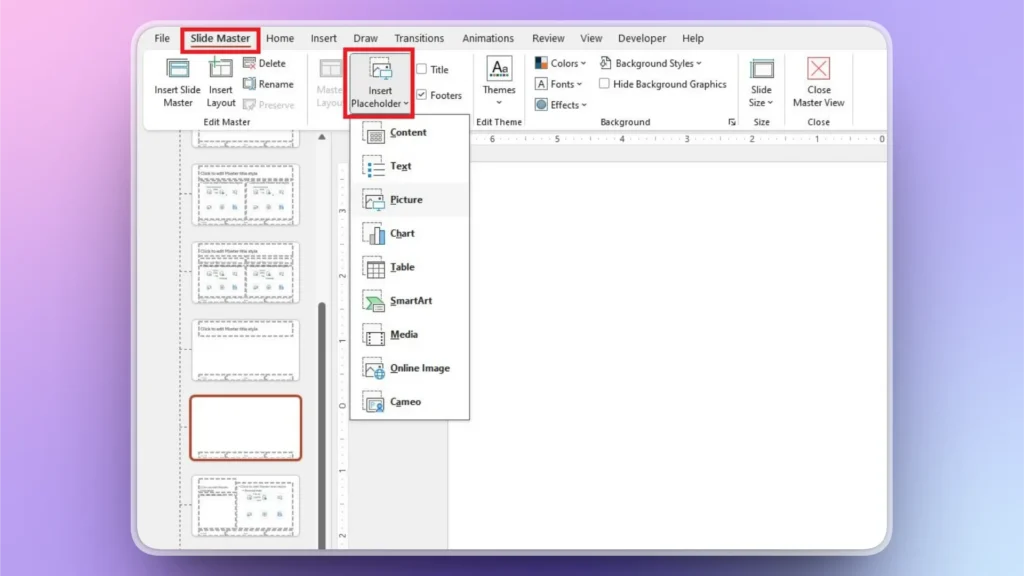
To use placeholders in PowerPoint, go to the View tab >> Slide Master >> Insert >> Placeholders and draw a placeholder on the slide where you want to place it. Learning how to use placeholders in PowerPoint allows for a smoother and faster workflow while making presentations.
A text box is not a placeholder because both elements have different functionalities and use cases. If you have been ignoring the use of placeholders in your PowerPoint presentations, you have been missing out on a great deal of automation and convenience.
¿Qué es un marcador de posición en PowerPoint?
PowerPoint placeholders are customizable and designated containers within the Slide Master that are used as templates for adding text, images, and other elements for a consistent design across the entire presentation.
An easier definition: placeholders are pre-defined containers that can have:
- Texto
- Imágenes
- Gráficos
- Tablas
- SmartArt
- Videos
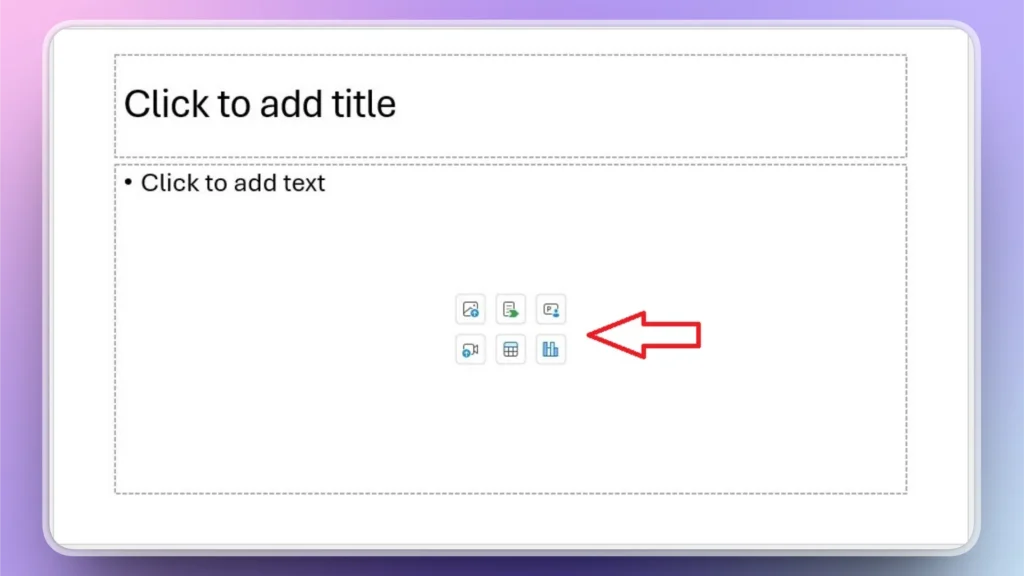
In a placeholder, you get buttons like “Click to Add Text” and “Click to Add Image.” When you upload content using these buttons, PowerPoint automatically formats the media or text according to the container, without any manual editing.
Types of Placeholders in PowerPoint
There are 7 common types of placeholders in PowerPoint, and each type entertains a unique type of content or input.
| Placeholder | Descripción |
| Title Placeholder | For slide headings |
| Content Placeholder | For text, images, charts, SmartArt, media |
| Picture Placeholder | For adding images and pictures |
| Chart Placeholder | Insert charts and graphs |
| Table Placeholder | Add tables |
| Media Placeholder | For video, audio, and other media |
| Footer Placeholder | For date, slide number, footer text |
Why Use Placeholders in PowerPoint
Manual text boxes are good for text only, but when it comes to multiple content types, placeholders are the professional and smoother solution. You must prefer using placeholders in PowerPoint because:
- All slides in a presentation follow a consistent design, offering a smoother layout
- You can easily edit or modify slides and add content to your placeholders
- Visual balance of placeholders makes your slide look professionally aligned
- Ideal features for creating templates for clients
How to Add Placeholders to PowerPoint?
Use the Slide Master View to insert placeholders into your slides. For a more detailed answer, follow these next steps to insert any type of placeholder into your slides.
Step 1: Enable Slide Master
Open the PowerPoint presentation and click the View tab, and then click the Slide Master. A dedicated Slide Master tab will appear in the top ribbon.
Step 2: Open Slide Master
Go to the Slide Master tab and then select any slide where you want to insert placeholders. Click the Insert Placeholder button and choose the type of placeholder you want to add to the slide.
Step 3: Draw a Placeholder on the Slide
After selecting the placeholder type, draw the container on the slide, and the placeholder will be inserted into the slide. You can drag or adjust the placeholder according to your design requirements.
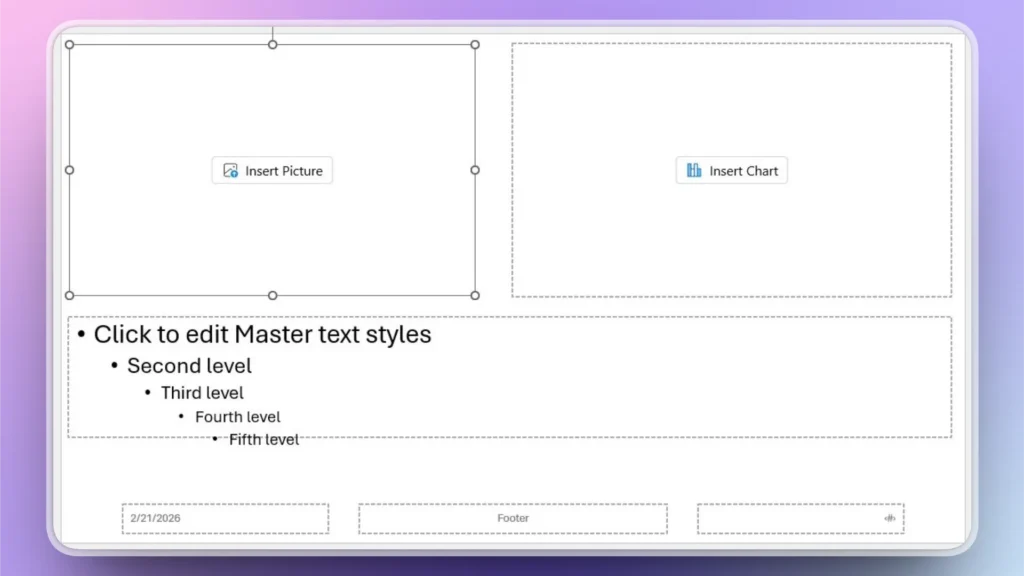
As you can see, we have added three different placeholders in one slide.
Now, close the Slide Master view, and you will be able to add images, tables, and text with one click within the designated container. This is how our final slide looks with all placeholders containing the content.
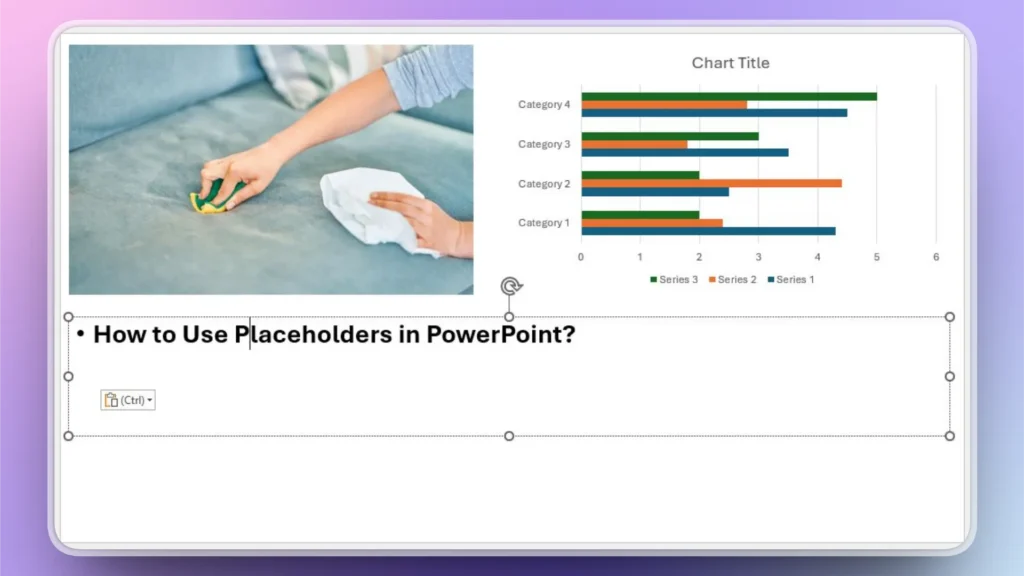
Note: Quick Placeholders for Slides
You can quickly access predefined placeholders for your existing template by using the New Slide button in the Home tab. Upon clicking the New Slide button, a drop-down menu appears with different slide templates.
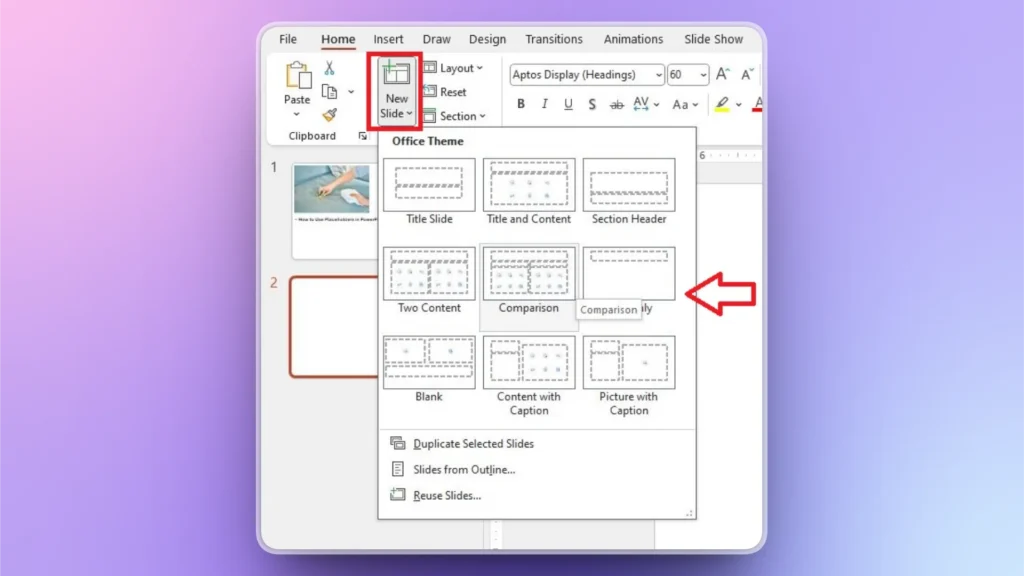
Every slide template has certain placeholders readily added to the layout. Pick any slide layout that you want, and PowerPoint will automatically show those placeholders on the slides.
Get Predefined Slide Layouts with Twistly
Even with this detailed guide, you may feel that adding a placeholder is a hassle. Not every PowerPoint user is comfortable with using the Slide Master and other complicated tools within the software.
Use Twistly for Instant and Professional PPT Slides
For a better and faster solution, you can use Twistly to make presentations or add custom slide layouts without placeholders. Instead of adding a placeholder for a chart, you can directly add a chart with a single AI prompt.
Similarly, Twistly allows you to add different types of slides to your existing or new presentation within seconds. No need to write content, find data, or design slides as AI is changing how you make presentations in PowerPoint.
How to Add Instant Slides with Twistly?
PowerPoint users need to install the Twistly add-in, and they are all set to enjoy the perks of a custom ChatGPT for PowerPoint. It takes just a few seconds to add a new slide from scratch.
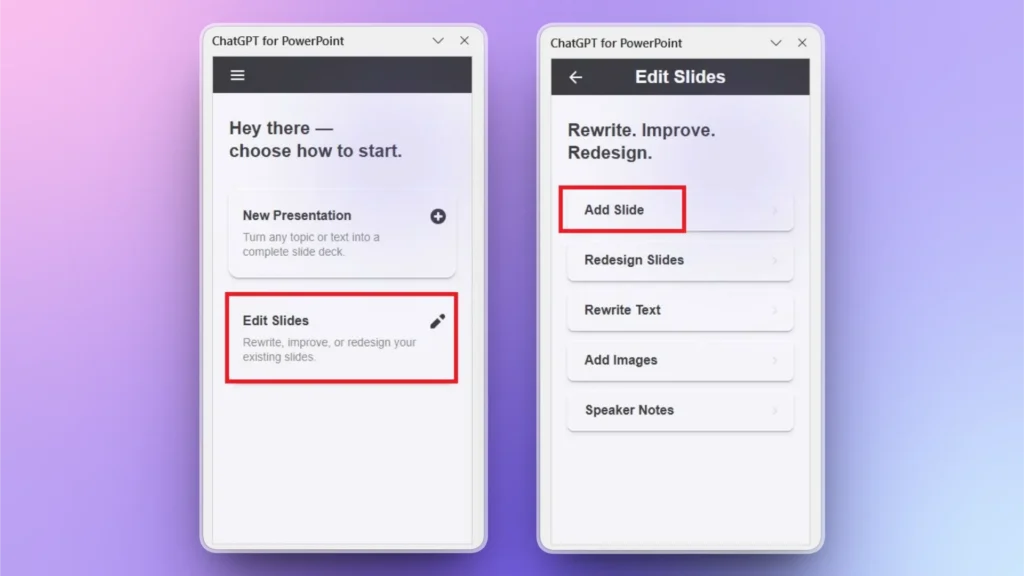
Paso 1: Abrir PowerPoint y Twistly
Open your existing or new presentation and launch Twistly. We are using an existing PPT for this tutorial.
Haga clic en Edit Slides y haga clic en Añadir diapositiva from the next window.
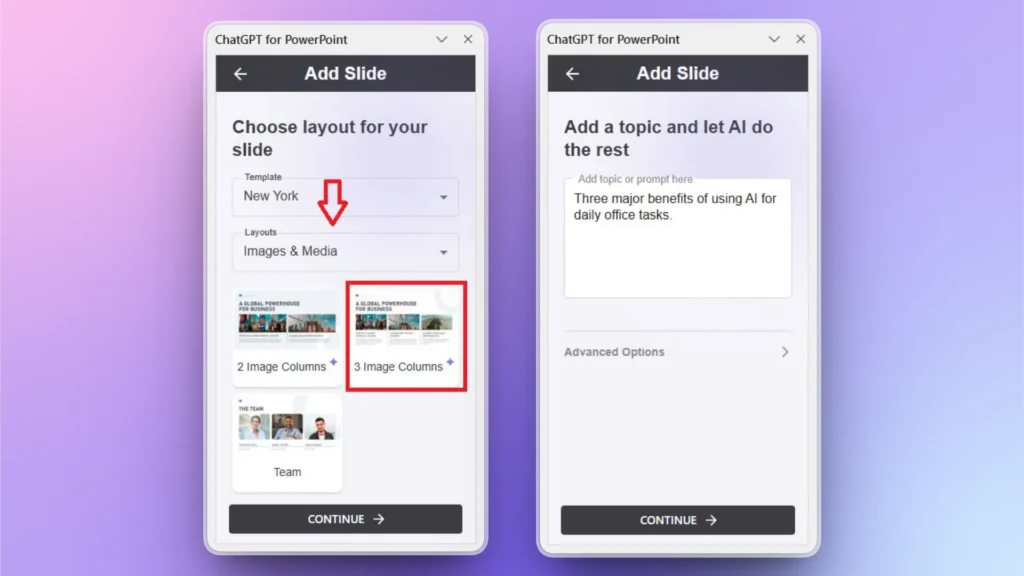
Step 2: Pick a Slide Layout and Describe it
Use filters to find the desired slide layout, and once found, click it and then explain what you want for the slide in your simple words.
Step 3: Review your Final Slide
Within seconds, Twistly will generate and insert a new slide into the presentation. Review it and use AI features to make any changes if needed.
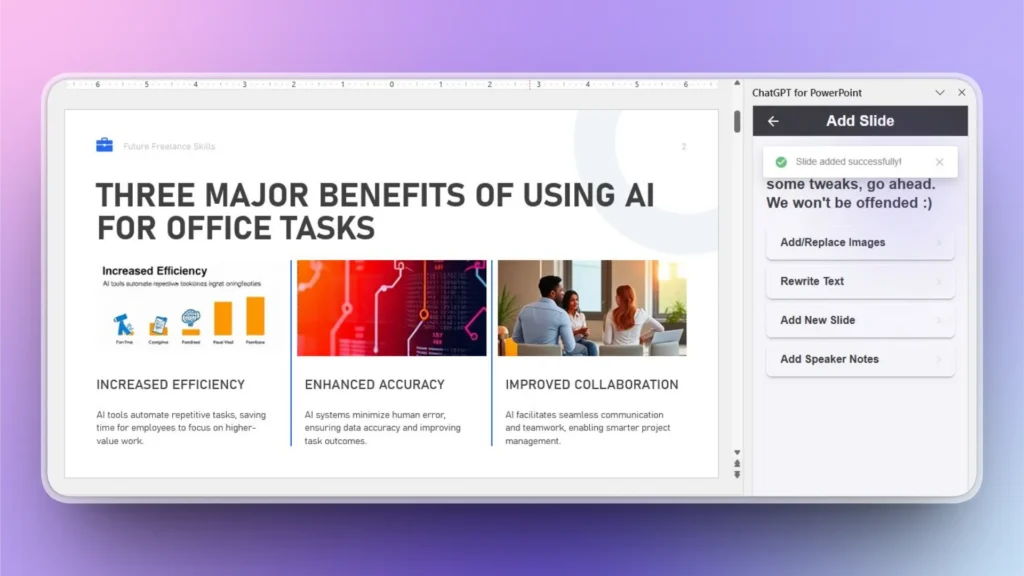
The generated slide not only has a well-structured layout, but all images, formatting, content, and design are done by AI, within seconds.
Descargar Twistly es gratis
Twistly is one of the most popular AI add-ins for PowerPoint users, and luckily, we have the free trial available for new users. If you want to try Twistly for free, click the link below and claim your trial.
Once satisfied, upgrade your subscription for a competitive price and enjoy unlimited AI features.
Crear diapositivas de PowerPoint con IA
Crea presentaciones basadas en IA a partir de cualquier mensaje, documento o vídeo

Palabras finales
Learning how to use placeholders in PowerPoint can improve workflow and offer easier ways to add media or text to your slides. If placeholders seem complicated, try Twistly and add custom slide layouts with AI, no editing or formatting required.










Empieza a hacer presentaciones con IA en segundos
Acceso instantáneo
Empieza a explorar inmediatamente todas las funciones de Twistly
Sin compromisos
No necesita tarjeta de crédito y puede cancelar en cualquier momento
Asistencia dedicada
Nuestro equipo está aquí para ayudarle en cada paso del camino durante su juicio.