



Un discurso de apertura es la presentación central de cualquier evento, ya sea para educar, motivar o proporcionar ideas estratégicas a la audiencia. Un discurso de apertura impactante requiere confianza, estructura y un profundo conocimiento del tema.
Figuras clave y expertos utilizan la IA para escribir el guión de un discurso de apertura para eventos corporativos, seminarios y otras ocasiones. Con una revisión manual, se pueden obtener mejores resultados con una herramienta de IA. El guión del discurso de apertura debe ser convincente, intimidatorio e inspirador.
Escribir unas líneas contundentes para un guión puede llevar horas. El bloqueo del escritor es una etapa difícil en la que las herramientas de IA pueden ser muy útiles para principiantes y expertos.
¿Qué es un discurso de apertura?
Un discurso de apertura es una presentación más larga y estructurada que suele pronunciarse en conferencias, actos corporativos o cumbres del sector. Se trata de una idea única y global que impregna todo el acto. Se diferencia de las presentaciones habituales en que se centra en un concepto amplio y unificador más que en detalles concretos.
El guión del discurso de apertura define el tono, el tema central, la perspectiva general y el propósito de todo el acto. En este artículo te ayudaremos a crear un guión potente y convincente para un discurso de apertura o cualquier otra presentación utilizando herramientas de IA.
Escribir el guión de un discurso de Keynote con IA
Las herramientas de IA son recursos valiosos para hacer presentaciones, diseñar diapositivas y redactar contenidos únicos y creativos. Tenemos que admitir que la IA no puede sustituir a la creatividad humana, pero puede ayudarte a sortear los retos que plantean los métodos manuales.
Puedes elegir cualquier herramienta de IA como ChatGPT, Gemini, u otros asistentes de escritura de IA para el guión, pero estos pasos siguen siendo los mismos para casi todas las herramientas de IA. También compartiremos una herramienta increíble que puede escribir contenido, diseñar diapositivas y darle una presentación de discurso de apertura lista para presentar en cuestión de segundos.
Paso 1: Aclare su objetivo y su público
Una vez elegida la herramienta de AI para escribir un guión, hay que definir el objetivo. Defina claramente si quiere educar, informar, motivar o persuadir a su audiencia.
Comprender al público objetivo puede ser muy útil y, si no dispone de esta información, pida a AI que analice el mercado objetivo de su producto o servicio.
Otra cosa importante que debe incluir en su AI es el objetivo principal que quiere que recuerde el público. El mensaje central del discurso debe estar claramente esbozado en su AI prompt.
Paso 2: Redactar la solicitud de IA completa
La precisión de los resultados de una herramienta de IA depende de los detalles descritos en el mensaje. Si incluye el objetivo, la audiencia y el mensaje principal en su mensaje, obtendrá un contenido más preciso. Algunos ejemplos de mensajes de IA pueden ser los siguientes:
Consigna 1: Crea un discurso de 10 minutos sobre resiliencia para un público de una startup.
Consigna 2: Escribe una sección inicial que llame la atención sobre el poder de la innovación.
Paso 3: Convertir el contenido en presentación
Una vez que se tiene el primer borrador del guión del discurso de apertura, no hace falta convertirlo en una conferencia. Con herramientas de IA como Twistly, los usuarios pueden convertir un discurso en diapositivas visualmente atractivas en PowerPoint. El proceso de convertir el guión del discurso de apertura en diapositivas es la parte más sencilla.
Twistly es un complemento de AI que funciona dentro de PowerPoint y no requiere cambiar entre aplicaciones y herramientas. Estos son los sencillos pasos que debes seguir para crear una presentación de PowerPoint atractiva e interactiva para un discurso de apertura.
- Abra PowerPoint e inicie Twistly, y elija la opción “Crear a partir de texto” y pegue el script.
- Establezca otras opciones como el tono de la presentación, el estilo y la audiencia
- Revise el esquema de diapositivas y, a continuación, seleccione la plantilla para la presentación
- Tus diapositivas estarán listas para que puedas presentarlas o editarlas con herramientas de AI o PowerPoint
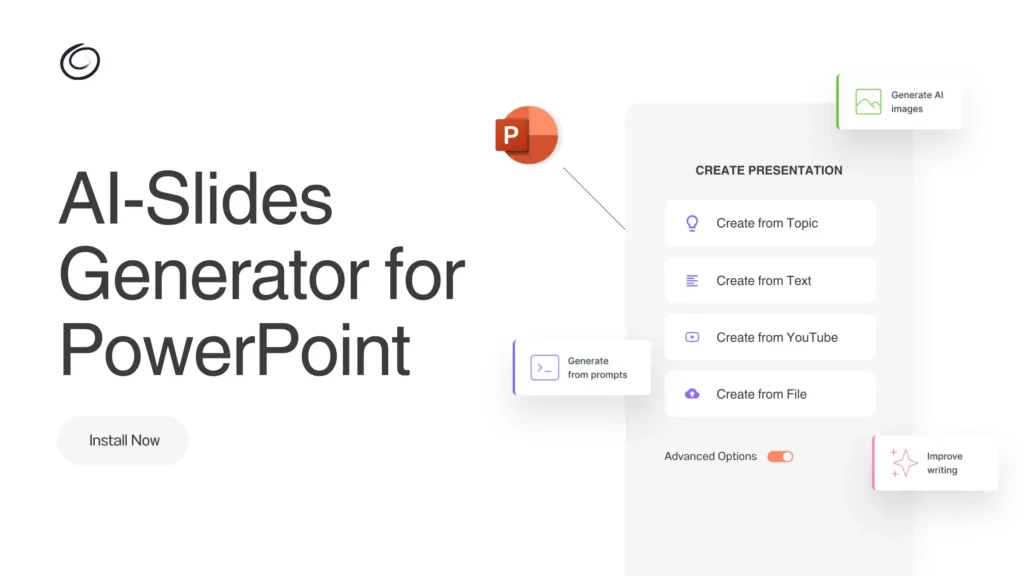
Nota: Escribir guión con Twistly
Twistly no es sólo un diseñador de diapositivas, sino un completo ChatGPT para PowerPoint. Si no tienes el guión pero quieres una presentación bonita y profesional para un discurso de apertura, elige el “Crear a partir de tema” y defina simplemente su objetivo, tema y audiencia.
La IA generará automáticamente la estructura, el contenido, el diseño y las diapositivas finales de tu discurso. Utilizar Twistly es la forma más sencilla de escribir un guión para un discurso de apertura utilizando IA. En lugar de utilizar varias herramientas, podrás realizar tareas completas dentro de PowerPoint.
Paso 4: Corregir o editar secciones
Si alguna sección o parte del discurso necesita algún cambio, utiliza la opción Reescribir texto de Twistly para cambiar el tono, añadir más contenido, hacerlo más profesional o convertir el texto en listas de viñetas. Con estos pequeños cambios, puedes mejorar la fluidez y la calidad de toda la presentación.
Por qué utilizar Twistly para las presentaciones
Herramientas como Twistly funcionan como ChatGPT para PowerPoint, donde puedes realizar casi cualquier acción relacionada con las presentaciones de PowerPoint. Incluso puedes generar imágenes AI con Twistly para tus presentaciones.
ChatGPT y Gemini son buenos recursos de IA para escribir contenidos, pero no ofrecen soporte directo para presentaciones de PowerPoint.
Con Twistly, has combinado el poder de un escritor de contenido de IA, un generador de imágenes de IA y un creador de PPT de IA dentro de PowerPoint. En lugar de utilizar varias herramientas de IA para el trabajo, instale Twistly y realice sus tareas rápidamente. Algunas de las principales ventajas de utilizar Twistly para escribir un guión para un discurso de apertura son:
- La IA acelera el proceso de escritura
- Aumenta la creatividad y la productividad
- La IA te ayuda a organizar tus pensamientos en un flujo lógico
- Ofrece muchas opciones de personalización con herramientas de IA
- Modelos lingüísticos avanzados para contenidos y diapositivas
Conclusión
Puedes seguir estos pasos para escribir un guión para un discurso de apertura utilizando ChatGPT o simplemente instalar Twistly para PowerPoint, una solución de IA todo en uno para PPT. Utiliza la IA como aliada, no como sustituta de la creatividad y las ideas humanas.
¿Quieres experimentar la potencia de la herramienta de IA más prometedora para PowerPoint? Descargue una versión de prueba gratuita de Twistly haciendo clic en el siguiente enlace y empiece a hacer presentaciones de IA gratis.
Crear PowerPoint
Diapositivas con IA
Cree presentaciones basadas en IA a partir de
cualquier mensaje, documento o vídeo


Empieza a hacer presentaciones con IA en segundos
Acceso instantáneo
Empieza a explorar inmediatamente todas las funciones de Twistly
Sin compromisos
No necesita tarjeta de crédito y puede cancelar en cualquier momento
Asistencia dedicada
Nuestro equipo está aquí para ayudarle en cada paso del camino durante su juicio.