


¿Cómo convertir la transcripción de un podcast en un PowerPoint?
Convertir la transcripción de un podcast en una presentación de PowerPoint permite a los vendedores y presentadores reutilizar su contenido en forma de diapositivas visualmente atractivas. Convertir manualmente una transcripción en una presentación puede llevar horas. Los presentadores y vendedores profesionales no disponen de tanto tiempo, y los principiantes no tienen estas habilidades.
¿Cuál es la forma más sencilla de convertir la transcripción de un podcast en una presentación de PowerPoint? En 2026, casi todos los atajos para una tarea manual implican algún tipo de herramienta de IA. Para ello contamos con Twistly, uno de los complementos de IA más populares para PowerPoint.
Twistly funciona igual que ChatGPT para presentaciones, ya que puedes hacer diapositivas, diseñar presentaciones completas, escribir contenido, traducir contenido y generar imágenes, junto con otras funciones geniales de IA.
¿Qué es la transcripción de un podcast?
La idea de un podcast es bastante popular, ya que se trata de un programa de audio digital que la gente puede escuchar en línea o descargar, normalmente publicado en episodios sobre temas específicos.
A transcripción del podcast es una versión en texto escrito de todo lo que se dice en un episodio de podcast. Muestra las palabras habladas en forma de texto, lo que facilita la lectura, la búsqueda y la comprensión del podcast.
Parte 1: Creación de una transcripción del podcast
El primer paso es crear una transcripción del podcast. Existen herramientas en línea y sitios web que puedes utilizar para generar transcripciones de tus archivos de vídeo y audio. Una vez que hayas creado el archivo de transcripción, descarga el archivo Word.
Las transcripciones de podcasts suelen ser conversacionales, lo que no se traduce directamente en diapositivas. Por eso, hay que limpiar el archivo antes de convertirlo en una presentación de PowerPoint. Antes de empezar a diseñar:
- Eliminar palabras de relleno (um, uh, ya sabes)
- Eliminar tangentes, bromas o discusiones fuera de tema
- Corregir la gramática y las frases largas
- Divida la transcripción en secciones o temas lógicos
Una vez que tengas una transcripción de podcasts limpia y depurada, estarás listo para el siguiente paso. Puedes dedicar horas a las presentaciones manuales o utilizar Twistly para realizar presentaciones rápidas y precisas.
Cualquier lector inteligente querría ahorrarse horas de trabajo manual, así que pasaremos directamente a la parte en la que te enseñamos a convertir la transcripción de un podcast en una presentación de PowerPoint con IA.
Parte 2: Convertir la transcripción del podcast en PowerPoint
¿Tiene un documento limpio y refinado, una transcripción de podcast? Si la respuesta es afirmativa, está a sólo unos segundos de hacer una presentación atractiva y profesional con ese archivo.
Sigue estos sencillos pasos y podrás hacer una presentación profesional en PowerPoint sin pasar horas diseñando diapositivas, escribiendo contenido o formateando cuadros. Todo sucederá automáticamente, gracias a los últimos modelos de IA de Twistly.
Paso 1: Inicie una presentación en blanco y ejecute Twistly
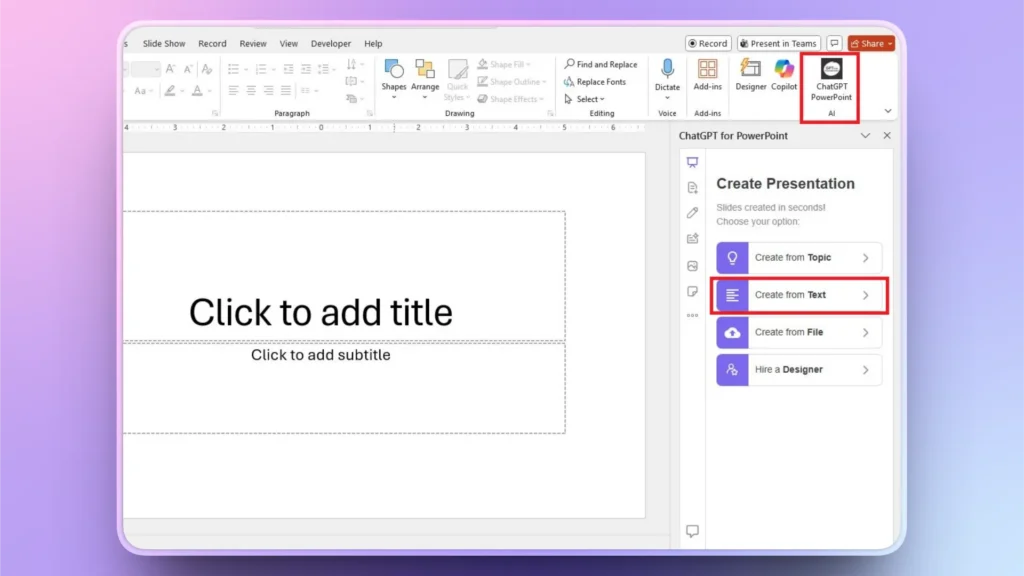
Abra su programa PowerPoint, inicie una presentación en blanco y, a continuación, ejecute Twistly. Puede elegir cualquier método de entrada en función de los datos o el material disponibles.
Como tenemos el archivo de texto o la transcripción del podcast, copiaremos el texto del archivo. Elige la opción “Hacer presentación a partir del texto”.
Paso 2: Introduzca el texto copiado
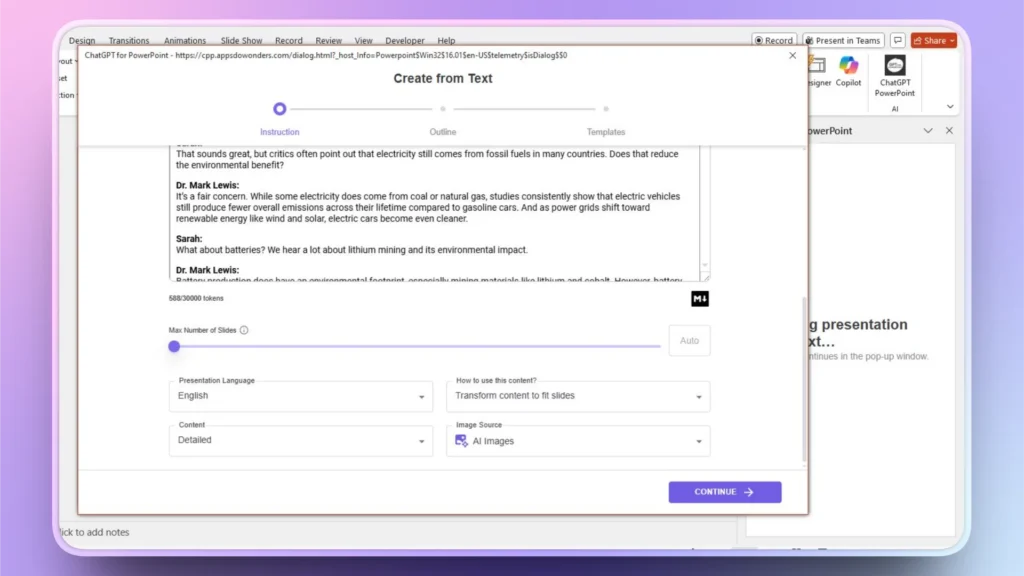
En la ventana emergente, pegue la transcripción del podcast copiada y elija otros ajustes según las necesidades de su presentación. Haz clic en Continuar para pasar al siguiente paso.
Paso 3: Revisar el esquema de diapositivas
Twistly le ofrecerá un posible esquema para las diapositivas de la presentación. Revise este esquema y haga cambios si es necesario, y una vez verificado, haga clic en Continuar y pase al siguiente paso.
Paso 4: Seleccionar una plantilla PowerPoint AI
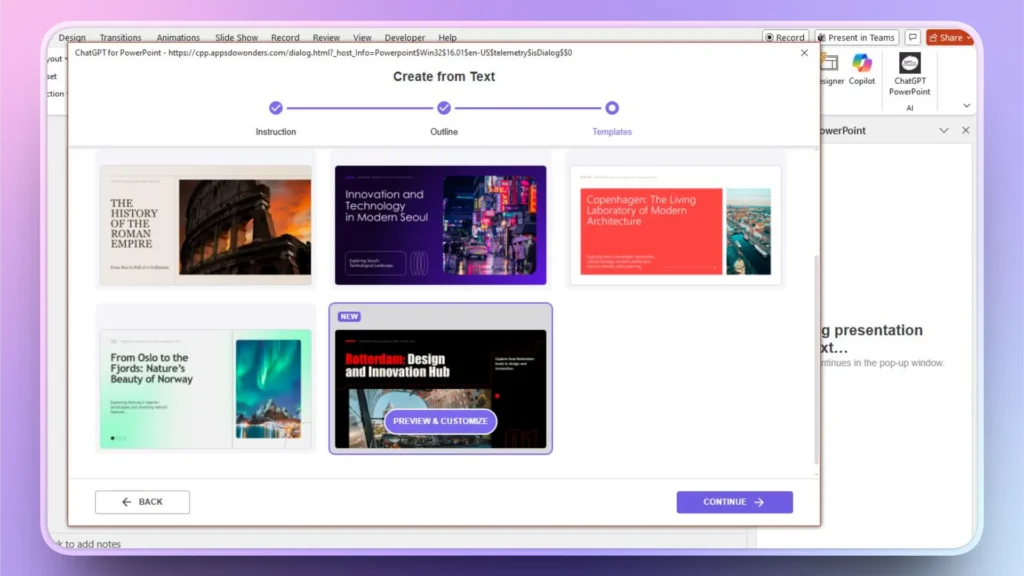
Twistly tiene algunas increíbles plantillas AI PowerPoint que son totalmente personalizables con herramientas AI y características de PowerPoint. Seleccione cualquier tema que le guste.
Puede previsualizar los diseños de las diapositivas e incluso cambiar el color de la plantilla. Una vez seleccionada, haz clic en Continuar y pasa al siguiente paso.
Paso 5: Revise y presente sus diapositivas
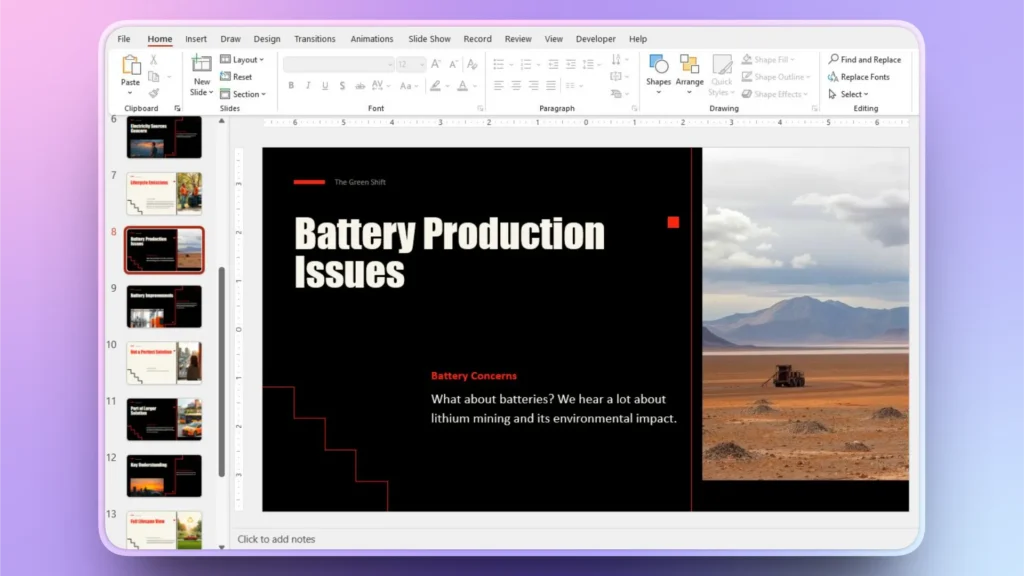
En unos segundos, Twistly creará las diapositivas finales con texto refinado, imágenes relevantes y diseños atractivos. Puedes revisar las diapositivas y realizar cualquier cambio según los requisitos del proyecto.
Explore nuevos públicos con presentaciones visualmente atractivas
A algunas personas no les gusta escuchar podcasts de una hora y quieren una versión más sencilla y fácil de digerir. Te permite destacar las ideas clave de la conversación. Las presentaciones en PowerPoint también hacen que el contenido sea más accesible y atractivo para diferentes audiencias y casos de uso.
Puede compartir estas presentaciones de PowerPoint con un público nuevo y crear identidad y autoridad de marca. Procesar la información de una presentación de PowerPoint es mucho más fácil que leer una larga transcripción de un podcast.
¿Por qué convertir la transcripción de un podcast en una presentación de PowerPoint? Algunas de las principales ventajas de este enfoque son:
- Facilita la asimilación de debates complejos
- Ahorra tiempo reutilizando contenidos existentes
- Mejora el compromiso con la narración visual
- Llega al público que prefiere los contenidos visuales
- Apoyo a reuniones, formación, seminarios web y marketing
- Mejora la accesibilidad para usuarios con deficiencias auditivas
- Crea activos compartibles a partir de un único episodio de podcast
¿Cómo optimizar las presentaciones para lograr una mayor participación?
Mucha gente piensa que crear presentaciones profesionales en PowerPoint requiere mucha experiencia y práctica. Esto era cierto antes del lanzamiento de Twistly. Ahora, con este complemento de IA, cualquiera puede generar diapositivas impresionantes utilizando diferentes métodos de entrada en cuestión de segundos.
Ni siquiera necesitas ser bueno diseñando, formateando o escribiendo. Twistly se encargará de todo. Todo lo que tienes que hacer es descargar la versión de prueba gratuita haciendo clic en el enlace que aparece al final del artículo. Si quieres algunos consejos de expertos para optimizar tus PPT y conseguir el máximo engagement:
- Una idea por diapositiva
- Menos texto, más claridad
- Utilizar elementos visuales para reforzar
- Los títulos de las diapositivas deben tener sentido
- Deja que las notas del orador se ocupen de los detalles
Palabras finales
Puedes convertir fácilmente una transcripción de podcast en una presentación de PowerPoint con Twistly, ya que sólo tienes que pegar el texto y esperar. Twistly es una potente herramienta de presentación de IA que puede convertir cualquier tema, mensaje de IA o documento en atractivas diapositivas. Haz clic en el siguiente enlace para iniciar tu versión de prueba gratuita.
Crear diapositivas de PowerPoint con IA
Crea presentaciones basadas en IA a partir de cualquier mensaje, documento o vídeo


Empieza a hacer presentaciones con IA en segundos
Acceso instantáneo
Empieza a explorar inmediatamente todas las funciones de Twistly
Sin compromisos
No necesita tarjeta de crédito y puede cancelar en cualquier momento
Asistencia dedicada
Nuestro equipo está aquí para ayudarle en cada paso del camino durante su juicio.