



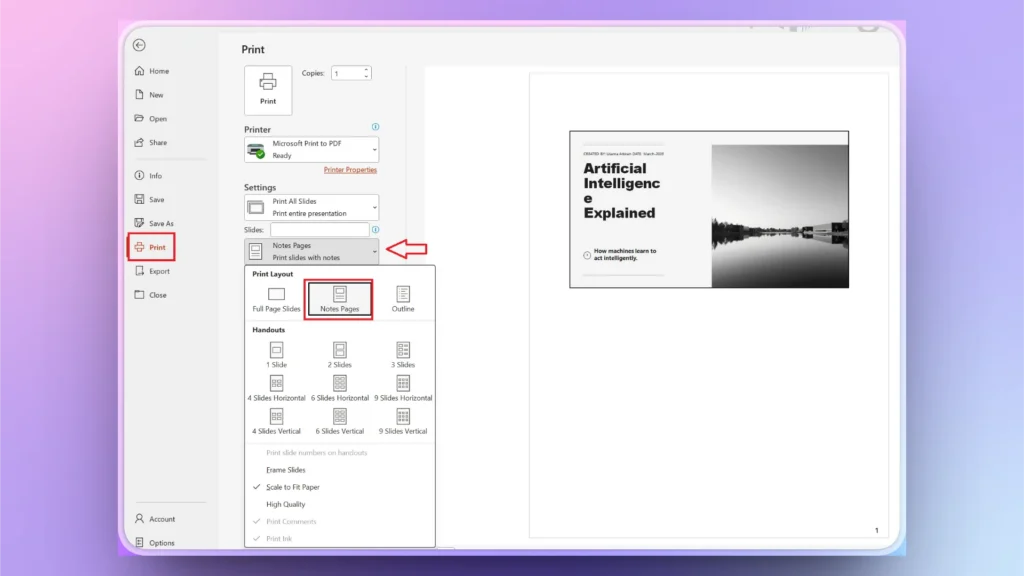
To print PowerPoint speaker notes, go to File >> Print >> select Printer from Settings and then select Notes Pages. These settings will print one slide with notes per page. PowerPoint will print slide thumbnails by default.
In this article, we will learn how to print PowerPoint speaker notes with and without slide thumbnails. If you don’t know how to generate speaker notes with AI, we will help you with writing speaker notes for selected or all slides within seconds.
¿Qué son las notas de orador en PowerPoint?
Speaker notes in PowerPoint are the additional text under each slide that help the presenter remember the key points. You can add any additional information or data in the speaker notes section.
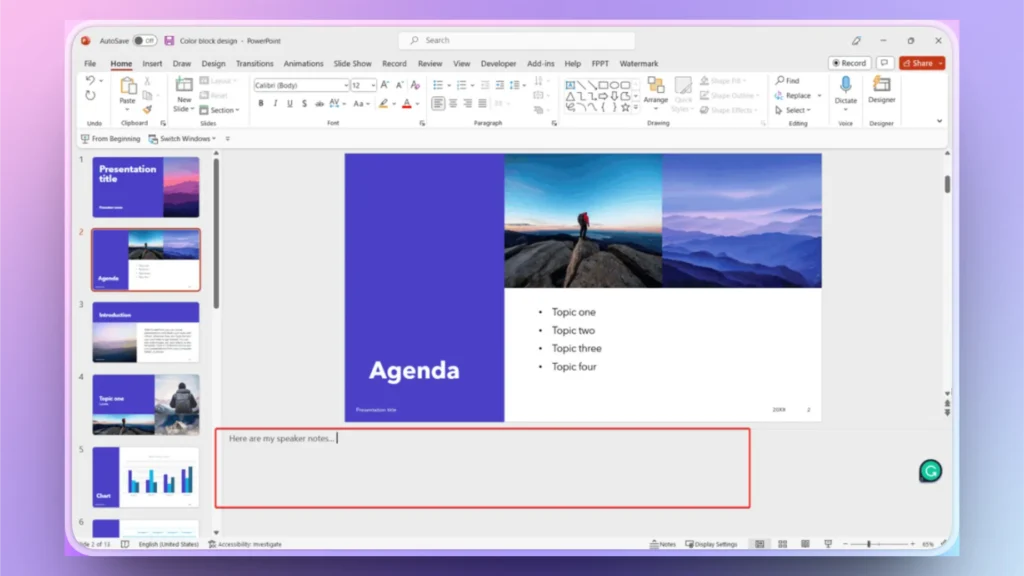
Speaker notes are not visible to the audience during the slideshow, and you can also print speaker notes for offline use. This image will help you locate the speaker notes section in PowerPoint.
Method 1: Print PowerPoint Speaker Notes with Slide Thumbnails
This method of printing speaker notes with slide thumbnails is useful when you have many slides in a presentation. Thumbnails help you easily identify the notes for the corresponding slide.
Here is how to print PowerPoint speaker notes with slide thumbnails. Make sure you have a functional printer attached to your computer.
- Open the PowerPoint presentation with speaker notes and click Archivo >> Print.
- Select your attached printer under the Printer settings
- Haga clic en Settings >> Print Layout y seleccione Notes Pages
- Haga clic en Imprimir, and your selected slides or entire presentation with Speaker notes will be printed
Method 2: Print Notes Pages without Slide Thumbnails
Sometimes you might want to print the speaker notes text only without the thumbnail for each slide. Method 1 of printing speaker notes will print thumbnails by default.
In this method, we first need to delete thumbnails for each slide in the presentation. This method works best for smaller presentations because you will have to manually remove thumbnails from each slide.
Step 1: Remove Thumbnails from Slides
Removing thumbnails from slides in Notes Page view will not delete or remove thumbnails for slides in Normal View. Original slides for the presentation remain the same even if you delete thumbnails from the Notes Page View.
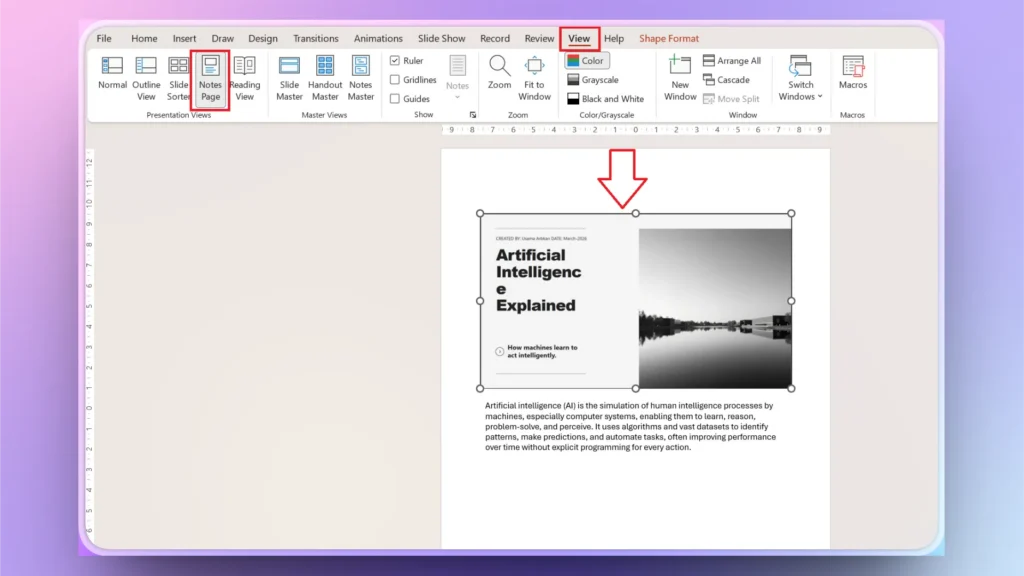
- Open your PowerPoint presentation and click the View tab from the top ribbon.
- Click the Notes Page view button and then select the thumbnail from the slide.
- Press the Delete button to remove the slide thumbnail
- Remove thumbnails from all slides
Step 2: Print Speaker Notes
You have removed thumbnails from all slides. Now, follow the same steps as Method 1 to print PowerPoint speaker notes.
File >> Print >> Settings >> Page Layout >> Notes Pages >> Print
How to Hide and Show Speaker Notes in PowerPoint?
In Normal View, speaker notes are visible under each slide. If there are no notes for a slide, a text box will appear empty.
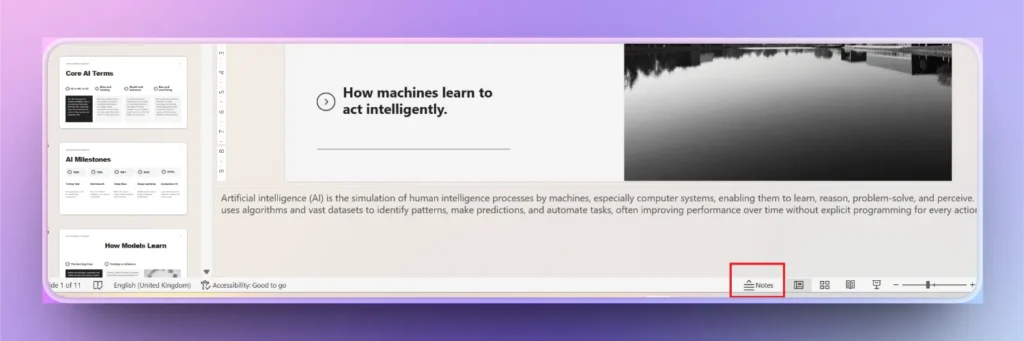
What if you want to hide that section, whether it has notes or not? With a single click of a button, you can hide or view the speaker notes section in PowerPoint.
Under the speaker notes, there is a dedicated Notes button; click that button to show or view the speaker notes.
How to Generate Speaker Notes with AI?
Once you know where to add additional data for the slide, presenting your topic becomes easier. But there is a problem with speaker notes: they take hours to generate.
If you have 30 or more slides, imagine how much time you need to write speaker notes for each slide. It will take you hours to write speaker notes in PowerPoint.
There should be an easier way to generate speaker notes for PowerPoint presentations. If you are still struggling with manual speaker notes, you need to try Twistly for PowerPoint.
Crear PowerPoint
Diapositivas con IA
Cree presentaciones basadas en IA a partir de
cualquier mensaje, documento o vídeo


Generar notas de orador con Twistly
Twistly is an AI add-in for PowerPoint that can generate complete slides from scratch, edit existing presentation slides, or generate AI speaker notes within seconds.
There are many other AI features that can elevate your PowerPoint experience. Here is how to generate AI speaker notes with Twistly.
Paso 1: Abrir PowerPoint y Twistly
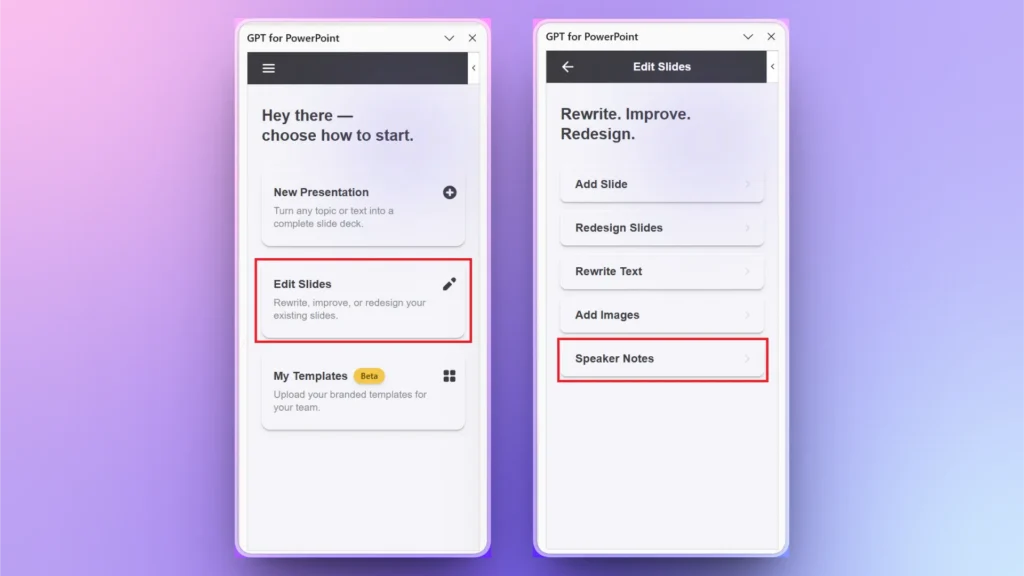
Open your PowerPoint presentation and then launch the Twistly add-in. A new pane will appear where you can find all AI options for PowerPoint presentations. Click Edit Slides >> Speaker Notes.
Step 2: Generate Notes
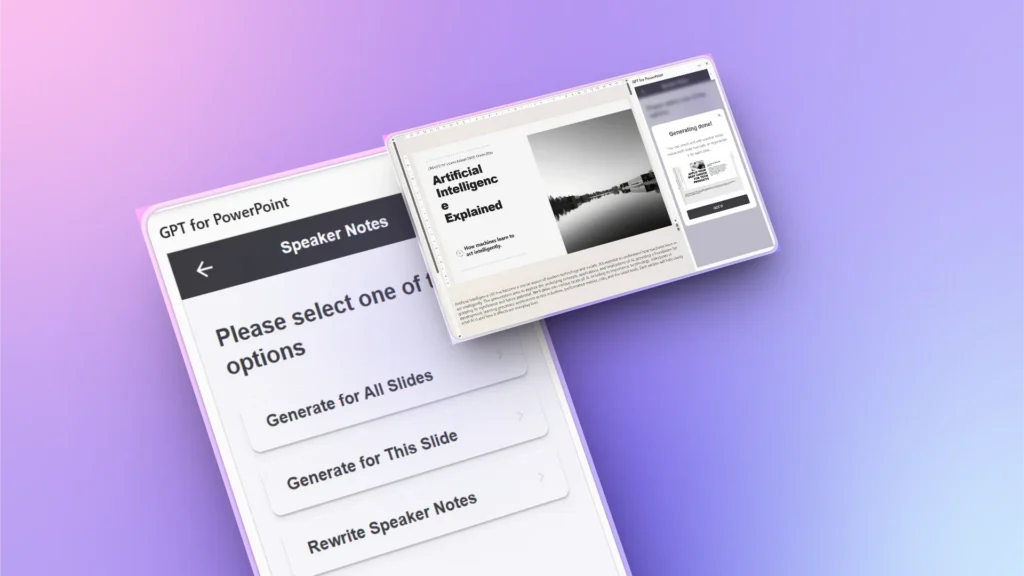
Select whether to generate notes for the selected slide, all slides, or rewrite notes. You can choose any action, and Twistly will generate PowerPoint speaker notes within seconds.
Best Practices for PowerPoint Speaker Notes
Creating relevant and well-structured speaker notes can take hours, but Twistly makes it possible for PowerPoint users to write notes within seconds. From single slides to entire presentations, Twistly is the best AI speaker notes generator for PowerPoint.
Here are some common practices that help you get the best and most relevant speaker notes for your presentations.
- Keep notes concise and readable
- Use bullet points instead of long paragraphs
- Increase font size for easier reading
- Test print one page before bulk printing
Consigue Twistly gratis
Twistly is one of the most popular and highest-rated AI add-ins for PowerPoint. If you are new to Twistly and want to experience it for free, use the link below to claim your free trial.
Without any financial commitment or credit card information, start your free trial now. Download Twistly and enjoy hassle-free PowerPoint presentations.
Crear diapositivas de PowerPoint con IA
Crea presentaciones basadas en IA a partir de cualquier mensaje, documento o vídeo

Conclusión
By using the Notes Pages option and previewing your layout, you can print PowerPoint speaker notes with or without slide thumbnails.
If you want to create speaker notes quickly and get additional data to support your argument, use Twistly and enjoy custom ChatGPT for PowerPoint.










Empieza a hacer presentaciones con IA en segundos
Acceso instantáneo
Empieza a explorar inmediatamente todas las funciones de Twistly
Sin compromisos
No necesita tarjeta de crédito y puede cancelar en cualquier momento
Asistencia dedicada
Nuestro equipo está aquí para ayudarle en cada paso del camino durante su juicio.