



To make a photo collage in PowerPoint, select and add multiple images to your slide and then use the Picture Layout de la Formato de imagen tab. Designer tool can also be used to make a photo collage in PowerPoint.
When you need to add multiple images to a single slide, properly formatting them is important. PowerPoint offers several readily available layout options that can help you organize different images on one slide.
The Designer tool is useful when you don’t need a customized layout, but for a unique layout and styling, manual edits may be required. In this article, we will explore popular ways to make a photo collage in PowerPoint.
What is a Photo Collage in PowerPoint?
A photo collage in PowerPoint is a layout where multiple images are arranged creatively on a single slide. You might have already seen photo collages on social media, and the idea is the same for collage in PowerPoint.
A photo collage is a powerful visual tool for presentations where different images or photos are necessary. For business presentations, you rarely need several images per slide.
It can be symmetrical, grid-based, or freeform, depending on your design style and purpose. Where to use a photo collage in PowerPoint presentations? Common uses of photo collages include:
- Presentaciones comerciales
- Social media content mock-ups
- Event highlights
- Vitrinas de productos
- Personal albums
Making a Photo Collage in PowerPoint
If you are not good with advanced photo editing tools and want to make a photo collage in PowerPoint, there are multiple options available. As all users have a Designer subscription, we will discuss the manual method, too.
Method 1: Make a Photo Collage with Picture Layout
When you select any image in PowerPoint, a dedicated Picture Format tab appears in the top ribbon. We will use this tab to make a photo collage in PowerPoint.
Step 1: Select and Add Multiple Photos to your Slide
Select photos or images from your computer that you want to add to the presentation, and then drag and drop the selected images onto your slide. You can add images via the Insert option, too.
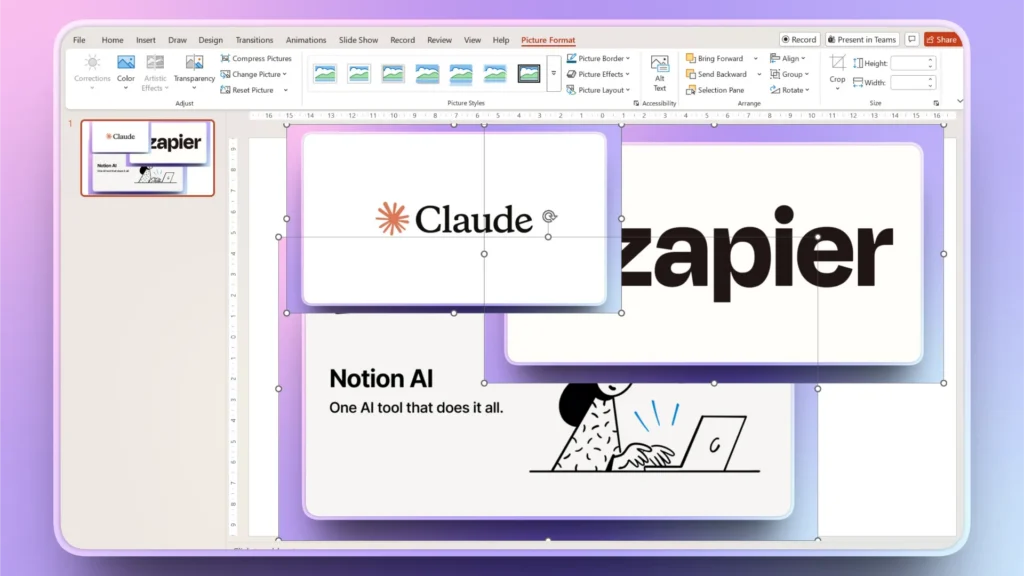
Step 2: Picture Format >> Picture Layout
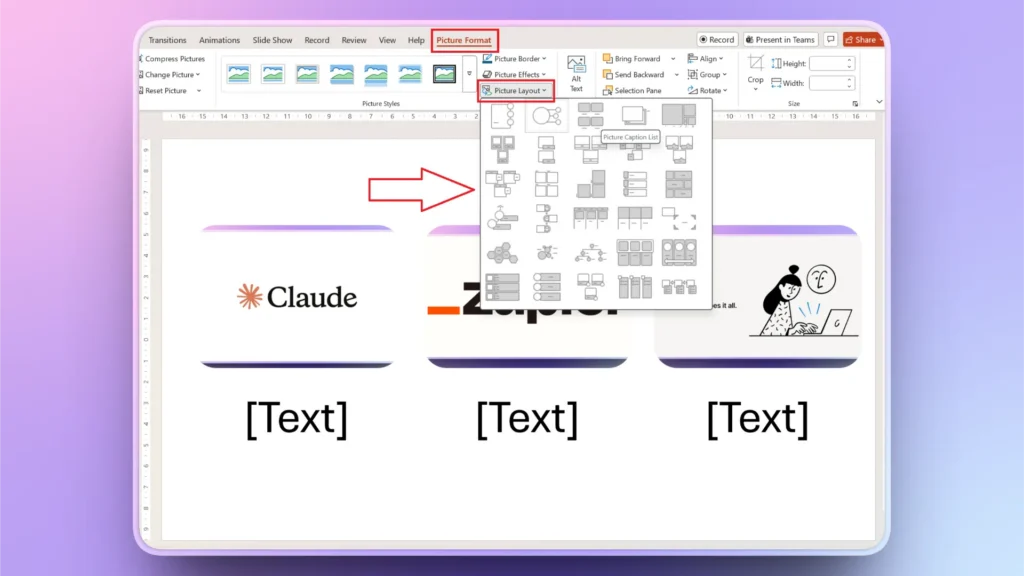
Select all images from the slide and go to the Picture Format tab, and then click the Picture Layout option.
Here, you will find several layouts available that you can try for your images by hovering your mouse over any style.
Click any layout that you want for your photo collage, and your images will be automatically arranged.
Method 2: Make a Photo Collage Manually
You did not find the desired layout in the Picture Layout menu, and now you want to arrange images according to your own design requirements. Here is how to create a photo collage manually in PowerPoint.
Step 1: Add Images to your Slide
Drag and drop multiple images to your slide that you want to use for making a photo collage in PowerPoint.
Step 2: Arrange, Resize, and Crop Images
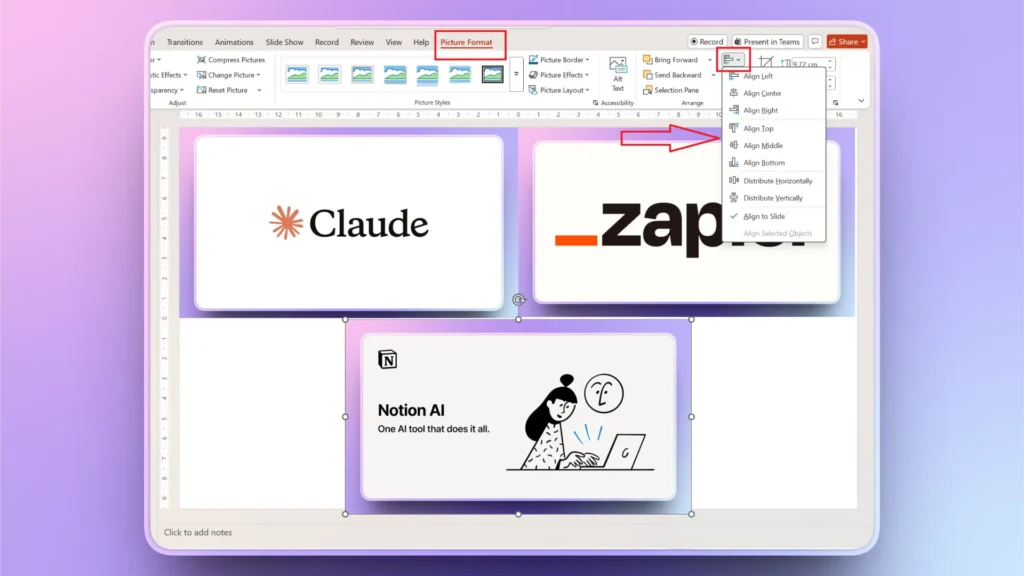
Once you have all the required images on your slide, you need to make manual changes to arrange these images on your slide.
This step will take some time, and you must have a clear design idea that you want to achieve for your photo collage.
You can use the alignment tool from the Picture Format tab for better visual consistency.
Method 3: Use the Designer Tool to Make a Photo Collage
Another easy option to make a photo collage in PowerPoint is to use the Designer Tool. For Microsoft Office subscribers, the Designer Tool is automatically enabled for PowerPoint. If you are using the free version of the software, you may not see the Designer tool in your top ribbon.
Step 1: Open Designer Tool
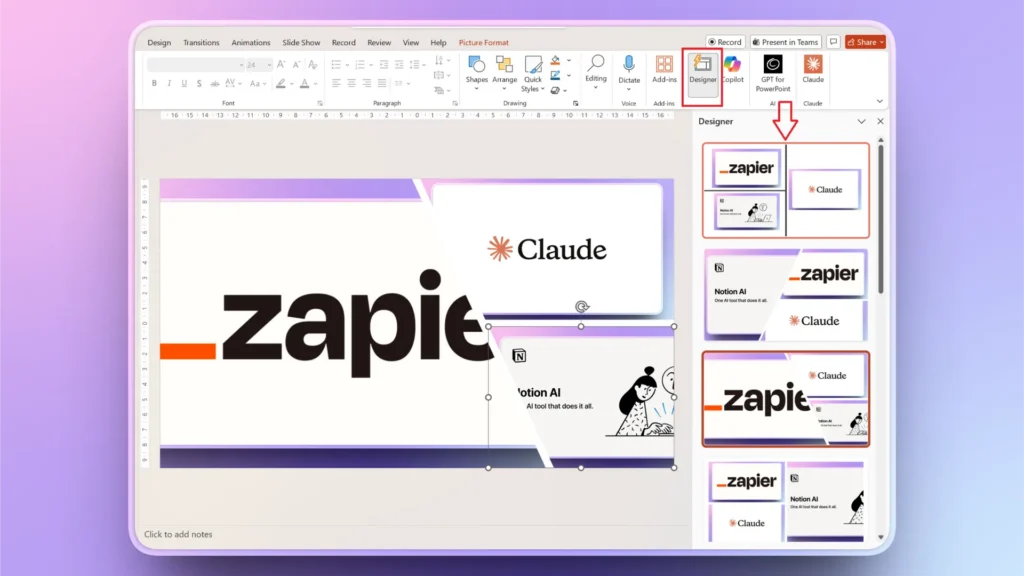
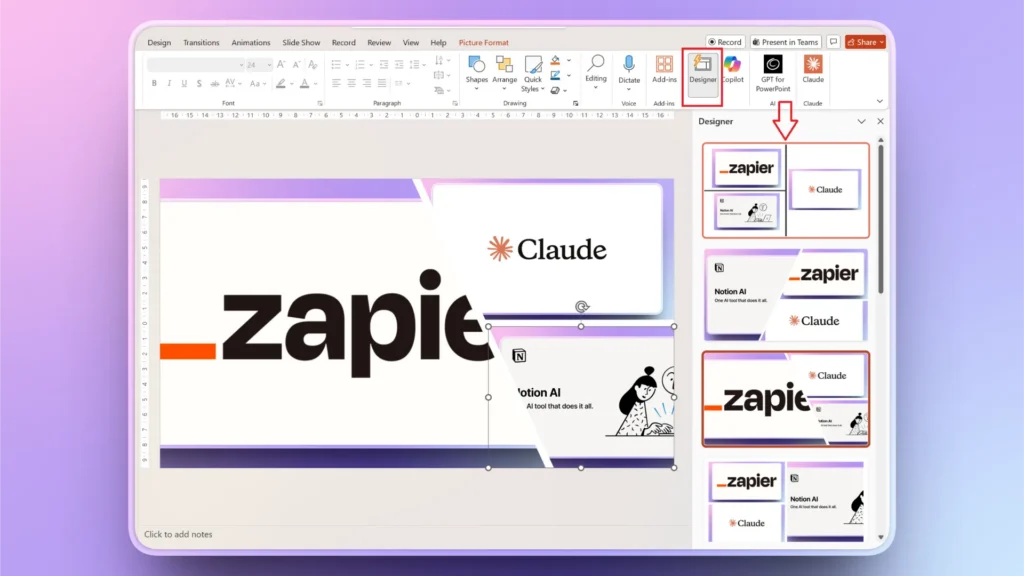
Once you have added desired images to the slide, go to the Home tab in the top ribbon, and you will see the Designer icon at the top right corner of the ribbon. Click it, and a dedicated pane will appear on the right side.
Step 2: Select any Collage Layout
Depending on the contents of the slide, the Designer will offer possible design suggestions. As we have images for now, the Designer will suggest different layouts to organize images on your slide.
Click any collage style that you like, and the Designer will automatically arrange and organize images according to the selected layout, offering a beautiful collage.
How to Make a Photo Collage with AI?
All these methods to make a photo collage in PowerPoint offer limited customizations for visuals only. What if you want to add other texts and details to the collage?
For this purpose, Twistly is the best AI add-in for PowerPoint that can turn your images in a slide into an interactive photo collage with additional placeholders for extra information.
Crear PowerPoint
Diapositivas con IA
Cree presentaciones basadas en IA a partir de
cualquier mensaje, documento o vídeo


Steps to Make a Photo Collage with Twistly
Once you have installed Twistly for PowerPoint, using it is quite easy. It works like ChatGPT for PowerPoint, where you can write a prompt to perform any action or use the readily available slide layouts and AI features to optimize your slide.
Follow these simple steps to make a photo collage in PowerPoint with Twistly AI.
- Add images to your PowerPoint slide and open Twistly
- Haga clic en Edit Slides >> Redesign Slides and then select a layout that you want for the slide
- Twistly will generate a new slide with organized photos and additional placeholders that you can fill with unique information according to your project details
Consigue Twistly gratis
There are unlimited AI features and actions that you can enjoy with this custom ChatGPT for PowerPoint. Use the link below to download the free trial version of Twistly.
Before making a final purchase, give it a try, and you will love what this amazing AI presentation has to offer for PowerPoint users.
Crear diapositivas de PowerPoint con IA
Crea presentaciones basadas en IA a partir de cualquier mensaje, documento o vídeo

Palabras finales
You can use the Picture Layout option, Designer tool, manual resizing, or Twistly to make a photo collage in PowerPoint. All these methods offer some perks and cons, but Twistly is the only tool that enables true AI integration for making and redesigning slides for PowerPoint users.
Get Twistly now and get rid of manual edits and formatting efforts. Instead of manually arranging images, Twistly can automate layout design and enhance your slides instantly.












Empieza a hacer presentaciones con IA en segundos
Acceso instantáneo
Empieza a explorar inmediatamente todas las funciones de Twistly
Sin compromisos
No necesita tarjeta de crédito y puede cancelar en cualquier momento
Asistencia dedicada
Nuestro equipo está aquí para ayudarle en cada paso del camino durante su juicio.