



Involucrar a la audiencia y a los espectadores en la presentación es la mejor manera de potenciar el compromiso. Las encuestas en directo permiten a los espectadores participar en el proceso y compartir sus opiniones sobre cualquier asunto o responder a preguntas.
PowerPoint es una completa herramienta de comunicación, pero ¿sabes cómo hacer una encuesta en directo en PowerPoint? ¿Existe alguna forma manual de obtener comentarios de la audiencia? Puede ser bastante difícil para un usuario normal hacer una encuesta de amor en PowerPoint sin utilizar 3rd herramientas y recursos de terceros.
En este artículo, vamos a discutir algunas maneras fáciles de hacer una encuesta en vivo en PowerPoint. A veces el uso de complementos hace que su trabajo sea más fácil y más eficiente.
¿Tiene PowerPoint una función de encuesta en directo?
Actualmente, PowerPoint no soporta encuestas en vivo por defecto. Utilizando 3rd los usuarios pueden integrar esta función. Twistly también resuelve un problema similar al que se enfrentan millones de usuarios de PowerPoint.
La IA ha revolucionado todos los aspectos de la comunicación, y Twistly integra los últimos modelos de IA en PowerPoint, convirtiéndolo en un ChatGPT personalizado para presentaciones.
¿Por qué hacer una encuesta en directo en PowerPoint?
Las encuestas en directo permiten a los usuarios votar utilizando sus teléfonos, portátiles u otros dispositivos inteligentes. Las respuestas de los participantes aparecen en las diapositivas. Los sondeos en directo se utilizan para varios fines, entre ellos:
- Obtenga información en tiempo real
- Aumentar la participación del público
- Mantener a la gente concentrada y atenta
- Haga que su presentación sea interactiva y memorable
Veamos ahora cómo los complementos y 3rd Los recursos del partido pueden ayudarle a hacer una encuesta en directo en PowerPoint y convertir una presentación aburrida en una sesión eficaz e interactiva.
Método 1: Uso del complemento Microsoft Forms
PowerPoint admite diferentes tipos de complementos, como Twistly, que pueden mejorar la experiencia del usuario y hacer que el flujo de trabajo sea más fluido para los usuarios. Microsoft Forms es un complemento popular que puede utilizar para realizar encuestas en directo en PowerPoint.
Es posible que su software no disponga de este complemento. Siga estos pasos para añadir un nuevo complemento Formularios a PowerPoint.
Paso 1: Buscar el complemento Microsoft Forms
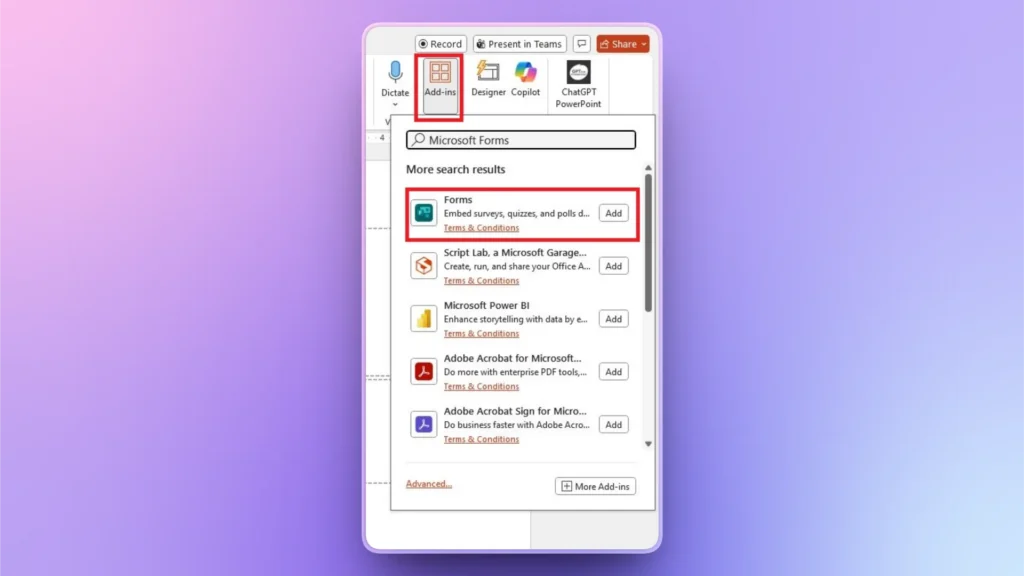
En la pestaña Inicio, haga clic en el botón Complemento e introduzca la consulta Microsoft Forms en la barra de búsqueda. Seleccione el complemento oficial, haga clic en Añadir y el complemento se añadirá correctamente a su software.
Paso 2: Cree su formulario en línea
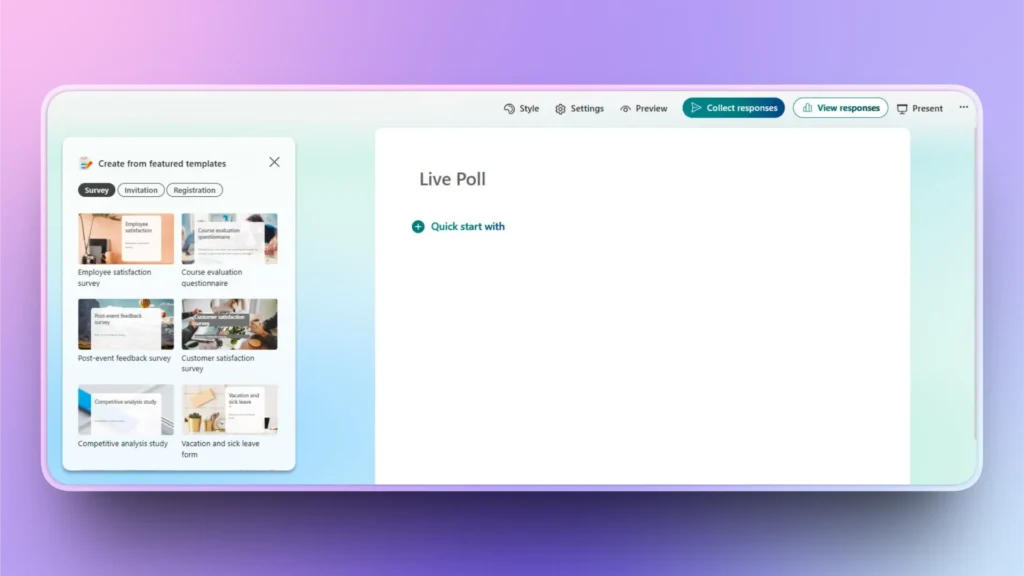
Cree una encuesta en vivo en Microsoft Forms y utilice las plantillas disponibles para obtener resultados rápidos. Una vez que el formulario esté listo, copia el enlace y vuelve a PowerPoint.
Paso 3: Insertar enlace de formulario en PowerPoint
Abra el complemento de formularios recién añadido y pegue el enlace de su formulario de Microsoft en la barra de URL indicada, como se muestra en la imagen siguiente.
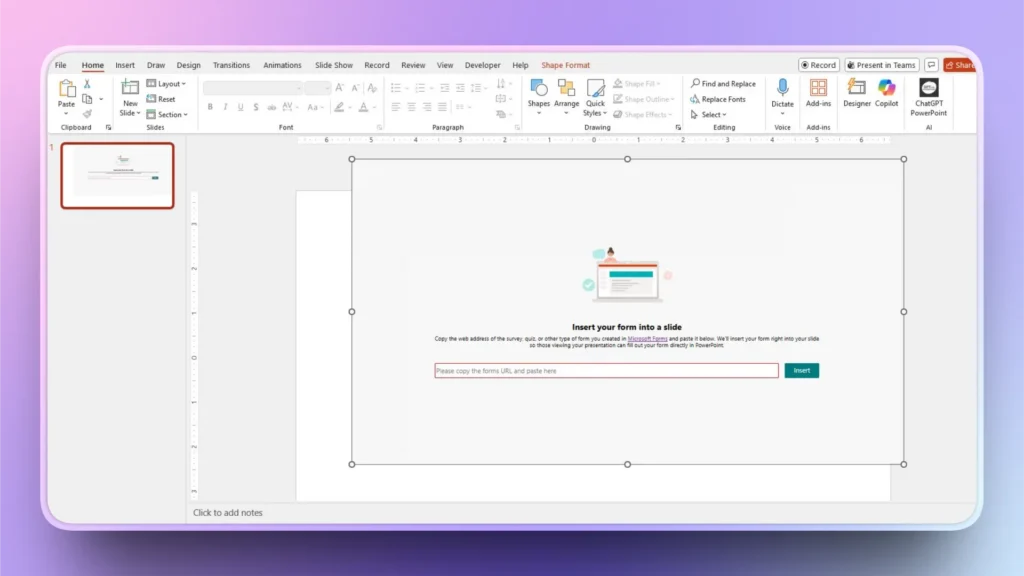
Haz clic en Insertar y PowerPoint mostrará la encuesta en directo a todos los participantes que tengan la presentación. Podrán votar, y las respuestas se recogerán y mostrarán al instante en las diapositivas.
Método 2: Utilizar aplicaciones y sitios web de encuestas en directo en línea
Hay muchas aplicaciones y sitios web en línea que pueden diseñar encuestas en directo. Los usuarios pueden crear encuestas en directo en estos sitios web y luego compartir el código QR en la diapositiva de la presentación de PowerPoint.
Los participantes pueden abrir el enlace o escanear el código QR para acceder a la encuesta en directo.
El código QR redirigirá a los usuarios a la página de votación en directo en línea. Una vez que todos los usuarios hayan votado, el presentador puede abrir la página web en línea y, a continuación, anunciar la conclusión.
Este método no es muy fluido y profesional, pero es fácil. Los nuevos usuarios que necesiten recoger respuestas del público en reuniones informales pueden utilizar este método. El uso del complemento Microsoft Forms es el método preferido para las presentaciones profesionales.
¿Cuál es el mejor complemento para PowerPoint?
Si te gustó el complemento Microsoft Forms, debes estar preguntándote por otros complementos útiles que pueden mejorar tu experiencia con PowerPoint. Le gustaría instalar el mejor complemento para PowerPoint que puede cambiar totalmente su software?
Pruebe Twistly para PowerPoint y disfrute de funciones similares a las de ChatGPT para sus presentaciones. Este simple pero potente complemento es un completo AI PPT maker para PowerPoint.
Los usuarios pueden hacer presentaciones con IA, generar diapositivas, añadir IA e imágenes libres a las diapositivas y realizar muchas otras tareas interesantes y útiles con Twistly.

Ventajas de Twistly para PowerPoint
Twistly no es un diseñador de diapositivas ni una aplicación AI PPT Maker, sino un completo asistente personal para hacer presentaciones profesionales en PowerPoint. Desde escribir el contenido hasta diseñar las diapositivas y pulir el formato, Twistly lo hace todo automáticamente, en cuestión de segundos.
Sólo tienes que introducir el tema y Twistly te proporcionará diapositivas claras, un PPT completo en menos de 90 segundos. Twistly no sustituye a PowerPoint, sino que potencia las herramientas y funciones nativas de PowerPoint.
Estas son algunas de las ventajas de utilizar Twistly para las presentaciones de PowerPoint.
| Genera instantáneamente PPT completos | Twistly crea presentaciones de diapositivas completas, con estructura, títulos, temas de debate y elementos visuales. |
| Ahorra horas de trabajo manual | En lugar de pasar horas escribiendo contenidos y diseñando diapositivas, Twistly automatiza el proceso. |
| Diseño profesional de diapositivas sin conocimientos de diseño | Twistly entiende de maquetación, espaciado y principios de diseño, lo que garantiza que tus diapositivas tengan un aspecto pulido aunque no seas diseñador. |
| Integración perfecta en PowerPoint | Todo funciona directamente dentro de PowerPoint, por lo que nunca tendrás que cambiar de aplicación ni copiar/pegar entre herramientas. |
| Admite varios métodos de entrada | Existen diferentes métodos de entrada que puedes utilizar para crear presentaciones con IA. |
| Redacta contenidos claros y precisos | Gracias a su avanzada inteligencia artificial, Twistly produce contenidos legibles, profesionales y acordes con su tema. |
Descargar Twistly es gratis
Twistly es un complemento premium que está disponible por un precio competitivo, pero los nuevos usuarios pueden solicitar una versión de prueba gratuita utilizando el siguiente enlace. Una vez que hayas realizado tu primera presentación con Twistly, nada te impedirá actualizar tu suscripción.
Crear PowerPoint
Diapositivas con IA
Cree presentaciones basadas en IA a partir de
cualquier mensaje, documento o vídeo


Conclusión
Añadir una encuesta en directo en PowerPoint es fácil e increíblemente eficaz con un complemento. Utiliza Twistly y el complemento Forms para crear diapositivas PPT interactivas. Los complementos como Twistly pueden mejorar tu eficiencia y hacerte más productivo.
Twistly puede desglosar temas complejos y técnicos en explicaciones fáciles de deslizar. Pruebe Twistly with Forms ahora y descubra el verdadero potencial de PowerPoint con IA. Deja que Twistly se encargue de la estructura y el contenido para que tú puedas centrarte en la presentación, los datos, la narración y la conexión con el público.











Empieza a hacer presentaciones con IA en segundos
Acceso instantáneo
Empieza a explorar inmediatamente todas las funciones de Twistly
Sin compromisos
No necesita tarjeta de crédito y puede cancelar en cualquier momento
Asistencia dedicada
Nuestro equipo está aquí para ayudarle en cada paso del camino durante su juicio.