


Currently, Napkin AI does not support direct export to PowerPoint. You can download visuals in PDF format and then convert the PDF to a PowerPoint file.
To convert Napkin AI into PowerPoint, first download visuals in PPT format, then open that file in PowerPoint or any other presentation software. Remember that Napkin AI will offer you visuals only. For text and other content for your presentation, you still need manual edits in PowerPoint.
What is Napkin AI?
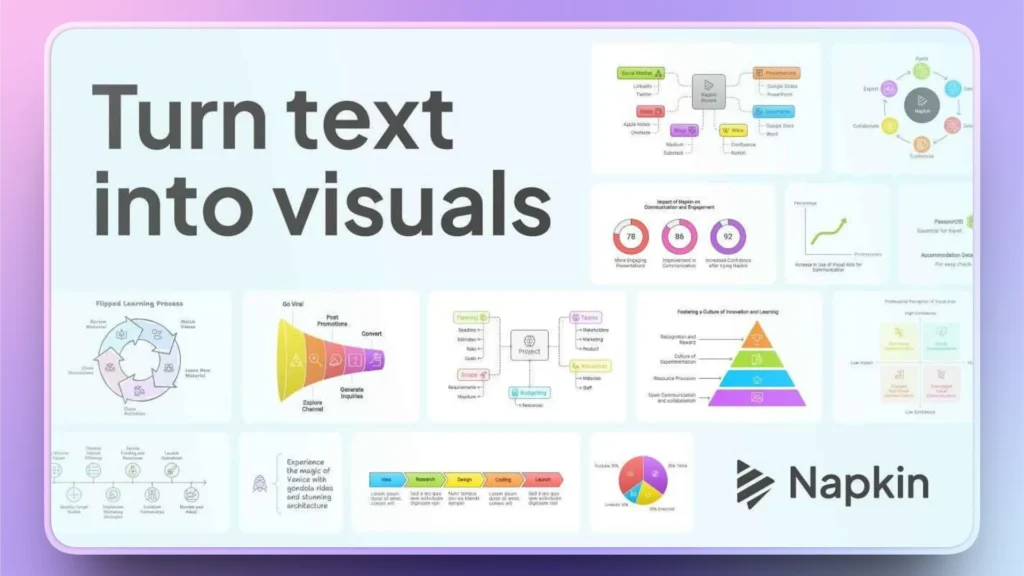
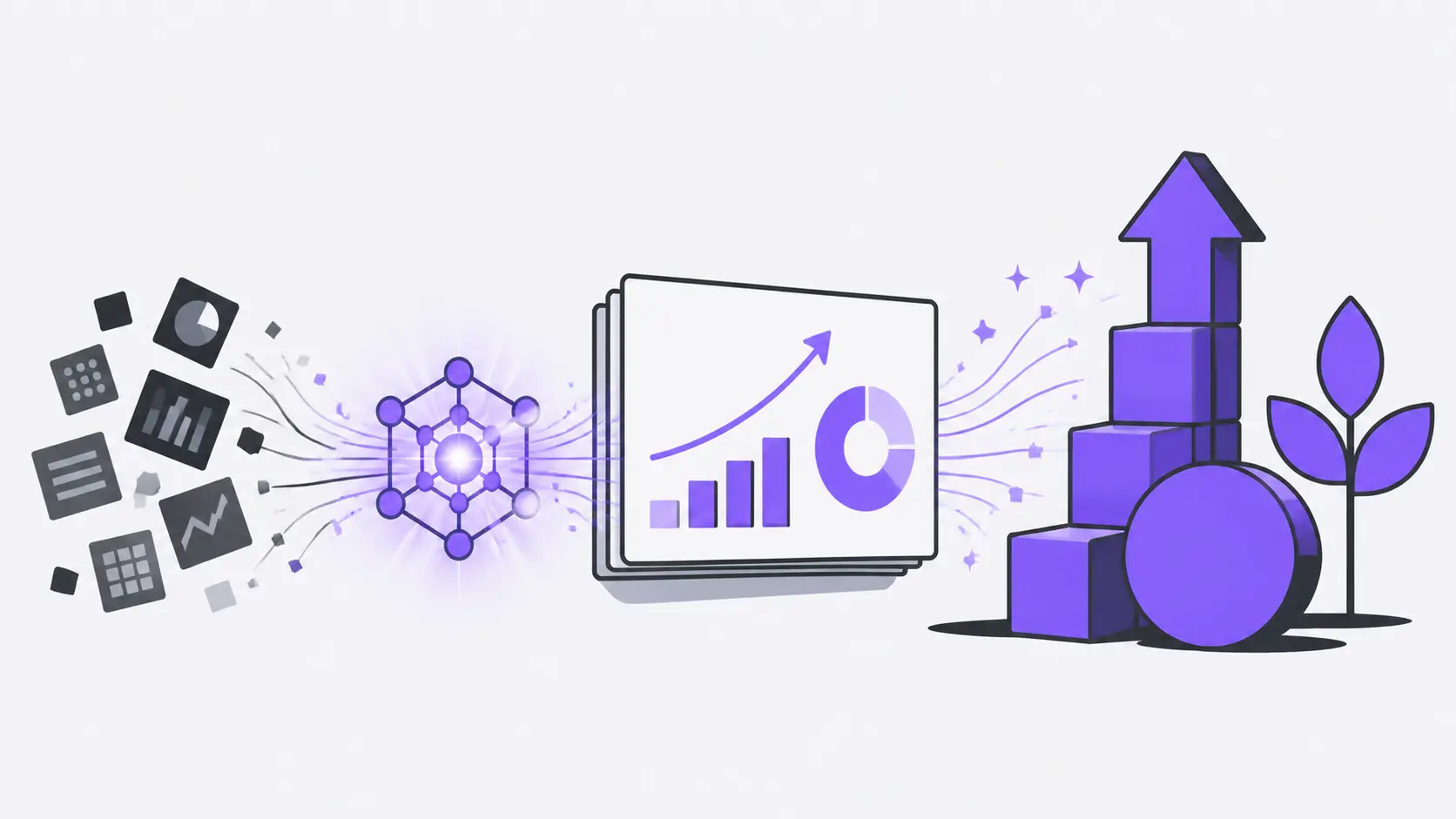
Napkin AI is a visual tool, an online website that turns your data, text, or information into charts, graphics, diagrams, and slide-ready visuals.
If you provide a long text explaining different steps of a process, Napkin AI will simply turn that text into visuals that make it easier for users to understand the steps.
Converting Napkin AI visuals into PowerPoint helps you to explain and present your data in a better way. You cannot add additional text blocks, custom images, and other elements to Napkin AI. You might want to learn how to convert Napkin AI into PowerPoint because:
- You can download your visuals as editable PPT files
- Slides can be opened and edited directly in PowerPoint
- No need for screenshots or manual redesign
Method 1: Save Napkin AI File as PDF
You have made visuals with Napkin AI and now want to convert the complete Napkin AI into PowerPoint. Here are the simple steps that you need to follow to make the Napkin AI file editable and share it with others.
Nota: This process will export the complete Napkin AI file to your computer. If you want separate visuals for a PowerPoint presentation, we will discuss that later.
Step 1: Create Visuals with Napkin AI
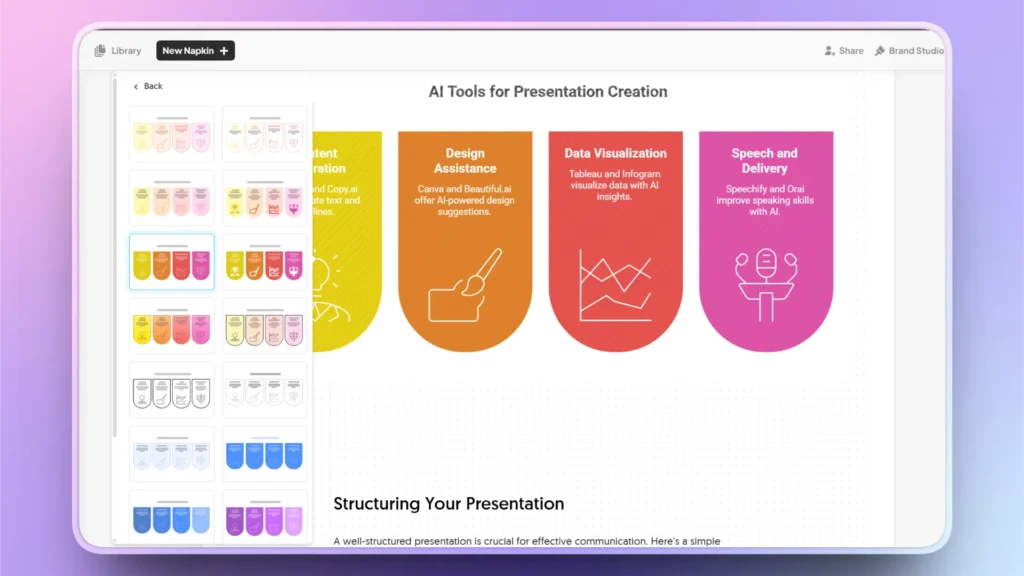
Open Napkin AI and create a new Napkin from text, data, a topic, or an idea. Now, select any section or text that you want to turn into visuals. Here is an example of visuals made with Napkin AI.
Step 2: Export PDF
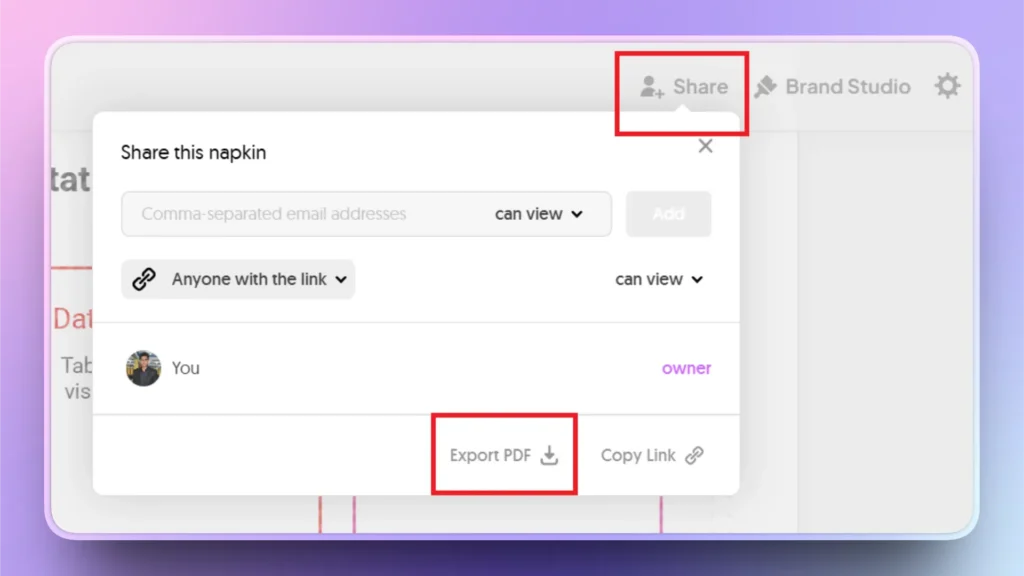
Once visuals are finalized, click the Share button at the top right corner of the screen and click the Export PDF button.
How to Turn Napkin AI into a PowerPoint Presentation?
You have saved a PDF from Napkin AI with all the data related to your topic. How to turn that PDF into a PowerPoint presentation? One method is to create presentations manually, but it will take hours.
Another, faster, and AI option is to use Twistly to generate a complete presentation from a PDF. You can simply upload your PDF file to Twistly, and it will generate a complete presentation based on the PDF.
Crear PowerPoint
Diapositivas con IA
Cree presentaciones basadas en IA a partir de
cualquier mensaje, documento o vídeo


Turning a PDF into a PowerPoint Presentation with Twistly
Twistly works inside PowerPoint, so you don’t need to worry about exporting files or converting them. Here is how to convert a PDF into a PowerPoint presentation with Twistly.
Paso 1: Abrir PowerPoint y Twistly
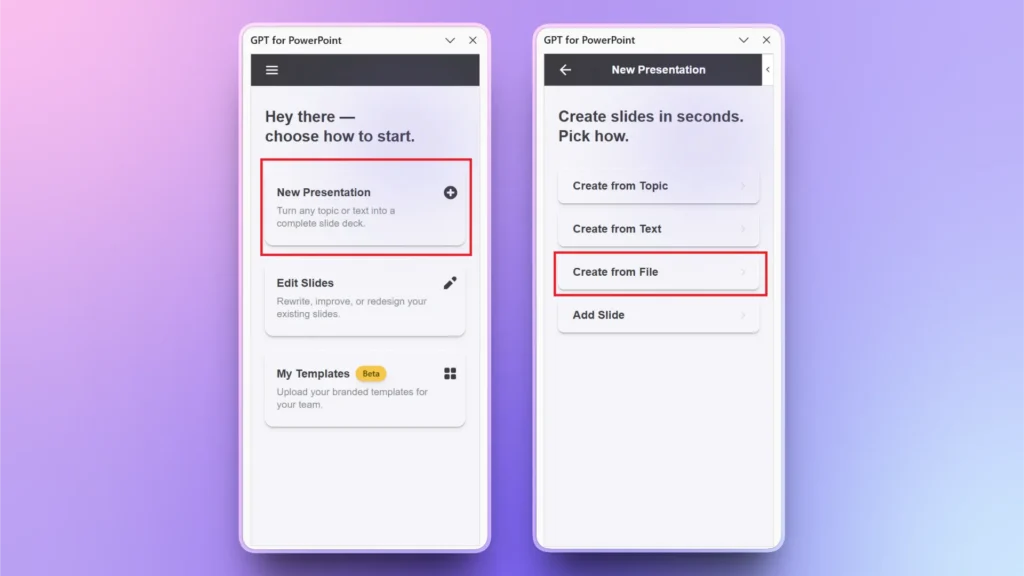
Start a new presentation and open the Twistly icon from the top right corner. Choose New Presentation from the Twistly window and select the ” Create Presentation from file option.
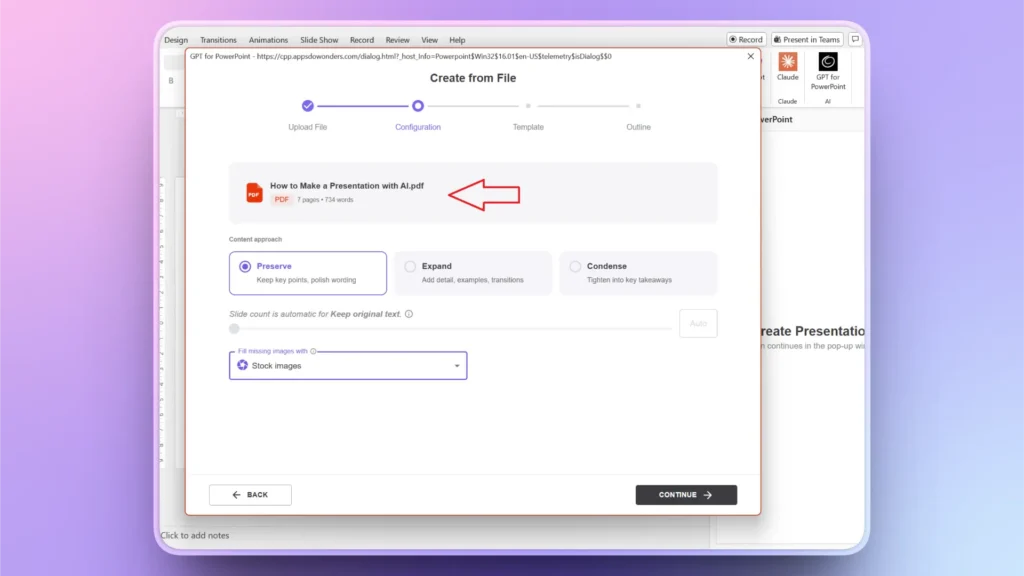
Step 2: Upload PDF
Upload your PDF file and select other options related to text and images used in the presentation. Twistly will automatically generate or add images to your presentation.
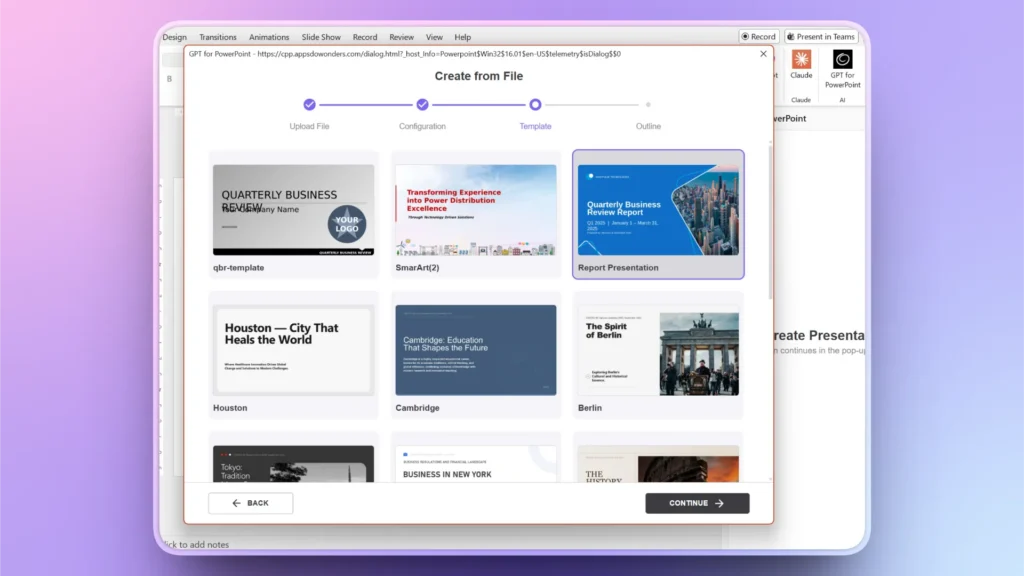
Step 3: Select Template and Review Outline
Twistly has some amazing AI PowerPoint templates that you can choose from. Once a template is selected, Twistly will generate an AI outline for the content and slides in the presentation. Review the outline and finalize it.
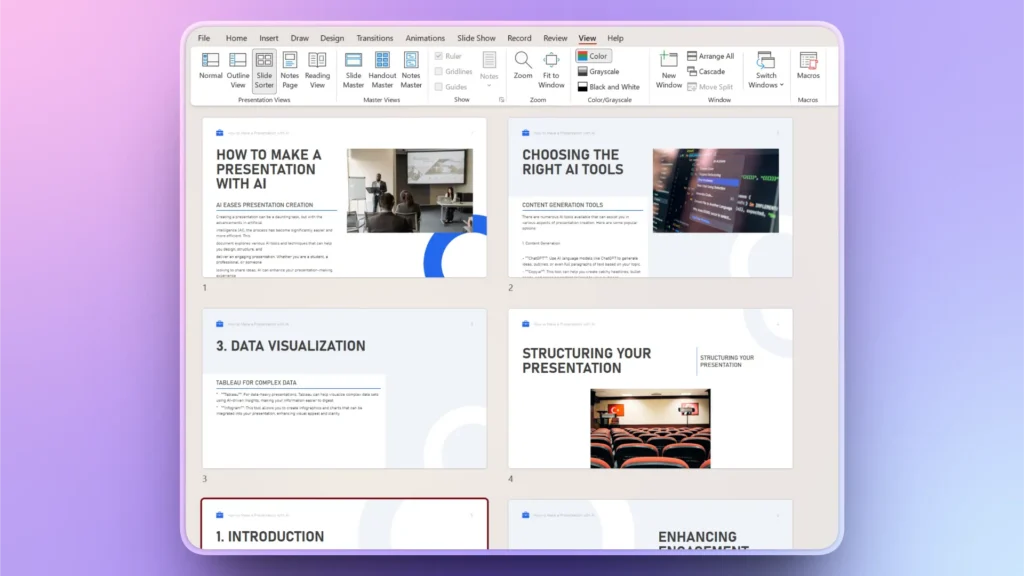
Step 4: Review Final Slides
Within a few seconds, Twistly will start generating your slides. Once finished, review the slides and make changes if needed.
This whole process of creating a complete presentation from a PDF does not take more than a minute or two.
Method 2: How to Convert Napkin AI Visuals into PowerPoint
You don’t want to save the entire Napkin AI file, but want to save certain visuals only. Napkin AI allows you to download and open visuals directly in PowerPoint. Visuals, including charts, diagrams, and flowcharts made with Napkin AI, are fully editable in PowerPoint.
Here is how to download and edit visuals in PowerPoint, made with Napkin AI.
Step 1: Export Visuals
After creating the visuals, select the chart or image that you want to download or save and click the Export Visuals button.
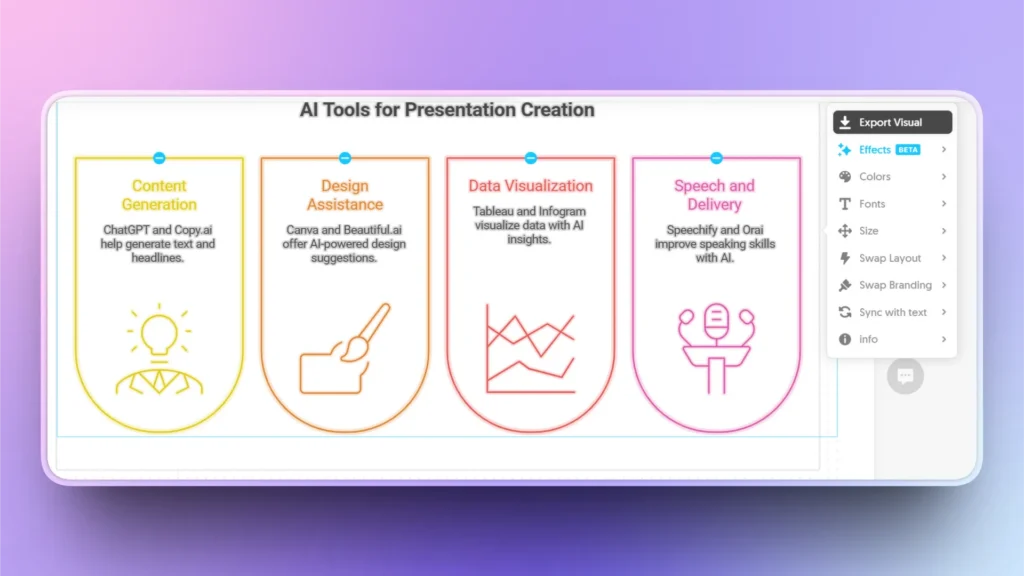
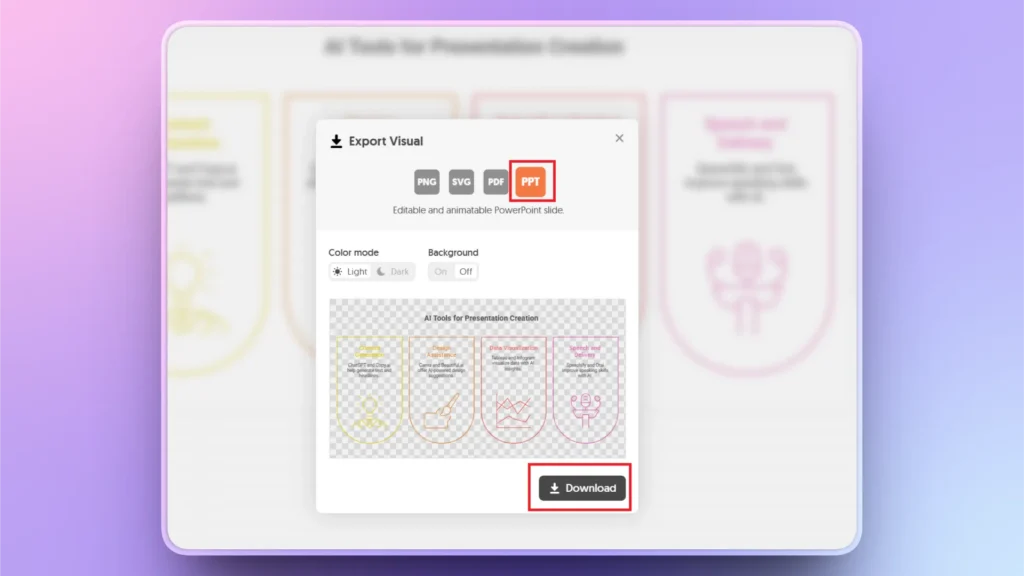
Step 2: Download as PPT
Select the PPT option as you want the visuals to be editable in PowerPoint. Click the Download button to save the visual as a PPT file.
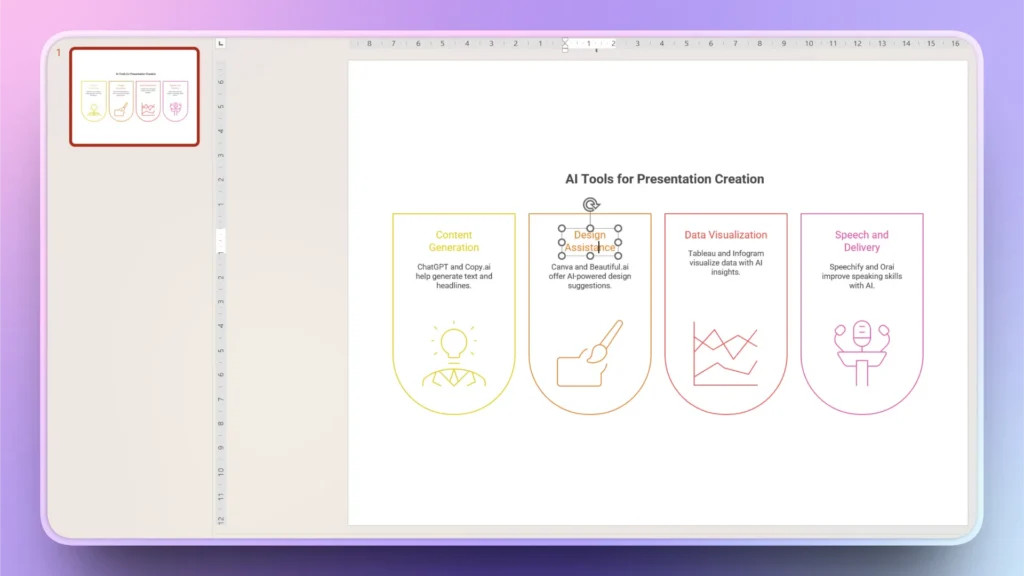
Step 3: Edit Napkin AI Visual in PowerPoint
The downloaded PPT file will automatically open in PowerPoint. Now, edit that visual in PowerPoint. You can also add content or any other elements to that with visuals with the help of Twistly.
Is Napkin AI Good for Making Presentations?
Napkin AI is a good tool for generating visuals with AI, but it is no alternative to PowerPoint presentations. You will have to manually edit and optimize slides even if you get visuals from Napkin AI.
Fortunately, PowerPoint users can enjoy the same features of Napkin AI inside PowerPoint with Twistly.
Without switching tabs between multiple websites and applications, users can now generate images, create charts, and turn text into visuals inside PowerPoint.
Descargar Twistly es gratis
You won’t realize the true power of AI for PowerPoint until you give it a try. Download the free trial version of Twistly now and see how it outperforms many popular AI tools for visuals and presentations.
Twistly is accurate, reliable, easily integrated, and faster than many popular AI tools and presentation makers. Start using Twistly now and stop wasting time on multiple tools for one simple job.
Crear diapositivas de PowerPoint con IA
Crea presentaciones basadas en IA a partir de cualquier mensaje, documento o vídeo

Conclusión
You can convert Napkin AI into PowerPoint if you export visuals as PPT, but the complete Napkin AI file will be saved as PDF only. Whether you have Napkin AI visuals or a PDF, creating presentations with Twistly takes just a few seconds.







Empieza a hacer presentaciones con IA en segundos
Acceso instantáneo
Empieza a explorar inmediatamente todas las funciones de Twistly
Sin compromisos
No necesita tarjeta de crédito y puede cancelar en cualquier momento
Asistencia dedicada
Nuestro equipo está aquí para ayudarle en cada paso del camino durante su juicio.