


Do you have an existing slideshow or presentation but want to make it more engaging and interactive? Turning a slideshow into a quiz can help engage the audience more effectively. With a little upgrade, you can turn a boring presentation into an interactive quiz.
With our suggested approach, you won’t have to create a new presentation but use the existing one for a smarter version of the slideshow. Teachers, corporate employees, students, marketers, and other common users can also convert a slideshow to a quiz.
Why Convert a Slideshow to a Quiz?
In business or professional communication, every type of presentation has different roles to play. Slideshows may be suitable for informational and promotional purposes, but for interactive sessions, you might want to convert a slideshow to a quiz.
Here are some benefits that quiz slides have over conventional slide show presentations:
- Better engagement and attention
- Improved knowledge retention
- Interactive sessions with effective responses from the audience
- Active participation from the audience
- Best for training sessions
- Measurable feedback for the presenter
We will share some basic steps that will help you turn any slideshow into a quiz. With little edits, you can make bigger impacts.
Step 1: Prepare your Slideshow
The very first thing you need is a complete and professional slideshow or PowerPoint presentation. If you don’t have a presentation, try Twistly for free and start making amazing presentations with AI. It takes only a few clicks to turn any data or topic into a slideshow with AI.
Once the presentation is ready, identify the most important points or questions from the presentation. You also need to collect information and data that participants need to understand and remember.
Crear PowerPoint
Diapositivas con IA
Cree presentaciones basadas en IA a partir de
cualquier mensaje, documento o vídeo


Step 2: Select a Quiz Format
There are multiple options available to make quiz slides. You can either go for the MCQs, true or false, short answers, or scenario-based questions. Depending on the quiz type, you can make relevant slides and design a presentation.
Step 3: Convert Information into Questions
We are now at the step where the actual transformation will happen. You can summarize the slide content or information into a question. As shown in the image below, we have reduced the entire slide content into a single question with multiple options.
Which marketing trend is expected to dominate customer engagement in 2026?
A) Traditional TV advertising
B) AI-driven hyper-personalization
C) Cold email mass campaigns
D) Billboard marketing
Correct Answer: B) AI-driven hyper-personalization
Step 4: Add Interactivity in PowerPoint
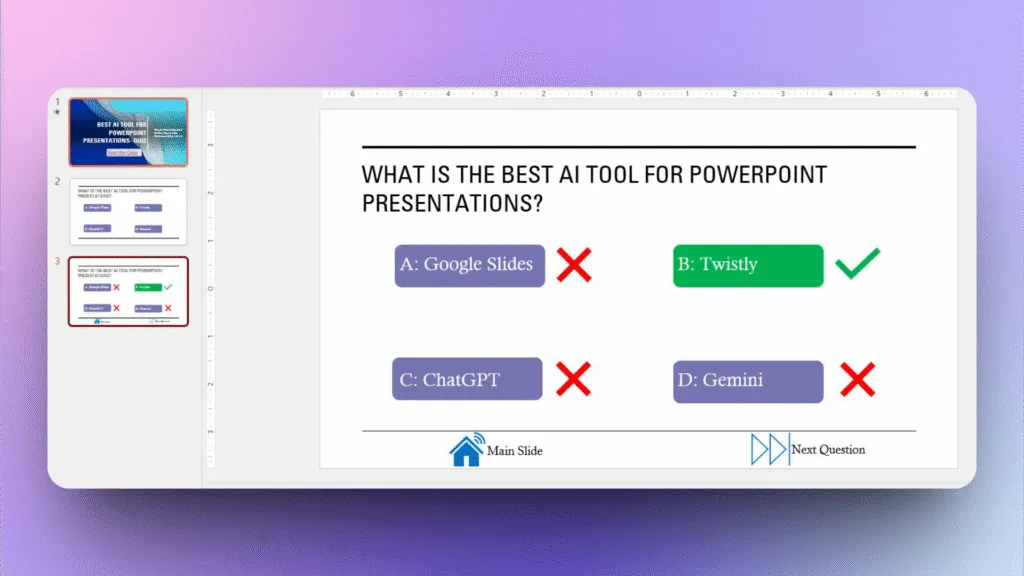
Add multiple clickable options that have one right and three wrong questions. The next slide can have the same design as buttons, but the answer slide will highlight the right answer.
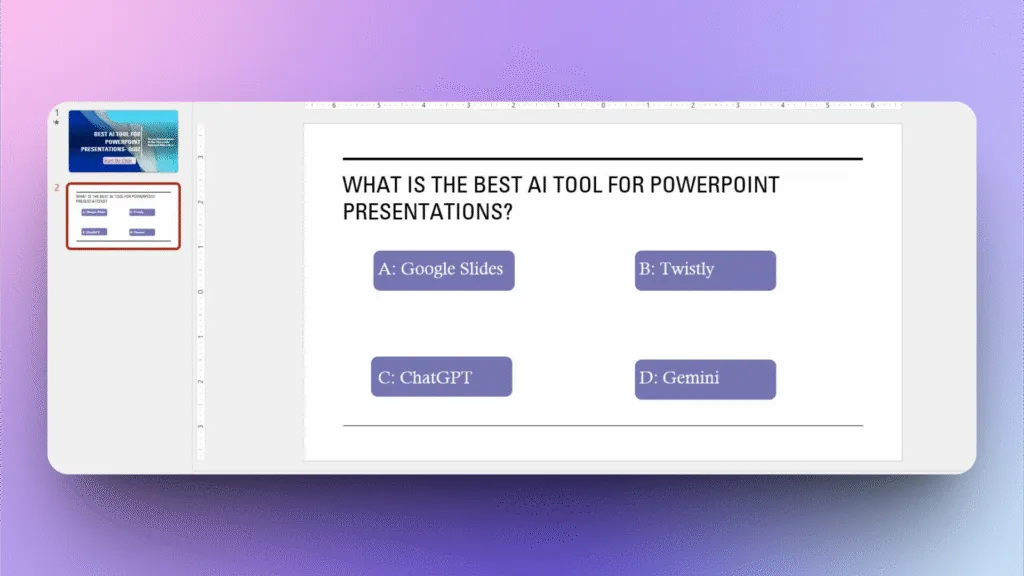
You can link the navigation buttons to the main page or the next question by using the Link option in PowerPoint. This process is easy but takes some time.
Step 5: Make your Quiz Visually Appealing
Quiz slides can also be attractive, and with some basic edits and images, you can make them appealing and interactive for the audience. While working on the slide aesthetics, don’t forget to:
- Reduce text clutter
- Use bold headings
- Add icons and visuals
- Use contrasting colors for answer choices
- Keep one question per slide
Before sharing the quiz with the participants, manually review all pages, links, and buttons. Sometimes, a wrong linking structure can sabotage the entire presentation.
How to Make Individual Slides for a Presentation?
You have converted a slideshow to a quiz, but you want to make some edits to the existing presentation too. You will have to review the entire presentation, collect data about new slides, and then turn that data into a visually appealing slide.
This is how almost every PowerPoint user adds slides to an existing presentation. But what if we could help you add a new slide to any presentation within seconds?
Create Slides with Twistly
Twistly is an AI add-in for PowerPoint that works just like ChatGPT for presentations. Users can generate a complete presentation, an individual’s slide, or perform any other actions with AI to improve their presentations. If you want to add a new slide to your presentation, follow these steps.
Step 1: Open Presentation and Launch Twistly
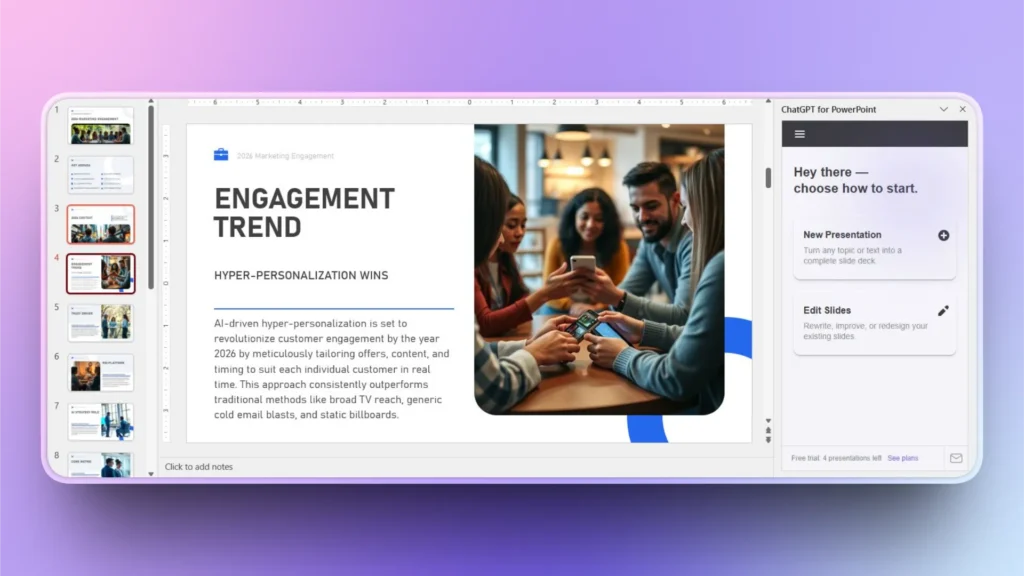
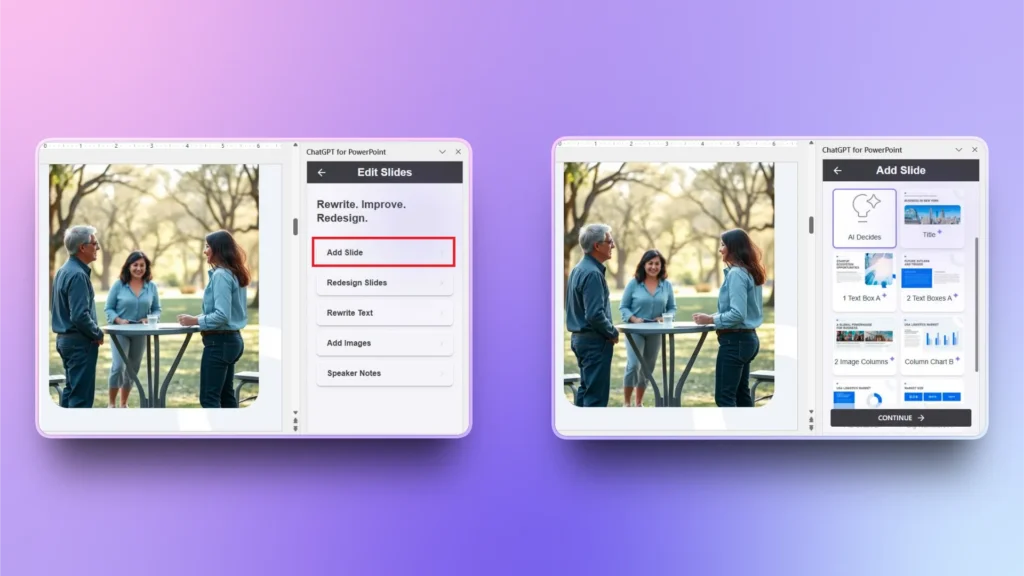
Open your existing presentation and launch the Twistly add-in. A dedicated screen will appear on the right side, as shown in the image below. Click the Edit Slides opción.
Step 2: Add Slide and Select Template
From the available actions, click the ” Add Slide option and then select a template that you want to use for the slide. You can let AI decide on the template or pick any existing one.
Step 3: Explain your Slide
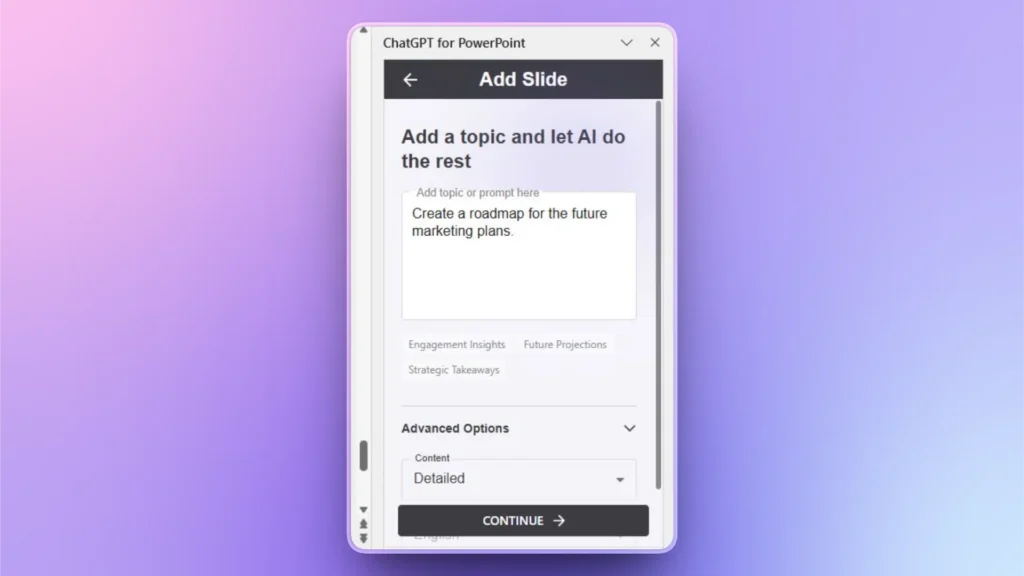
Explain what you want to add to the slide in plain language. You can also paste detailed text or insights here, and Twistly will take care of the rest.
Step 4: Review your Final Slide
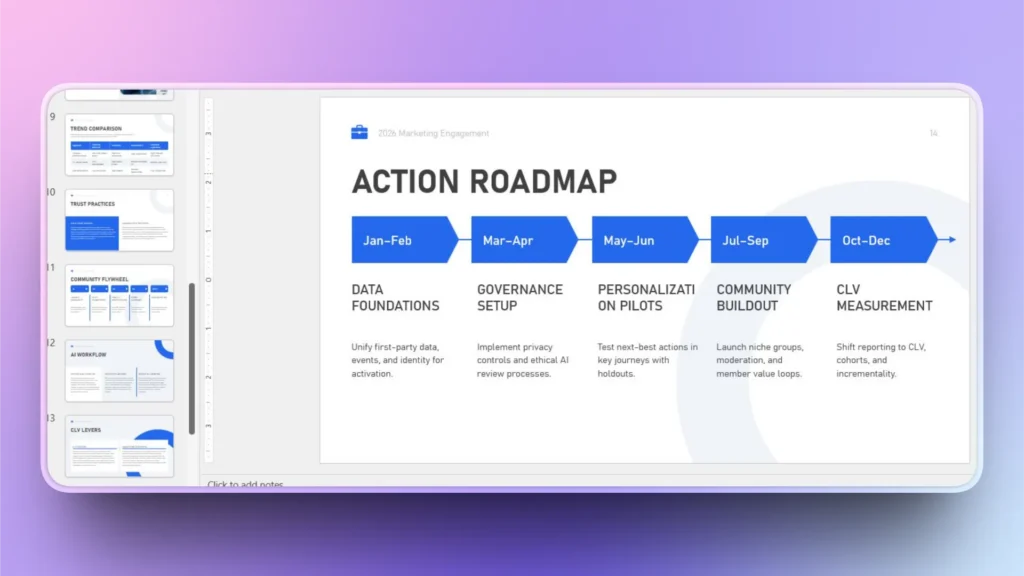
Within seconds, Twistly will generate a complete slide for you according to the input. Review the slide and check if any further changes are required.
Descargar Twistly gratis
If you are excited about AI presentations with PowerPoint, download Twistly now and start your free trial. New users don’t need to learn any special skills or software, as Twistly is a beginner-friendly AI tool, packed with powerful features and AI options.
Use the link below to claim your free trial and get complicated tasks done within seconds with AI. Twistly can generate a complete presentation from scratch within two minutes. Isn’t that impressive?
Crear diapositivas de PowerPoint con IA
Crea presentaciones basadas en IA a partir de cualquier mensaje, documento o vídeo

Palabras finales
Converting a slideshow into a quiz is one of the most effective ways to upgrade your presentations. Twistly is also a handy tool for PowerPoint users. Whenever you need to edit a slide, add a new slide, or make a presentation from scratch, try Twistly and enjoy speed, accuracy, and efficiency for PowerPoint presentations.
Empieza a hacer presentaciones con IA en segundos
Acceso instantáneo
Empieza a explorar inmediatamente todas las funciones de Twistly
Sin compromisos
No necesita tarjeta de crédito y puede cancelar en cualquier momento
Asistencia dedicada
Nuestro equipo está aquí para ayudarle en cada paso del camino durante su juicio.