



To add slide titles in PowerPoint, use the existing placeholder in the slide layout or directly write the slide title next to the slide icon in Outline View. Adding unique and meaningful titles to slides improved the accessibility of the presentation.
Just by reading the slide title, a reader can easily predict the context of the slide and what type of value they can expect from that specific slide. Unnamed slides not only create doubts for the readers, but presenters also find it harder to navigate through large numbers of unnamed slides.
Are Slide Titles Important in PowerPoint?
Yes, slide titles are quite important in PowerPoint presentations for improved readability and accessibility. Every slide in your presentation must have a relevant, meaningful, and clear title. Slide titles:
- Improve presentation flow and clarity
- Help your audience follow your message
- Make your slides easier to organize
- Improve accessibility
- Enable easier navigation
If you don’t know how to add slide titles in PowerPoint, this guide will help you understand the step-by-step process of adding titles to your slide in PowerPoint.
Method 1: How to Add a Slide Title via Accessibility Checker?
Accessibility Checker is a useful tool in PowerPoint that can review your presentation for potential areas of improvement. For an existing presentation, the Accessibility Checker feature can check for missing slide titles, ALT texts, and other similar elements that can affect the readability for users.
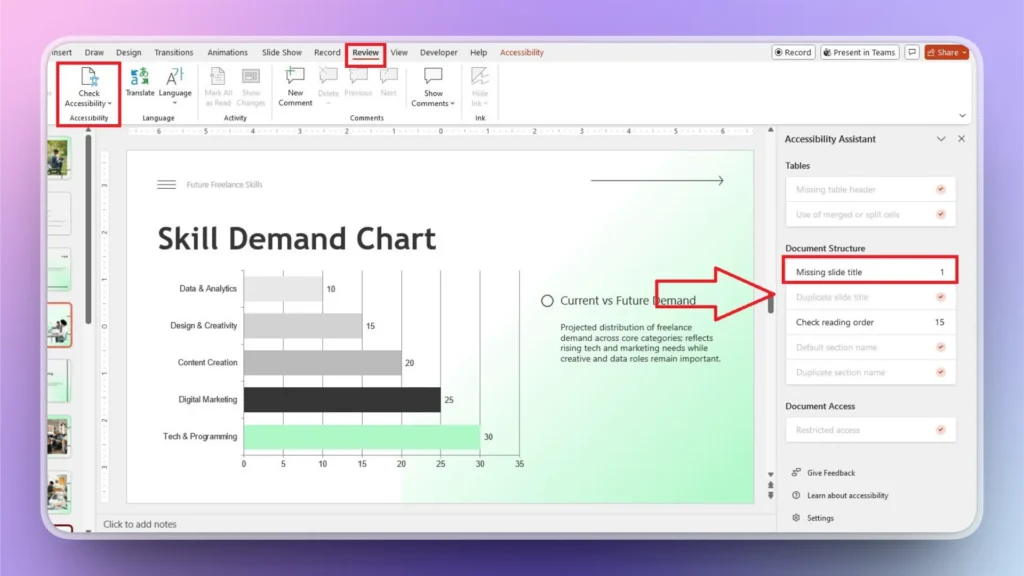
Step 1: Check Accessibility from the Review Tab
Open your presentation where you want to add or check slide titles and go to the Review tab. Here, click the Check Accessibility option, and a new window will appear on the right side of the slide preview.
Step 2: Review Missing Slide Titles
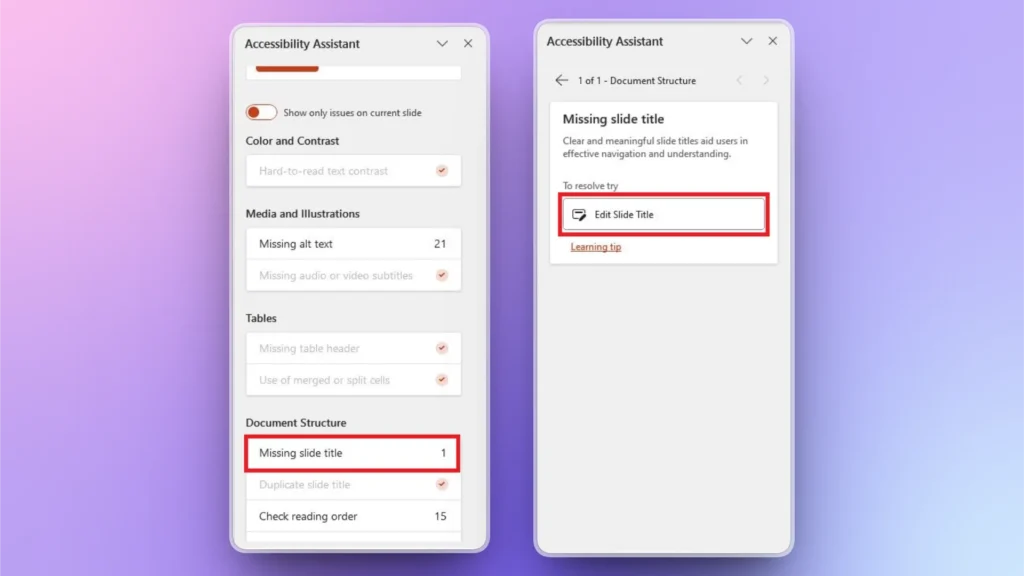
The accessibility pane will have different suggestions, and if any slide title is missing, you will see it in the pane. Click it and then click the Edit Slide Title button or Set as Slide Title. PowerPoint will suggest the best option based on the available content.
Step 3: Add Slide Title
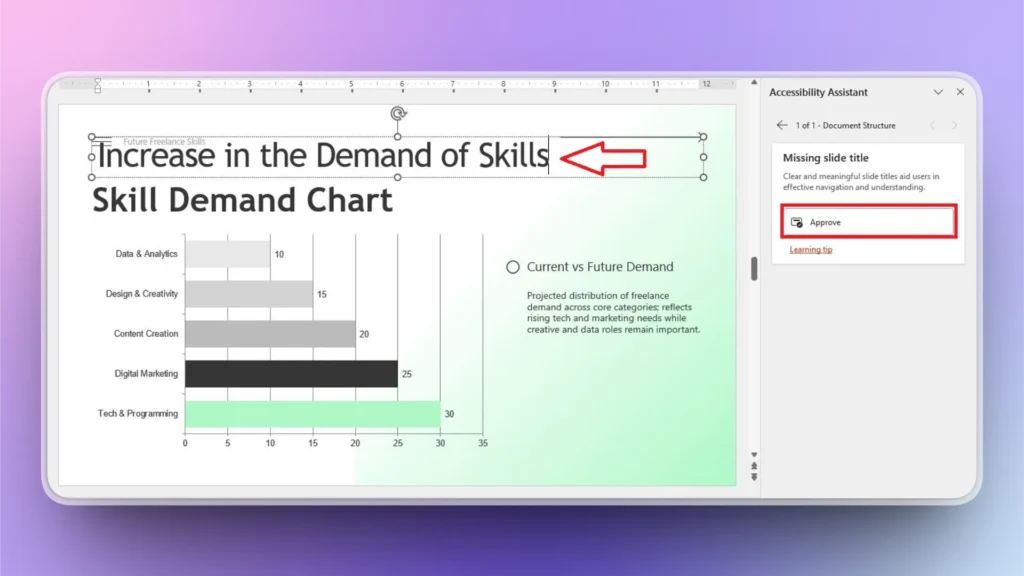
If there is no heading available to be used as a slide title, click Edit Slide Title and then write text in the slide and click Approve. Newly entered text will be set as the slide title, and the missing slide title warning will be resolved.
Method 2: How to Add a Slide Title through the View Ribbon
Outline View in PowerPoint is a great tool to view the overall structure and layout of your presentation. From headings and sub-headings to other pieces of content, Outline View offers a comprehensive view of the presentation.
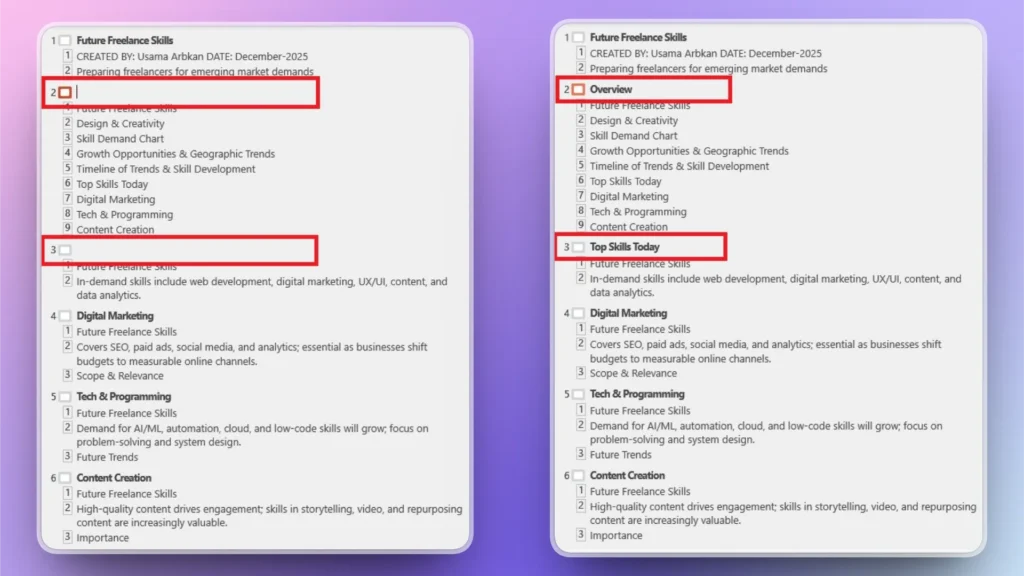
You can easily find slides with missing titles and then directly add slide titles in Outline View. Here is how to use Outline View to add slide titles in PowerPoint.
Step 1: Enable Outline View
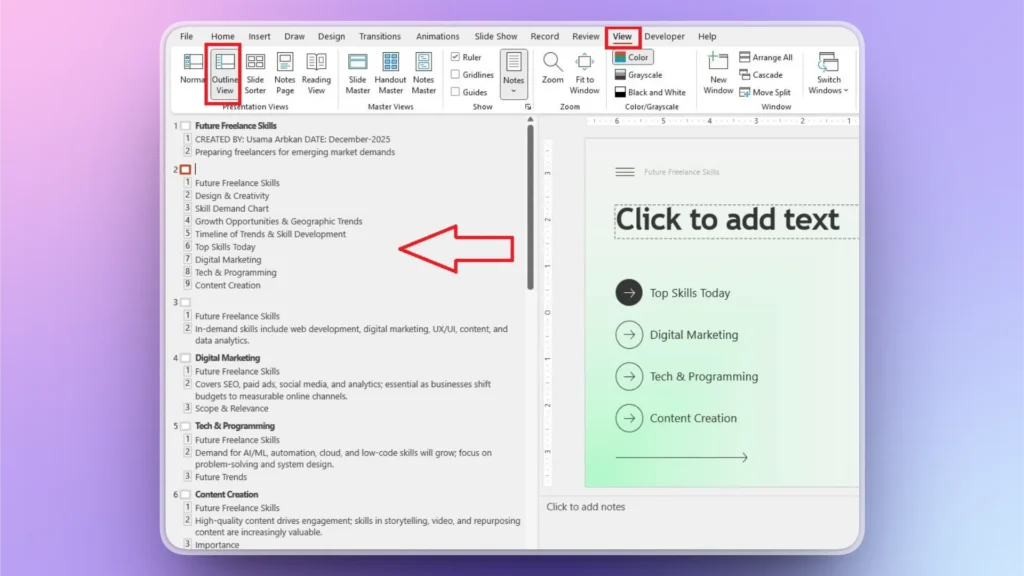
Open your PowerPoint presentation, click the View tab, and then click the Outline View button, and you will get a similar screen.
Step 2: Locate the Slides with Missing Titles
In the outline pane, slides with missing titles will have empty space right next to the slide numbers. Enter slide title text in the outline pane or click the slide number and write text directly on the slide.
Slide Title vs. Title Slide in PowerPoint
If you think the slide title and the title slide are the same concepts, then keep reading because they sound similar but serve different purposes in a presentation.
- A Slide Title is the heading that appears at the top of any individual slide in your presentation.
- A Título Diapositiva is the first slide of your presentation.
A title slide usually has the presentation title, introduction to the topic, and other relevant details like the presenter’s name and title image. If your presentation is missing a title slide, you can easily add a title slide or any missing slide to your presentation with AI, within seconds.
How to Add a Title Slide with Twistly?
Twistly is an AI add-in for PowerPoint that integrates ChatGPT-like capabilities into PowerPoint. Users can make presentations or add slides with simple AI prompts or topics.
If your presentation is missing a title slide, here is how to instantly add a custom slide with Twistly AI.
Paso 1: Abrir PowerPoint y Twistly
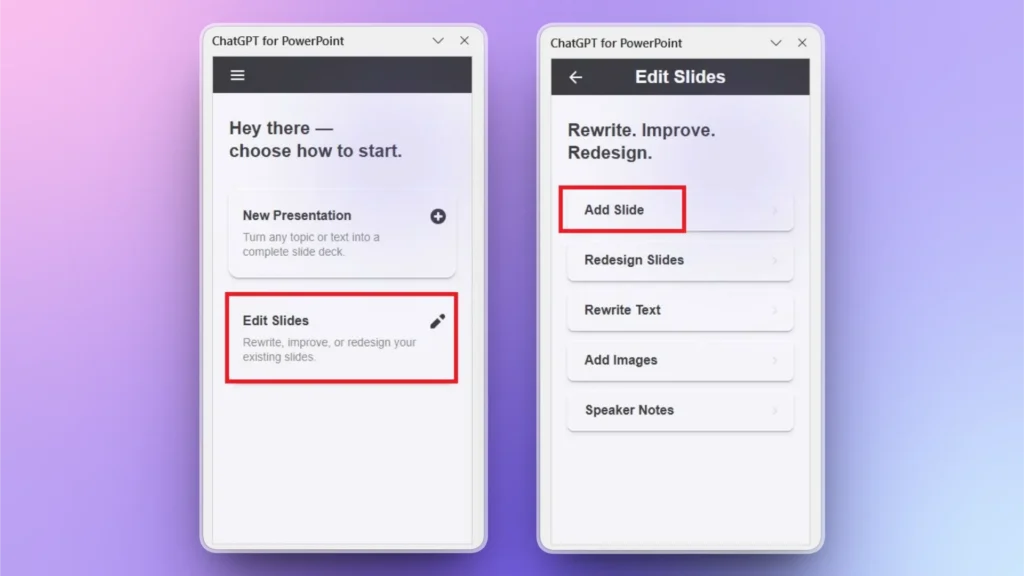
Once your PowerPoint presentation is open, launch the Twistly add-in from the top ribbon in the Home tab, and a dedicated pane will appear.
Click Edit Slides and then click the Add Slide option from the Twistly window.
Step 2: Pick Title Slide Layout
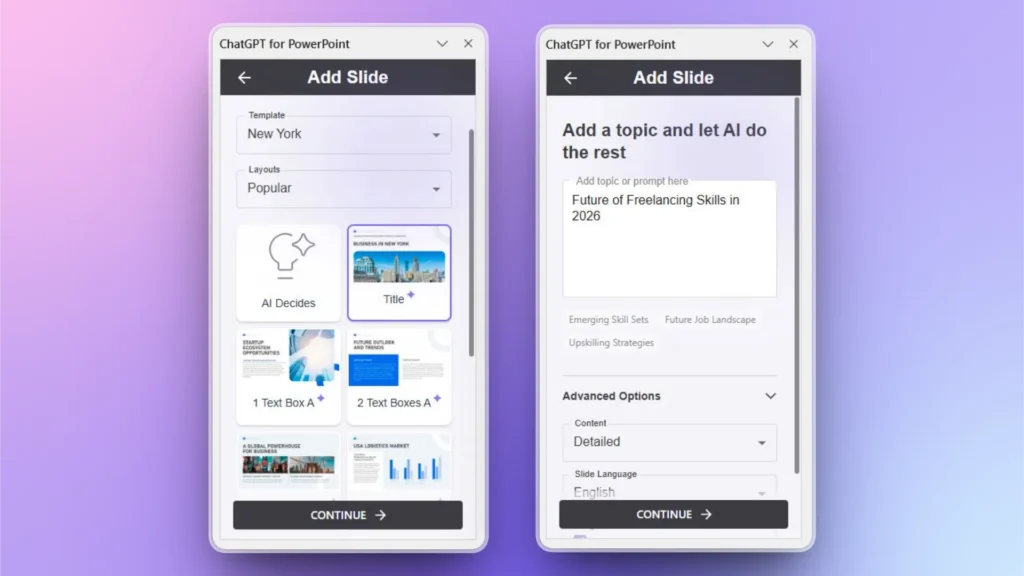
From the available slide layouts, select the Title Slide layout and then enter the topic of the presentation. Click Continue and wait for a few seconds.
Step 3: Review your Title Slide
Your title slide is ready with a professional design, title, and a featured image. You can also see other details at the top of the slide title.
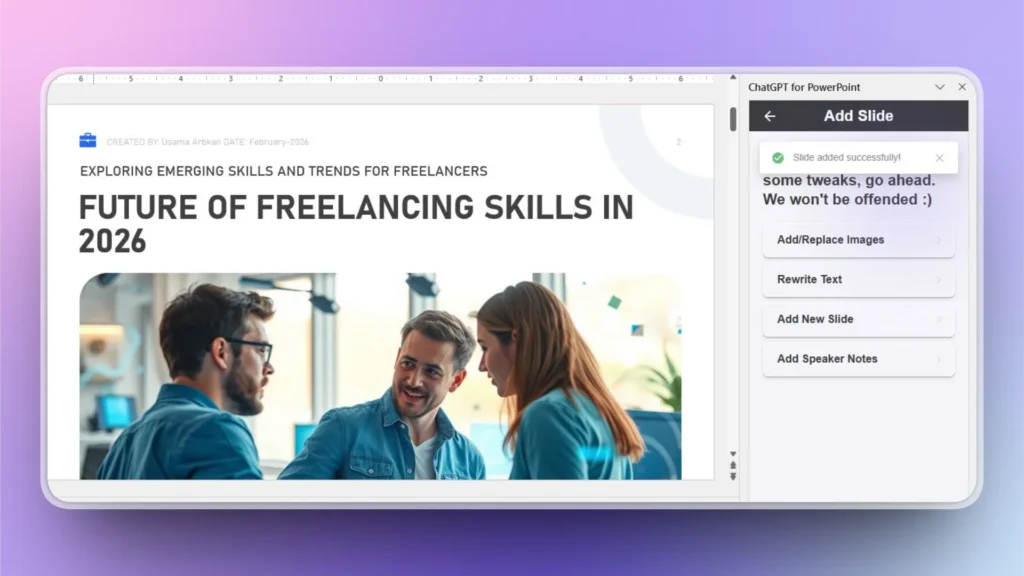
Instead of designing a title slide from scratch, you can use Twistly to speed up the workflow and add slides to your new or existing presentations within seconds.
Try Twistly for Free- Trial Version is Available Now
Manually writing strong, engaging slide titles takes time. That’s where Twistly, our AI-powered PowerPoint add-in, transforms your workflow. If slide titles guide your audience, Twistly ensures they guide them powerfully.
You can try Twistly for free without any financial commitments. As no credit or debit card is required for the trial version, you have nothing to lose.
Download the free trial version now and start making awesome AI presentations with Twistly, inside PowerPoint.
Crear PowerPoint
Diapositivas con IA
Cree presentaciones basadas en IA a partir de
cualquier mensaje, documento o vídeo


Conclusión
You can add slide titles in PowerPoint via the accessibility checker in the Review tab or Outline View in the View tab. If you want to take your slide titles from basic to brilliant, AI tools like Twistly can help you create smarter presentations faster.
PowerPoint is still the best presentation software, but if you think it lacks AI integration, try Twistly and enjoy a custom ChatGPT for PowerPoint. Twistly is accurate, accessible, convenient, and smarter than other AI PPT Makers.











Empieza a hacer presentaciones con IA en segundos
Acceso instantáneo
Empieza a explorar inmediatamente todas las funciones de Twistly
Sin compromisos
No necesita tarjeta de crédito y puede cancelar en cualquier momento
Asistencia dedicada
Nuestro equipo está aquí para ayudarle en cada paso del camino durante su juicio.