



Al trabajar en presentaciones con terminología en distintos idiomas, es posible que te encuentres con tildes. Las tildes se utilizan en idiomas como el español, el francés, el alemán y algunas palabras inglesas que se toman prestadas de otros idiomas.
¿Cómo añadir tildes en PowerPoint para conseguir un PPT más profesional y atractivo? Hay múltiples formas de insertar letras acentuadas en tus diapositivas, y vamos a repasar las más comunes.
¿Qué son las tildes en PowerPoint?
Las tildes definen el significado real y preciso de las palabras. El uso correcto de las tildes evita confusiones, garantiza la precisión y mejora la calidad general de las diapositivas.
He aquí algunos ejemplos comunes de letras acentuadas que le ayudarán a entender el concepto de añadir marcas de acento en PowerPoint:
- “reanudar” vs “curriculum vitae”
- “si” (si) frente a “sí” (sí) en español
- “ingenuo” vs “ingenuo”
Método 1: Añadir marcas de acento en PowerPoint: Manualmente
Los usuarios frecuentes de marcas de acento en las presentaciones de PowerPoint necesitan teclas de acceso rápido y rápido. Pero hay un problema con la adición de marcas de acento con atajos de teclado. Estos atajos sólo funcionan para teclados con teclado numérico dedicado.
La mayoría de los portátiles tienen ahora teclas numéricas con letras y números en la misma tecla. Es posible que este método no funcione en la mayoría de los portátiles.
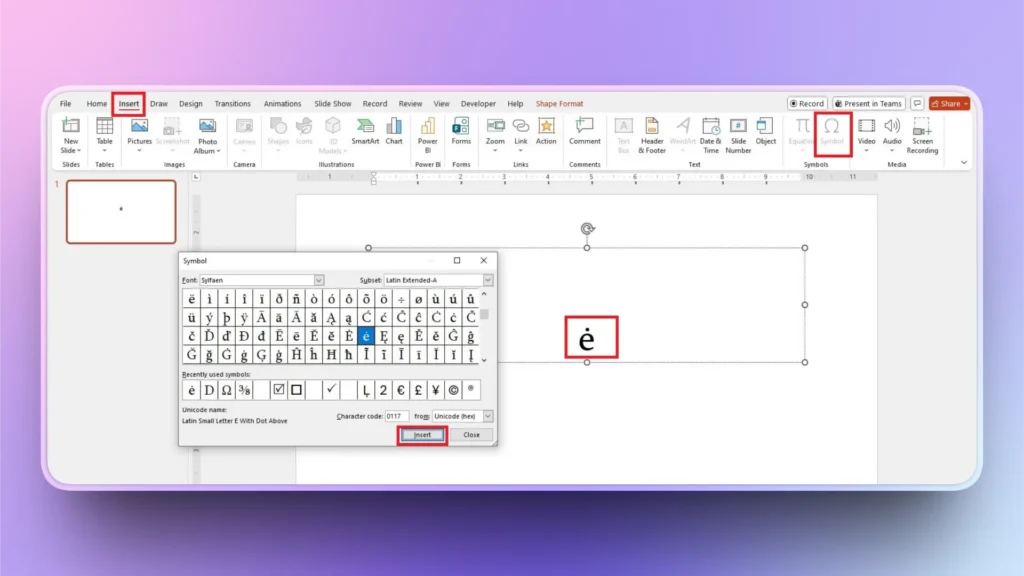
Pero no se preocupe, ya que tenemos otra forma manual de añadir tildes en PowerPoint para los usuarios con las últimas distribuciones de teclado. Utilizaremos la pestaña Insertar y Símbolos para las letras acentuadas. Siga estos pasos para insertar marcas de acento en PowerPoint.
Paso 1: Vaya a Símbolos en la pestaña Insertar
Abrir PowerPoint diapositiva >> pestaña Insertar >> Símbolos. Verá una nueva ventana emergente con símbolos populares, incluidas las letras acentuadas.
Paso 2: Insertar letras acentuadas
Cambie el tipo de símbolo o familia y busque la letra deseada. Una vez encontrada, seleccione la letra y haga clic en la opción Insertar. La letra acentuada deseada se añadirá a la diapositiva.
Método 2: Utilizar la autocorrección para crear tildes
La autocorrección en PowerPoint u otros productos de Office es una función asombrosa. Además de corregir errores ortográficos comunes, también puede entrenar a Autocorrección para que cambie las letras inglesas por letras acentuadas específicas.
He aquí cómo utilizar la función Autocorrección en PowerPoint para cambiar las letras convencionales por letras acentuadas.
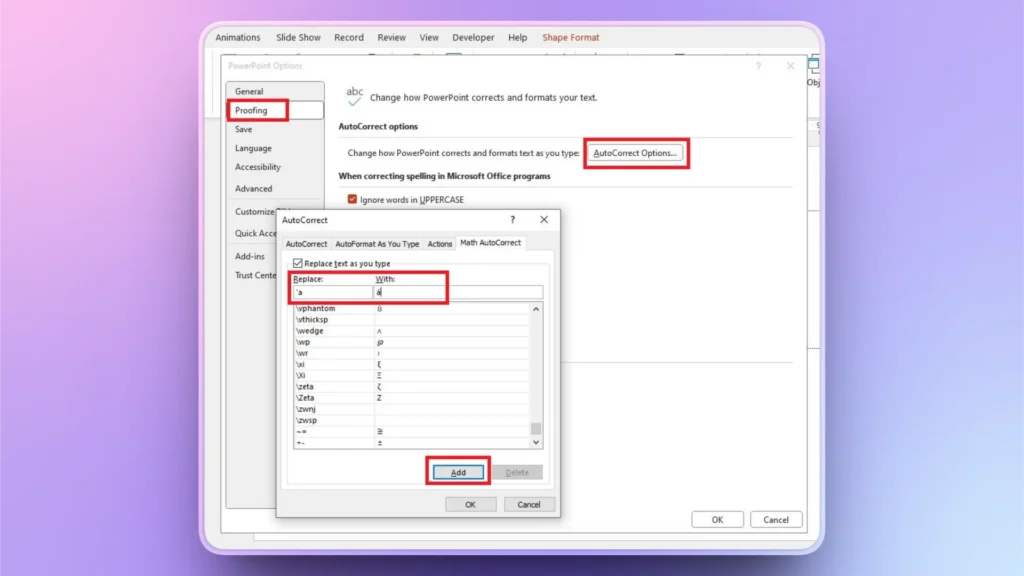
Paso 1: Vaya a Opciones en PowerPoint
Abrir PowerPoint software >> Archivo >> Opciones >> Revisión >> Opciones de autocorrección.
Paso 2: Sustituir las letras inglesas por letras acentuadas
Ahora, hay diferentes cambios que las características de Autocorrección hacen a sus diapositivas y escritura. En las barras dadas, bajo Sustituir, escribe tu atajo como:
- :a → á
- n~ → ñ
Para facilitarte la tarea, copia letras acentuadas de Internet y pégalas en la barra “Con”. Ahora, cada vez que escriba :a se cambiará a á automáticamente.
Método 3: Copiar y pegar desde otras fuentes
Las letras acentuadas son importantes en las presentaciones de PowerPoint, pero un usuario común rara vez se encuentra con estas letras. La forma más fácil de sortear este reto es copiar letras de otras fuentes, como búsquedas online y blogs, y simplemente pegarlas en tus diapositivas.
¿Cómo hacer presentaciones de PowerPoint en otro idioma?
Se trata de una oportunidad apasionante para que los usuarios de PowerPoint amplíen su audiencia. No importa el idioma que hables; PowerPoint te permite hacer presentaciones en más de 30 idiomas.
No encuentro la opción de hacer PPT en otros idiomas. ¿Dónde está la opción? Bueno, tienes que instalar un complemento de AI para esta increíble traducción y soporte multilingüe.
PPT multilingües con Twistly
Twistly es un complemento AI para PowerPoint que permite a los usuarios hacer presentaciones en diferentes idiomas. No es como cambiar la configuración de idioma de PowerPoint.
Con Twistly, puedes proporcionar instrucciones y avisos de IA en inglés, y Twistly generará diapositivas en el idioma que desees. A continuación te explicamos cómo hacer presentaciones en diferentes idiomas en PowerPoint con Twistly.
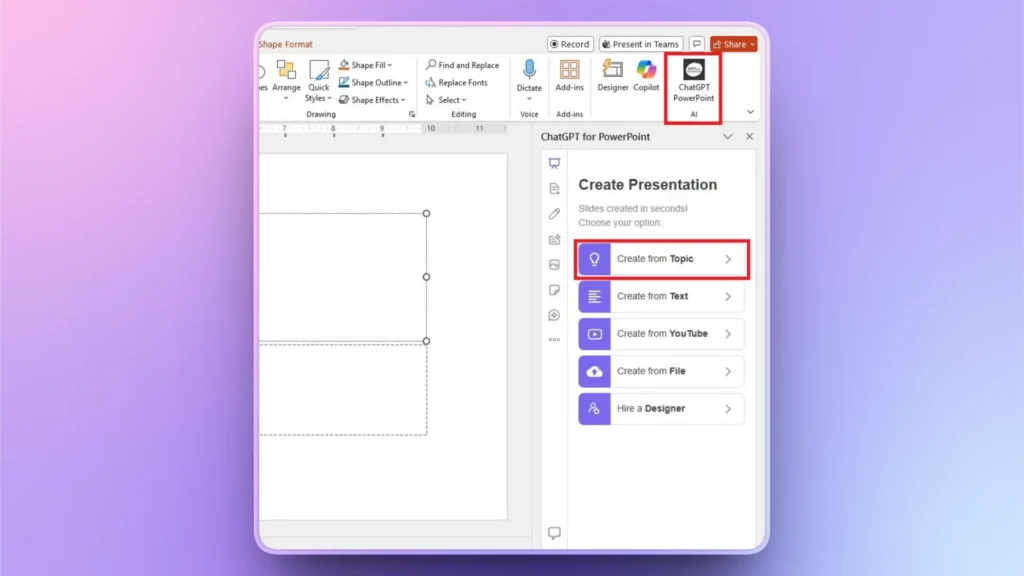
Paso 1: Abrir PowerPoint y Twistly
Abra PowerPoint, inicie una presentación en blanco y ejecute Twistly. Verás diferentes opciones para crear una presentación. Crearemos una presentación “a partir de un tema o una indicación de IA”.
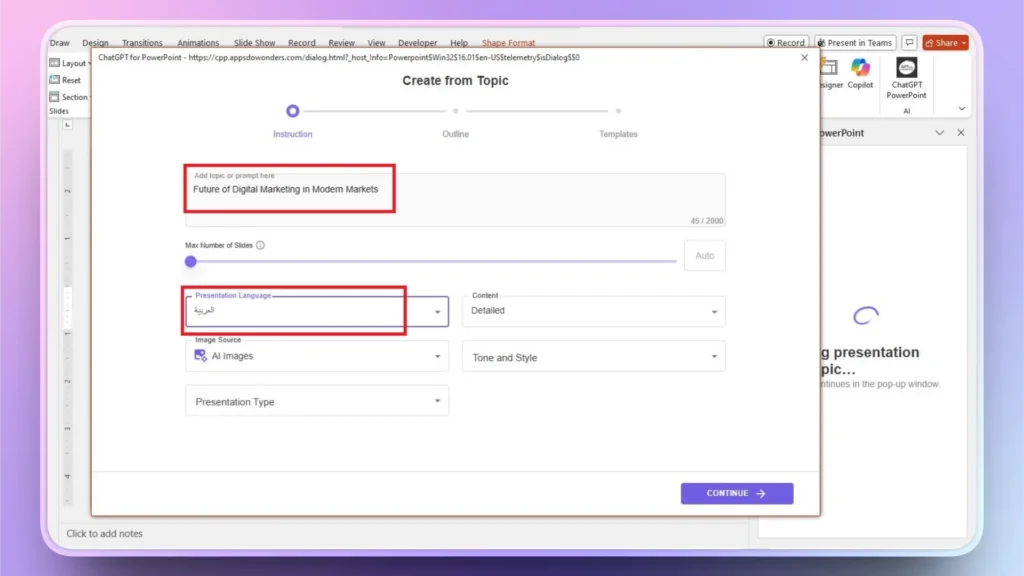
Paso 2: Introducir tema y elegir lengua
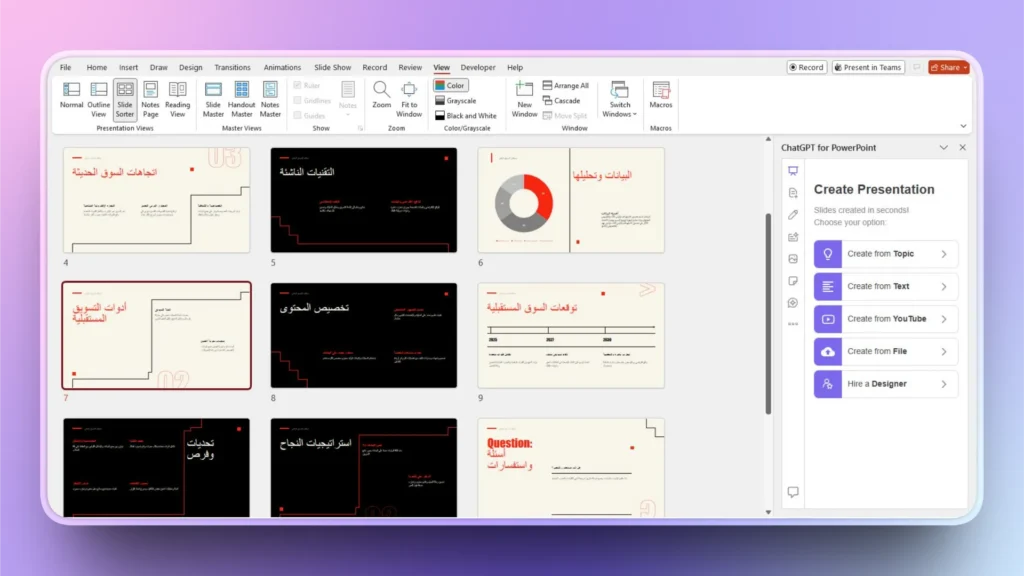
En la siguiente pantalla, escriba el tema de su presentación en inglés y, a continuación, seleccione el idioma de la presentación. Puedes elegir cualquier idioma de la lista desplegable. Nosotros elegimos el árabe para este tutorial.
Paso 3: Revisar el esquema y seleccionar una plantilla
Twistly generará un esquema para las diapositivas que podrás revisar o editar. Continúe con el siguiente paso y ahora seleccione una plantilla de PowerPoint AI que le guste y haga clic en Continuar.

Paso 4: Enhorabuena, su PPT está listo
En unos instantes, sus diapositivas en árabe estarán listas. Los usuarios pueden revisar, editar o presentar estas diapositivas de inmediato. Hacer presentaciones con Twistly en inglés o en cualquier otro idioma es fácil y sencillo.
Disfruta de la versión de prueba gratuita por tiempo limitado de Twistly
Nuestros lectores tienen a su disposición una versión de prueba gratuita limitada de Twistly. Los usuarios pueden solicitar su versión de prueba gratuita haciendo clic en el botón de abajo. Empieza a hacer presentaciones instantáneas con tu propio ChatGPT para PowerPoint.
No necesitas tarjeta de crédito para solicitar tu versión de prueba gratuita de Twistly. No tienes nada que perder, así que ¿por qué no vas a probar Twistly ahora mismo?
Crear diapositivas de PowerPoint con IA
Crea presentaciones basadas en IA a partir de cualquier mensaje, documento o vídeo

Veredicto final
Añadir tildes en PowerPoint es sencillo una vez que se conocen las herramientas disponibles. Estos son los métodos más sencillos para acentuar letras. Cuando necesitas hacer diapositivas atractivas y profesionales, cada pequeño detalle importa.
La forma ideal de mejorar tus presentaciones de PowerPoint es dejar que la IA haga la magia. Empieza a hacer presentaciones de PowerPoint con Twistly y nunca volverás a las formas convencionales de hacer diapositivas.











Empieza a hacer presentaciones con IA en segundos
Acceso instantáneo
Empieza a explorar inmediatamente todas las funciones de Twistly
Sin compromisos
No necesita tarjeta de crédito y puede cancelar en cualquier momento
Asistencia dedicada
Nuestro equipo está aquí para ayudarle en cada paso del camino durante su juicio.