


How Many Words Per Minute Is Ideal for a Presentation?
130 to 160 words per minute (WPM) is ideal for a presentation. 150 words per minute is an ideal limit for a presentation. While focusing on the WPM, don’t compromise on the clarity, engagement, and effective delivery of your message.
An ideal range of words per minute allows users to digest information without being overwhelmed or losing interest. If you speak too fast, the audience may not understand your point effectively. Speaking too slowly will also make them lose interest.
There is no hard and fast rule regarding WPM for presentations; one-size-fits-all does not apply to presentations and speeches. You must consider the type of content, audience, and other factors while deciding on an ideal WPM limit for your presentation.
Importance of Speaking Speed in Presentations
Words per minute rate directly impacts how your presentation idea or message is remembered and understood by the audience. The idea here is to deliver maximum value in the given time. A well-paced presentation can:
- Improve comprehension
- Mantener el interés del público
- Add emphasis to key points
- Make you sound confident and professional
While reading this guide on how many words per minute for a presentation, remember that we are talking about your speaking speed, not words per slide or deck.
Word Per Minute Rate for Different Presentation Types
150 words per minute is an ideal speaking rate for most presentations, but not for all presentation types. Here are the recommended words per minute rates for different presentations:
| Tipo de presentación | Recommended WPM | Key Benefit |
|---|---|---|
| Informative Presentations | 120–150 WPM | Helps audience process data and details |
| Persuasive Presentations | 130–160 WPM | Adds energy and conviction |
| Storytelling / Keynote | 110–140 WPM | Enhances emotional connection |
| Training / Instructional | 100–140 WPM | Helps the audience process data and details |
As always, you are not bound to follow these guidelines strictly, and depending on the situation or presentation type, changes can be made. Stick to these WPM guidelines if you can maintain the effective delivery of your message.
How to Calculate Words Per Minute?
There might be online tools that can help you calculate words per minute or your speaking speed. But you can manually determine your speaking speed with a simple test.
Just follow these simple steps to calculate your speaking speed or WPM rate:
- Write a script of about 300–500 words
- Time yourself while reading it aloud
- Use this formula:
WPM = Total Words ÷ Total Minutes Spoken
According to this test, if you speak around 300 words in 2 minutes, your words per minute rate is 150. You speak roughly 150 words per minute.
How Many Slides for a Presentation?
The depth of your content and your speaking speed directly decide the ideal slide count for a presentation. In general, one slide per minute is recommended, and for a 10-minute presentation, you can do 10 diapositivas.
As the ideal speaking rate is 150 WPM, you can allocate 150 words per slide. You don’t need to write 150 words per slide; we are talking about 150 words that you will speak about related to that slide. Each slide can have important headings, talking points, or other details only.
What Affects the Speaking Speed
There are many real-world factors that determine the speaking speed for a presentation. You can make changes to your speaking speed depending on the given factors.
| Factor | Impact on Speaking Speed | Recommendation |
|---|---|---|
| Audience Type | Understanding level varies by audience | Speak slower for beginners; faster for experts |
| Content Complexity | Complex material takes longer to process | Slow down for data-heavy or technical content |
| Use of Visuals | Visuals require time to read and interpret | Pause and reduce speed when showing visuals |
| Presentation Length | Longer sessions can affect attention span | Vary your pace to keep the audience engaged |
Signs You Are Speaking Too Fast or Too Slow
While you are on stage, being able to recognize your pacing issues is important. Here are some signs regarding your speaking speed.
Speaking Too Fast
- People ask you to repeat your point more often
- You run out of breath while speaking
- Listeners look confused or disengaged
Speaking Too Slow
- People seem disengaged or bored
- You are struggling to fill the time
- Your speech feels monotonous
How to Adjust Your Pacing for Presentations?
If you have a presentation with too little or too much content per slide, you need to make simple edits and optimizations to your content.
The manual approach requires you to go through all slides, read the content, and make changes to fix your speaking speed according to the given time. With the right AI tool, you can easily adjust content for your presentations.
Optimize Slide Content with AI
Twistly is an AI add-in for PowerPoint that can write, edit, or optimize slide content for any type of presentation. With a single click, you can expand, rewrite, or change slide content.
Presentation creation, AI speaker notes, AI image creation, and many other practical and useful AI features of Twistly can help you improve your presentation skills.
Crear PowerPoint
Diapositivas con IA
Cree presentaciones basadas en IA a partir de
cualquier mensaje, documento o vídeo


Rewriting Text with Twistly
Twistly is an easy-to-use AI tool for PowerPoint users. It is just like a more customized version of ChatGPT for PowerPoint. Follow these steps to rewrite text to adjust your speaking speed for presentations.
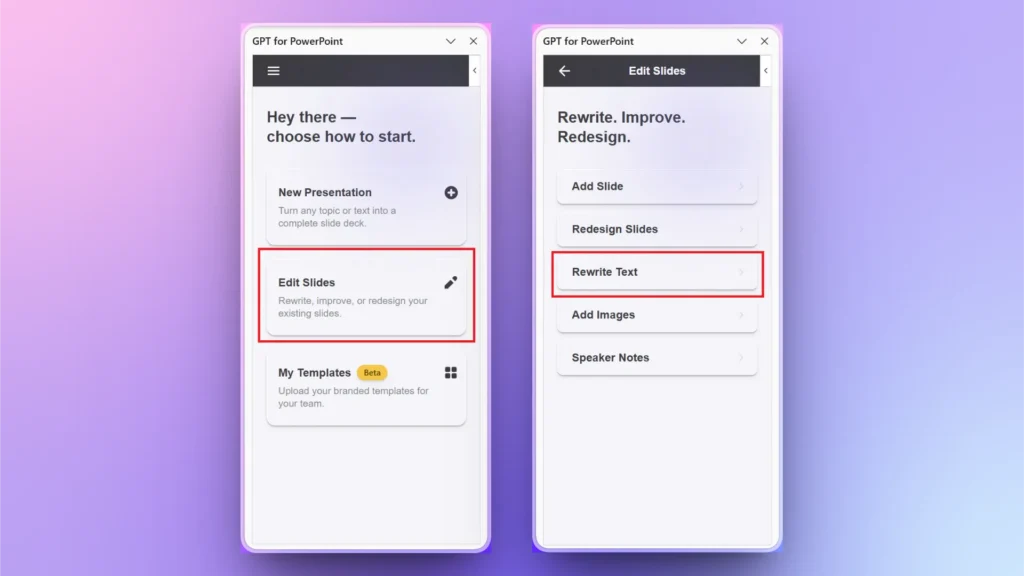
Step 1: PowerPoint >> Twistly >> Rewrite Text
Open any existing PowerPoint presentation and launch Twistly. From the Twistly pane, click Edit Slides and then select the Rewrite Text opción.
Step 2: Select Text Optimization Action
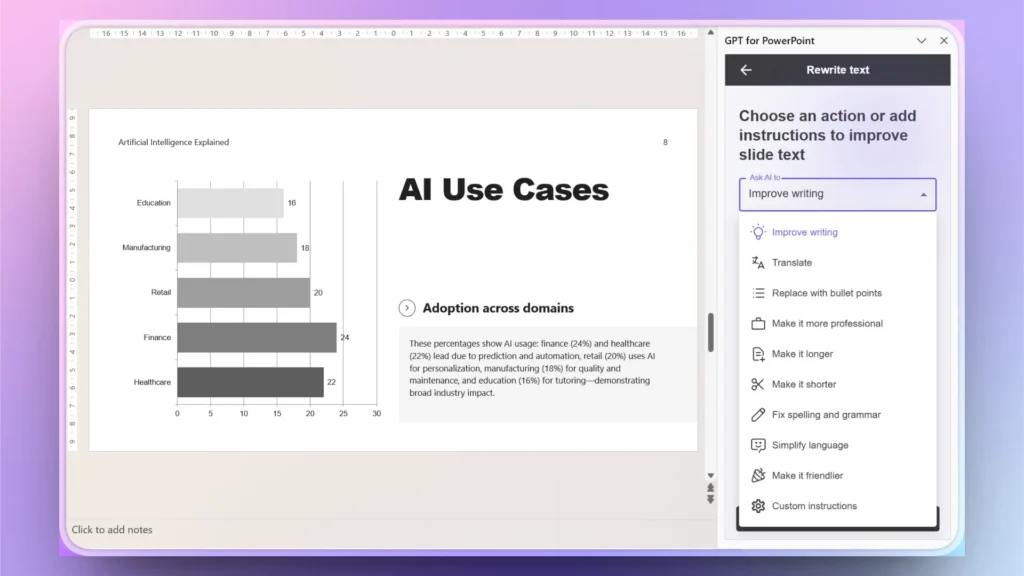
Choose whether to apply the action to the selected slide, all slides, or selected text. After making the choice, use the drop-down menu to find AI text optimization options.
Choose any action that you want to perform, and Twistly will instantly improve, optimize, or change text.
Conclusión
150 words per minute is an ideal rate for a presentation, but it is not about hitting an exact number but about effective message delivery. If you don’t have enough data or material for your presentation, use Twistly to generate slides, create presentations, or optimize existing content. There are unlimited opportunities to improve your presentations with Twistly.
You can download Twistly for free and enjoy the limited-time free trial period. If you like the features, upgrade at any moment to unlock all premium features. Let’s make your PowerPoint presentations awesome with Twistly.
Crear diapositivas de PowerPoint con IA
Crea presentaciones basadas en IA a partir de cualquier mensaje, documento o vídeo












Empieza a hacer presentaciones con IA en segundos
Acceso instantáneo
Empieza a explorar inmediatamente todas las funciones de Twistly
Sin compromisos
No necesita tarjeta de crédito y puede cancelar en cualquier momento
Asistencia dedicada
Nuestro equipo está aquí para ayudarle en cada paso del camino durante su juicio.