


En un mundo moderno interconectado, un equipo de oficina puede tener miembros de distintos países que hablan idiomas diferentes. Crear presentaciones localizadas para equipos globales con IA es ahora posible con herramientas como Twistly.
Los directivos, los equipos de RR.HH. o los socios pueden hacer presentaciones en PowerPoint en distintos idiomas sin necesidad de aprender lenguas extranjeras.
Una forma de crear presentaciones localizadas para equipos internacionales es utilizar herramientas de traducción, pero no es una solución muy eficaz. Tendrás que repetir el mismo proceso.
Desafíos de las herramientas de traducción convencionales
Imagina que estás haciendo una presentación en inglés, pero tienes que hacer la misma presentación para un equipo en Arabia Saudí. He aquí cómo sería un proceso normal de presentación localizada sin herramientas de IA:
- Has hecho una presentación profesional en inglés
- Ha copiado el contenido de una diapositiva de una presentación en inglés y lo ha pegado en un programa de traducción.
- El siguiente paso es copiar el texto traducido y pegarlo en la presentación en árabe.
- Repita este mismo proceso para las 30 diapositivas
- Ahora hay que dar formato a toda la presentación y realizar otros ajustes.
En un entorno de oficina ajetreado, esto parece casi imposible. Si haces varias presentaciones al día, es posible que los métodos manuales para hacer presentaciones para equipos globales no te sirvan.
Cómo ayuda la IA a localizar presentaciones
Herramientas como Twistly no sólo sirven para diseñar diapositivas, sino que también son herramientas de colaboración. Puedes crear presentaciones para todo el equipo, en distintos idiomas, o incluso traducir cualquier parte de la diapositiva a más de 30 idiomas.
Las herramientas de IA ayudan a crear presentaciones localizadas para equipos internacionales:
- Automatice la conversión de textos analizando el contexto
- En lugar de traducir textos manualmente, tradúzcalos automáticamente a distintos idiomas
- Generar visuales personalizados, específicos para el país y la cultura
- Añadir notas del orador para explicar la diapositiva
¿Cuál es la mejor herramienta de IA para presentaciones localizadas?
La IA hará que tu trabajo sea más rápido, mejor y más cómodo, pero el siguiente reto es elegir la herramienta adecuada para hacer el trabajo adecuado. Existen múltiples herramientas de traducción con IA, pero queremos una herramienta que nos ayude a crear una presentación completa.
Una herramienta de IA ideal para crear presentaciones localizadas para equipos globales debe ofrecer diferentes funciones de IA que permitan mejorar y perfeccionar las presentaciones. Para ello, Twistly es una de las mejores herramientas de IA para presentaciones localizadas.
Crear PowerPoint
Diapositivas con IA
Cree presentaciones basadas en IA a partir de
cualquier mensaje, documento o vídeo


¿Cómo localizar presentaciones con Twistly?
No hace falta ser un experto en ningún idioma extranjero para hacer presentaciones para miembros del equipo que hablen ese idioma. Por suerte, ni siquiera necesitas cambiar la configuración de idioma de tu software PowerPoint.
Si quieres hacer una presentación de PowerPoint en árabe, puedes introducir los datos en inglés, pero el resultado será en árabe. ¿No es increíble? Veamos cómo crear presentaciones localizadas para equipos globales con Twistly AI.
Paso 1: Elegir el método de entrada para Twistly PPT
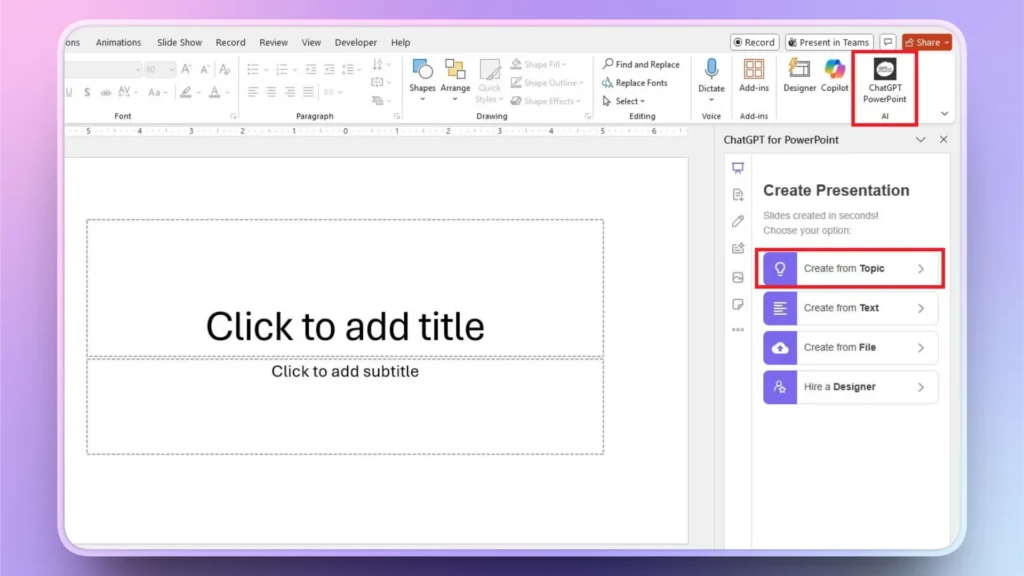
Abre una presentación de PowerPoint en blanco e inicia Twistly. Hay múltiples métodos de entrada disponibles para hacer presentaciones, y vamos a elegir el primero, PPT, a partir de un tema/AI prompt.
Paso 2: Introduzca el tema y elija el idioma
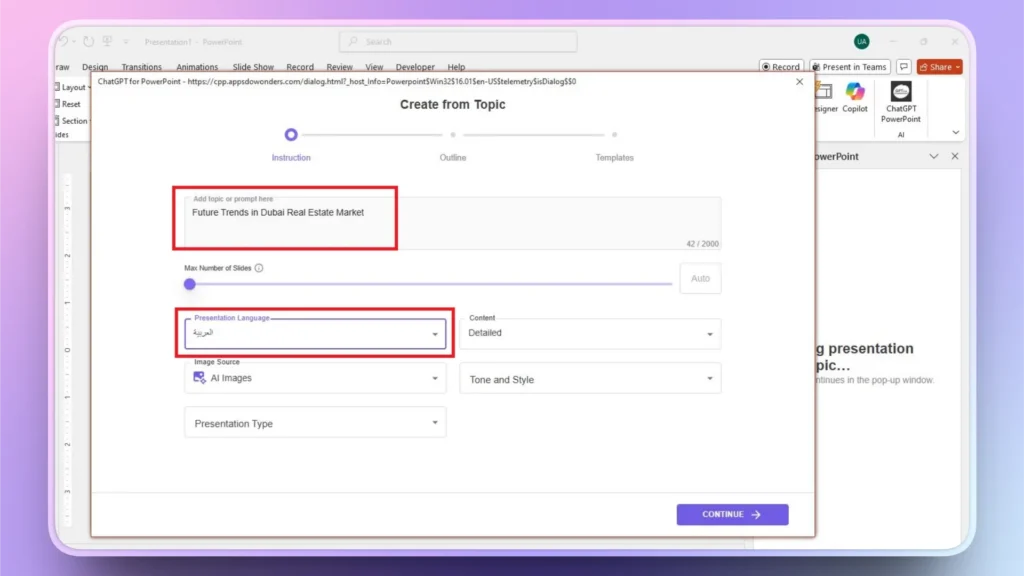
En el siguiente paso, indique el tema de la presentación o escriba un mensaje de AI para crear una presentación. Puede elegir cualquier idioma entre las opciones disponibles; se admiten 30 idiomas diferentes. Haga clic en Continuar para pasar al siguiente paso.
Paso 3: Revisar el esquema de diapositivas
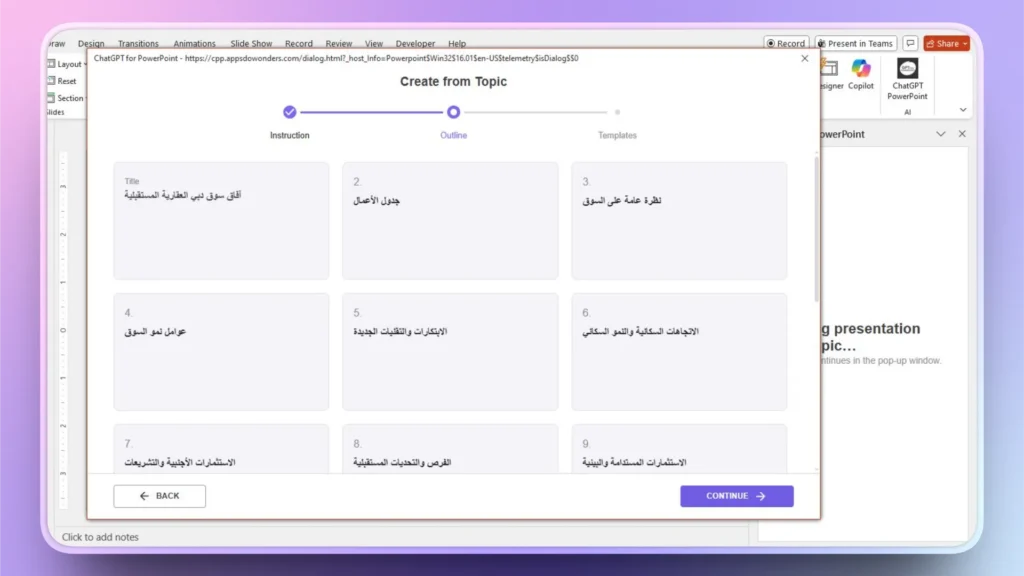
AI te dará un posible esquema para las diapositivas en árabe. Revisa estas diapositivas y haz cambios si es necesario, y haz clic en Continuar si todo parece correcto.
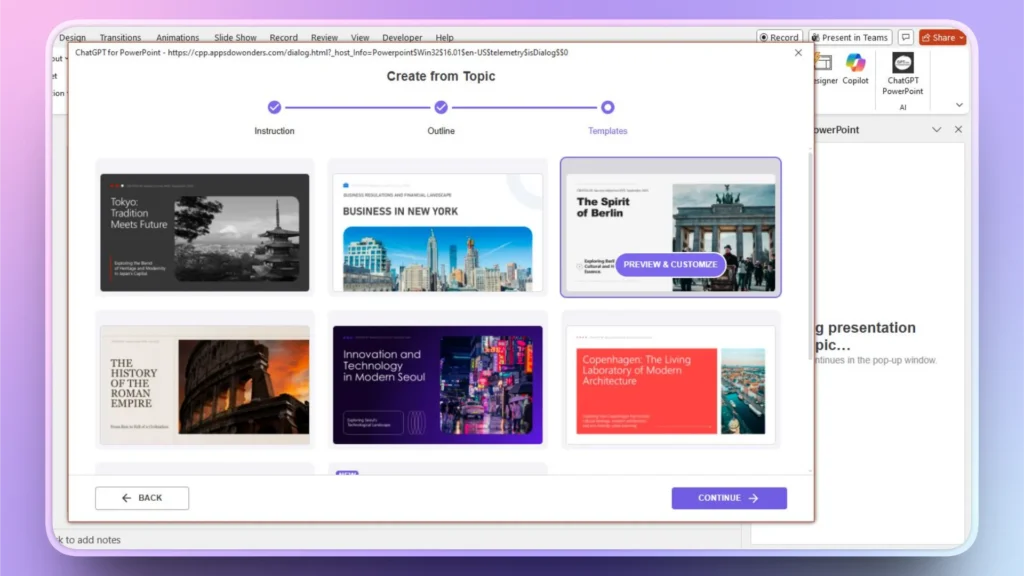
Paso 4: Seleccionar plantilla AI
Twistly tiene unas plantillas de PowerPoint AI increíbles. Elige el tema que más te guste; también puedes cambiar el color. Haz clic en Continuar para el paso final.
Paso 5: Revise sus diapositivas finales
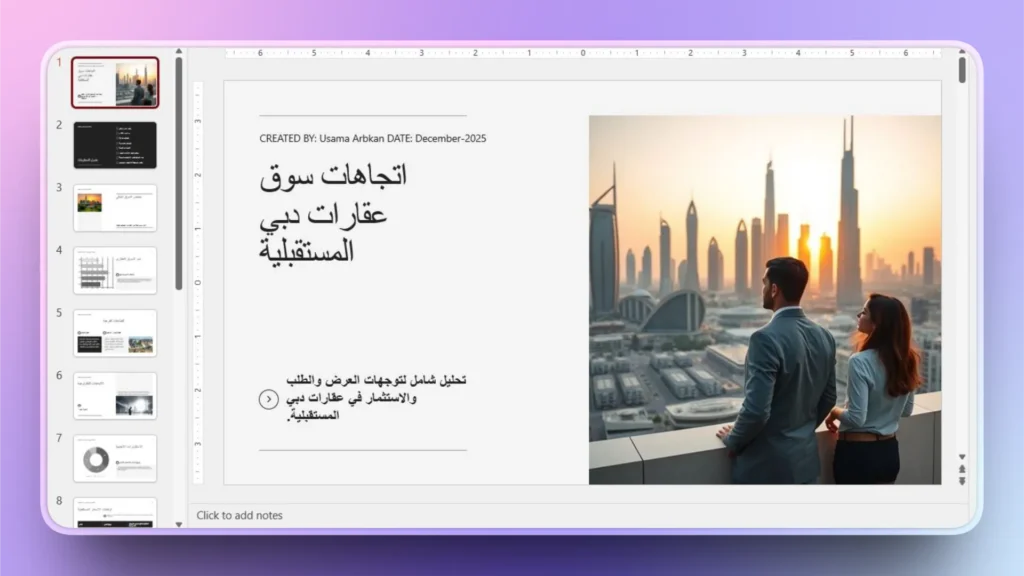
En unos segundos, tus diapositivas en árabe estarán listas. Como no sabes árabe, puedes simplemente revisar los posibles cambios de formato y otros elementos. Por lo general, los resultados son precisos y presentables de inmediato.
¿Cómo traducir diapositivas con Twistly?
Si tienes una presentación de PowerPoint en un idioma extranjero y quieres traducir el texto seleccionado o una diapositiva entera a otro idioma, es fácil con Twistly. No necesita ninguna herramienta adicional, ya que Twistly lo tiene todo dentro de PowerPoint.
Para este ejemplo, utilizaremos la presentación en árabe que acabamos de hacer con Twistly. Siga estos pasos para traducir el texto seleccionado o una diapositiva entera a otro idioma.
Paso 1: Seleccione la opción Reescribir texto
Abra la diapositiva PPT que desea traducir y haga clic en Reescribir texto en el menú Twistly.
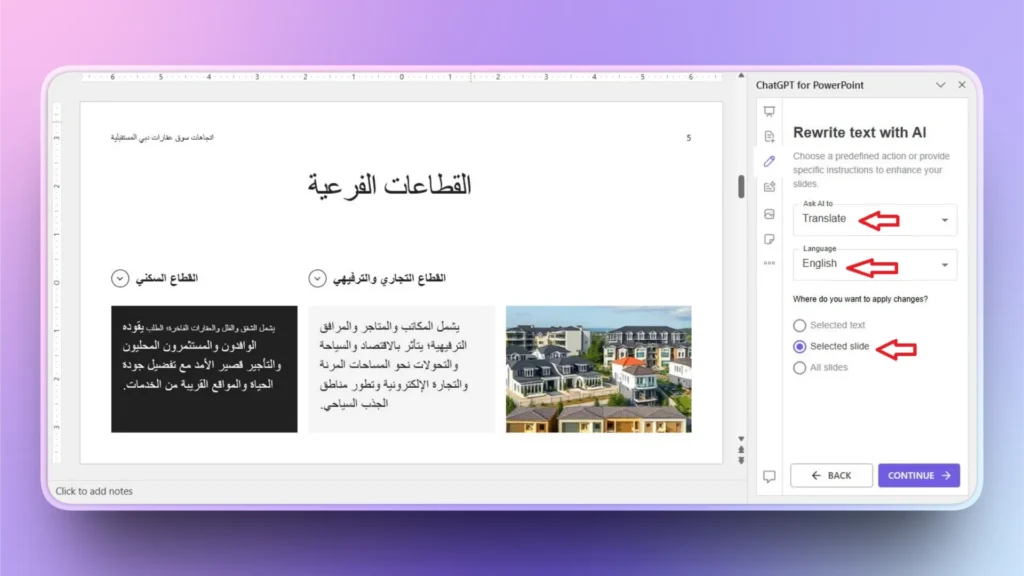
Seleccione Traducir en el menú desplegable y, a continuación, seleccione el idioma para la traducción, como se muestra en la imagen siguiente.
También puedes traducir el texto seleccionado, la diapositiva seleccionada o todas las diapositivas de la presentación. Haz clic en Continuar para traducir la diapositiva árabe al inglés.
Paso 2: Revisar la diapositiva traducida
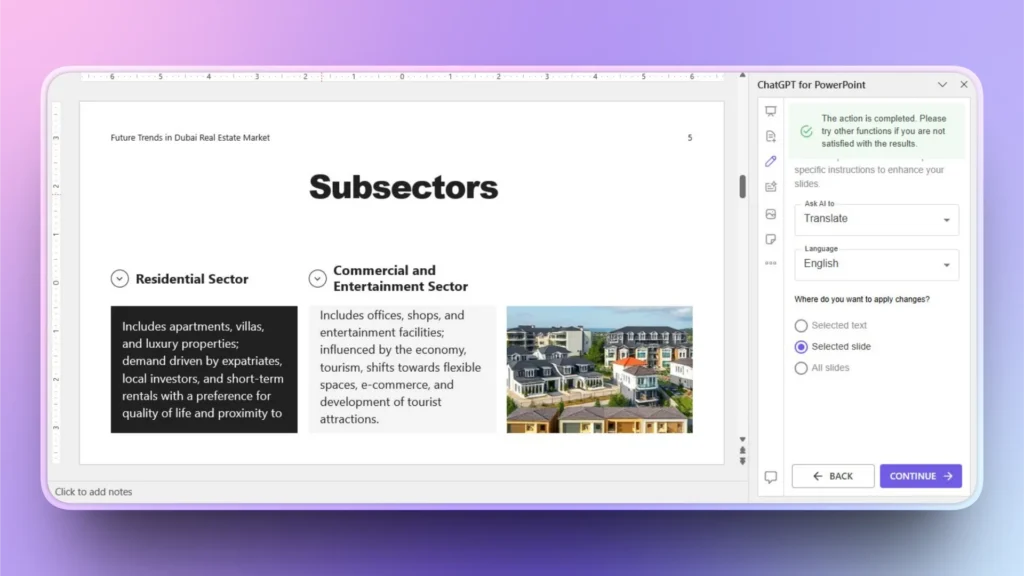
Twistly se tomará un momento para traducir la diapositiva, y usted tendrá una diapositiva traducida al inglés. Revise la diapositiva para comprobar que es correcta.
Nota: Puede utilizar el mismo proceso y seleccionar Revisar errores gramaticales y ortográficos en el menú desplegable para eliminar cualquier error o equivocación en el texto traducido.
Generar imágenes personalizadas con Twistly
Para obtener presentaciones de PowerPoint más personalizadas y localizadas, puedes añadir imágenes AI personalizadas a las diapositivas según la cultura. En este ejemplo, si te diriges a equipos de Dubai, puedes mostrar en las diapositivas a individuos con vestimenta islámica.
Twistly tiene un generador de imágenes AI incorporado. Haga clic en la opción ” Añadir imagen y seleccione Imágenes AI como fuente y, a continuación, escriba su indicación. Tendrás al instante imágenes AI para tus diapositivas.

Conclusión
Crear presentaciones localizadas para equipos globales con Twistly AI no requiere ninguna experiencia especial ni el dominio de un idioma extranjero. Con unos sencillos ajustes, puedes hacer presentaciones de PowerPoint en distintos idiomas o traducir las que ya tengas.
Twistly te garantiza que no tendrás que reestructurar tus presentaciones traducidas, ya que la IA lo mantendrá todo fluido e intacto durante la traducción. Si quieres ampliar tu equipo y tus habilidades comunicativas, descarga gratis la versión de prueba de Twistly y disfruta sin tarjeta de crédito ni compromisos a largo plazo.
Crear diapositivas de PowerPoint con IA
Crea presentaciones basadas en IA a partir de cualquier mensaje, documento o vídeo





Empieza a hacer presentaciones con IA en segundos
Acceso instantáneo
Empieza a explorar inmediatamente todas las funciones de Twistly
Sin compromisos
No necesita tarjeta de crédito y puede cancelar en cualquier momento
Asistencia dedicada
Nuestro equipo está aquí para ayudarle en cada paso del camino durante su juicio.