


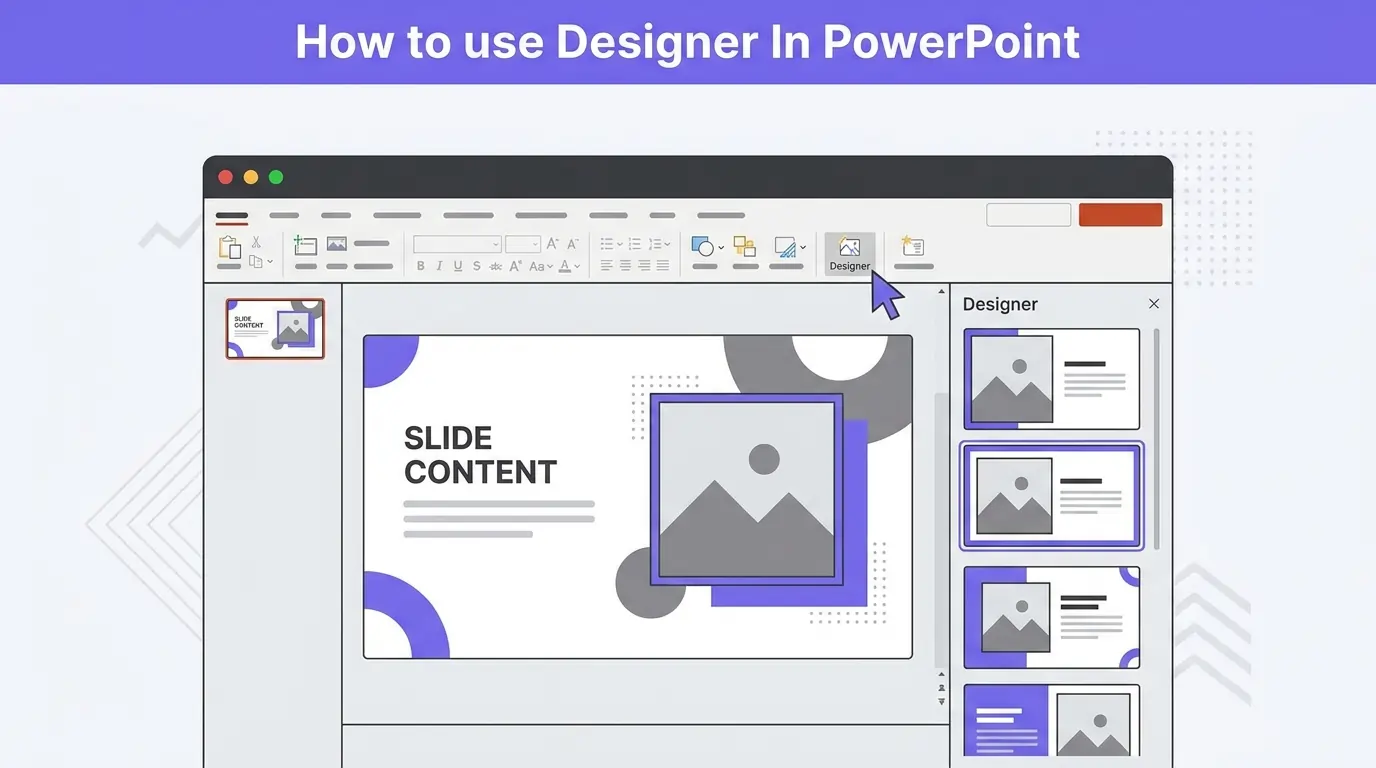
Para usar el Diseñador en PowerPoint, necesitas una conexión a internet activa y una suscripción a Office 365. Esta herramienta se llamaba antes Ideas de diseño y ahora está disponible en las versiones más recientes de PowerPoint.
Si no ves la función Diseñador en PowerPoint, asegúrate de que tu versión de PowerPoint está actualizada y de que tienes una suscripción activa a Office 365.
Cuando tengas el Diseñador disponible en PowerPoint, te ayudará a crear diseños de diapositiva profesionales. ¿Cómo usarlo para crear mejores presentaciones? Esta guía incluye todo lo que necesitas saber sobre la herramienta Diseñador de PowerPoint.
¿Qué es el Diseñador en PowerPoint?
El Diseñador es una herramienta o función de PowerPoint basada en IA que analiza el contenido de las diapositivas y sugiere posibles ideas de diseño para convertir tus diapositivas aburridas en diapositivas profesionales.
Cuando añades texto, una imagen, un icono o cualquier otro elemento a la diapositiva, aparece automáticamente un panel a la derecha de la pantalla con ideas y sugerencias de diseño.
De serie, PowerPoint tiene una integración con IA muy pobre, y el Diseñador es un intento de ofrecer algunas funciones de IA a los usuarios de PowerPoint. Estas son sus principales ventajas:
- Ahorra tiempo al dar formato
- Mejora la jerarquía visual
- Mantiene la coherencia
- Mejora la legibilidad
- Ideal para quienes no son diseñadores
El Diseñador no es un creador de PPT completo, sino una herramienta de IA básica para obtener ideas de diseño. Si necesitas una solución de IA todo en uno para PowerPoint, Twistly es la única respuesta. Te lo explicamos todo sobre Twistly en la última sección.
¿Dónde está el Diseñador en PowerPoint?
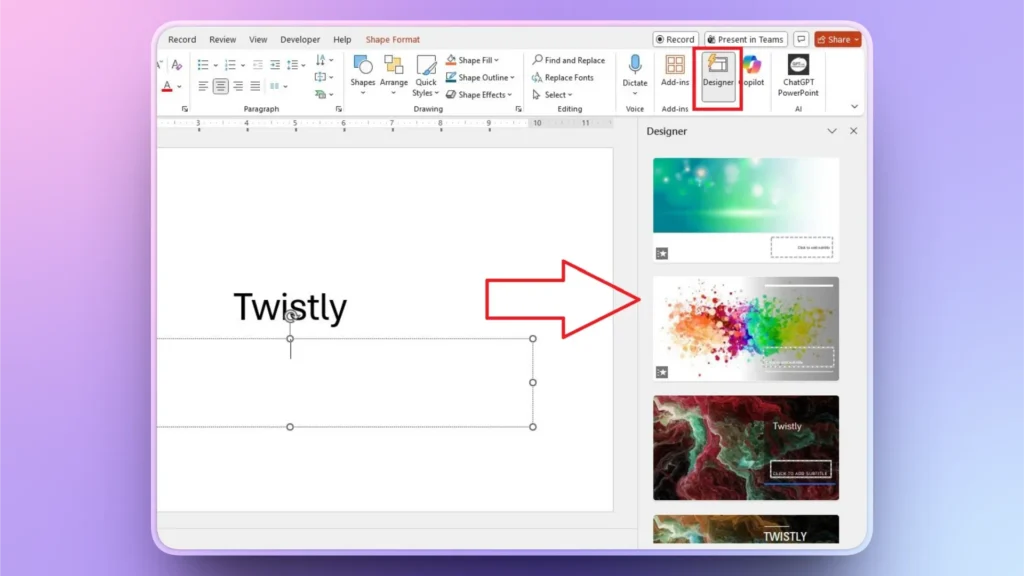
El Diseñador se encuentra en la cinta superior, en la pestaña Inicio, en la esquina derecha, junto al grupo Complementos. También puedes encontrar la función Diseñador en la pestaña Diseño.
Cuando añades texto o una imagen a tu diapositiva, las sugerencias del Diseñador se activan automáticamente. Si no es así, puedes hacer clic en el icono Diseñador para activarlo.
¿Cómo usar la herramienta Diseñador en las diapositivas?
El Diseñador es una herramienta de sugerencias con IA que te ofrece ideas de diseño para el contenido que ya tienes. No lo confundas con un creador de presentaciones. Asegúrate de tener una conexión a internet activa para que el Diseñador funcione bien.
Paso 1: Añade contenido a tu diapositiva
Tu diapositiva debe tener algún tipo de contenido para que el Diseñador pueda sugerir ideas. Abre PowerPoint y añade contenido a tu diapositiva.
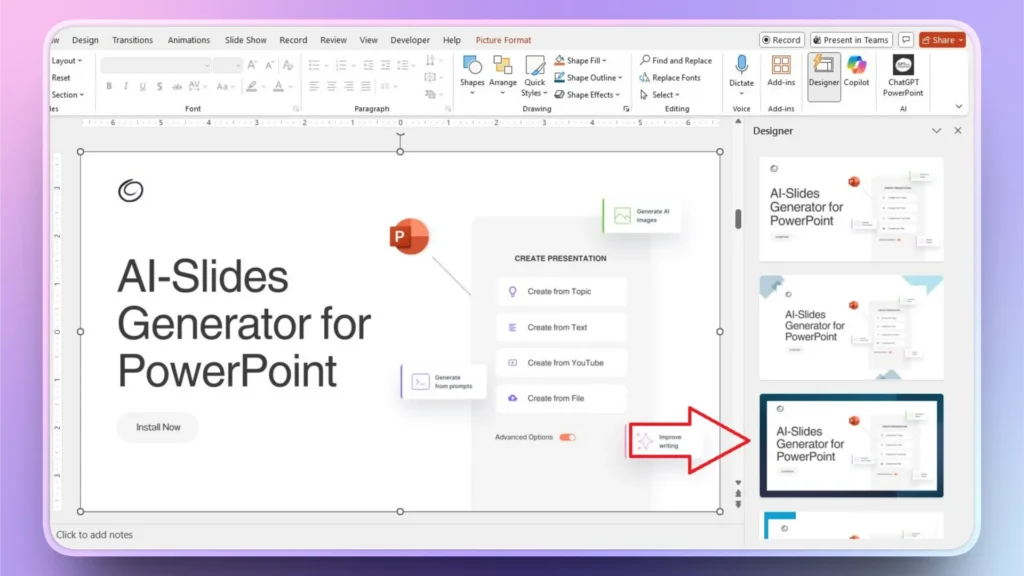
Insertamos una imagen en la diapositiva e hicimos clic en el icono Diseñador. En el panel derecho, el Diseñador sugirió varias ideas de diseño. Puedes recorrer las sugerencias hasta encontrar una adecuada.
Paso 2: Selecciona y aplica una idea de diseño
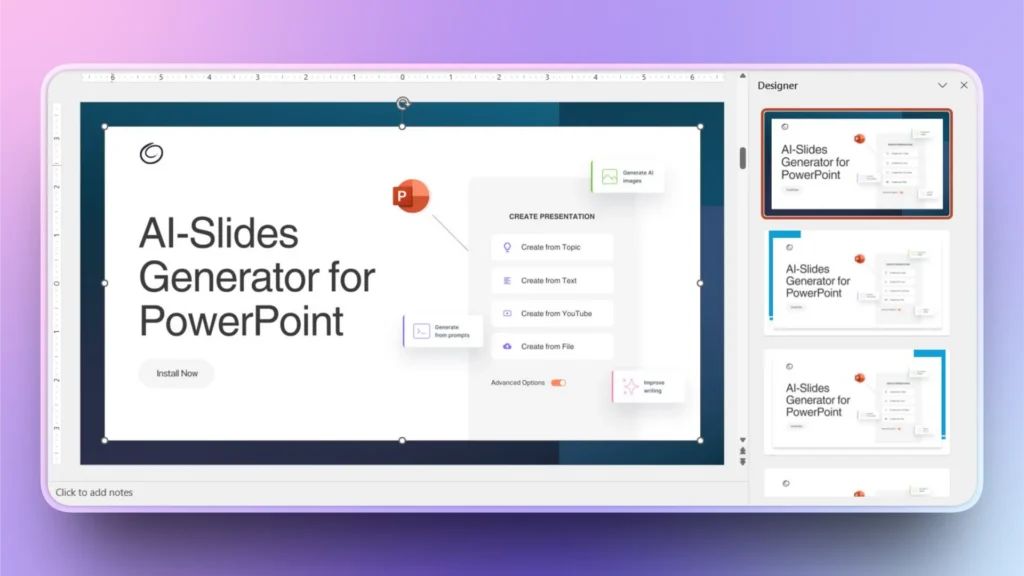
Haz clic en la idea de diseño que te guste y se aplicará automáticamente a la imagen de tu diapositiva. Como ves, la imagen de la diapositiva tiene ahora un nuevo diseño.
Solución de problemas: no hay ideas de diseño para la diapositiva
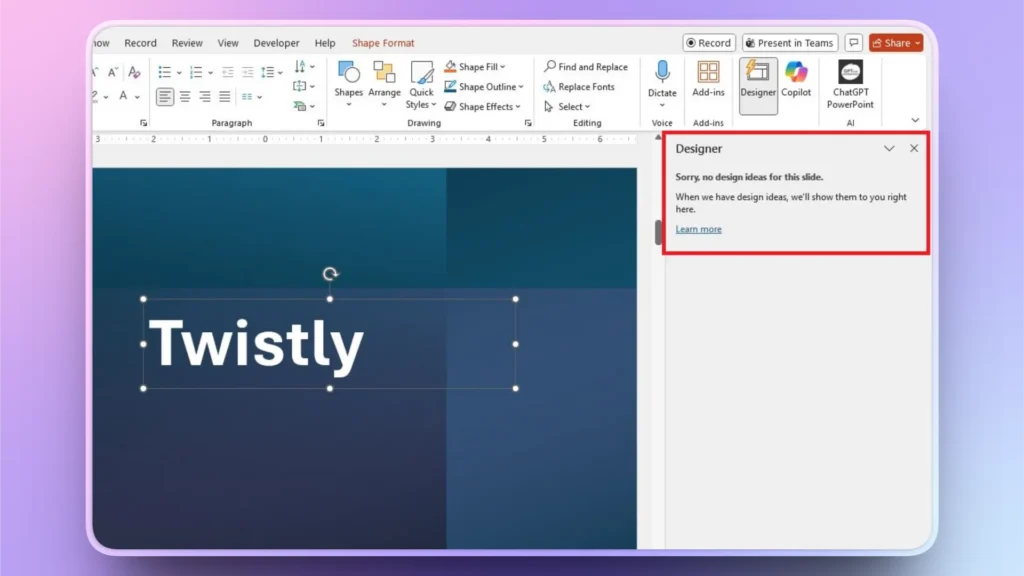
Al usar el Diseñador, puede que te encuentres con el error “Lo sentimos, no hay ideas de diseño para esta diapositiva.” Este mensaje significa que la diapositiva no tiene suficientes datos o contenido para que la IA pueda sugerir diseños.
Este error también puede deberse a una conexión a internet inestable. Si ves este mensaje, comprueba el estado de tu conexión y añade más contenido o elementos a la diapositiva.
¿Cómo activar el Diseñador en PowerPoint?
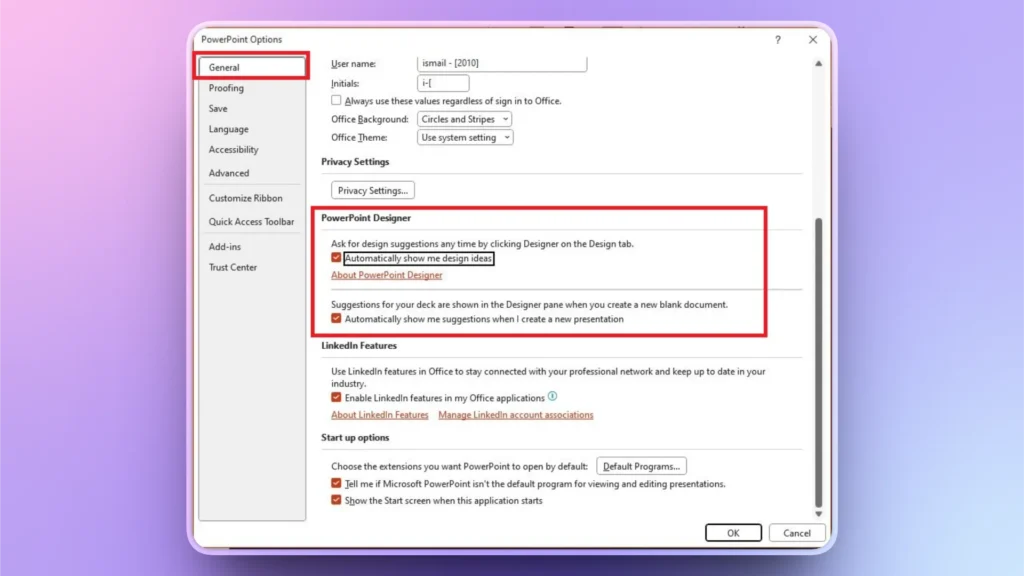
Si ves el icono Diseñador en la parte superior pero no recibes ninguna sugerencia de diseño, tienes que activar manualmente las sugerencias para las diapositivas. Recuerda que el Diseñador solo funciona para suscriptores premium de Office 365.
Así puedes activar las sugerencias del Diseñador para tus nuevas diapositivas y presentaciones en PowerPoint.
- Abrir PowerPoint >> Archivo >> Opciones >> General
- En la sección Diseñador de PowerPoint, marca las dos casillas de sugerencias automáticas
Limitaciones del Diseñador de PowerPoint
El Diseñador es un recurso útil, pero tiene poca utilidad práctica para el usuario medio de PowerPoint. No es una herramienta de IA en la que quieras confiar del todo. Unas pocas ideas de diseño no ofrecen mucha flexibilidad a un usuario habitual o avanzado.
- Función de pago y cara, solo para suscriptores de Office 365
- No funciona sin conexión
- Sugerencias de diseño limitadas que solo funcionan con determinados tipos de contenido
- Puede que no sugiera ideas si hay poco contenido
- Control personalizado limitado sobre los diseños
- No es ideal para datos y contenidos complejos
Está claro que necesitas una herramienta de IA para PowerPoint mejor, más inteligente y más flexible si quieres disfrutar de capacidades similares a ChatGPT en tus presentaciones.
La mejor alternativa con IA al Diseñador
Si tu objetivo es disfrutar de funciones de IA en tus presentaciones de PowerPoint, necesitas Twistly, la mejor alternativa al Diseñador. Twistly no es solo un generador de ideas de diseño, sino un creador de presentaciones con IA completo para PowerPoint.
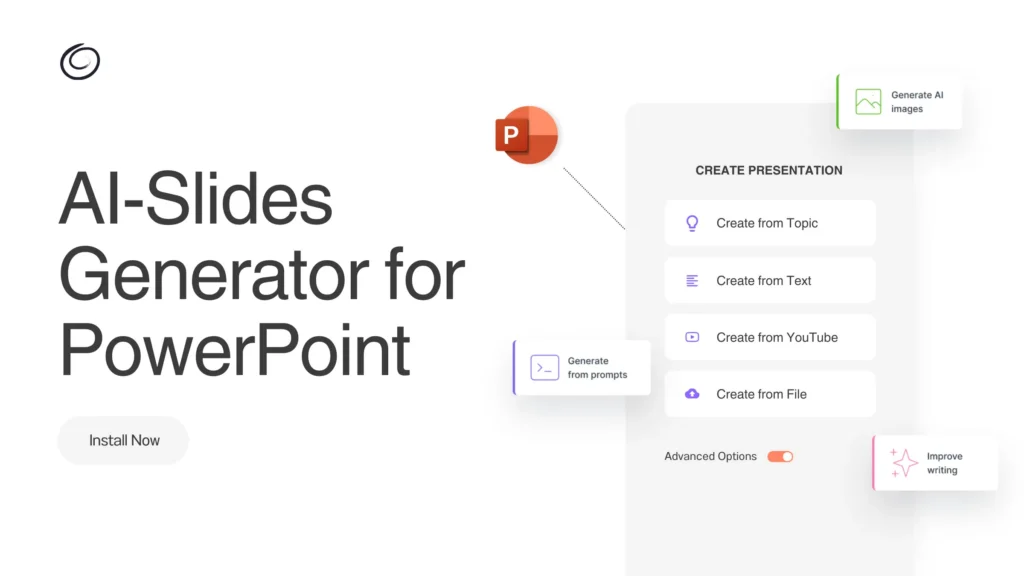
Funciona igual que ChatGPT y te permite crear una presentación completa desde cero con IA. A la hora de editar diapositivas existentes o añadir diapositivas sueltas, Twistly está repleto de potentes herramientas y funciones de IA.
| Función | Diseñador | Twistly |
| Finalidad principal | Sugiere diseños visuales en función del contenido de la diapositiva | Genera, edita y mejora presentaciones completas con IA. |
| Tipo de ayuda | Solo sugerencias de diseño | Creación completa de contenido con IA: texto, elementos visuales, estructura y notas del orador. |
| Genera presentaciones completas | No es posible; solo rediseña las diapositivas que ya has creado. | Sí, crea presentaciones completas a partir de prompts de texto, archivos o enlaces de vídeo directamente en PowerPoint. |
| Generación de contenidos | No genera ni reescribe contenido de texto. | Usa IA avanzada (ChatGPT) para generar y reformular textos. |
| Creación de imágenes con IA | Se limita a sugerencias de diseños predefinidos. | Genera elementos visuales personalizados con IA acordes con el contenido de tu diapositiva. |
Descargar Twistly es gratis
Si eres nuevo, puedes probar Twistly gratis descargando la versión de prueba gratuita desde el enlace de abajo. Probar en tiempo real una verdadera herramienta de IA para PowerPoint antes de comprarla te da confianza. La versión de prueba no requiere tarjeta de crédito. Haz clic en el enlace de abajo e instala el complemento Twistly para PowerPoint.
Crear PowerPoint
Diapositivas con IA
Cree presentaciones basadas en IA a partir de
cualquier mensaje, documento o vídeo


Conclusión
El Diseñador de PowerPoint es una de las formas más rápidas de mejorar el aspecto de tus presentaciones sin conocimientos de diseño, aunque con opciones limitadas. Para disfrutar de una mejor integración y más capacidades de IA, instala Twistly y aprovecha el complemento más potente y mejor valorado para PowerPoint.
El Diseñador es una herramienta de PowerPoint basada en IA que analiza el contenido de las diapositivas y sugiere automáticamente ideas de diseño profesionales. Antes se llamaba Ideas de diseño.
Necesitas tres cosas: una conexión a internet activa, una suscripción válida a Office 365 y una versión actualizada de PowerPoint.
Hay dos posibles motivos: la diapositiva no tiene suficiente contenido para que la IA lo analice o tu conexión a internet es inestable. Para solucionarlo, añade más elementos a la diapositiva y comprueba tu conexión a internet.
Twistly es la mejor alternativa con IA al Diseñador. A diferencia del Diseñador, que solo sugiere ideas de diseño, Twistly crea presentaciones completas desde cero a partir de un prompt de texto, genera y reescribe textos, crea elementos visuales personalizados con IA y funciona directamente dentro de PowerPoint. Hay una prueba gratuita disponible sin necesidad de tarjeta de crédito.












Empieza a hacer presentaciones con IA en segundos
Acceso instantáneo
Empieza a explorar inmediatamente todas las funciones de Twistly
Sin compromisos
No necesita tarjeta de crédito y puede cancelar en cualquier momento
Asistencia dedicada
Nuestro equipo está aquí para ayudarle en cada paso del camino durante su juicio.