


To translate in PowerPoint, select your text >> go to Review tab >> Translate >> select language for translation. PowerPoint has a built-in translation tool that can auto-detect the presentation language and then translate the text into the desired language.
There are certain challenges and limitations that we will discuss in the next sections, and how to overcome these challenges. We will also share an advanced AI presentation tool that can help you translate in PowerPoint and make slides in multiple languages.
Why Translate in PowerPoint
Targeting a wider audience requires you to translate your presentation into different languages. Marketers, teachers, motivational speakers, and other users might want to translate their presentation so they can:
- Expand reach to international audiences
- Improve comprehension for non-native speakers
- Enhance brand credibility across regions
- Increase engagement and conversions in global markets
For translation in PowerPoint, we will discuss two different methods in detail. The first one has some limitations, but the second AI tool does a lot more than just translating text in PowerPoint.
1st Method: Translate in PowerPoint using the built-in tool
Here are detailed steps to translate any text in PowerPoint. Keep in mind that PowerPoint can translate selected text or chunks of text from slides only. You cannot translate a complete presentation with a built-in translation feature. Our AI tool, Twistly, is required for that.
Step 1: Select your Text
Open your PowerPoint presentation, go to the target slide, and select the text or paragraph that you want to translate in PowerPoint.
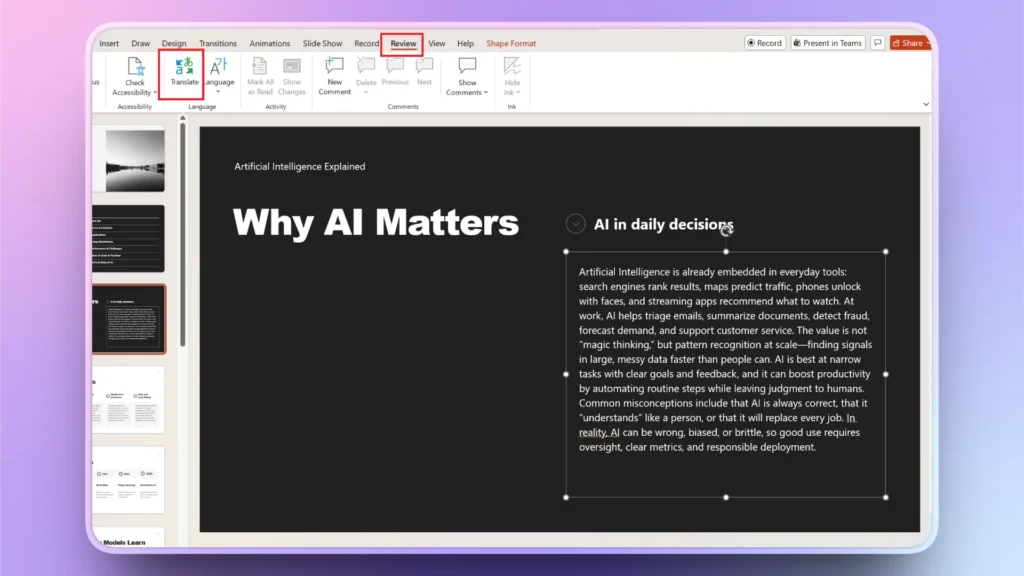
Step 2: Go to Review >> Translate
Once the desired text is selected, click the Review tab and select the Translate option.
Step 3: Translate Text
A translation pane will appear on the right side of the slide preview. PowerPoint will detect the language for the selected text, and then you can choose any language from the dropdown menu for translation.
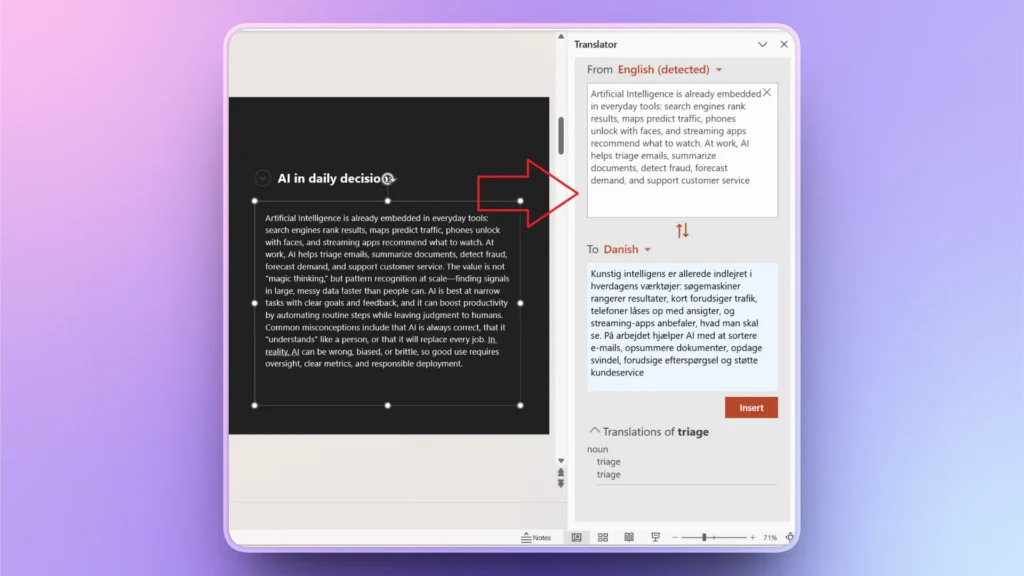
Note: Hovering the mouse on any word in the translation pane will highlight that word in the translated text, too.
PowerPoint will also give you more details about selected text, including whether it is a noun, verb, or adjective.
Step 4: Insert Translated Text
If you want to replace selected text with the translated text, click the Insert button under the translation box, and the original text will be replaced with the translated text.
Limitations on Built-in PowerPoint Translation Feature
This tool is quite useful for users who want to translate a single slide or some lines only. If translation is needed for the entire presentation, this will take a lot of time. You will have to manually select each slide and translate.
- Not ideal for full presentations
- Requires manual selection slide-by-slide
- Formatting may need adjustment
If you are looking for a faster, easier, and more flexible way to translate in PowerPoint, the next bonus tool is the ideal solution for you.
2nd Method: Translate in PowerPoint with AI
AI tools have changed how we interact with different programs for daily tasks, including PowerPoint. Twistly is an AI add-in available for PowerPoint users that can translate any slide, text, or complete presentation within seconds.
Instead of manually selecting each paragraph, you can use Twistly to:
- Translate selected text
- Translate the selected slide
- Translate all slides
How to Translate with Twistly?
Twistly works just like a custom ChatGPT for PowerPoint, packed with lots of useful AI features and tools. Follow these steps to translate in PowerPoint with AI.
Paso 1: Abrir PowerPoint y Twistly
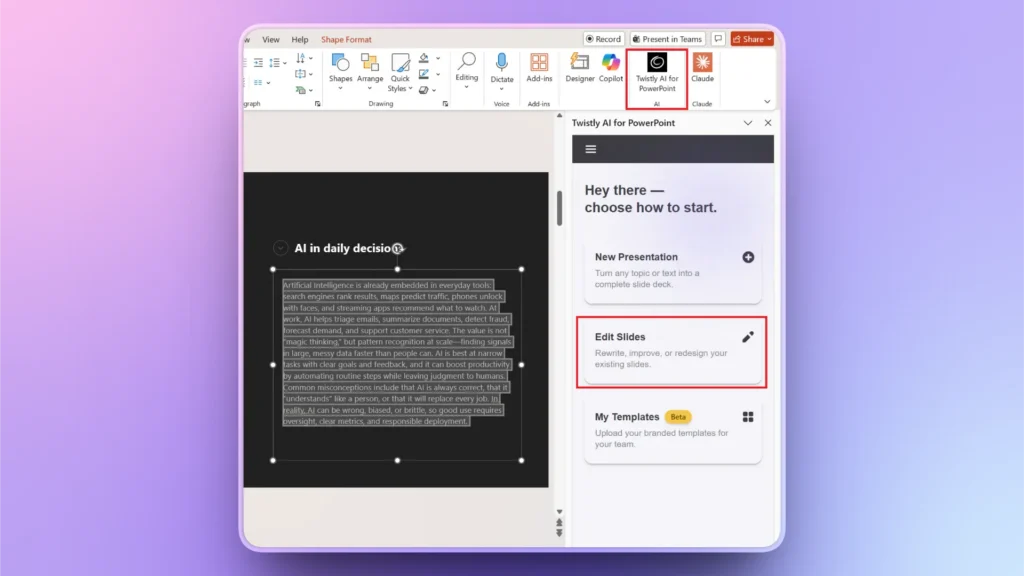
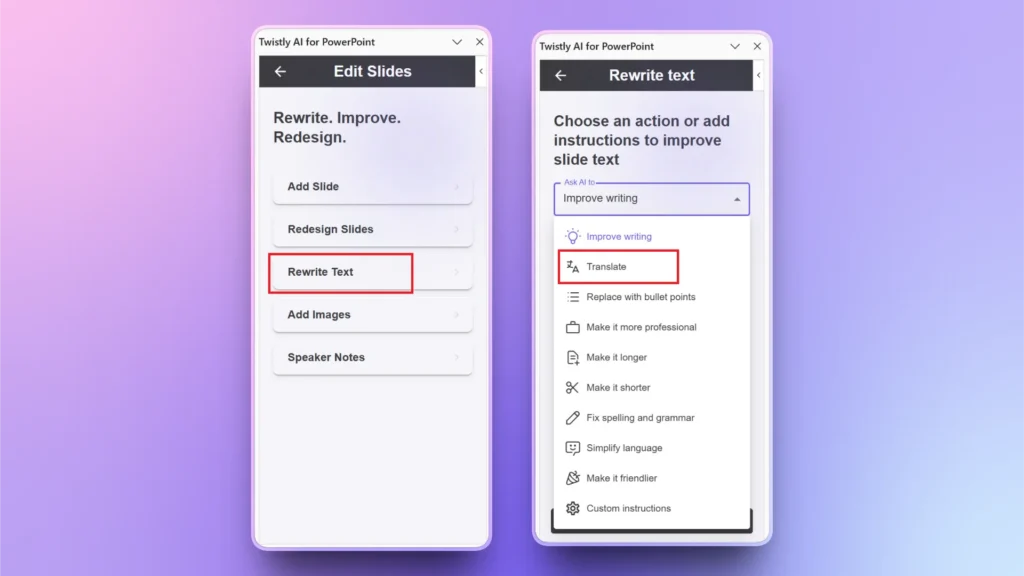
Open your PowerPoint presentation and then click the Twistly icon in the top right corner of the Home tab. A dedicated pane will appear for Twistly controls. Select Edit Slides from the home screen.
Step 2: Rewrite Text >> Translate
Click the Rewrite Text button and then choose the Translate option from the menu. You can choose other options to improve your writing.
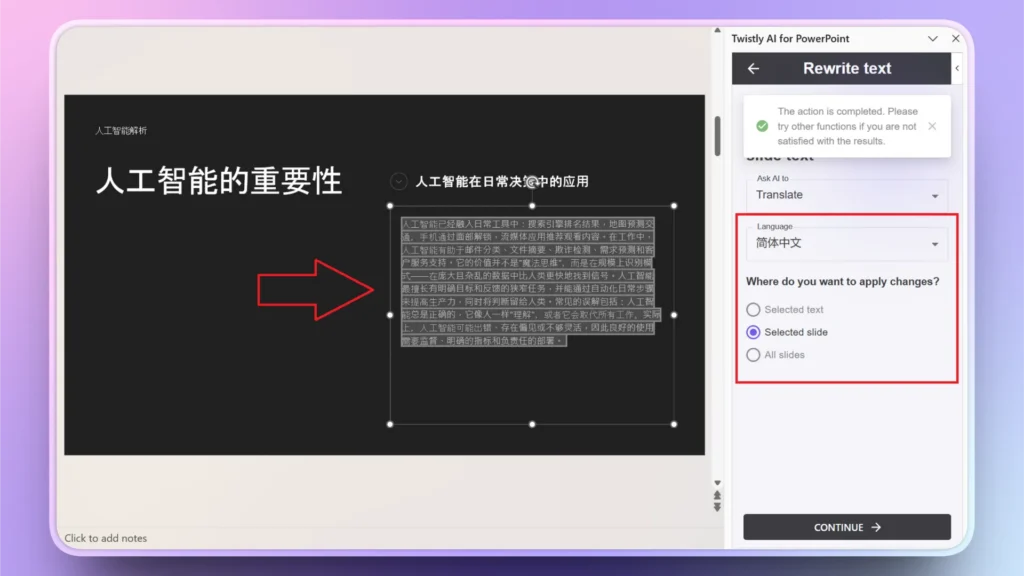
Step 3: Translate Text, Slide, or Presentation
Select the language for translation, then choose whether to translate text, slide, or all slides, and then click Continue.
Benefits of using Twistly for Translation in PowerPoint
Twistly can translate an entire presentation into different languages with just a single click. There is no need to manually select slides or text for translation. Apart from translation, many other useful AI features are available to improve your text.
- Full presentation translation in seconds
- Context-aware language conversion
- Layout and formatting preservation
- Multilingual content generation
Twistly is ideal for teams, students, instructors, marketers, office workers, and managers who have to deal with members from different countries. Agencies and content creators can also use Twistly to increase their reach to an international audience.
Tips for Translation in PowerPoint
Translating your translation can have a huge impact on how viewers perceive your brand or service. A little attention to detail can make multilingual presentations a useful marketing tool. Here are some common practices and tips that can help you achieve better results for translated presentations.
- Don’t translate any random line in a slide; it will break the flow
- Translate a distinct paragraph, a section, or a complete slide for better understanding
- Use AI tools to preserve the layout, as manual translation may require formatting
- Resize translated text for a cleaner look
- Avoid idioms and slang in your original presentation, as translation may not be accurate for local terms and idioms.
Consigue Twistly gratis
Twistly is not just an AI translator but a complete AI tool for PowerPoint users. From generating slides to creating complete PowerPoint presentations from scratch, Twistly does it all, within seconds.
New users can download Twistly for free and try its powerful AI features before any long-term commitment. Use the link below to download a free trial of Twistly. Give it a try, and it will change how you make PowerPoint presentations.
Crear PowerPoint
Diapositivas con IA
Cree presentaciones basadas en IA a partir de
cualquier mensaje, documento o vídeo


Conclusión
You can translate in PowerPoint by using the native translation feature in the Review tab or use Twistly for more control and flexibility. Unlike manual translation, you can translate a complete slide or a complete presentation with Twistly.
There is a lot more to explore about Twistly for PowerPoint. Download now and be more productive in presentation tasks.












Empieza a hacer presentaciones con IA en segundos
Acceso instantáneo
Empieza a explorar inmediatamente todas las funciones de Twistly
Sin compromisos
No necesita tarjeta de crédito y puede cancelar en cualquier momento
Asistencia dedicada
Nuestro equipo está aquí para ayudarle en cada paso del camino durante su juicio.