


GIFs have become a powerful visual tool in modern presentations. Finding the best GIFs for presentations can help you convey your message in an interactive and fun way. Correctly used GIFs can simplify complex ideas, add humor, and capture the attention of your audience.
There are online sites and apps where you can find the best GIFs for presentations. Remember that GIFs aren’t meant to be used in every presentation. Business presentations mainly focus on facts and figures, so you may want to avoid using GIFs for professional and business presentations.
Why Use GIFs in Presentations
GIFs help presenters to simplify complex ideas and make content more dynamic for easier understanding. Static images are great for presentations, but animations add value to storytelling.
What is a GIF?
A GIF (Graphics Interchange Format) is a popular image file format (ending in .gif) that supports both static and animated images, commonly used online for short, looping, soundless video clips.
Can I use GIFs in presentations? The answer depends on the type of presentation and audience, but here are some reasons why using GIFs in presentations may be a good idea:
- Improve engagement
- Simplify complex ideas
- Add personality to your slides
- Boost retention
If these few factors can be helpful for your presentation, then you should add the best GIFs for presentations. Where to find the best GIFs, we will talk about everything in this article.

Best GIFs for PowerPoint Presentations
There are different types of GIFs that you can use in presentations. We will break down the best GIFs for presentations into different categories or types. This way, it will be easier for you to insert relevant GIFs into your presentations.
1. Reaction GIFs
Reaction GIFs add humor and emotional context, making your presentation more relatable. You can add reaction GIFs when you add unexpected data or shocking facts.
Reaction GIFs are best for educational, promotional, and informative presentations. There are many characters and GIFs that are popular for reactions.

Lo mejor para
- Light-hearted presentations
- Team meetings
- Icebreakers
You need to make sure that you don’t overuse reaction GIFs or any other type of GIFs in formal or professional settings. A careful placement of GIFs is very important.
2. Explainer GIFs
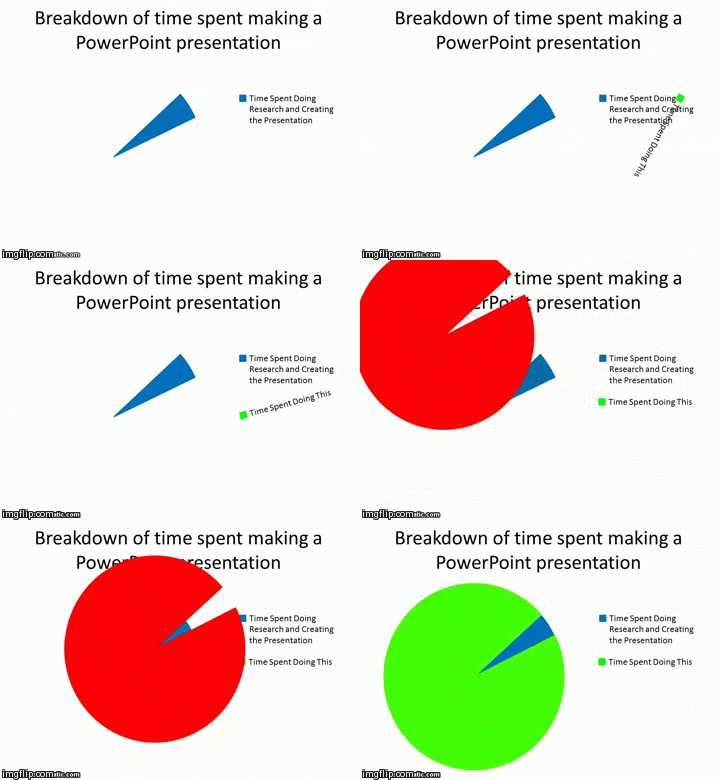
For tutorial presentations and step-by-step guides, explainer GIFs are quite useful resources. These GIFs can demonstrate how things work, but finding the relevant explainer GIF may take some time.
Lo mejor para
- Software demos
- Workflow explanations
- Presentaciones educativas
Instead of listing each and every step in detail, you can add a simple GIF that explains the steps or process.
3. Data Visualization GIFs
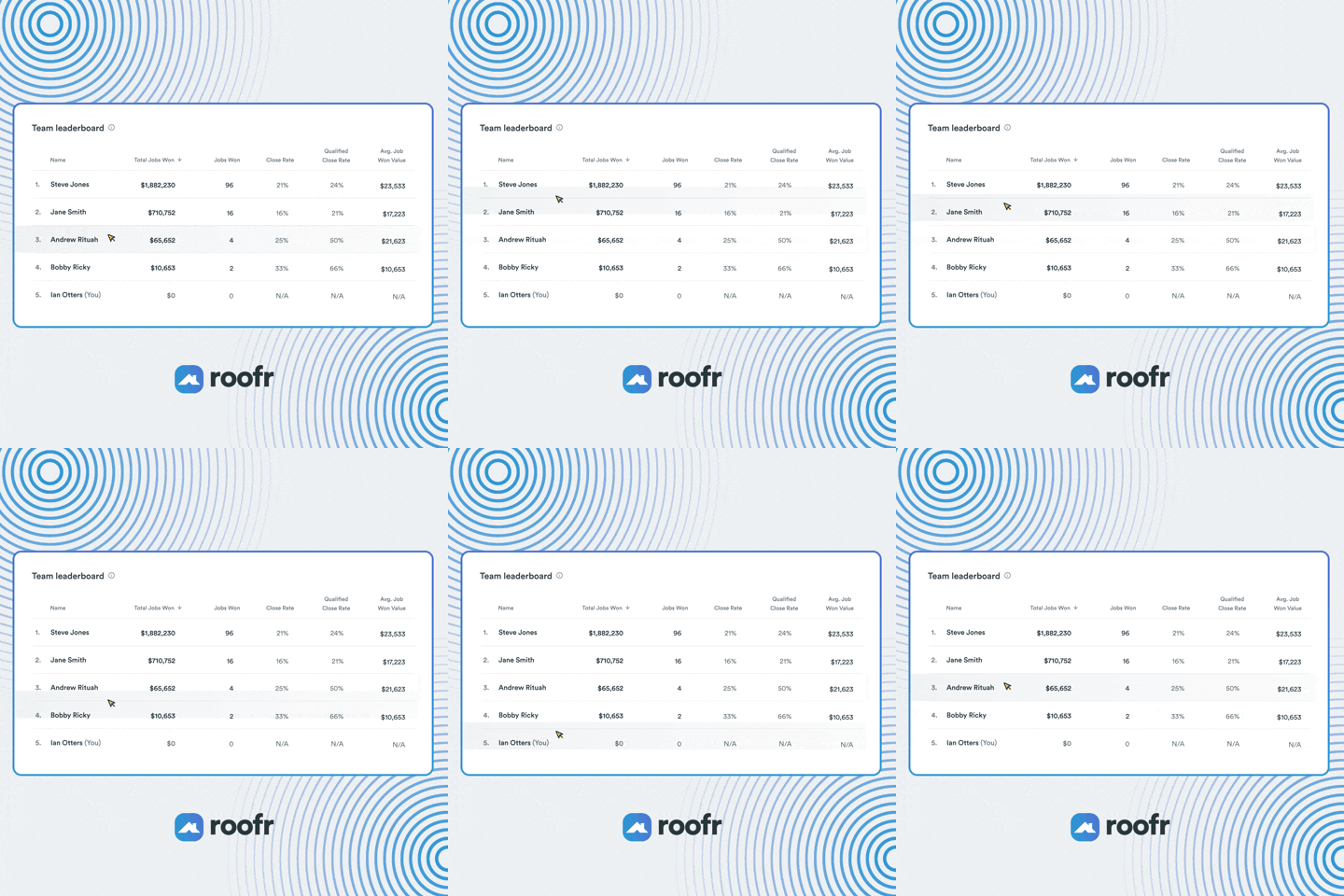
Data visualization GIFs are ideal for presenting charts and graphs in an interactive way. The overall theme remains the same for data visualization, but animations make it easier for the audience to understand the concept.
Lo mejor para
- Business reports
- Sales presentations
- Market analysis
Best GIFs for business and sales presentations don’t distract the audience from the main points. Finding suitable and professional animations is important here.
4. Looping Background GIFs
For a more polished and refined look, looping background GIFs are quite popular. Sometimes, using animations as a background offers more benefits than a static image. You need to be careful about elements like text and headings on looping background GIFs.
Important details like headings and text boxes should be easily readable on the background.

Lo mejor para
- Title slides
- Section dividers
- Creative presentations
Using minimal and clean background GIFs can also prevent distractions. For technical presentations, you can use background GIFs that can help the audience understand the nature and type of presentation.
5. Product Demo GIFs
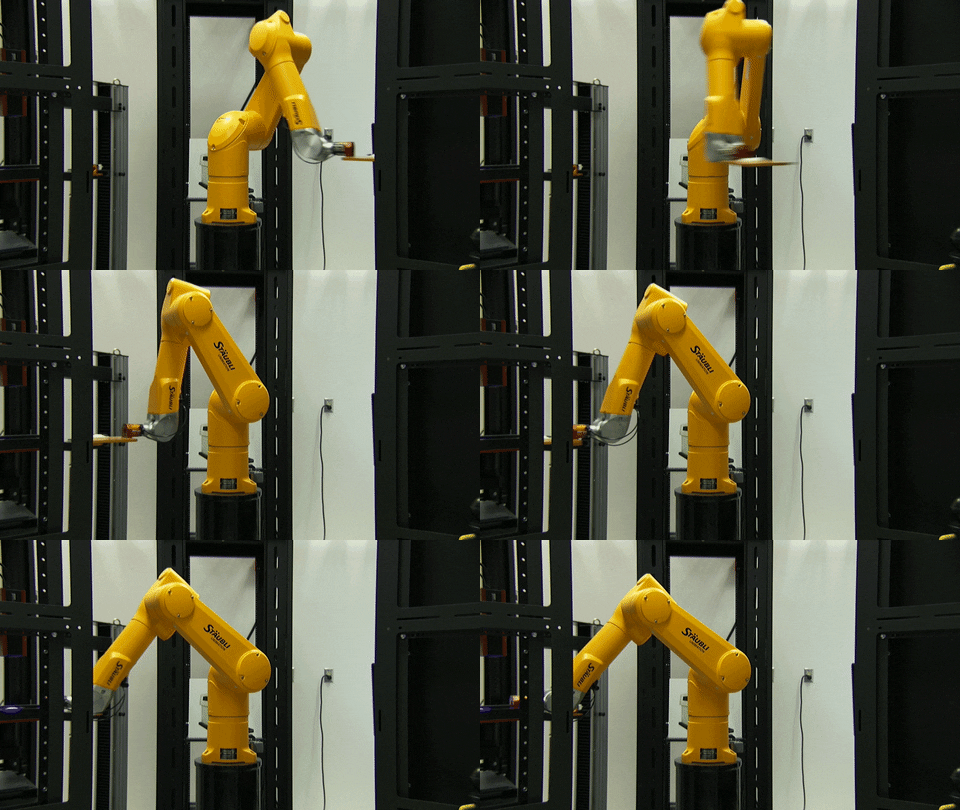
Showcasing a product and its features with product demo GIFs is a great way to highlight important stuff. Make sure you have custom GIFs for your product. You can turn any short video into a GIF with online tools.
Lo mejor para
- SaaS presentations
- App demos
- Marketing pitches
Within a few seconds, users can see the actual functionality of the product. Only highlight the most important and relevant features in a product demo GIF.
6. Instructional GIFs
For onboarding sessions and training presentations, instructional GIFs are ideal. Just like product demo GIFs, you may have to find and use custom GIFs according to your requirements.

Lo mejor para
- Employee training
- Tutorials
- Customer support guides
For improved clarity, instructional GIFs are preferred over lengthy text. Without writing long paragraphs, you can explain any complex idea with instructional GIFs.
7. Storytelling GIFs
Storytelling GIFs help convey emotions or scenarios, making your message more impactful. As the name suggests, you cannot use these GIFs for business or professional presentations. These GIFs are ideal for motivational, inspirational, or informative presentations.

Lo mejor para
- Motivational talks
- Case studies
- Brand storytelling
These GIFs make your narrative more immersive and engaging. For branding, you can help the audience understand the process behind your mission or goal.
Where to Find the Best GIFs for Presentations?
You know what type of GIF is required for your presentation, but the next challenge is to find the right ones for your slides. There are many dedicated sites like giphy.com where you can find, download, share, use, and create GIFs for presentations.
Other popular platforms to get the best GIFs for presentations include:
- GIPHY
- Tenor
- Reddit (for trending and niche GIFs)
- Built-in GIF libraries
The idea is not to overload your presentations with interesting GIFs, but to add only relevant, value-adding visuals.
How to Create GIFs for Presentations?
Sometimes you fail to find the relevant and best GIFs for presentations. You have a relevant video, but you don’t know how to create a GIF from a short video.
Creating a GIF from any sticker or video is easy with platforms like giphy.com. Here are the simple steps that you need to follow to turn any short video into a GIF for PowerPoint presentations.
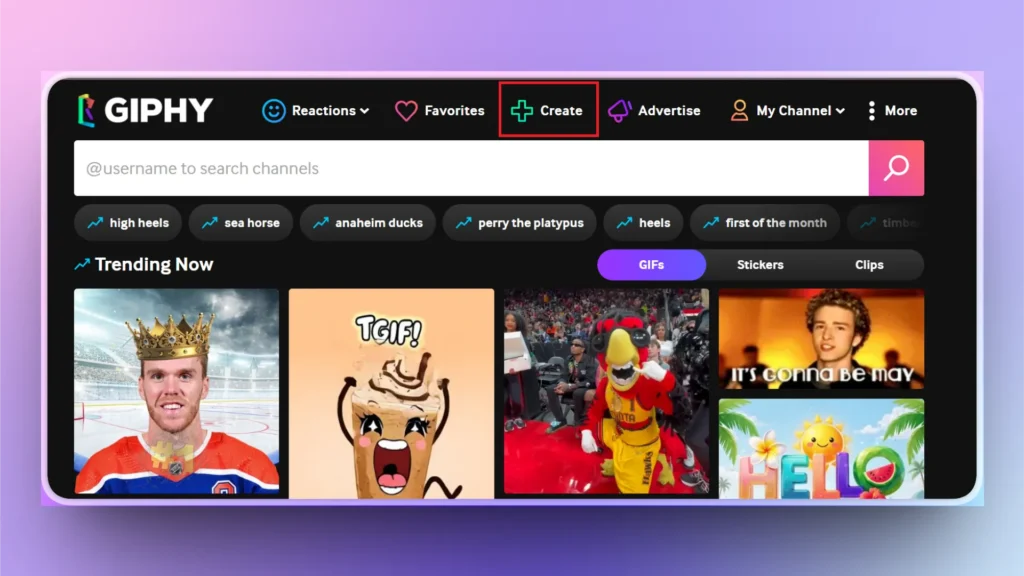
Step 1: Open Giphy.com >> Create
Go to giphy.com and then click the Create button to create your own GIF from any sticker or short video. Make sure to sign up and verify your account if you are a new user to the site.
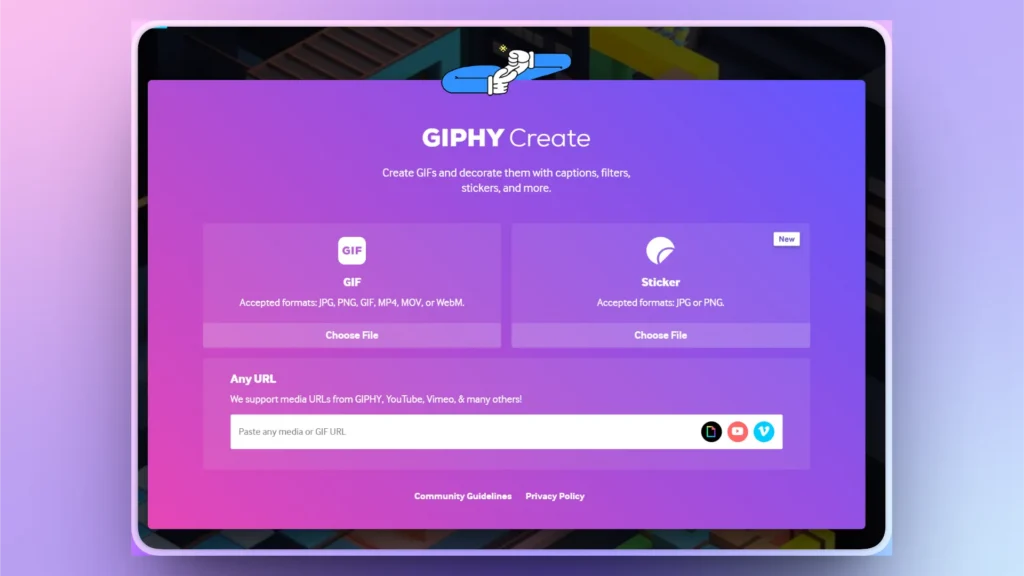
Step 2: Upload and Create
You can upload any available sticker, video, or even paste the URL of any online clip that you want to turn into a GIF.
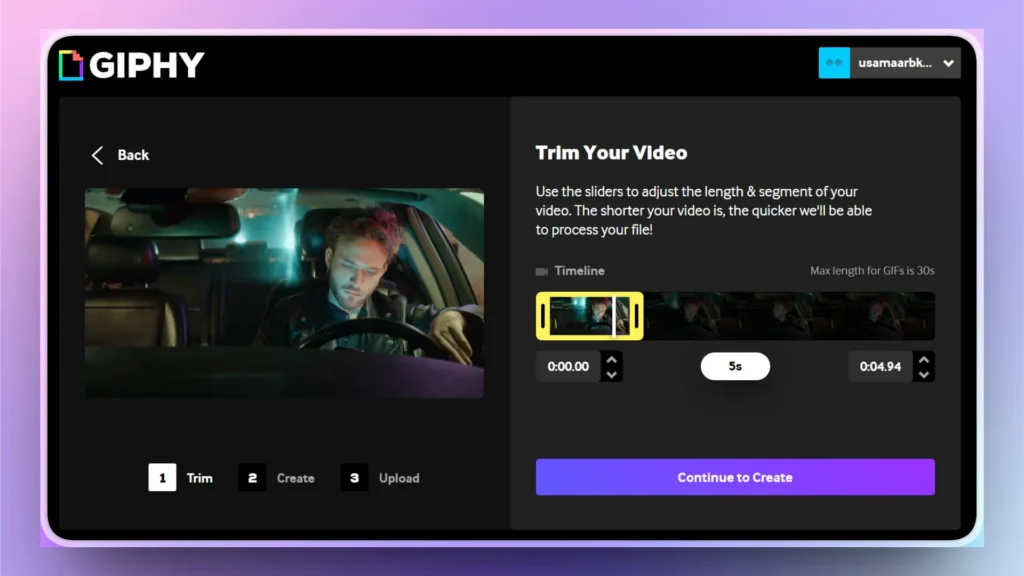
Step 3: Edit and Trim
Do you want to keep a specific part of the video only? Giphy.com offers a built-in tool for trimming and basic edits. Verify your edits and continue to create a GIF.
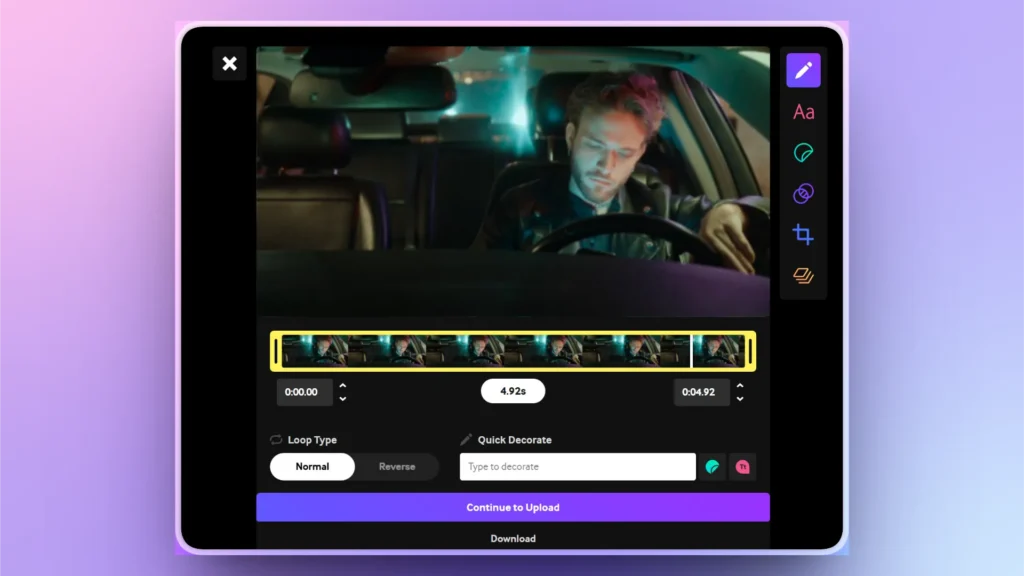
Step 4: Download your GIF
Your custom GIF from a video is ready. Download the GIF and use it for your PowerPoint presentation. You can also upload your GIFs to the site for others to download.
How to Add GIFs to PowerPoint Presentations?
Images, videos, and GIFs can be inserted into PowerPoint slides the same way. Use the Insert tab and then click the Picture option.
You can also find and add short videos from the PowerPoint library or upload your own GIFs from your device.
Nota: Sometimes GIFs don’t play when you add them to the slide, but they work fine once the Slideshow starts.
Best Practices for Using GIFs in Presentations
Using the best GIFs for presentations can add value to your slides, but doing it wrong can also sabotage your presentation. Here are some common tips for the best use of GIFs in presentations.
- Every GIF should serve a purpose.
- Avoid adding GIFs just for decoration.
- Too many animations can distract your audience
- Large GIFs can slow down your presentation
- Compress GIFs if needed for a smooth experience
- Ensure the GIF aligns with your presentation style
- Always preview your slides to ensure GIFs play smoothly
What’s the Easiest Way to Improve Your Presentations?
Using the best GIFs for presentations is one way to add value, but it does not work for every presentation. Is there any better way to make your presentations more attractive and interesting?
Using AI tools like Twistly can help you make your presentations more attractive and professional without wasting hours. With a few clicks, within two minutes or less, you can create a complete presentation with Twistly.
What’s Twistly for PowerPoint?
Twistly is an AI add-in for PowerPoint that works just like a custom ChatGPT for PowerPoint. You can perform unlimited AI actions with Twistly while having access to all native PowerPoint tools and features.
Unlike standalone, online AI presentation makers, you don’t need to leave PowerPoint or switch between multiple apps and websites.
Twistly lives and works inside PowerPoint, offering one-stop access to all AI features that can improve your presentations within seconds.
Descargar Twistly es gratis
Do you want to try Twistly for free without a credit card or financial commitment? Use the link below to claim your free trial version. Give it a try and see how Twistly improves your PowerPoint experience with AI.
Crear PowerPoint
Diapositivas con IA
Cree presentaciones basadas en IA a partir de
cualquier mensaje, documento o vídeo


Conclusión
The best GIFs for presentations are those that enhance your message, not distract from it. Follow this guide to find the best GIFs for PPTs. If you think PowerPoint presentations take hours to create, it’s time to use Twistly for PowerPoint.





Empieza a hacer presentaciones con IA en segundos
Acceso instantáneo
Empieza a explorar inmediatamente todas las funciones de Twistly
Sin compromisos
No necesita tarjeta de crédito y puede cancelar en cualquier momento
Asistencia dedicada
Nuestro equipo está aquí para ayudarle en cada paso del camino durante su juicio.