


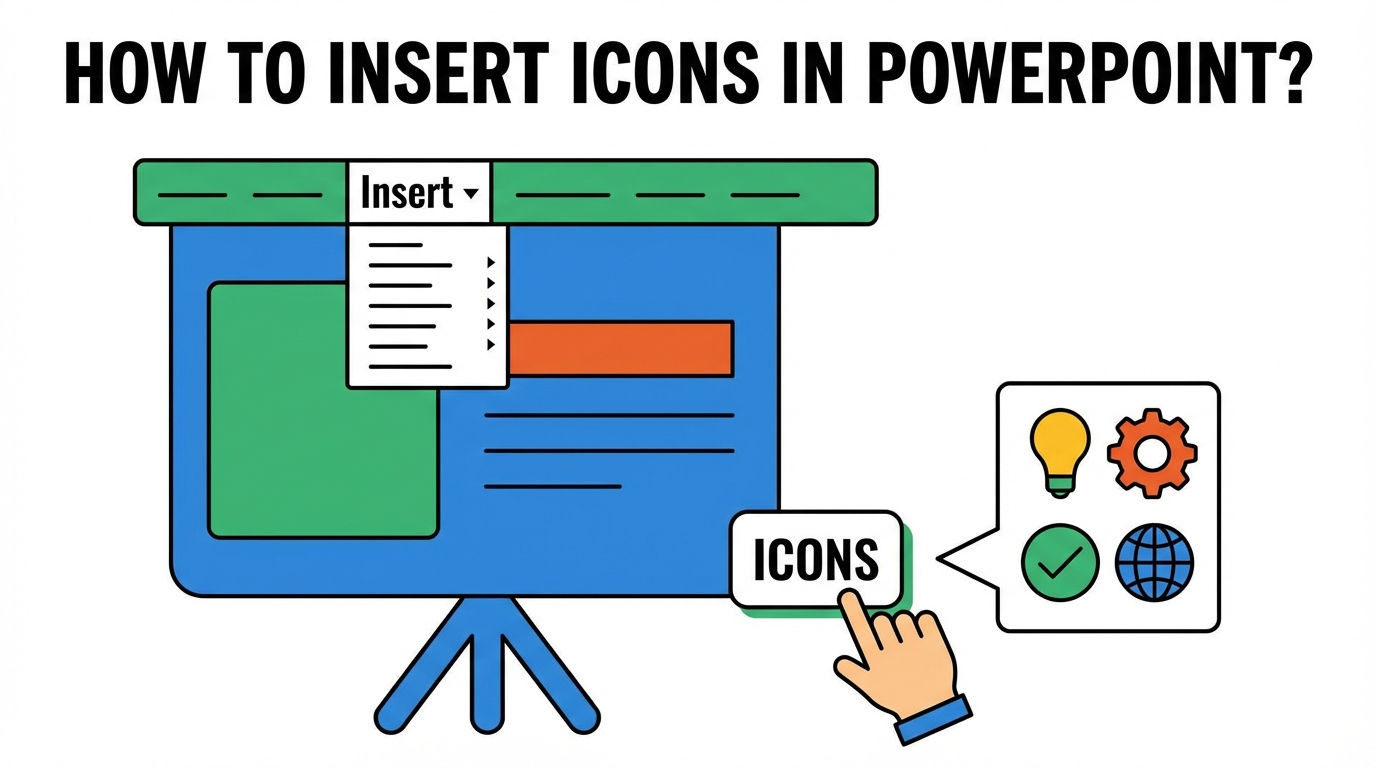
To insert icons in PowerPoint, go to the Insert tab and then select Icons from the Illustration section. Choose from the available icon library or search for the desired icon online. This is the easiest way to make your slides more interesting and interactive.
Well-placed visuals like icons can make it easier for the audience to understand the contents of the slides. Imagine you want to add social media links; adding icons for the social media sites will make those links easily accessible and more attractive.
Importance of using Icons in PowerPoint
Icons are important for learning materials, marketing slides, business slides, and other PPTs. Visuals have a huge impact on the design quality of your presentations. Here is why you should insert icons into PowerPoint:
- Improve visual communication and make content easy to understand
- Better slide aesthetics for clean and modern slides
- Boost audience engagement
- Maintain consistency across all slides and presentations
In the next section, we will discuss the step-by-step guide on how to insert icons in PowerPoint. If you need to generate custom visuals, we can help you with that, too.
AI tools are changing how presentations are made, and our recommended tool will redefine your PowerPoint experience.
Steps to Insert Icons in PowerPoint
In this section, we will use the built-in icon packs in PowerPoint. These visuals and full libraries are available for Office 365 Subscribers only. For free users, there might be limited icons available.
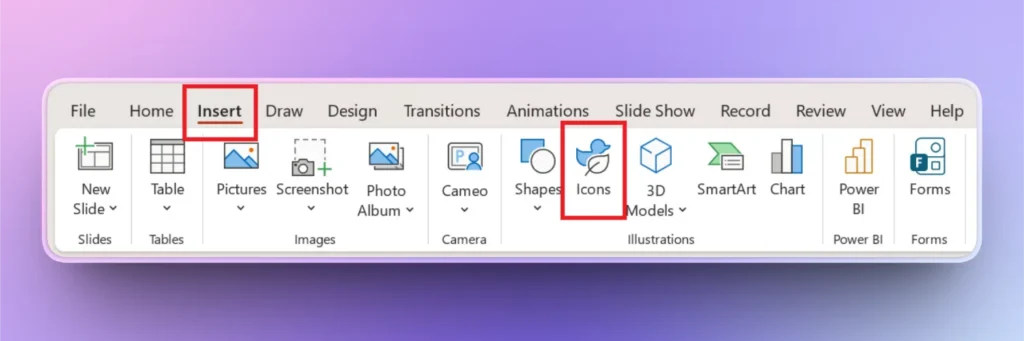
Step 1: Insert >> Icons
Open your PowerPoint slide and go to the Insert tab, then click the Icons button in the Illustration section. Make sure you are connected to the internet if you wish to download custom icons.
Step 2: Search and Insert Icon
Choose any icon from the available options or search for the icon keyword or name in the search bar. Once selected, click the Insert button, and the icon will be added to your slide.
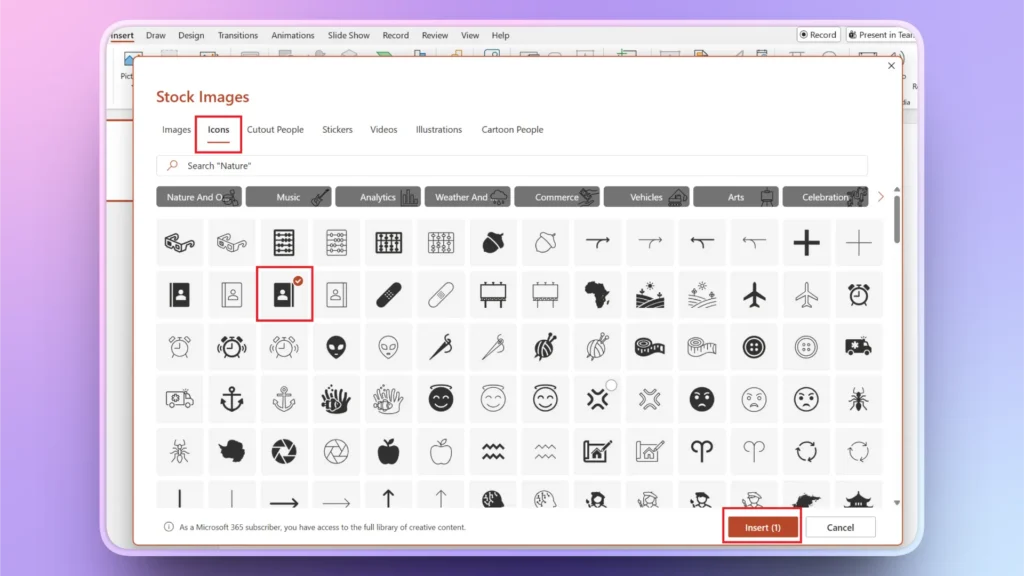
Select multiple icons and insert different icons at once. To delete any icon, select the icon from the slide and press the Delete button.
How to Create Custom Visuals or Icons in PowerPoint?
Readily available icons in PowerPoint usually look dull and don’t match the aesthetics of modern presentations. If you need more personalized and relevant logos or icons for your slides, using Twistly can make your designs better and on-brand.
¿Qué es Twistly?
Twistly is an AI add-in for PowerPoint that integrates ChatGPT-like capabilities for PowerPoint. Users can create complete presentations, generate custom slides, improve PPTs, generate speaker notes, and add images without switching tabs.
A new user can also create attractive presentations just like a skilled designer with Twistly. No design, formatting, or PowerPoint experience is required to use Twistly for PowerPoint presentations.
Crear PowerPoint
Diapositivas con IA
Cree presentaciones basadas en IA a partir de
cualquier mensaje, documento o vídeo


Steps to Add Visuals with Twistly
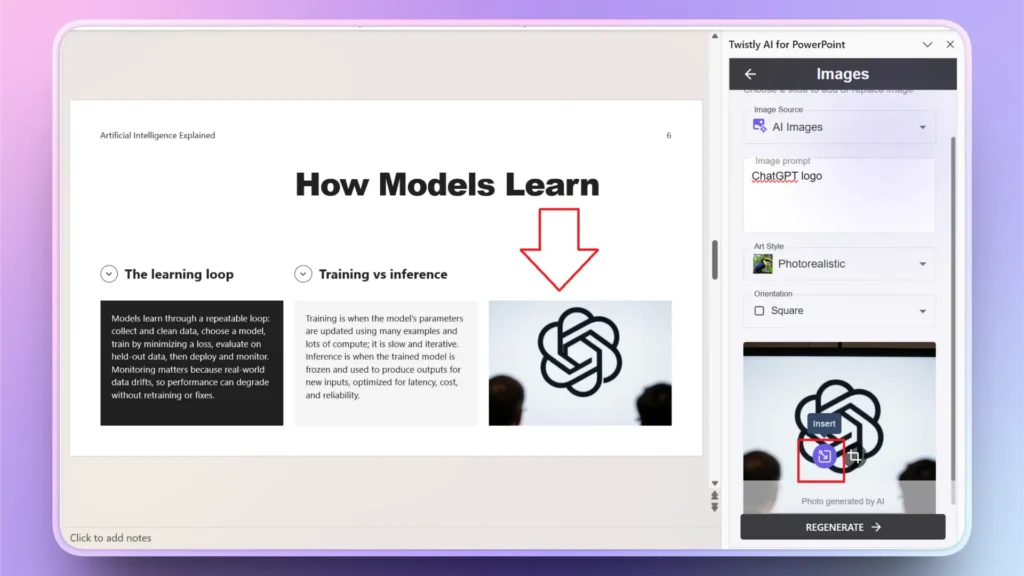
Imagine you have a presentation about AI, and instead of a generic image, you want to insert a ChatGPT icon, but the PowerPoint library does not have the icon available.
Here is how Twistly can help you generate and insert custom visuals and icons to PowerPoint slides, all within PowerPoint.
Step 1: Open Twistly >> Edit Slides
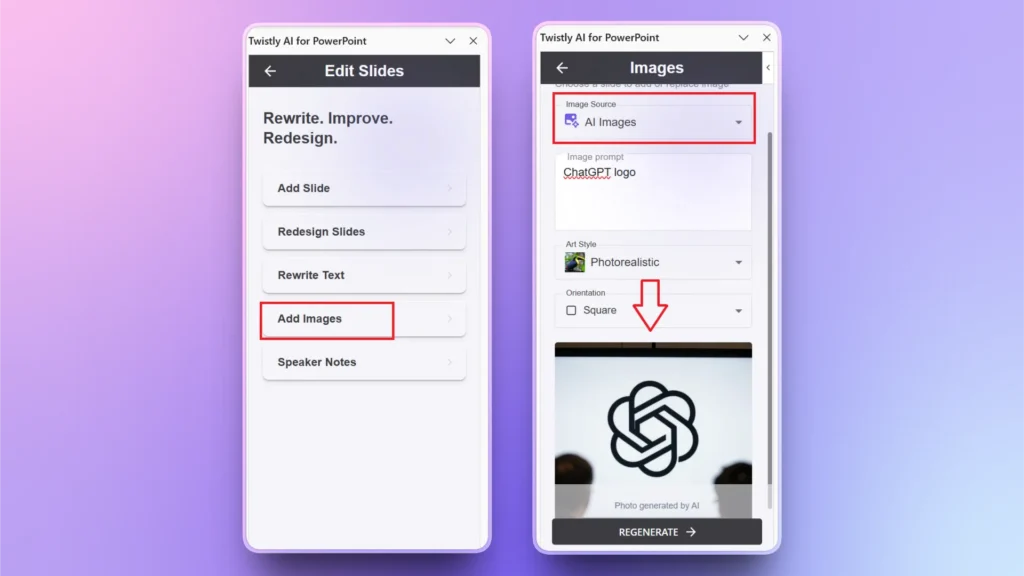
Open your PowerPoint presentation, go to the slide where you want to add an icon or visual, and then launch Twistly by clicking the icon in the top right corner. From the Twistly pane, choose Edit Slides.
Step 2: Add Image >> AI Image
In the next window, choose AI Image as image source and then:
- Enter your AI prompt for the image
- Select art style
- Orientation of the image
- Click Generate button
From the generated images, click Insert and your AI logo, icon, or visual will be added to the slide. For more ideas, click Regenerate and get more results.
Step 3: Insert an image into the Slide
Clicking the Insert button will automatically adjust, resize, and format the image according to the existing image in the slide. With one click, you can replace the existing image with the AI-generated icon or image in Twistly.
Import 3rd Party Icons in PowerPoint
You can download interactive logos and icons from online sources and make your slides more attractive and visually appealing. First, you need to download SVG or PNG files from online sites. Once icons are saved to your computer or device:
- Go to Insert tab >> Picture >> This Device
- Select your downloaded icon from your computer
- Customize or resize the icon just like an image
Online sites and stores offer premium icon packs that you can use. If your brand has a personalized icon pack, you can use those icons for on-brand presentations.
What can Twistly Do for PowerPoint Users?
Twistly is a powerful AI add-in that offers multiple AI features and options that can reduce your manual efforts for making professional presentations.
You can start from a topic and build an attractive presentation or edit and optimize the existing PPTs. Here are some cool things Twistly can do for PowerPoint users:
- Create complete presentations from scratch
- Support multiple input types for creating presentations
- Optimize and edit existing slides with AI
- Rewrite, improve, translate, and edit content for slides
- Write AI speaker notes
- Add, replace, or create custom images or stock visuals
There are endless opportunities to improve your presentations with the latest AI PPT maker, Twistly. It is something that has never been introduced for PowerPoint users with such massive AI functionality.
Try Twistly for free now and experience a ChatGPT for PowerPoint that can create professional presentations within seconds.
Crear diapositivas de PowerPoint con IA
Crea presentaciones basadas en IA a partir de cualquier mensaje, documento o vídeo

Conclusión
Go to the Insert tab and then select the icons button and search for the desired icon, or use Twistly to create custom icons. With little smart work, you can turn Twistly into a personal AI assistant that can replace hours of manual work.
PowerPoint provides a built-in icon library for free for Office 365 subscribers only, and if you want more value for little investment, get Twistly now and get rid of multiple tools that are reducing your work efficiency.











Empieza a hacer presentaciones con IA en segundos
Acceso instantáneo
Empieza a explorar inmediatamente todas las funciones de Twistly
Sin compromisos
No necesita tarjeta de crédito y puede cancelar en cualquier momento
Asistencia dedicada
Nuestro equipo está aquí para ayudarle en cada paso del camino durante su juicio.