


A combine PowerPoints, open your main presentation and go to the Insert tab >> New Slides >> Reuse Slides and then select slides from the source presentation that you want to combine.
Users can keep the formatting of the source presentation, too. You can select multiple slides from the source file to be used in the main presentation. Combining PowerPoints is useful when you merge data from multiple presentations into one file.
Reuse Slides- Quickest Method to Combine PowerPoints
The most reliable method to combine PowerPoints is to use the Reuse Slide feature in PowerPoint. This way, you get more control over formatting for the slides that are being extracted from other presentations.
You need to have both main and source presentations saved on your device for this method to work.
Step 1: Open your Main Presentation
Open your main PowerPoint presentation where you want to combine other presentations and go to the Insert tab.
Click the New Slide option and choose the last option, Reuse Slides.
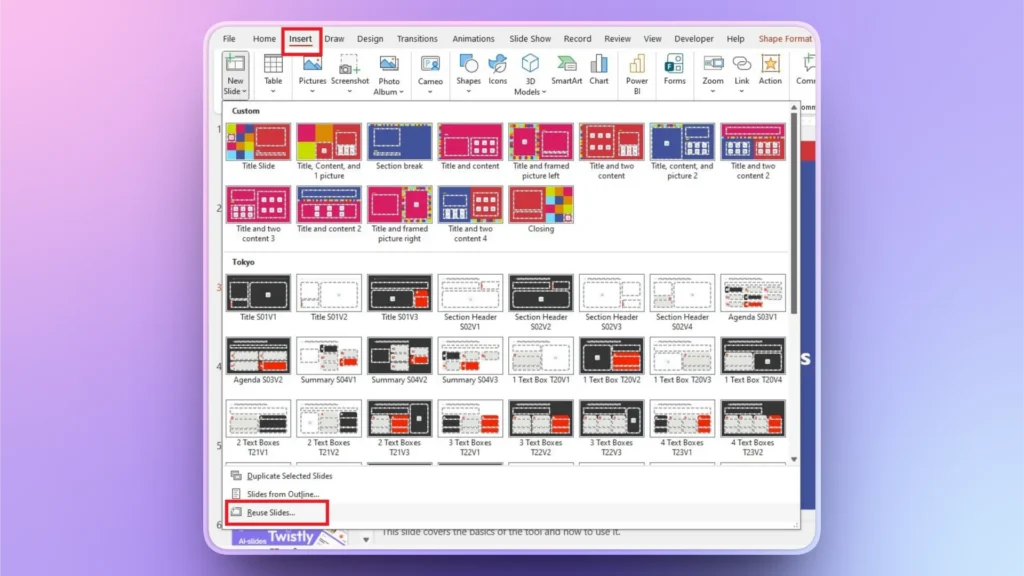
Step 2: Browse for Source Presentation
A new pane will appear on the right side of the screen, where you can browse your computer for the source presentation.
Select other presentations, and all slides from the source presentation will appear in the pane. Select slides that you want to combine.
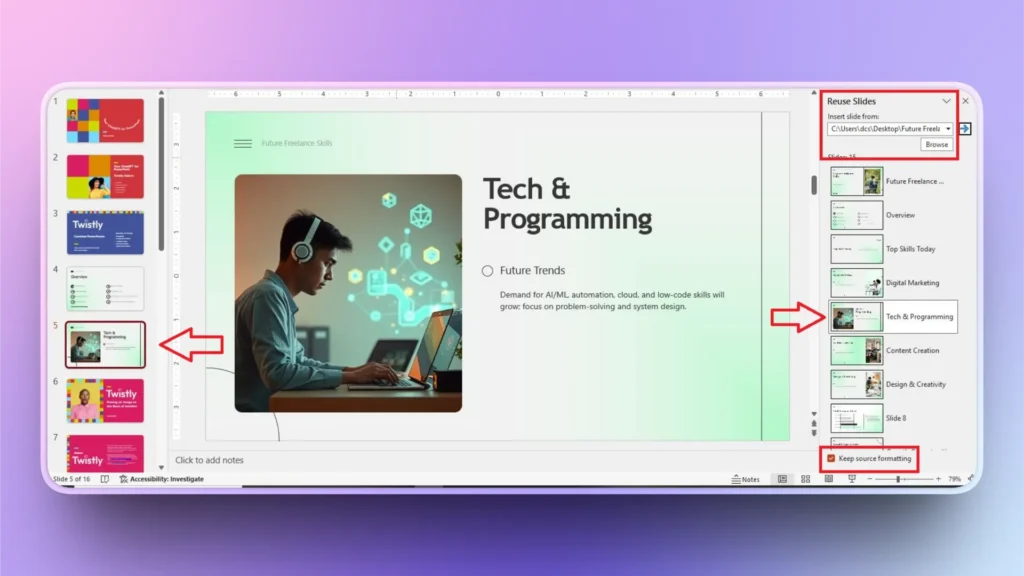
If you want to keep the original formatting of the source presentation, check the “Keep Source Formatting” box at the bottom of the pane.
Method 2: Combine PowerPoints with the Slide Copy-paste Method
You can copy slides from one PowerPoint presentation and paste them into another one, just like copying a file from one folder to another one.
This is also a simple method to combine PowerPoints, but you need to switch between multiple presentation files.
Step 1: Open Both PowerPoint Presentations
Open your main and source PowerPoint presentations and go to the source presentation and copy the slides that you want to combine.
You can select and copy multiple slides by holding the CTRL button while selecting the slides.
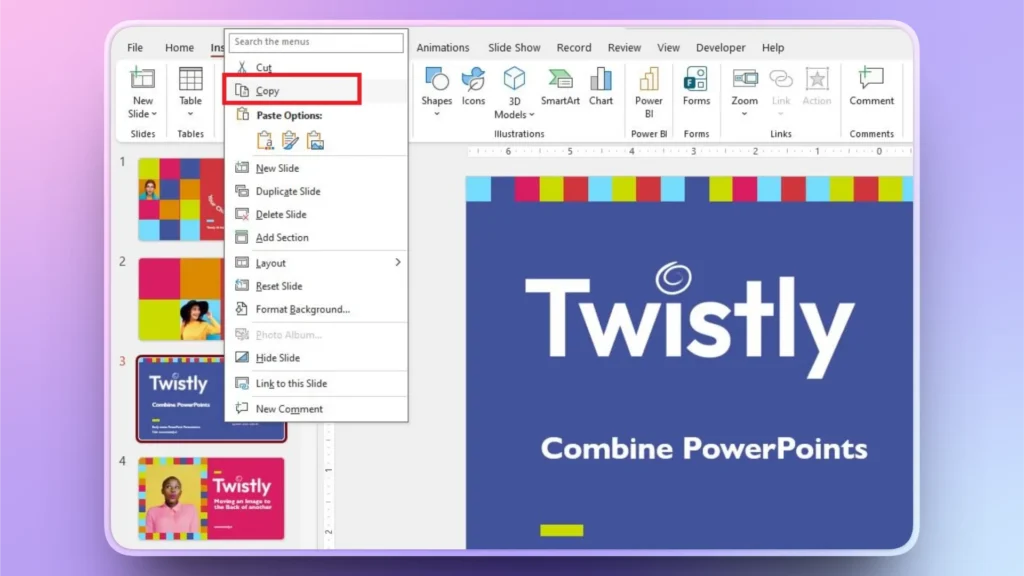
Step 2: Paste Slide in Main Presentation
After copying the slide, switch to the main presentation and click between slides where you want to paste the slide.
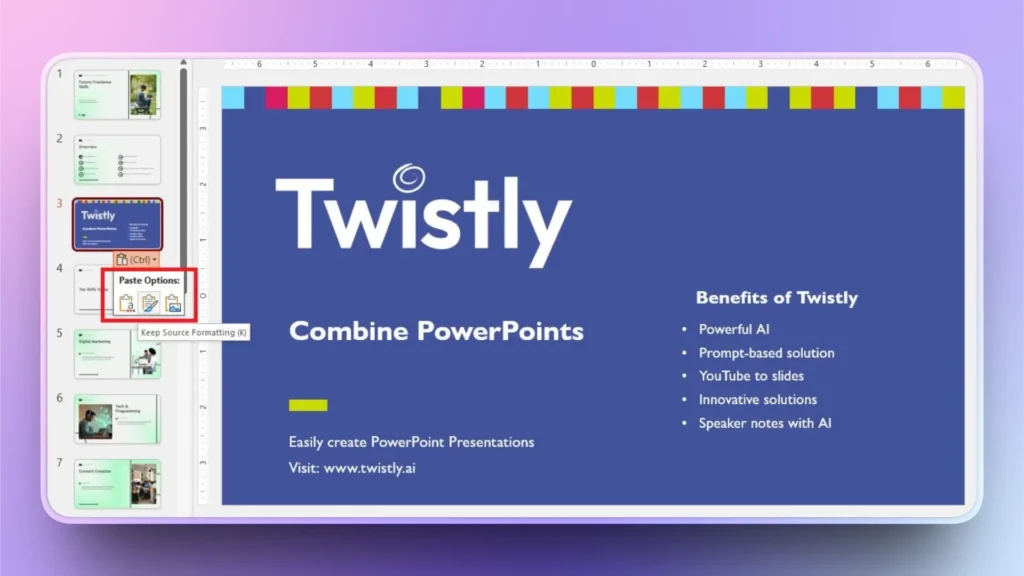
When you paste the slide, PowerPoint offers the following options:
- Utilizar el tema del destino
- Mantener el formato de la fuente
- Picture (static version)
You can choose any option that meets your design requirements. We pasted the slide with the original formatting.
Method 3: Insert Presentation as an Object
If you want to offer access to another presentation in your main presentation, you can insert the source presentation as an object into your main presentation.
This is not an ideal method if you want to merge slides for future editing. During the slideshow, users will see the source file as a clickable image or icon. Clicking on the object will open the source presentation.
Step 1: Insert Object in Main Presentation
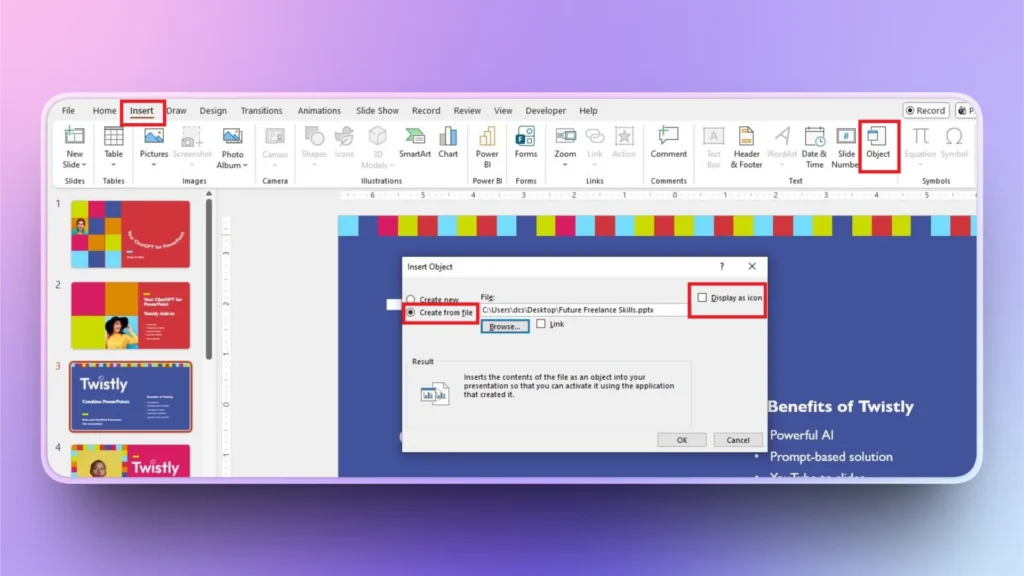
Open your main presentation and go to the Insert tab, click Object >> Create from File >> Browse and select your source presentation.
Step 2: Display as Icon or Image
If you check the “Display as Icon” option, then the source file will appear as an icon, and if it is unchecked, an image preview will appear on the slide, as shown in the image.
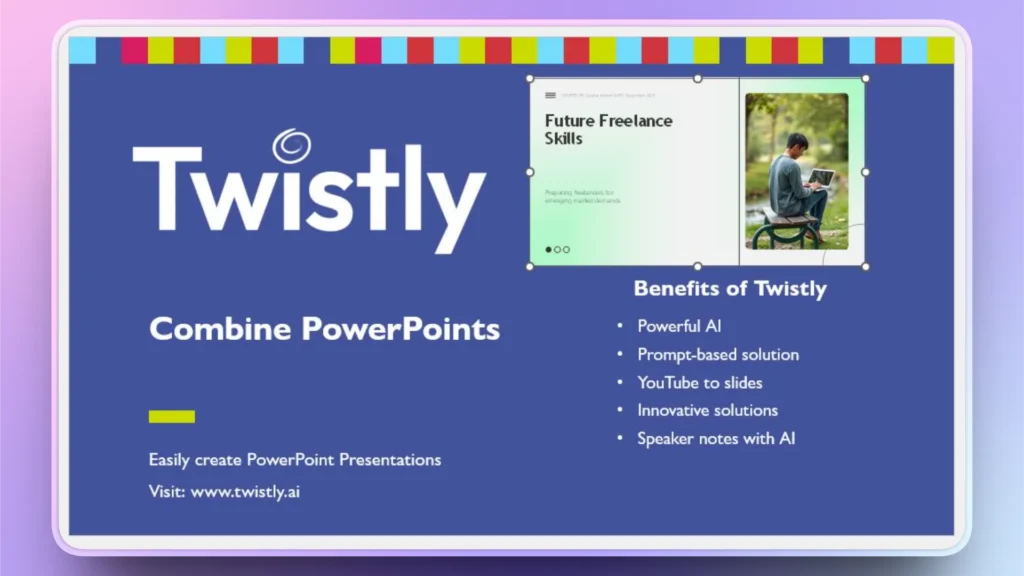
You can resize the source presentation preview, and during the slideshow, clicking this image will start the source presentation.
How to Insert Slides into an Existing Presentation with AI?
You have created an amazing presentation, but some slides are missing, and you don’t have the source presentation to extract that data. Let’s say you have a report, but it is missing a timeline or chart slide.
With the deadline approaching fast, you don’t have enough time to design slides from scratch or find data for the timeline. What if you could add new slides with AI within seconds?
Add New Slides Instantly with Twistly
Twistly is an AI add-in for PowerPoint that integrates ChatGPT-like capabilities into PowerPoint. Instead of creating and designing slides from scratch, you can simply enter an AI prompt, and Twistly will write content, design slides, and format other elements for you.
This whole process of adding new slides with AI does not take more than a few seconds. Here is how you do it with AI.
Paso 1: Abre tu presentación e inicia Twistly
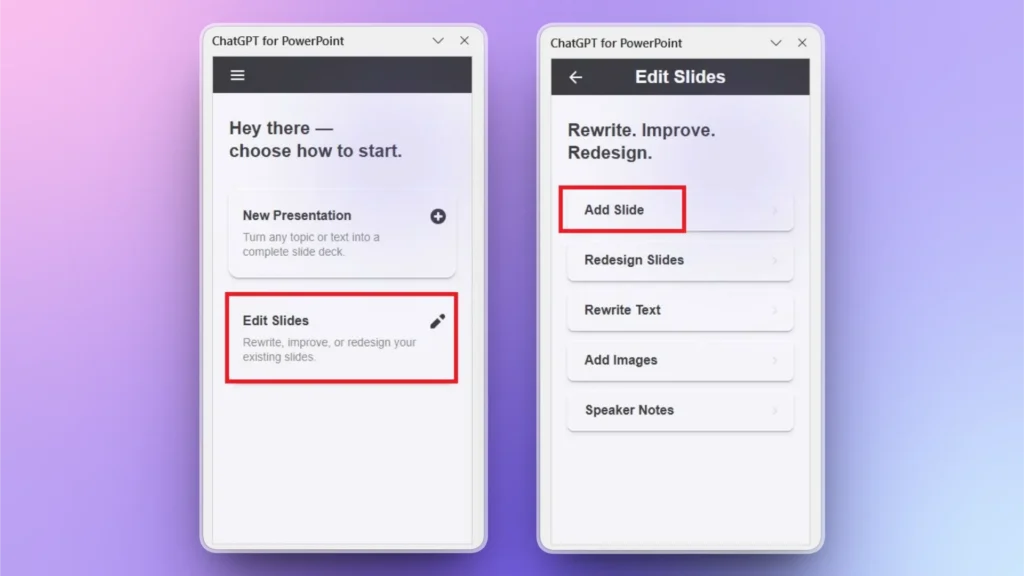
With your presentation open, launch Twistly and click the Edit Slides option, and then choose the Add Slide option from the next screen.
Paso 2: Seleccionar el diseño de la diapositiva
Twistly has different predefined slide layouts available. You can apply filters to easily find the desired layout. Let’s say we want to add a roadmap slide.
Now, explain what you want to explain in the slide and click Continue.
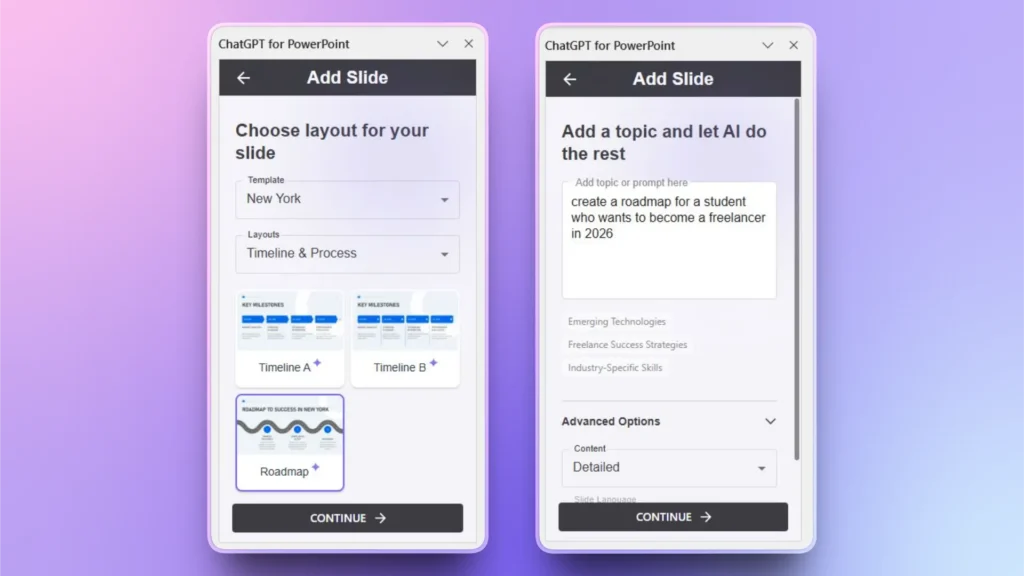
Step 3: Review your Final Slide
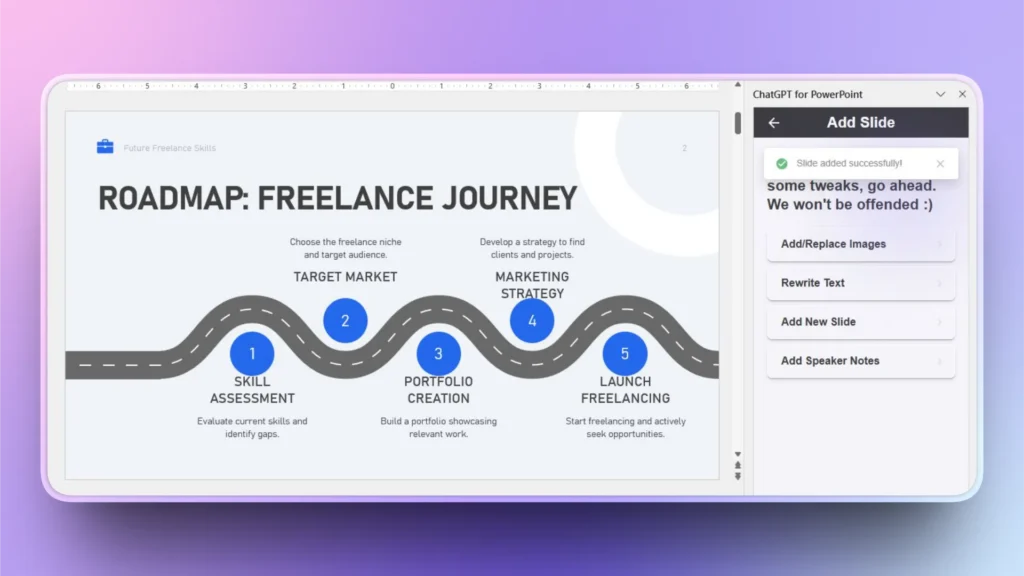
Within a few seconds, Twistly will give you a professional slide with an attractive and well-explained roadmap for your desired input. You can make any change using the AI features of Twistly or the native PowerPoint tools.
Better Workflow and Smarter Presentations with Twistly
AI is changing the way we make presentations in PowerPoint. A normal user with basic or no knowledge of PowerPoint can create an entire presentation, a professional one, within a few minutes with AI.
All you have to do is download the free trial version of Twistly and give it a try. If you are impressed with the AI capabilities of this custom ChatGPT for PowerPoint, upgrade your subscription and unlock all AI tools.
Be more productive and minimize the stress of meeting deadlines with Twistly. Claim your free trial today.
Crear PowerPoint
Diapositivas con IA
Cree presentaciones basadas en IA a partir de
cualquier mensaje, documento o vídeo


Conclusión
Combine PowerPoints by using the Reuse Slide feature, copy-paste, or the “insert as object” method. The reuse slide feature is the ideal method here. This guide has everything that you need to combine entire presentations or selected slides.
In case of lost or missing slides, use Twistly to create instant slides with AI, or even a complete presentation within seconds.
Twistly is full of AI features that every PowerPoint user needs. You just need to experience it once, and there is no going back to conventional presentations anymore.











Empieza a hacer presentaciones con IA en segundos
Acceso instantáneo
Empieza a explorar inmediatamente todas las funciones de Twistly
Sin compromisos
No necesita tarjeta de crédito y puede cancelar en cualquier momento
Asistencia dedicada
Nuestro equipo está aquí para ayudarle en cada paso del camino durante su juicio.