



Macros in PowerPoint are recorded sequences of commands and actions (mouse clicks or keystrokes). These commands are stored as code using Visual Basic for Applications (VBA) to automate repetitive tasks like formatting, aligning objects, or creating interactive elements.
Regular PowerPoint users rely on Macros in PowerPoint to avoid repetitive tasks and actions. Users can save time, reduce manual efforts, and speed up the workflow by using Macros in PowerPoint.
What are Macros in PowerPoint?
Macros in PowerPoint are automated scripts or codes written in Visual Basic for Applications that can perform a sequence of tasks automatically. Formatting text, renaming slides, applying animations, and similar tasks can be automatically performed via Macros.
Once you have created a macro for any task, you can trigger it with one click and get the entire task done instantly. In simple words, a macro is a set of recorded instructions to do a repetitive job automatically.
How Do Macros Work in PowerPoint?
Macros in PowerPoint work using VBA, as VBA allows users to write instructions or code that PowerPoint automatically executes. You must:
- Record or write a macro
- Save the presentation as a macro-enabled file
- Run the macro
Once you open the file, PowerPoint will automatically execute all instructions stored in the presentation file. Macros are stored in a presentation file, saved as .pptm (PowerPoint Macro-Enabled Presentation). For macros to work, the presentation file must be saved.
How to Create a Macro in PowerPoint?
To create a macro in PowerPoint, you currently don’t have a macro recorder, so you need to create a macro manually. It will take some time at first, but you will pick up the pace with time.
Step 1: Enable Developer Tab in PowerPoint
Ir a File >> Options >> Customize Ribbon and then check the Developer box. If the Developer box is already checked, it means the Developer tab is already available in the top ribbon.
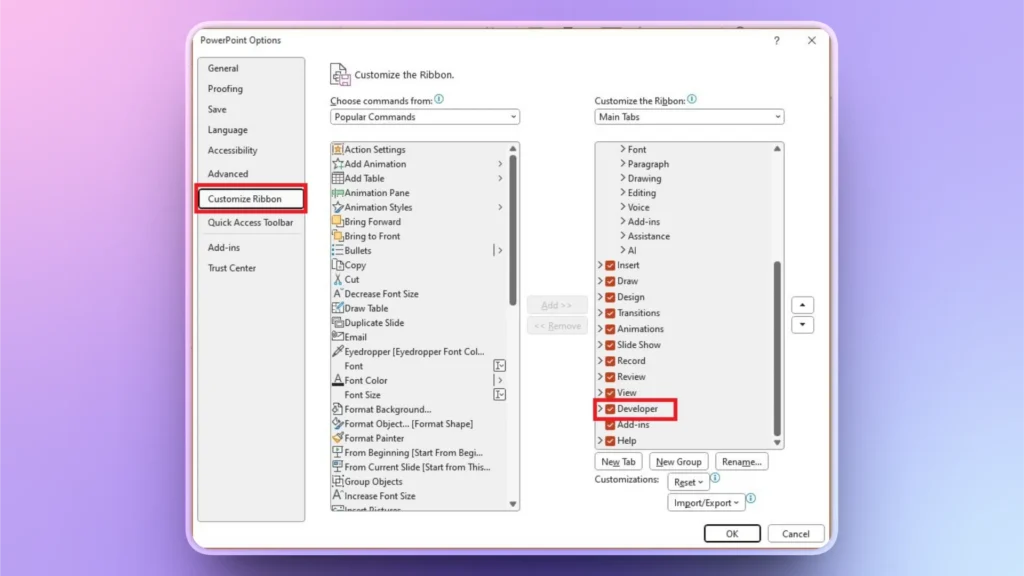
Step 2: Open VBA Editor
Go to Developer tab >> open VBA Editor, and a new VBA window will open where you can write the code or set of instructions.
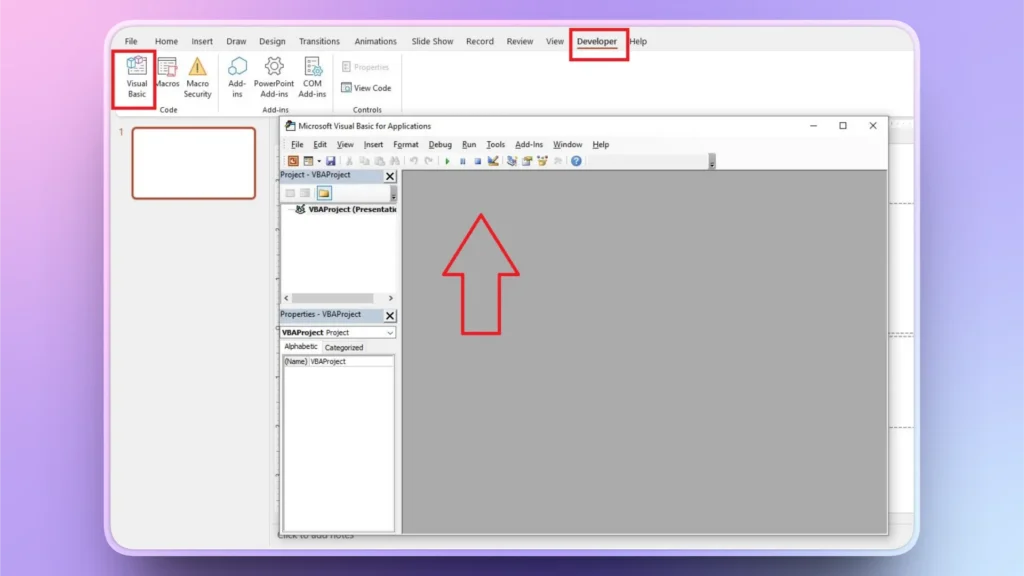
Step 3: Insert New Module and Simple Code
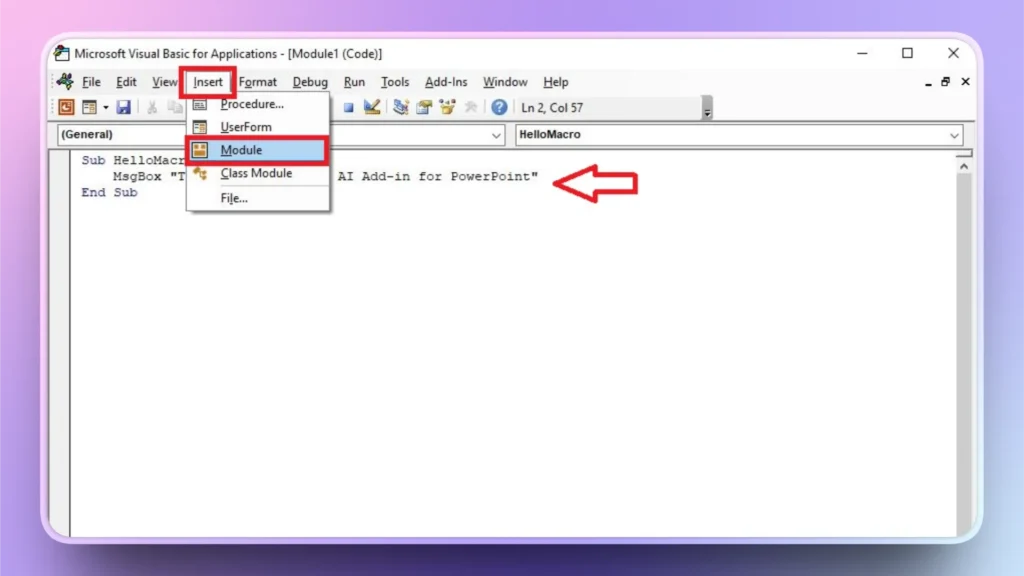
Click Insert >> Module and then write a simple macro that will display a sample message. Here is the code to display your custom message.
Sub HelloMacro()
MsgBox “Twistly is the best add-in for PowerPoint.”
Fin Sub
Step 4: Save as Macro-enabled File
Save the file as a Macro-enabled presentation (PowerPoint Macro-Enabled Presentation (*.pptm)).
How to Run a Macro in PowerPoint?
Your Macro-enabled presentation is saved. The next step is to run the macro.
- Open your macro-enabled file
- Go to the Developer tab and click Macros
- You will see the list of available macros in the file, select one, and click Run
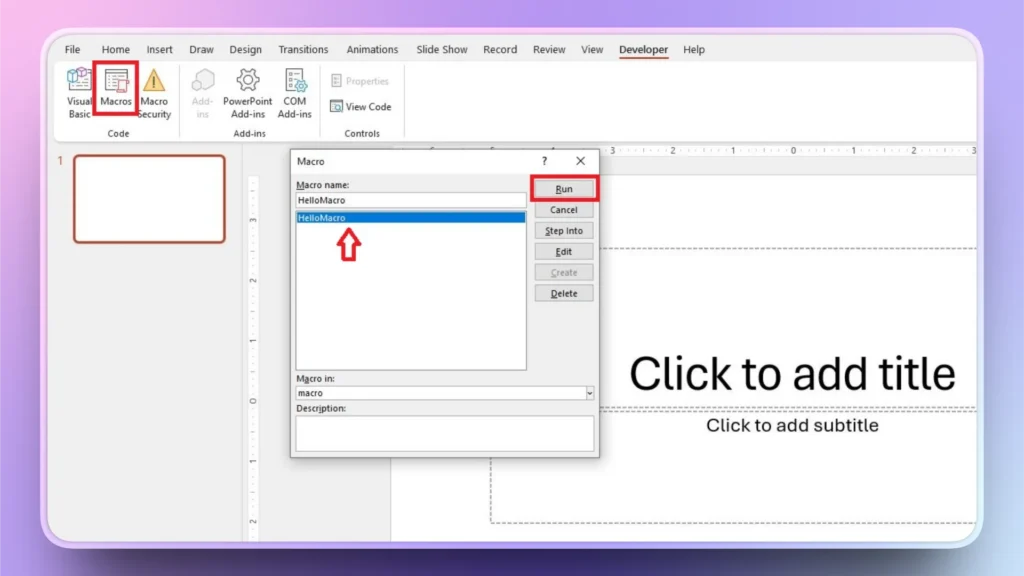
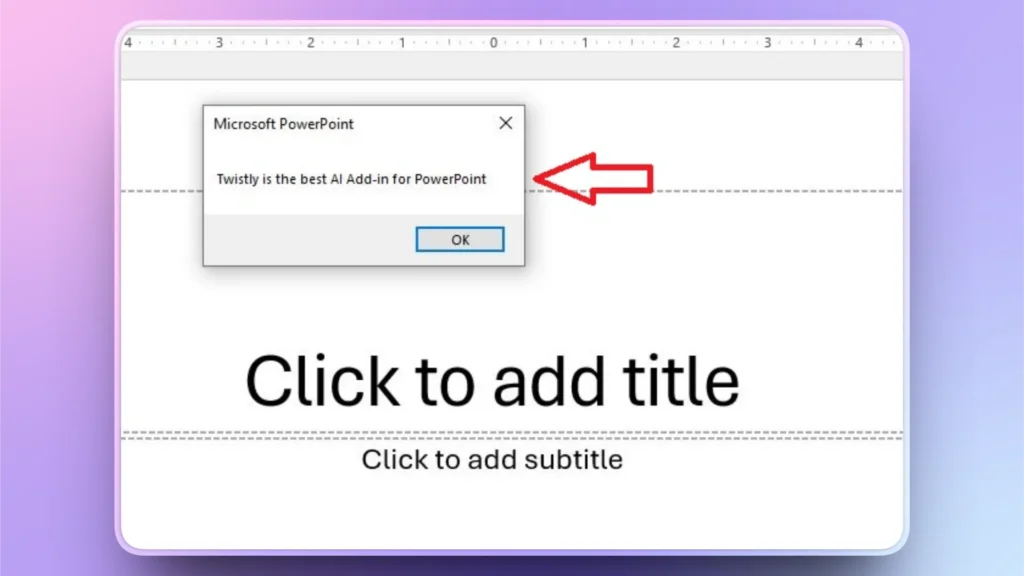
- Here is the message displayed that we previously entered in the VBA code. You can try further changes to the type, shape, and other aspects of the VBA code.
How to Enable Macros in PowerPoint?
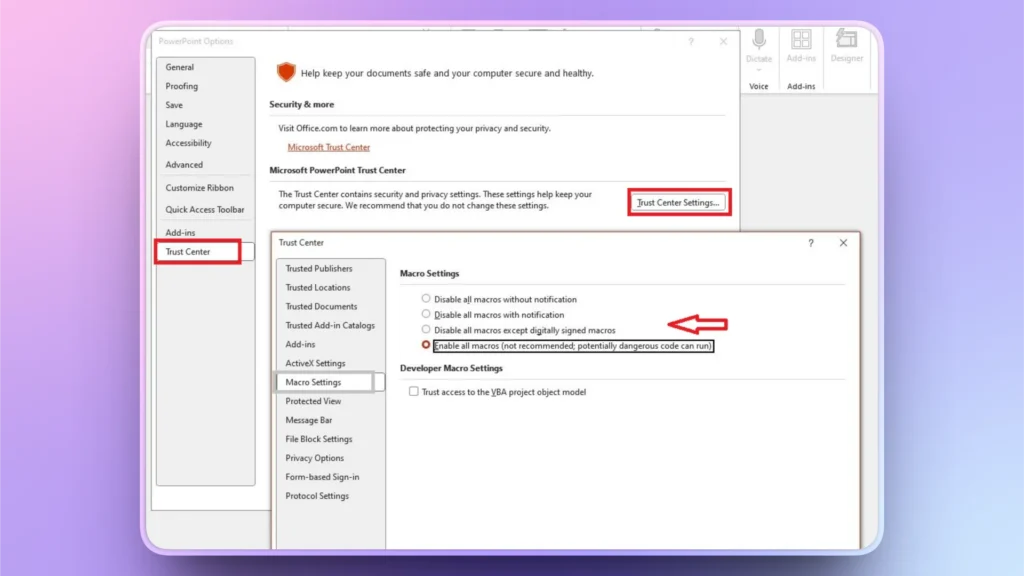
If macros are disabled by default for security reasons, you can enable macros from the Trust Center.
Go to File >> Options >> Trust Center >> Trust Center Settings >> Macro Settings.
Now, choose any option that you see fit according to your needs. If you don’t need macros anymore, select the “Disable all macros with notification (Recommended)” option.
Are Macros Safe in PowerPoint?
Macros are safe if they are shared from trusted sources. A common PowerPoint user may rarely come across situations where they must use macros. Sometimes, macros downloaded from unknown sources or online sites can contain malicious files or viruses.
For safe use of macros in PowerPoint, you can:
- Enable macros only from trusted sources.
- Avoid downloading random .pptm files.
- Keep Microsoft Office updated.
- Use antivirus protection.
For effective use of macros in PowerPoint, you must have basic knowledge of VBA and coding. Macros are also not available for the online version of PowerPoint.
PowerPoint Macros vs. Add-ins- What’s the Difference?
Macros are custom automation scripts that are stored inside a specific presentation file and offer limited and predefined functionality only.
Add-ins are installed tools inside PowerPoint that are reusable across all files and offer extended functionality for PowerPoint users.
What’s the Best AI Add-in for PowerPoint?
The best AI add-in for PowerPoint is Twistly in terms of power, features, usability, and AI integration. Even in 2026, PowerPoint has no significant AI integration for users. From writing text to adding images, everything needs to be done manually.
Twistly add-in reduced the manual work by automating every single aspect of making presentations in PowerPoint. Do you want to learn more about Twistly?
Crear PowerPoint
Diapositivas con IA
Cree presentaciones basadas en IA a partir de
cualquier mensaje, documento o vídeo


¿Qué puedes hacer con Twistly?
Twistly is not just a conventional add-in but a complete AI assistant for making professional presentations in PowerPoint within seconds.
With no design, formatting, or writing experience, anyone can make professional presentations with Twistly inside PowerPoint.
What makes Twistly better and more suitable than other AI PPT makers? Twistly is fully integrated inside PowerPoint, meaning users don’t need to leave PowerPoint to use AI. You can:
- Create presentations from topics, prompts, data, or files
- Generate AI speaker notes for slides or presentations
- Add AI images or free stock images to your slides without leaving PowerPoint
- Add custom or readily available slides to your existing PPTs
- Rewrite, improve, or polish your slide designs and content
- Perform several other AI tasks with a few clicks

Conclusión
Macros in Microsoft PowerPoint are powerful automation tools that use VBA to streamline repetitive tasks. They reduce repetitive tasks. You first need to enable macros, then create one, and finally run a macro.
With tools and features like macros and the Twistly add-in, you can transform how presentations are made with PowerPoint. Twistly can turn hours of manual work into seconds of automation.
Download the free trial version of Twistly now and start making professional presentations so you don’t have to worry about macros and other complicated parts of PowerPoint.
Crear diapositivas de PowerPoint con IA
Crea presentaciones basadas en IA a partir de cualquier mensaje, documento o vídeo













Empieza a hacer presentaciones con IA en segundos
Acceso instantáneo
Empieza a explorar inmediatamente todas las funciones de Twistly
Sin compromisos
No necesita tarjeta de crédito y puede cancelar en cualquier momento
Asistencia dedicada
Nuestro equipo está aquí para ayudarle en cada paso del camino durante su juicio.