


Best AI Tools for Generating Presentation Speaker Notes
You created an amazing presentation with attractive slides. Congratulations. But you felt that some slides had complicated topics, with little information to support the argument. What to do? Is there any way to keep additional notes in the presentation for the slides? That’s exactly what speaker notes are used for.
We understand that you have spent hours on the presentation, and now you don’t have the energy to generate presentation speaker notes.
How about generating presentation speaker notes with AI, with just a click? Would you like to learn how to generate presentation speaker notes with AI for any slide or complete presentation?
What are Presentation Speaker Notes?
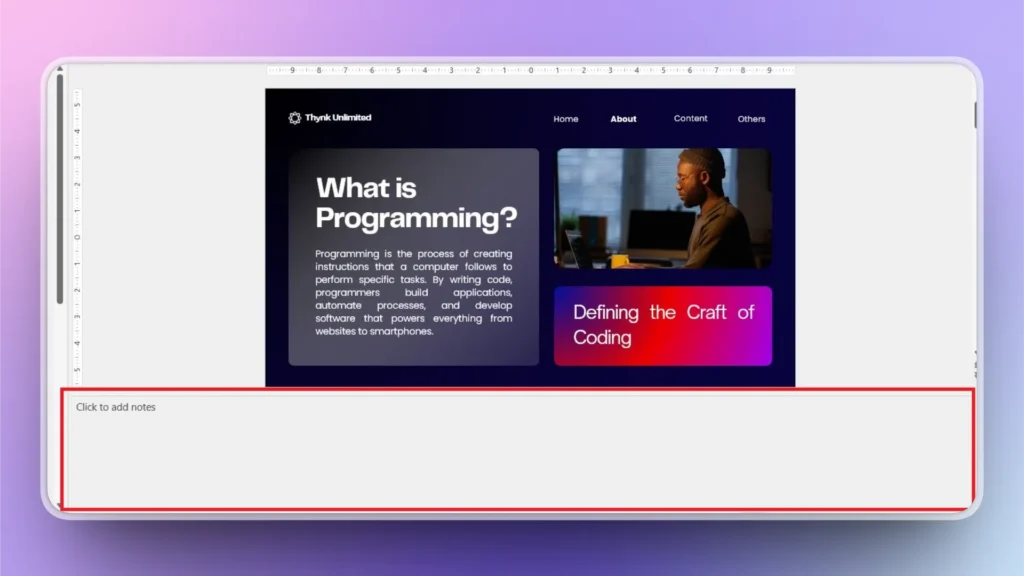
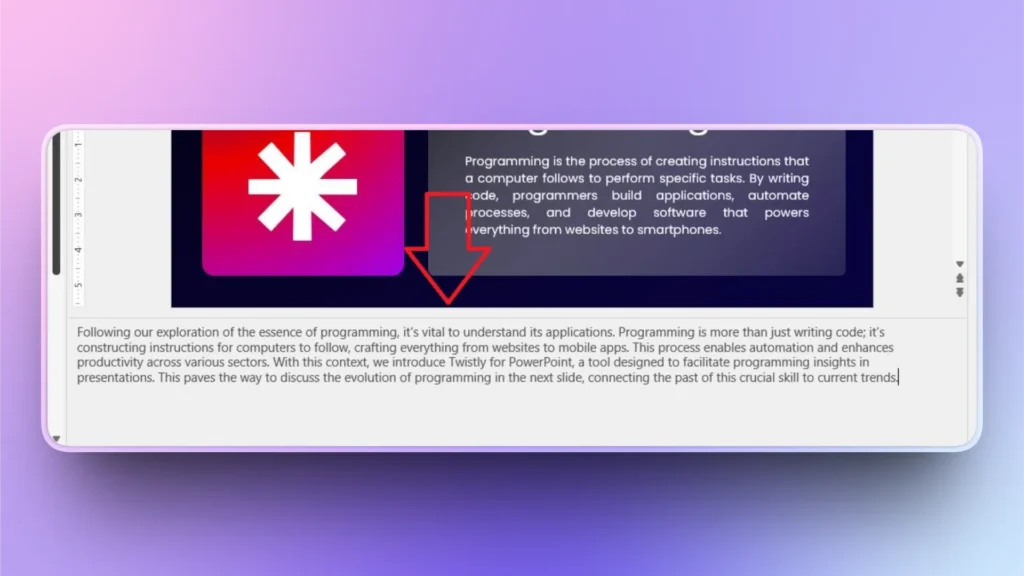
Speaker notes in presentations act as a private script or talking points, visible only to the presenter in “Presenter View,” ensuring a smooth delivery without cluttering slides with text. It is the text area under the slide preview window, as shown in the image below.
The presenter can add anything to the speaker notes section. Instead of adding irrelevant data and personal notes to slides, use the speaker notes section to:
- Deliver your presentation with confidence and authority
- Stay aligned with the visuals
- Save time as you don’t need to switch between multiple files for additional materials.
- Get relevant information and supporting information for slides with AI tools.
Best Tools for AI Presentation Speaker Notes
Conventionally, presenters analyze the slide data and then find relevant information from other sources, and then create speaker notes.
With AI tools, you can skip all these parts and instruct the tool to find relevant data, collect information from online sources, and generate speaker notes automatically.
In this article, we will discuss some of the top AI tools for generating presentation speaker notes.
AI Speaker Notes Generator #1: Twistly
Twistly is not only a speaker notes generator but a complete presentation assistant. From generating slides to writing speaker notes with AI, Twistly does it all, inside PowerPoint.
This add-in lives inside PowerPoint, offering the combined power of AI features and native tools of PowerPoint. Here is how to generate presentation speaker notes with Twistly.
Create PowerPoint
Slides with AI
Build AI-powered presentations from
any prompt, doc, or video


Step 1: Open your Presentation and Launch Twistly
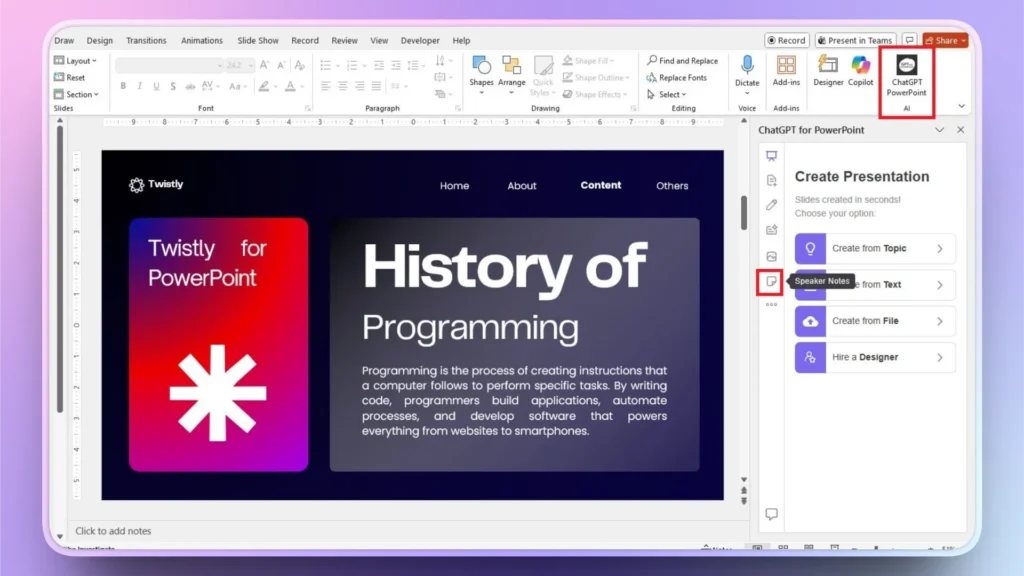
Open your PowerPoint presentation and launch the Twistly add-in by clicking the Twistly icon in the top right corner.
A dedicated control pane will appear on the right side of the slide preview window. Here you have all the options for Twistly.
Click the last Paper icon labeled as “Speaker Notes.”
Step 2: Generate Speaker Notes
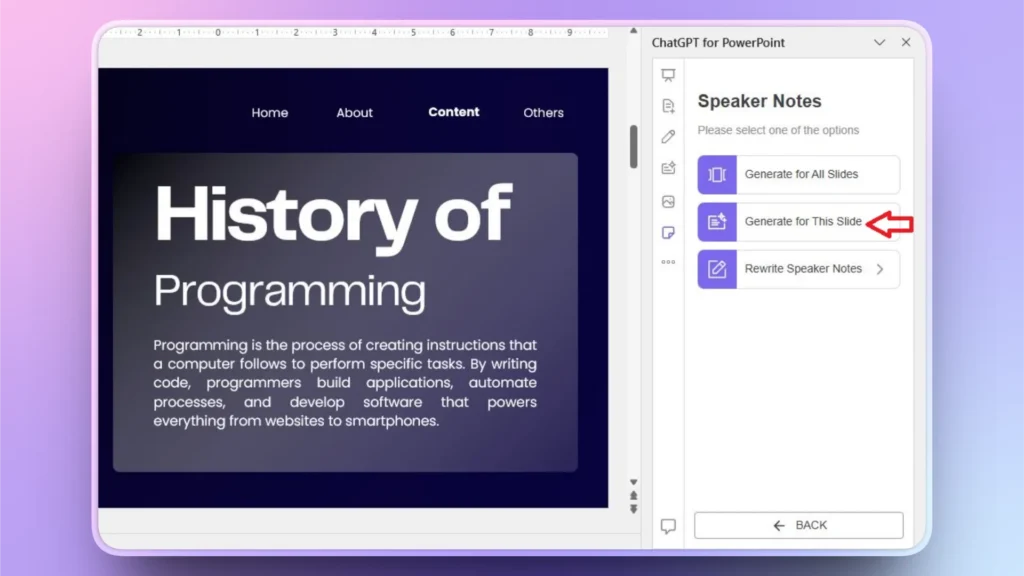
Twistly has two options for generating presentation speaker notes:
- Generate speaker notes for all slides
- Generate speaker notes for the current slide only
Select your desired option and then wait for a few seconds. We have used the 2nd option to generate speaker notes for this slide only.
Step 3: Review Speaker Notes
Within a few seconds, Twistly will finish the process, and you can review the AI-generated speaker notes and make changes, if needed.
How to Rewrite Speaker Notes with AI?
Do you want to make any changes to the AI-generated speaker notes? Twistly offers multiple options to rewrite, edit, optimize, or polish your existing content with AI tools.
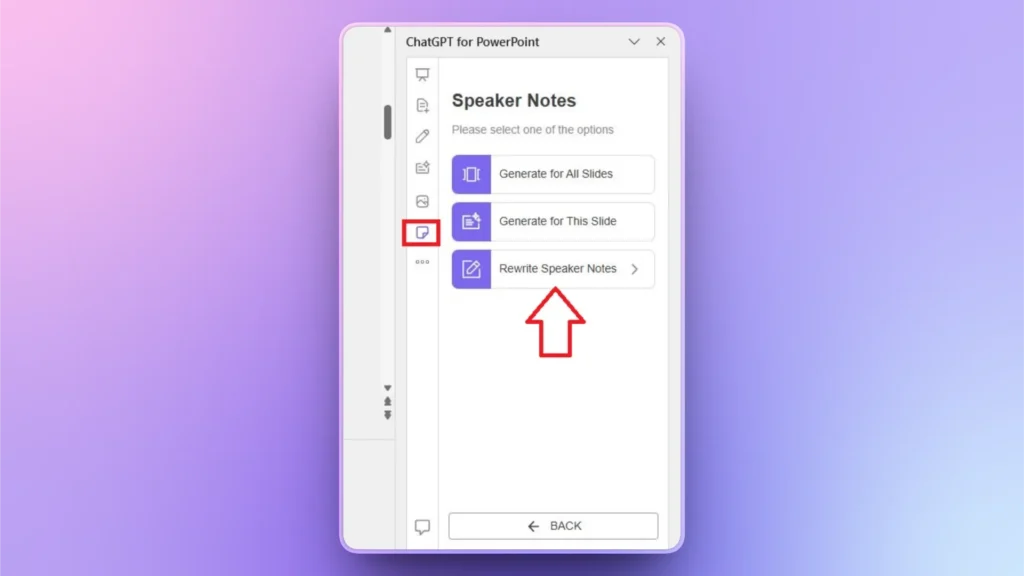
Step 1: Click the Rewrite Speaker Notes button.
In the Speaker Notes section, click the Rewrite Speaker Notes button. Make sure your slide with the speaker notes is open at that time.
Step 2: Choose an AI Action
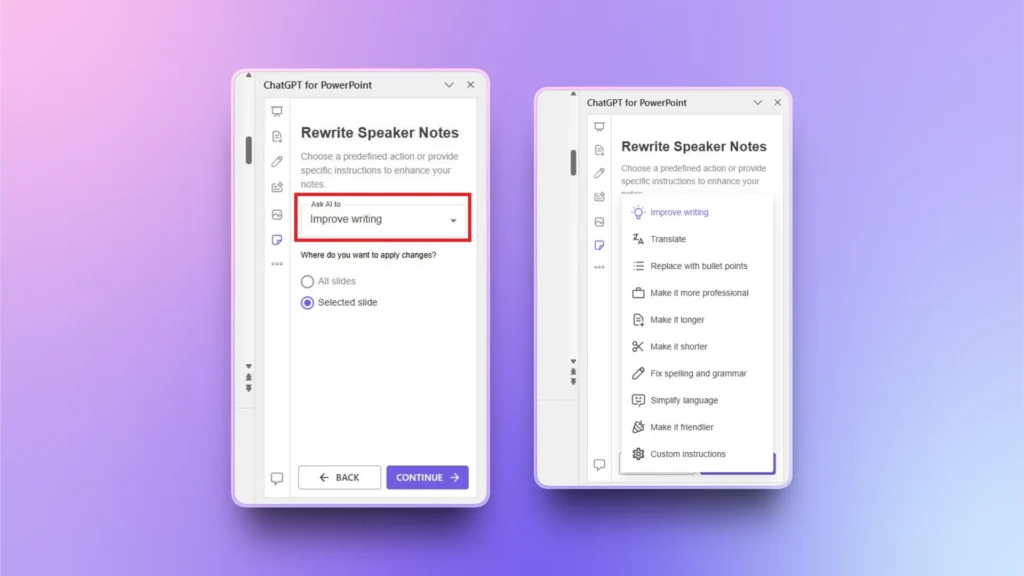
In the next screen, click the “Ask AI to” button to show the drop-down menu.
From the list, choose any action and click Continue, and Twistly will rewrite, optimize, or change presentation speaker notes according to your choice.
Alternate AI Presentation Speaker Notes Generators
Twistly is a complete AI package for PowerPoint users, and you get to enjoy multiple AI features inside PowerPoint without using any other site or tool.
With other popular and independent, standalone AI presentation speaker note generators, you have to abandon PowerPoint and upload your presentations to online sites.
Still, this table gives you an idea of other AI tools for generating presentation speaker notes.
| AI Tool | Overview | Best For |
| Tome | Auto-generate speaker notes with one command | Online tool for end-to-end assistance from slide creation to speaker notes. |
| Gamma.app | Generate speaker notes that align with the story structure | Suitable for professionals and teams |
| SlidesAI.io | Uses AI to generate speaker notes and slide content based on text | Users who want a straightforward tool to generate notes |
Twistly vs. Other AI Tools for Speaker Notes
All of these alternatives to Twistly for generating presentation speaker notes have unique pros and cons. Depending on personal needs, one can choose any tool for presentations.
PowerPoint is the most popular tool for presentations, and Twistly is the only dedicated AI add-in for PowerPoint with direct integration into the software.
Convenience and Faster Results with Twistly
Other tools are online platforms or tools where you have to upload your presentation, generate speaker notes, and then download the final output. With Twistly, you enjoy smoother and quicker AI integration as it lives inside PowerPoint.
Users don’t have to upload or download any additional files while generating speaker notes with Twistly. There is no switching between apps and websites with Twistly.
Get Twistly Trial Version for Free
Do you want an all-in-one ChatGPT-like tool for PowerPoint presentations? Download the free trial version of Twistly and start generating presentations and speaker notes with AI, within seconds.
Users need no prior PowerPoint or AI experience to use Twistly for generating professional presentations on any topic, for any field or project.
Create PowerPoint Slides with AI
Build AI-powered presentations from any prompt, doc, or video

Final Words
AI tools like Twistly work best for generating presentation speaker notes within seconds, without any manual writing or editing. Advanced AI tools have changed how we make presentations in 2026.
If you haven’t used the best AI tools for generating speaker notes for your presentations, start with Twistly and enjoy a custom ChatGPT for PowerPoint.

Start Making AI Presentations in Seconds
Instant Access
Begin exploring Twistly’s full suite of features immediately
No Commitments
No credit card required, and you can cancel anytime
Dedicated Support
Our team is here to assist you every step of the way during your trial.