



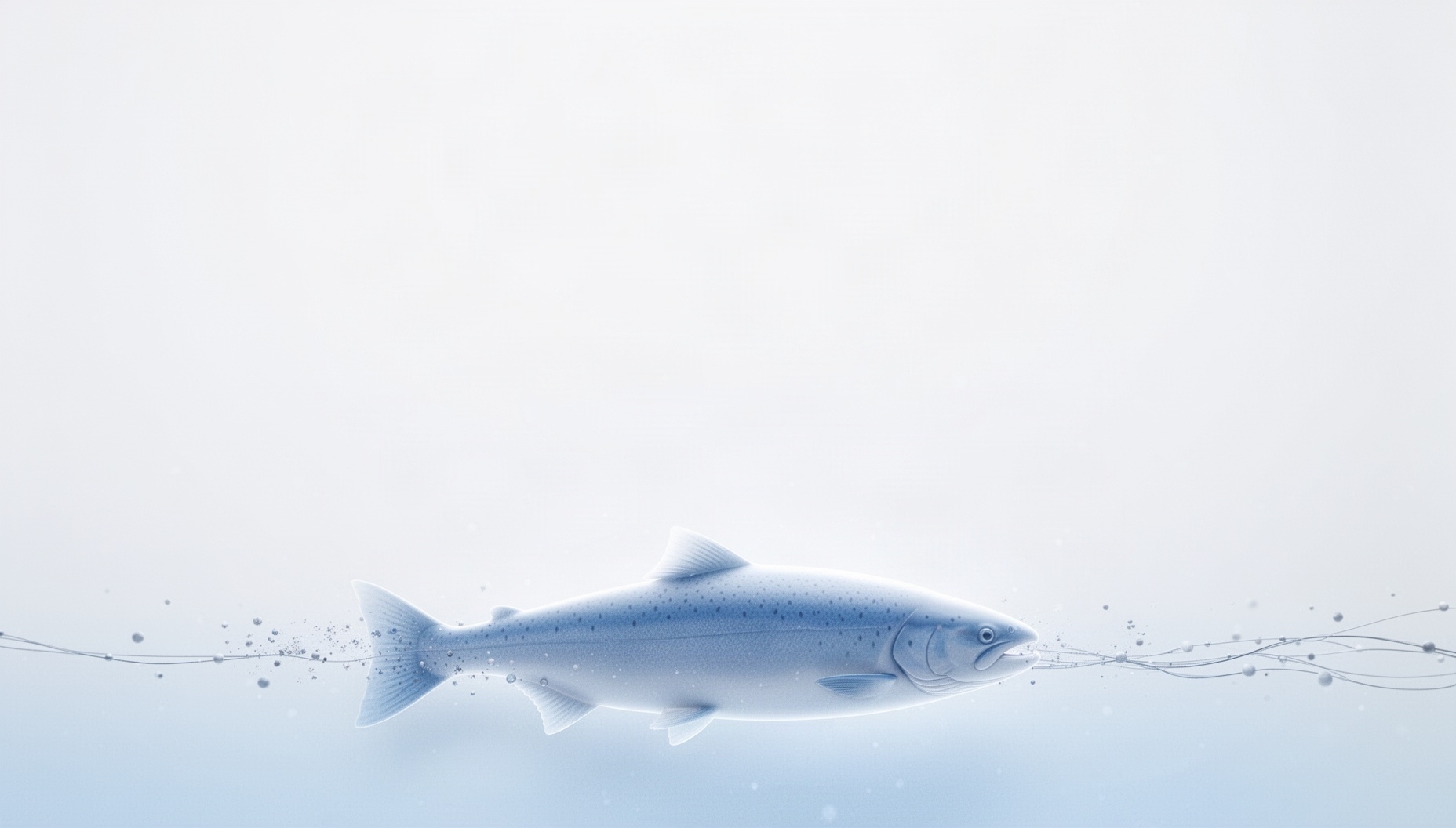



This ocean background for slides brings sea life to a clean white canvas with the faintest blue tint. A tuna tail, a salmon dorsal fin and a shark tail fin appear as soft, holographic pale blue forms along the lower edge. They stay small and quiet, so most of each slide stays open for your text, charts and photos. Use it for marine biology lessons, fishing reports, aquarium tours and ocean conservation talks, and it works as an ocean PowerPoint background too.
Features:
- Holographic fish details: tuna tail, salmon and perch fins, flying fish fin and shark tail
- 5 background layouts: object in the lower-left corner, along the bottom or lower-right
- White and pale blue color palette with a soft holographic glow
- About 80% clean space for titles, text, charts and diagrams
- Widescreen 16:9 format (1856×1056 JPG)
- Works in PowerPoint, Google Slides and Keynote
How to Get Started
1
Open Format Background
Click the “Design” tab on the ribbon, then at the far-right end, click Format Background. The Format Background pane will open on the right side of your window.
2
Choose Your Fill Type
In the pane, select one of the fill options: Solid fill, Gradient fill, Picture or texture fill, or Pattern fill.
3
Customize the Background
Based on your selection, choose a color, an image (by clicking Insert under “Picture Source”), or adjust settings like transparency, direction, or pattern.
4
Apply Your Change
The change will apply to the current slide by default. To apply it to all slides in your presentation, click the Apply to All button at the bottom of the Format Background pane.
Watch How It Works
See how to use this template in PowerPoint