


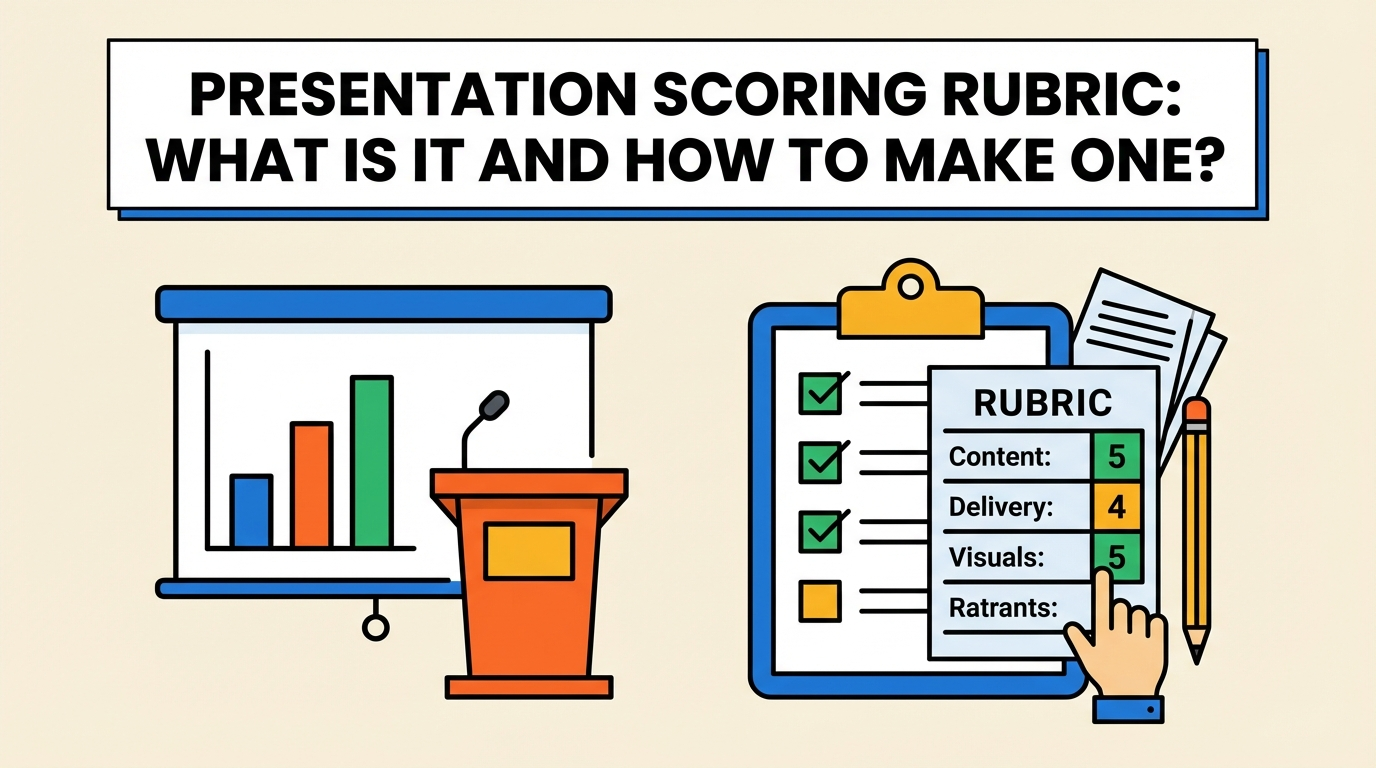
A presentation scoring rubric is an evaluation tool to measure and assess different aspects of a presentation. The scoring tool is structured to determine the delivery, effectiveness, and quality of the presentation.
Users can also assign performance scores to specific areas like audience engagement, content clarity, delivery, organization, and slide design.
Teachers, managers, HR teams, and trainers usually use a presentation scoring rubric to assess and educate the audience.
What is a Presentation Scoring Rubric?
If you are to judge the quality of a presentation, what would you say if the presentation were good? Subjective feedback like “needs more work on delivery” or “a good presentation” does not work.
You need a grading framework that can cover every aspect of the presentation. This framework defines:
- Evaluation criteria
- Performance levels
- Point values or weightage
In simplest words, a presentation scoring rubric is a checklist with different scoring guidelines and performance levels to evaluate the presentation.
How to Make a Presentation Scoring Rubric?
There are no universal rules and regulations to create a presentation scoring rubric. Categories, scoring numbers, and criteria can change depending on the nature and type of presentation.
For a normally accepted presentation scoring rubric, you can follow these steps. Specific categories or other changes can be added according to the requirements.
Step 1: Define your Objective
The purpose of creating the scoring rubric determines your criteria. You should clearly define your objective, whether you are using it for a classroom project, a corporate pitch, or a public speaking event. A clear understanding of the objective will help with the next steps.
Step 2: Identify Evaluation Criteria
If event management has not provided you with any specific evaluation criteria, you can assess a presentation against some basic and common aspects, including:
- Content Quality
- Structure & Organization
- Visual Aids
- Delivery & Confidence
- Audience Engagement
You don’t need to use overly complicated points, as a simpler scoring rubric is better for you and the presenter. Effective feedback should explain the most important points only.
Step 3: Define Scoring Scale
You are free to choose any scoring scale, but usually a 1-4 scale works best because there is no middle bias in this scale. 1-4 scale offers clearer and more accurate evaluation. Now, write descriptive performance levels.
Step 4: Create Presentation Scoring Rubric
It’s time to turn these details, scoring scale, and descriptive performance levels into a table, an actual scoring rubric.
This is how a basic scoring rubric may look for presentations.
| Category | Excellent (4) | Good (3) | Fair (2) | Poor (1) | Score |
| Content Quality | Accurate, deep analysis, strong evidence, clear thesis | Mostly accurate, adequate support | Limited depth, weak support | Inaccurate or insufficient content | |
| Structure | Clear introduction, logical flow of ideas, smooth transitions | Generally logical structure with minor transition issues | Some structure is evident, but ideas may feel disconnected, or transitions are weak | Lacks a clear introduction, body, or conclusion; presentation is difficult to follow | |
| Visual Aids | Slides are clean, visually appealing, well-formatted, and minimal text | Slides are readable with minor formatting issues; visuals generally support content | Slides contain too much text, inconsistent formatting, or distracting elements | Slides are cluttered, difficult to read, or do not support the presentation | |
| Delivery | Confident, clear voice, strong eye contact | Minor hesitation, mostly clear | Frequent reading from slides | Monotone, unclear speech | |
| Total Score | |||||
Now, you have a complete presentation scoring rubric that you and other judges can use. You can also find spaces to add personal recommendations or comments. If there are any specific points that need your attention, add those points too.
How to Use Scoring Rubric Effectively?
Is this scoring rubric for a public speaking event or a board meeting? There are probably other members or judges who will be judging presentations. Here are some practical tips on how to use a scoring rubric effectively for scoring presentations:
- Distribute the rubric in advance
- Use it during the presentation for real-time scoring
- Provide written comments
- Review results with presenters afterward
These types of tools are used for training programs in the corporate world. Managers and trainers not only assess the performance of participants but also offer their expert opinion and feedback to the participants.
How to Create Presentation Tables with AI?
Creating a presentation scoring rubric can take hours. The same goes for creating normal tables in PowerPoint. If you have a large presentation with many slides, creating a few tables can easily take hours.
With AI, you can turn any data or AI prompt into a table. Instead of designing and creating a table from scratch, you can ask Twistly to generate a table for you within seconds.
Creating an AI Table with Twistly
How to create a table with Twistly in a presentation? Steps are simple, and AI will not only create a table but also find data for the table, automatically.
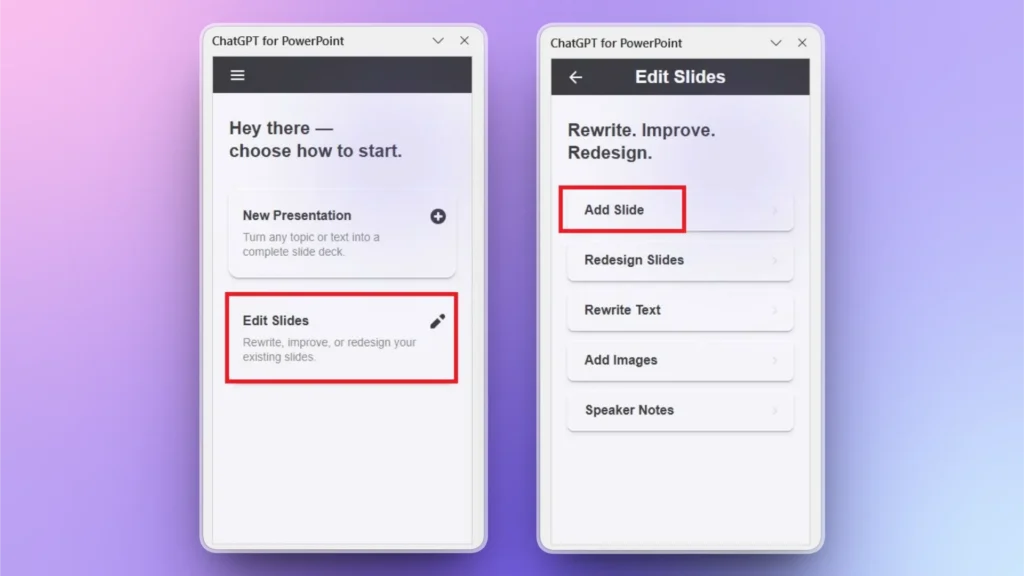
Step 1: Open PowerPoint and Twistly
Open your existing or new presentation and launch Twistly. Choose Edit Slides and then click the Add Slide button.
Step 2: Select Table Layout and Input Prompt
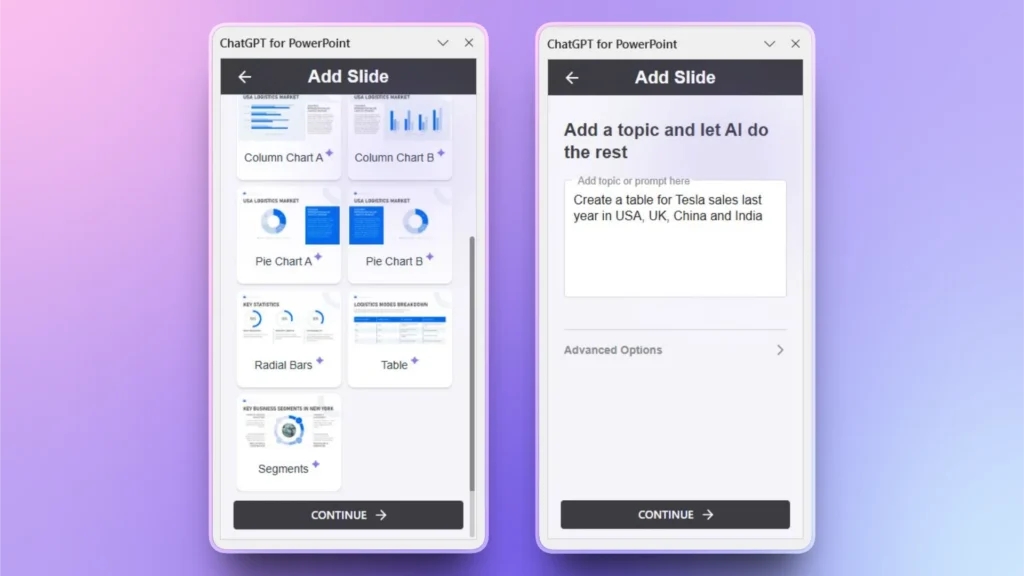
From available slide layouts, select the table layout and explain what you want in the table. You can use plain language, and Twistly will understand the context.
Step 3: Your Table is Ready
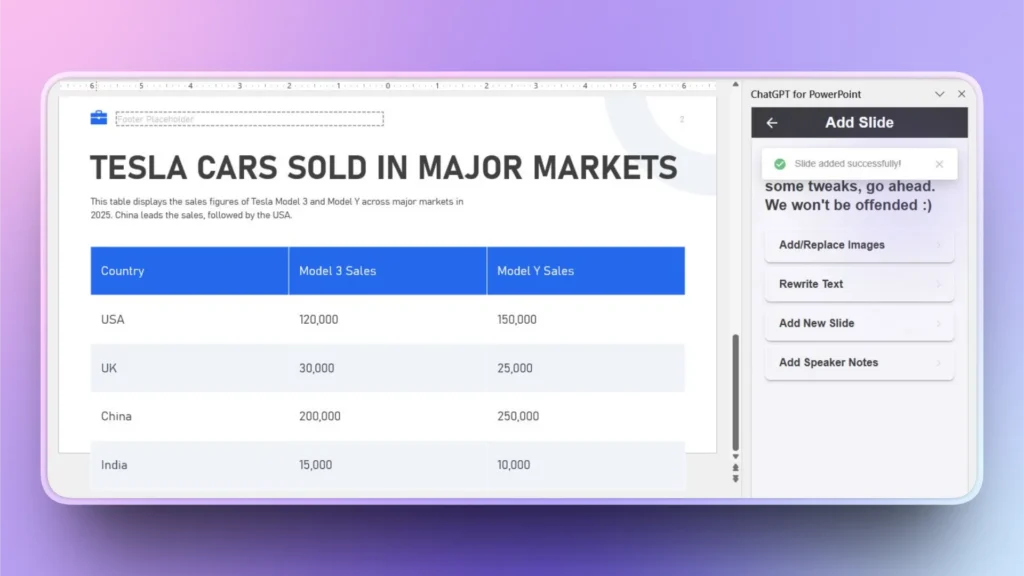
Within a few seconds after your input, Twistly will generate a complete and attractive table with relevant and latest information. You can see the image below for the results.
Final Words
A presentation scoring rubric transforms subjective evaluation into a structured, measurable, and fair assessment system. Creating a scoring rubric is easy, as it is just like a normal table, but finding the relevant categories and KPIs is the real challenge.
If you think creating a table in PowerPoint takes time, you haven’t tried Twistly yet. This simple yet powerful AI add-in can turn any data into a table or generate slides from your AI prompts.
Download the free trial version of Twistly and start making awesome presentations with AI. It is just like a custom ChatGPT for PowerPoint.
Create PowerPoint
Slides with AI
Build AI-powered presentations from
any prompt, doc, or video













Start Making AI Presentations in Seconds
Instant Access
Begin exploring Twistly’s full suite of features immediately
No Commitments
No credit card required, and you can cancel anytime
Dedicated Support
Our team is here to assist you every step of the way during your trial.