


Photos and visuals have become an essential part of every professional and educational presentation. Pictures make your presentation more engaging and persuasive. But citing photos in PowerPoint is required to avoid any plagiarism or copyright infringement.
When attribution is required, you must duly cite photos on your slides. We highly recommend using photos in presentations that are allowed for personal or commercial use by the owner.
Why Cite Photos in PowerPoint?
Citing pictures in PowerPoint may not have a direct impact on the user experience for the audience, but it can add authenticity and professionalism to your slides. You must learn how to cite photos in PowerPoint, because:
- You must give proper credit to the original creator
- It prevents the chances of content being marked as plagiarism
- Avoid unwanted copyright issues
- Add value and credibility to the presentation
- Must-have features for academic presentations
Whether you are a student, marketer, businessman, or a common PowerPoint user, citing photos in slides does not take much time but has a huge impact on the overall content.
Citing Pictures in PowerPoint
Whenever you are using 3rd party images that are not owned by you, citation is required. We will explain the steps in detail, but practically, it will take only a few seconds to cite photos in PowerPoint.
Some pictures are in the public domain, like historical pictures, and you may not need any citation for such photos.
Creative Commons Licenses are popular because the original creator or website usually mentions under the picture whether attribution is required or not. Let’s see how to cite photos in PowerPoint.
Step 1: Identify the Picture License
If you are using free image sites like Pexels or Freepik.com, you can easily find the license details for every image. Search for your desired term, open the image, and then click the Information button to find if the image is free for use and requires any attribution.
Some sites have free images but require attribution, while some may not require any attribution at all. Make sure to check these details before downloading the image for personal use.

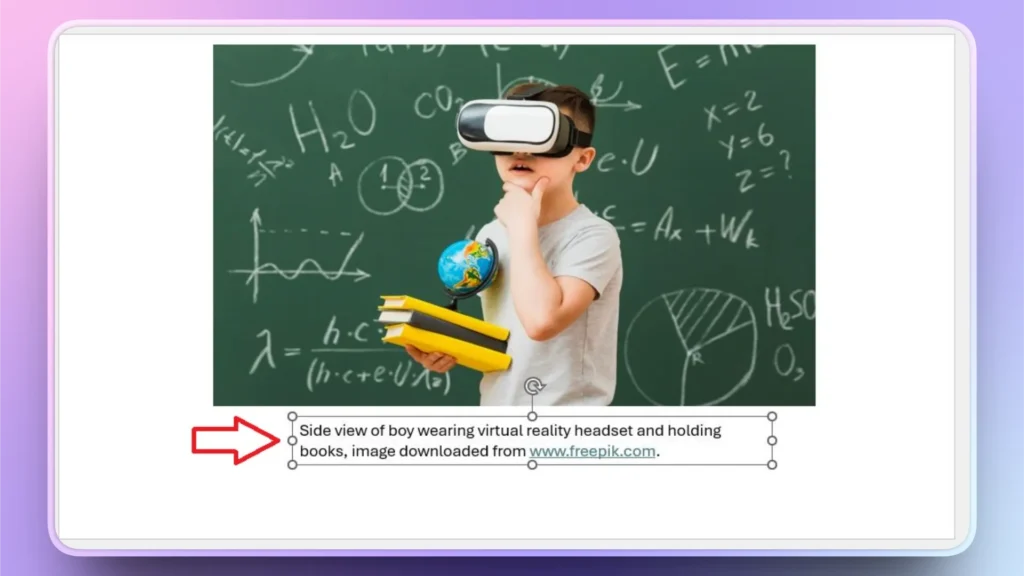
Step 2: Add Licensing Details in a Text Box
Draw a text box under the image in the slide so you can add citations to the image box. You can also get more details about how to attribute it from the source site. Add citation details to the text box under the image.
Step 3: Group Image and Citation
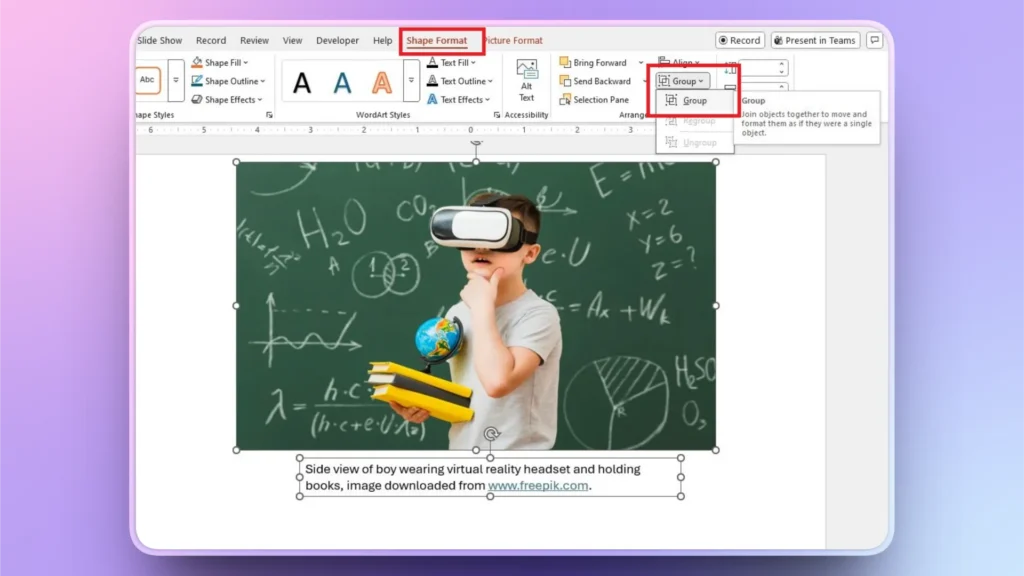
Grouping both elements will make it easier for the user to move the image and citation as a single element.
Select the image and the text box >> Shape Format >> Group and select the Group option from the menu. Now, you can move the image anywhere, and the citation box will also move accordingly.
Where to Put Image Citation in PowerPoint?
This is the most used method to cite photos in PowerPoint, but depending on the style and presentation type, you may use alternate methods and placements for the image citations in PowerPoint. Directly below the image works for most presentations, but other options also include:
- In the footer of the slide
- On a separate reference slide
APA Style (7th Edition): Photographer Last Name, Initial. (Year). Title of image [Photograph]. Website Name. URL
MLA Style (9th Edition): Photographer Last Name, First Name. “Title of Image.” Website Name, Date, URL.
Chicago Style: Photographer First Name Last Name. “Title of Image.” Website Name. Date. URL.
How to Add Free Photos to PowerPoint Presentations?
Finding images from 3rd party apps, then downloading them, and finally adding them to your slides is a long process. Frequent PowerPoint users need smoother and faster options to add images to slides.
What if PowerPoint could automatically add images to your slides? It seems impossible, but Twistly has made it possible to add free stock images and AI-generated content directly inside PowerPoint, without visiting any other apps.
Free Images for PowerPoint with Twistly
Twistly is a complete AI presentation suite for PowerPoint users, and it also offers a feature to add AI images or free stock images without leaving PowerPoint. The steps are simple, and you can easily get the desired images and visuals for your slides.
Step 1: Open PowerPoint and Twistly
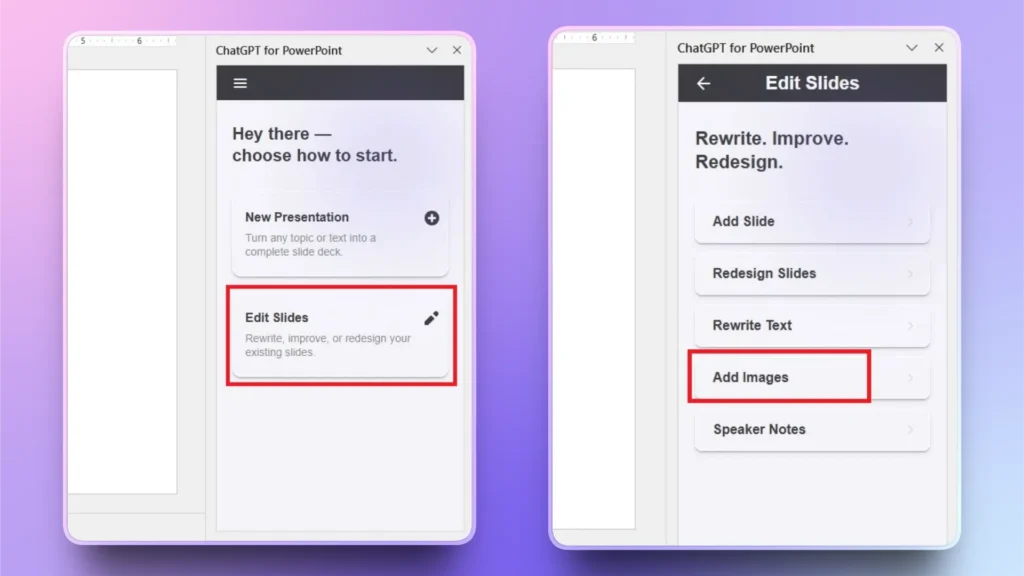
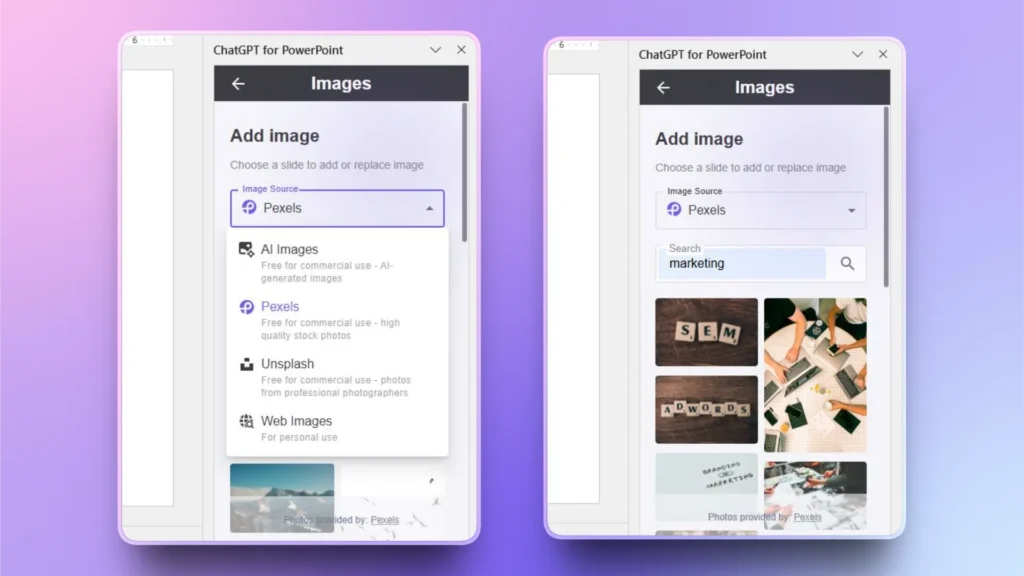
Open the PowerPoint presentation and launch Twistly. Click Edit Slides from the Twistly window and then click the Add Image option.
Step 2: Choose Image Source
You can add AI-generated images or find images from sources like Pexels, Unsplash, and Web Images.
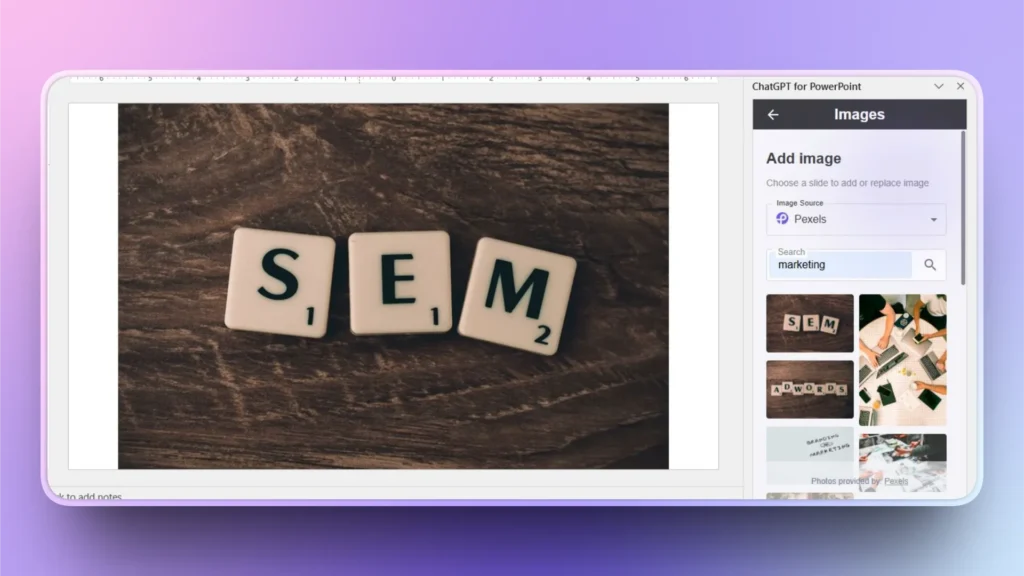
Enter your search term, and Twistly will show you results.
Step 3: Insert an image into the Slide
Click the Insert icon on the desired image, and it will be automatically added to the slide. For any existing presentation, Twistly will automatically replace the existing image with the new one, without any manual editing.
When do you need to cite a Photo in PowerPoint?
Citing photos in PowerPoint not only makes it easier for the audience to track back the source but also helps the presenter to find more relevant information from the image source. Users are advised to cite photos if:
- It’s not your own original image
- It was downloaded from a website
- It comes from a stock photo platform
- It’s taken from a book, journal, or article
Royalty-free images and other pictures captured by you or someone else from your circle don’t require citation. You can use them without any legal attribution.
Final Words
Knowing how to cite photos in PowerPoint protects you academically, professionally, and legally. If you didn’t create it, cite it. Even if you are not sure if a citation is required or not, citing photos on the safe side is a good practice.
Twistly can help you turn your boring slides into aesthetically pleasing presentations and engaging communication channels. You can try Twistly for free for a limited time by using the link below. Download the free trial version of Twistly and experience a custom ChatGPT for PowerPoint.
Create PowerPoint Slides with AI
Build AI-powered presentations from any prompt, doc, or video













Start Making AI Presentations in Seconds
Instant Access
Begin exploring Twistly’s full suite of features immediately
No Commitments
No credit card required, and you can cancel anytime
Dedicated Support
Our team is here to assist you every step of the way during your trial.