


You can record one slide from a PowerPoint presentation or the entire presentation and use narration, sounds, or even a video presentation. Many presenters like to record themselves while explaining the contents of the slides. Not everyone has a nice studio setup, and recording a video with messy surroundings does not seem good.
How to blur the background in a PowerPoint video recording? You may have thought about using green screen in the background, or you might have tried some other hacks, too. In this tutorial, we will help you blur the background in PowerPoint recordings without any additional tools or software.
Should you blur the background in PowerPoint Video Recordings?
The answer to this question depends on your room setup. If you have a dedicated space in your room for recording or have a studio for recording, then you may not want to blur the background.
If you are using a random space for recording and want the audience to stay focused, blurring the background may be a smart move.
Sometimes you must blur the background, not for the aesthetics but for the focused attention of the viewers. Here are some practical benefits of blurring the background of your PowerPoint video recordings:
- Keeps attention on the presenter
- Adds a professional touch to your video recordings
- Protects privacy as others cannot see the overall view of your background
- Reduces visual clutter for a focused experience
- Matches the modern video standards and trends
Note: Troubleshoot Blur Effect
For some older versions of PowerPoint, the video recording feature may not have the blur effect. If you are unable to blur backgrounds in PowerPoint video recordings even after following the given steps, consider upgrading your PowerPoint version.
Steps to Blur the Background of Recordings in PowerPoint
We will teach you how to blur backgrounds in PowerPoint video recordings with the built-in tool. Follow these steps and visuals for step-by-step instructions.
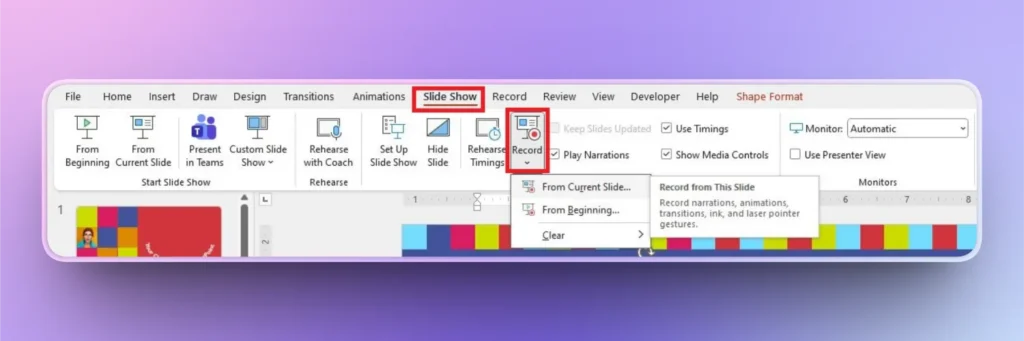
Step 1: Go to the Slide Show Tab
Open your PowerPoint presentation for which you want to record the video and go to the Slide Show tab. Click Record and choose whether to start from the beginning or the current slide.
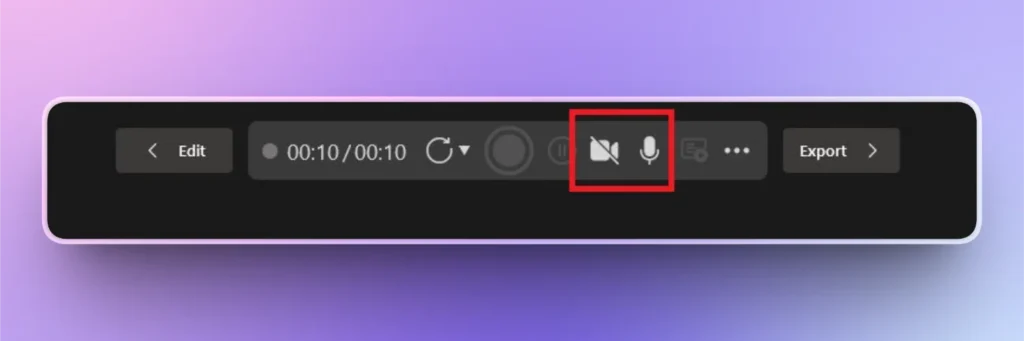
Step 2: Turn on the camera and Microphone
To start the video recording, you need to turn the camera and microphone on. Once both hardware options are enabled. You can press the start recording button.
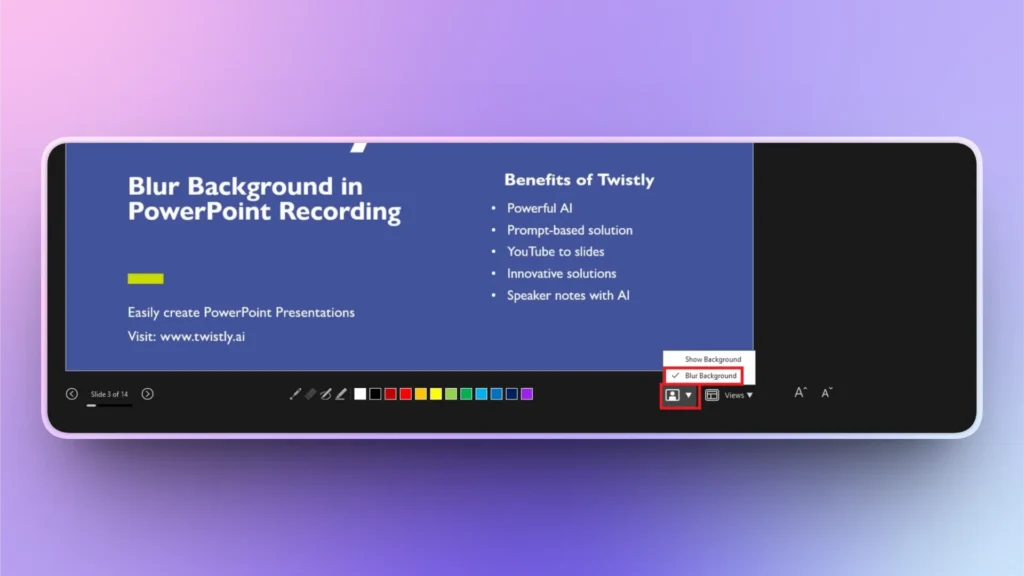
Step 3: Select Camera Mode
Go to the options at the bottom of the slideshow screen and click on the camera mode icon. You can choose whether to show the background or blur it.
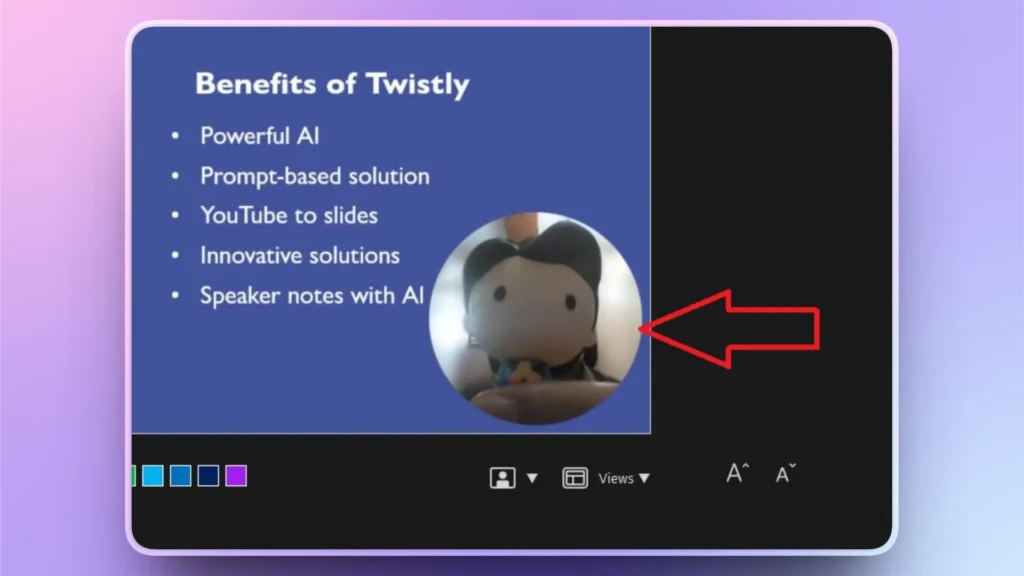
Select the blur background option for this recording, as shown in the image below.
Step 4: Record Videos with Blurred Background
You can see in the screenshot that camera recording now has a blurred background. PowerPoint will automatically detect the person in the camera and blur the rest of the background.
How to Create PowerPoint Presentations like a Pro?
You might have faced challenges and issues related to slide designs and formatting while creating PowerPoint presentations. Honestly, millions of PowerPoint users don’t even know how to use the true potential of the software.
Even professional users spend hours creating presentations because of the lack of AI features and automation, which may impact your overall experience.
If you are someone who likes to get things done quickly, you need Twistly for PowerPoint presentations. This one AI add-in can change your entire PowerPoint experience.
Create PowerPoint
Slides with AI
Build AI-powered presentations from
any prompt, doc, or video


What is Twistly?
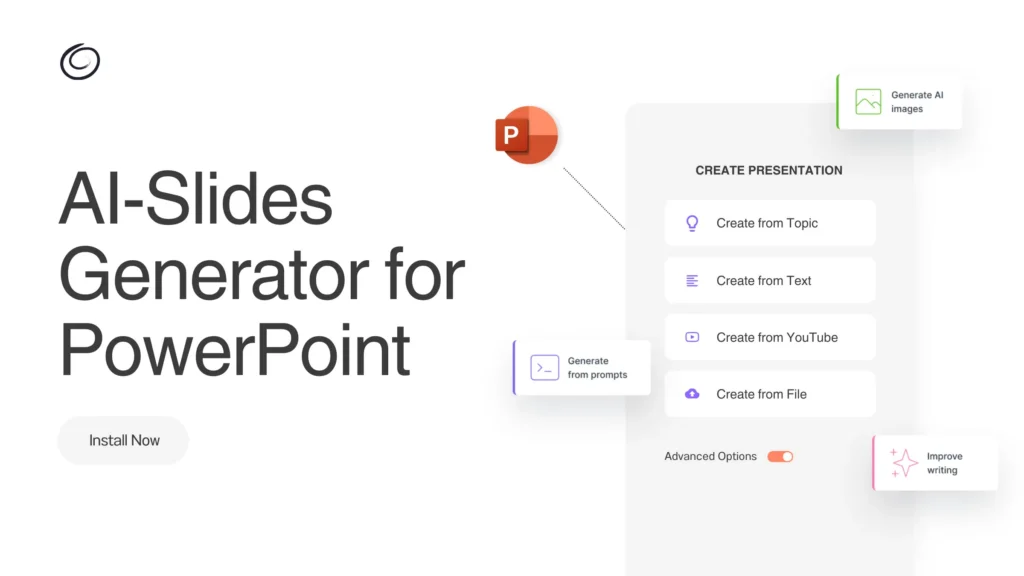
Twistly is the latest and most popular AI add-in for PowerPoint that brings ChatGPT-like capabilities for creating presentations. What can Twistly do for a common PowerPoint user?
For a beginner or professional PowerPoint user, Twistly can generate individual slides or complete presentations with AI, without any manual editing or formatting. It lives inside PowerPoint, so you don’t need to switch between different apps and websites.
Twistly FAQs
We have published hundreds of useful tutorials and detailed articles on the use of Twistly for creating PowerPoint presentations. Here are some commonly asked questions by new users.
Is Twistly free for PowerPoint users?
New users can try Twistly for free for a limited time. You can claim a free trial version by using the link at the end of the article. You need to upgrade to the premium version to unlock all AI features of Twistly.
How much time is required to make a presentation with Twistly?
With a stable internet connection, a user can get final slides within 90 seconds of inputting the presentation topic, AI prompt, or other data. Within 90 seconds or even less, you will have the ready-to-present slides.
What can you do with Twistly?
Apart from making presentations and individual slides, Twistly has a lot of useful AI features that can improve your existing presentations and overall PowerPoint experience, like:
- Create AI images or fetch images from stock photo sites
- Insert popular slide layouts with just a few clicks
- Optimize slide design or content with AI
- Generate speaker notes instantly
- Turn data into charts, graphs, or other visuals
- Convert long paragraphs into lists or review content
Do you need any prior experience to use Twistly?
Twistly is the easiest AI tool you will ever come across for PowerPoint presentations. You need no prior PowerPoint or designing experience to make presentations with Twistly.
Conclusion
Users can blur backgrounds in PowerPoint video recordings by using the Blur Background feature in the camera mode settings. You can also make other changes related to video and audio recordings for your PowerPoint presentations.
Do you need to make every PowerPoint presentation impactful and unforgettable? Try Twistly for free and download the trial version by using the link below. Make instant presentations on any topic, just like using a custom ChatGPT for PowerPoint.
Create PowerPoint Slides with AI
Build AI-powered presentations from any prompt, doc, or video













Start Making AI Presentations in Seconds
Instant Access
Begin exploring Twistly’s full suite of features immediately
No Commitments
No credit card required, and you can cancel anytime
Dedicated Support
Our team is here to assist you every step of the way during your trial.