



Adding an interactive map in PowerPoint can turn your static slides into engaging ones. Whether you are showing the performance of your product in different regions or need to create an interactive map in PowerPoint for class lessons, we have the exact steps that you need to follow.
An interactive map allows users to click on the region or location on the map and show more details about that location. You can use a world map to show different countries or even create a map of certain regions or cities within a country.
Creating an Interactive Map in PowerPoint
If you need a simple map of the world without any data, you can simply use Insert to add a map, but our goal is to make it interactive. We will add further details to make the map in our tutorial more meaningful and useful.
Step 1: Insert a Map in Blank Slide
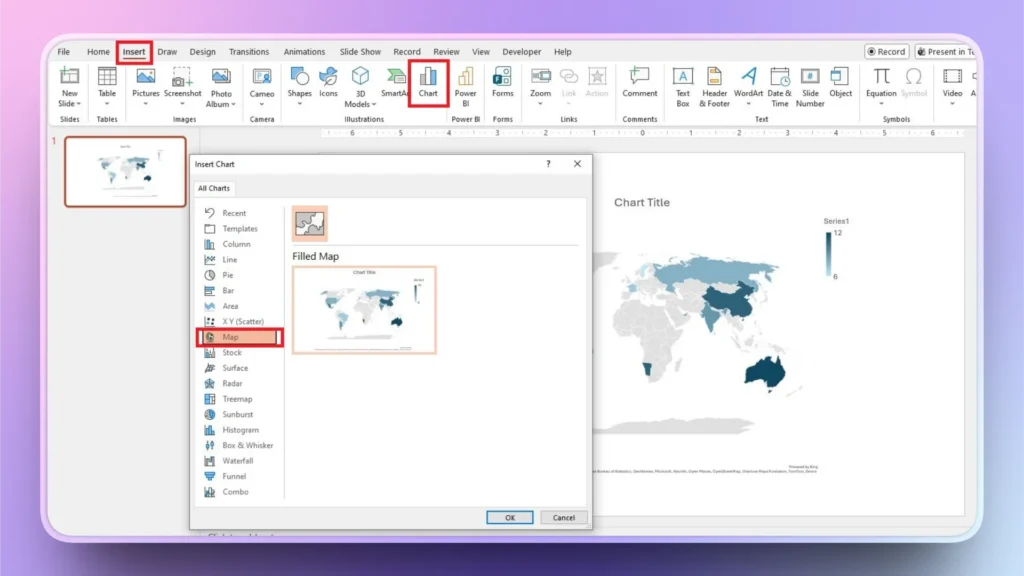
Open PowerPoint, start a blank presentation, and then click the Insert tab.
Go to Chart >> Map and add the map to the selected slide.
Step 2: Change Map Title
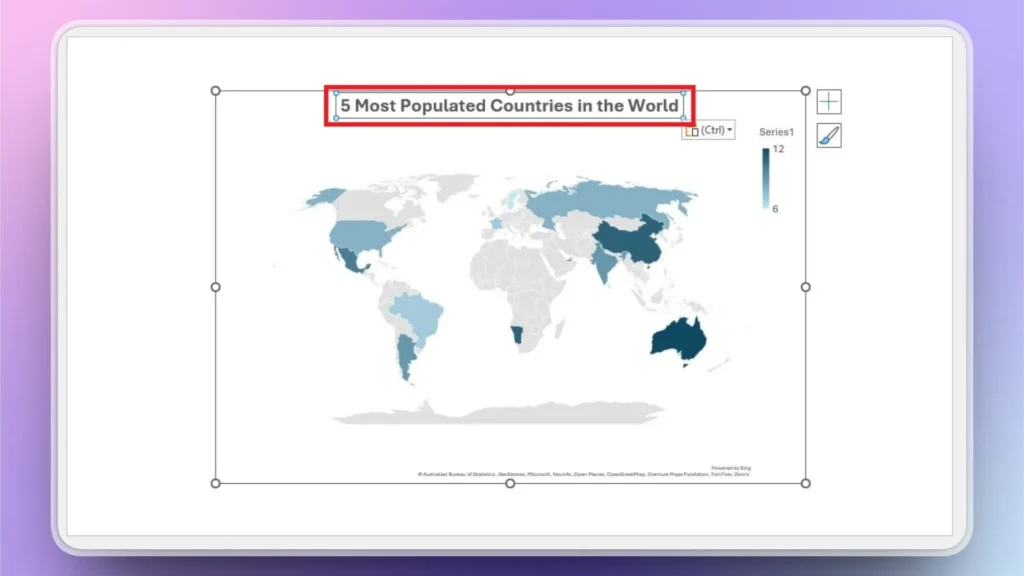
Click the Chart Title in the map slide and then change the dummy text to your desired title. We are creating a map for “5 Most Populated Countries in the World,” so we will change the chart title to this custom title.
Step 3: Enter your Custom Data
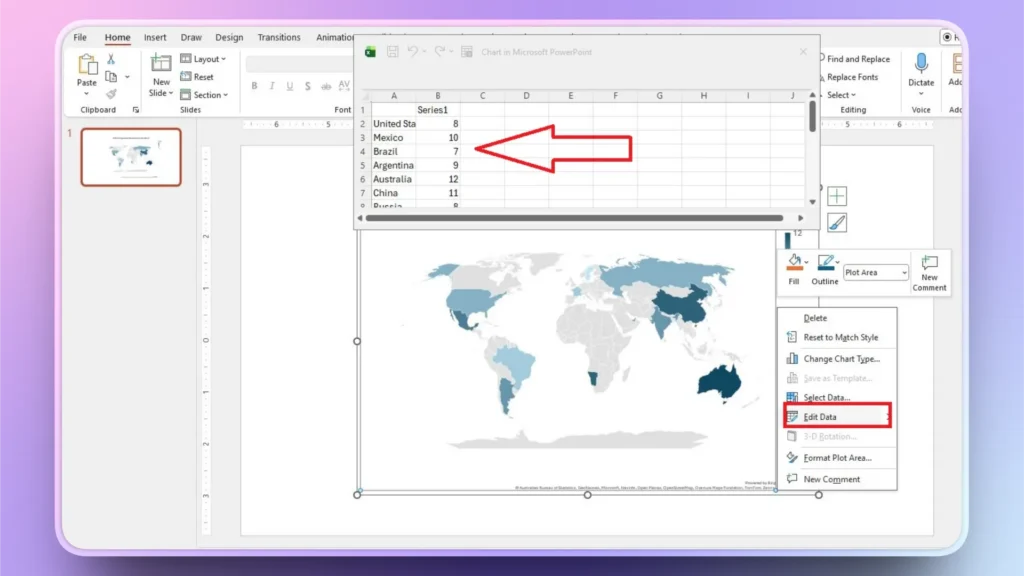
As you can see, the map in the slide has random data, but we need to add real population numbers for the top 5 most populous countries.
Right-click the Map and choose the Edit Data option from the menu. An Excel sheet will appear at the top of the map; replace dummy values with your custom data.
How to Edit Map Design?
By default, the map may look quite simple and dull on your slide. You can add different colors and other changes to the map from the Chart Design tab.
Step 1: Access Chart Design Tab
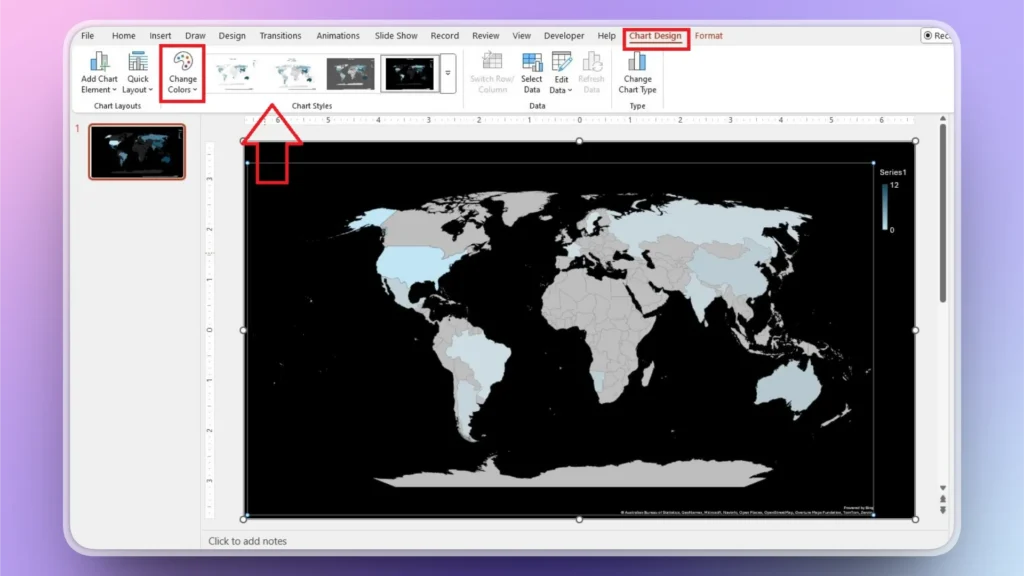
Select your map, and the Chart Design tab will appear in the top ribbon. Open this tab, and then you can change the Chart Style by clicking the available styles.
You can also set custom colors for the map by using the Change Color option in the Chart Design tab.
How to Create a Map of Any Specific Country?
In the above method, you can see that we inserted the world map. What if you want to add a map of a specific country? Imagine you want to create a map for all the states in the USA. You don’t need to add a custom map to the slide.
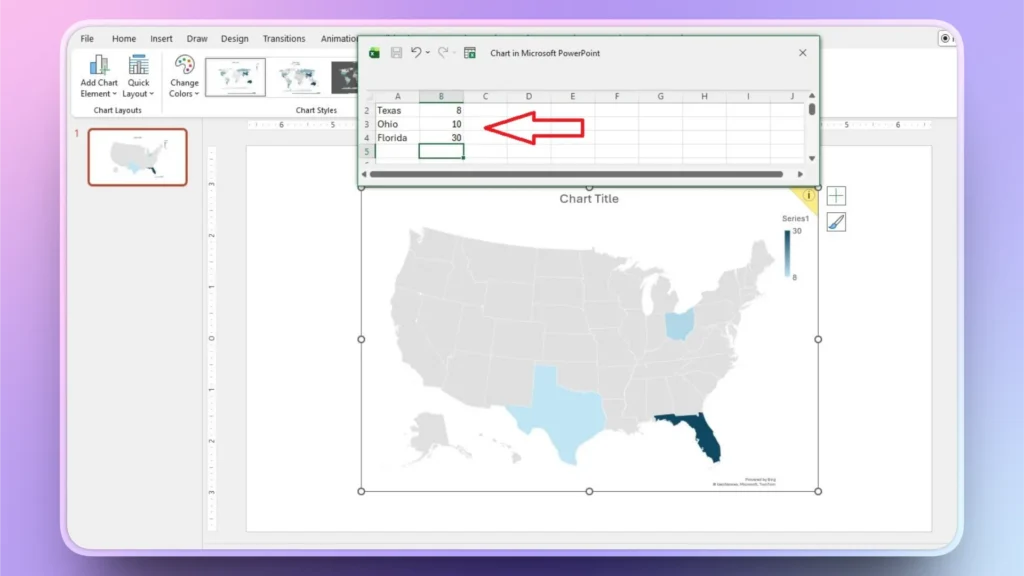
Simply follow the same steps to insert a map and in the Excel sheet, delete all existing cells in the sheet, and then enter the name of any state and the value for that state.
Go to the next cell and enter the name of any other state, and PowerPoint will automatically add a map of the USA with all states. PowerPoint will automatically identify that you are working on the map for the USA only, instead of a world map.
Alternate Method to Add a Map to PowerPoint
Using the built-in map gives your presentation a more professional look, but you can also use other methods for quick actions. Static maps are easy to add to slides. You simply need to visit Google Maps and then take a screenshot of the specific location on the map.
This way, you can add a customized map to the slide as an image. You can use text boxes and other elements to explain the map or any specific location on the map. This is not a professional method to insert a map in PowerPoint, but you can somehow get the job done.
Benefits of using Interactive Maps in PowerPoint
Sales and marketing presentations can use interactive maps for more detailed reporting. Users can also use interactive maps in their presentations for geo-specific topics or classroom projects. Key benefits of using an interactive map include the following points on the map:
- Makes geographic data easier to understand
- Keeps audiences engaged
- Reduces slide clutter
- Allows non-linear navigation
- Enhances storytelling
Use Readily Available Map Templates for PPTs
Another easy way to create an interactive map in PowerPoint is to download and edit readily available templates. Online sites and stores can offer many templates where users can simply edit an existing map without making many changes.
This method works best if you can find free templates because most of the useful templates are paid and require a subscription or charges for use.
How to Create a Static Map with AI for PowerPoint?
Do you need an instant map of any specific country for your PowerPoint presentation? There is an AI tool called Twistly that can help you generate AI images for PowerPoint presentations.
Using Twistly is just like using ChatGPT for PowerPoint. The AI image generator in Twistly can help you generate a map of any city inside PowerPoint.
Step 1: Open Twistly and Add an Image
In your PowerPoint presentation, launch Twistly and then click the Add Image option,>> Input your AI prompt >> Set Orientation >> choose the image >> Insert to Slide.
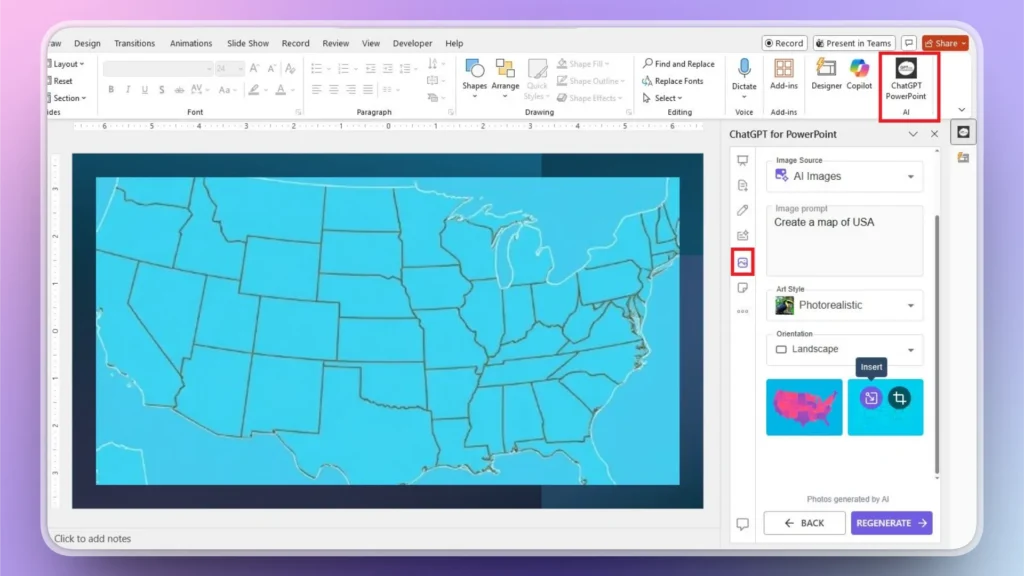
If there are any mistakes or errors in the image, click Regenerate, and Twistly will give you more ideas for the image. Without manual editing and formatting, you can generate and insert a custom AI image into your slides with Twistly.
Final Words
Creating an interactive map in PowerPoint doesn’t require coding or advanced tools. You can use the Chart tool in the Insert tab for maps. For further customizations, use the Excel sheet to add values, data, and other details to the map.
Don’t stick to conventional methods only because AI tools like Twistly are redefining the future of PowerPoint presentations. You can now create an entire presentation in less than two minutes.
If you want to try Twistly for PowerPoint, use the link below to download the free trial version. Experience the power of ChatGPT for presentations and impress everyone. Be smart, choose Twistly.
Create PowerPoint
Slides with AI
Build AI-powered presentations from
any prompt, doc, or video














Start Making AI Presentations in Seconds
Instant Access
Begin exploring Twistly’s full suite of features immediately
No Commitments
No credit card required, and you can cancel anytime
Dedicated Support
Our team is here to assist you every step of the way during your trial.