



The days of static business presentations are over. Stakeholders want real-time data and insights in the presentation, and embedding live BI dashboards in PowerPoint can help you achieve this goal. A Power BI dashboard is an important data visualization tool when discussing forecasts, KPI, and performance.
Embedding a Power BI dashboard in PowerPoint helps you combine the power of storytelling with data visualization. You can have all other details about the topic and then insert the dashboard into any specific slide for transparent reporting.
What is Live Power BI Dashboard for PowerPoint?
When we say, embedding a live Power BI dashboard in PowerPoint, it means displaying real-time data and insights in your slides. These dashboards add interactivity to slides, and data in the presentation is automatically updated when any changes are made to the Power BI dataset.
Adding static charts and graphs may work for simple presentations. When we talk about better interactivity and data visualization, you need to learn how to embed live Power BI dashboards in PowerPoint.
Prerequisites for Embedding Power BI Dashboards in PowerPoint
People who use Power BI already have an account and subscription for the tool. But for new users, you need a Power BI Pro or Premium license, and also a published report. These two items are a must if you want to embed live Power BI dashboards in PowerPoint.
For the dashboard to work smoothly, your device must be connected to the internet because PowerPoint needs to fetch data from Power BI datasets. You already have a PowerPoint subscription, so we are good to start the process.
Method 1: Embed a Power BI Dashboard using an add-in
Microsoft has released an official Power BI add-in for PowerPoint. Using this add-in makes the embedding process easier. It is also the most reliable way to embed a live Power BI dashboard in PowerPoint.
Step 1: Open PowerPoint and Search for the add-in.
Open PowerPoint and click the Add-ins button in the Home tab, and then search for the Power BI add-in. From the given list, choose the official add-in by Microsoft.
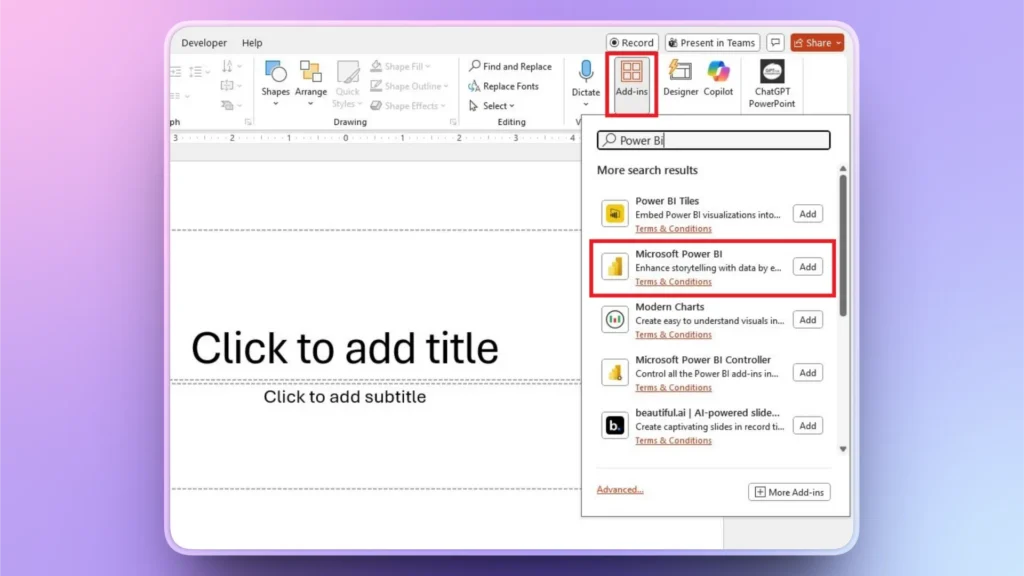
Step 2: Add Power BI Add-in
When you click the search result, a new window will pop up. Click the Add button and then sign in to the add-in with your Power BI account.
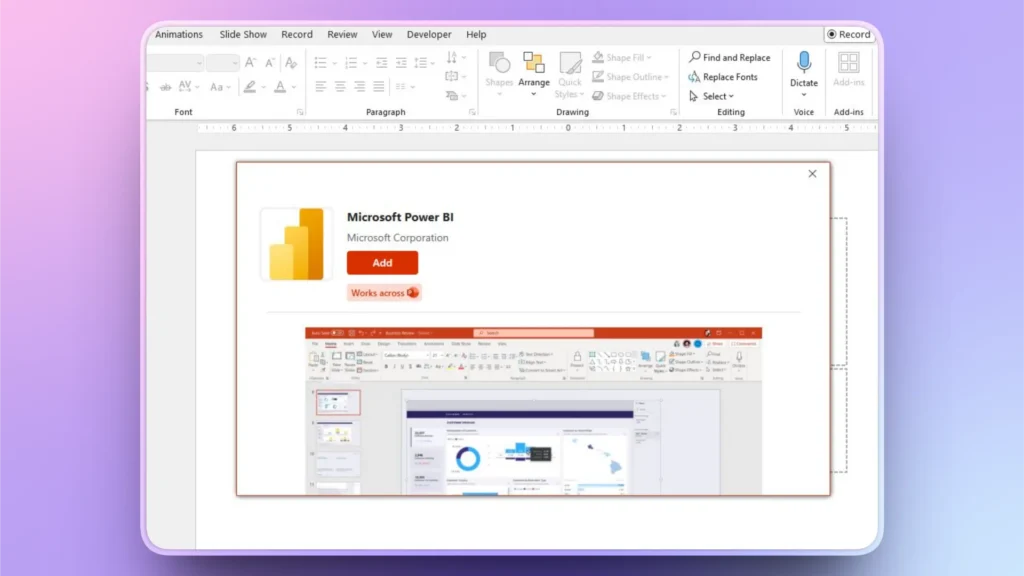
Step 3: Select a Report or Dashboard
Once you are logged in, browse your account and select a report, an entire dashboard, or an individual visual. Click the Insert button and then resize or reposition the dashboard according to your needs.
Method 2: Embed Live Power BI Dashboard via Share Link
Power BI offers a dedicated, secure link-sharing feature that allows users to insert reports, dashboards, or visuals into PowerPoint slides.
First of all, open your report in Power BI Service and then click Share. You will be provided with a source link. Copy the link and paste it into the PowerPoint slide.
This method offers limited controls but works fine for showing the real-time data. If any changes are required in the report, the user will have to use Power BI for those changes.
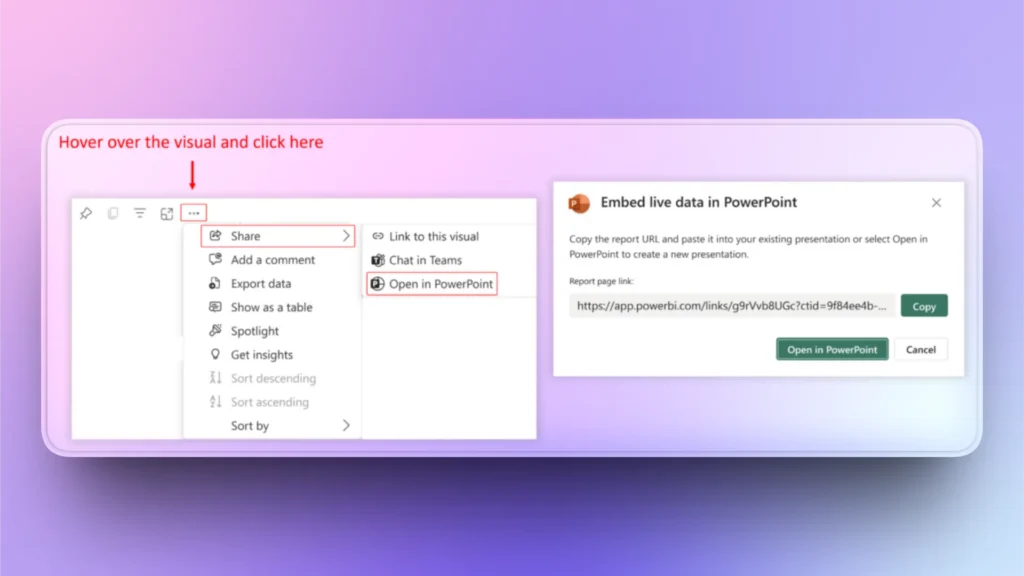
Some other methods are also available for embedding Power BI dashboards in PowerPoint, but they offer static visuals. Using the add-in is the easiest and most reliable way.
When to Embed Live Power BI Dashboard?
A normal PowerPoint user who can make static visuals and charts work for the presentation may not come across this situation. This process is mainly useful for professionals and financial experts who need to present live performance.
You can embed a live Power BI dashboard in PowerPoint when you need live and real-time data tracking for presentations. Some common use cases of dashboards include:
- Board meetings
- Sales performance reviews
- Financial reporting
- Operational dashboards
- Data-driven storytelling
Best AI Add-in for PowerPoint
In the first method, you have seen that the add-in makes complicated tasks simpler and convenient for PowerPoint users. There are many other add-ins available. If you want a single add-in that can change your entire PowerPoint experience, download Twistly.
Twistly is just a custom ChatGPT for PowerPoint that can make presentations, generate slides, optimize slides, and perform many other useful tasks with AI.
Use of Twistly for Data Visualization
If you need static charts, tables, or timelines for your presentations, you can easily make these elements with Twistly. The process is easy, and you can explain your requirements in plain English and provide input.
AI will analyze the details and give you an attractive slide with a final chart or other data visualization tools. Here is how to turn any data into a chart with AI in PowerPoint.
Step 1: Select your Slide Layout
Open PowerPoint and launch Twistly. Click the ” Add a Slide option and then select Data and Charts in the layout menu.
Select your chart or graph that you want to add to the slide and click Continue.
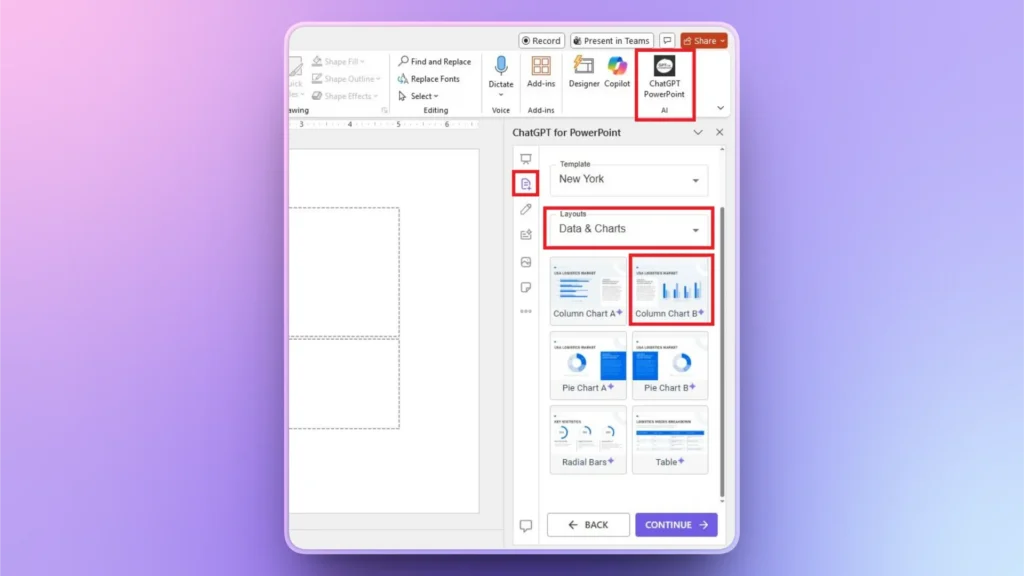
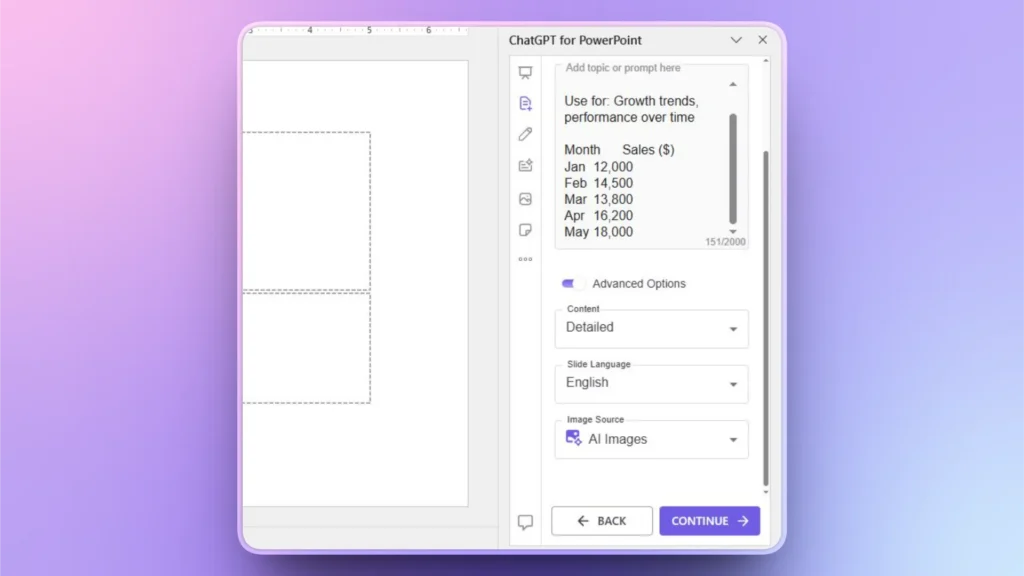
Step 2: Input your Data
Paste your data into the text box and then explain what to do with this data. AI will automatically understand your requirements. You can make other changes to the settings, too.
Step 3: Review your Chart
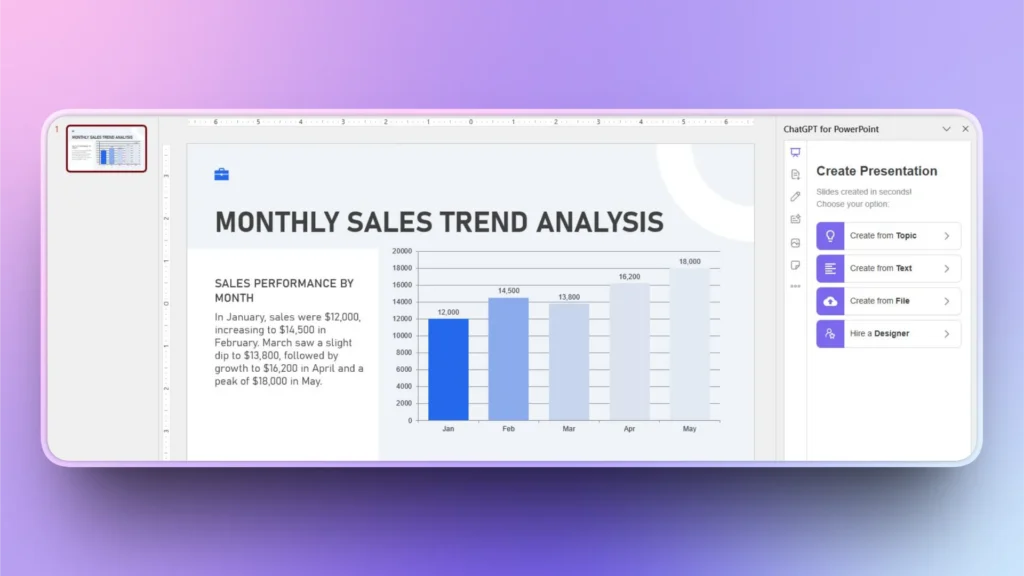
Twistly will generate a fully functional chart based on the provided data. Without any manual data entries or designing, you created a professional data chart in PowerPoint with AI.
Download Best Add-in for PowerPoint
Twistly offers a free trial version that new users can claim by downloading the add-in from the given link. Use the button below to claim your free trial and download the best AI add-in for PowerPoint. Enjoy your custom ChatGPT for PowerPoint.
Create PowerPoint
Slides with AI
Build AI-powered presentations from
any prompt, doc, or video


Conclusion
Embedding live Power BI dashboards in PowerPoint transforms traditional presentations into interactive, data-driven experiences. You can either use the link sharing method or install the official Power BI add-in for PowerPoint.
Add-ins like Power BI and Twistly are reshaping the PowerPoint experience with AI. Try Twistly and start making presentations like a pro within minutes. Let AI do the magic while you focus on improving your workplace productivity.












Start Making AI Presentations in Seconds
Instant Access
Begin exploring Twistly’s full suite of features immediately
No Commitments
No credit card required, and you can cancel anytime
Dedicated Support
Our team is here to assist you every step of the way during your trial.