



Deciphering complicated data can be quite challenging for the presenter and the audience. Tables are a useful element in presentations to present data in an even and meaningful way. But there is something wrong with tables, too.
People keep adding the same table design to every slide. In this article, we will talk about creative PowerPoint table designs that can make your slides look more professional and engaging. By default, you can change the number of rows and columns for tables, but design options are quite limited.
A creative PowerPoint table design not only looks great but also makes data easy to digest for the readers. We will also learn how to make tables more attractive and engaging with AI in PowerPoint.
How to Add a Table to a PowerPoint?
If you are totally new to PowerPoint, you have two options: learn PowerPoint from scratch by spending months, or simply use Twistly to supercharge your presentations with AI.
What is Twistly, and how does it work? We will cover these details in the next sections. For now, let’s go through the basic steps on how to add a table to a PowerPoint slide.
Step 1: Draw a Table
Go to your slide >> Insert tab >> Table >> select rows and columns, and your table will be added to the slide.
You can also add a custom number of rows and columns for the table by using the Insert Table option in the dropdown menu.
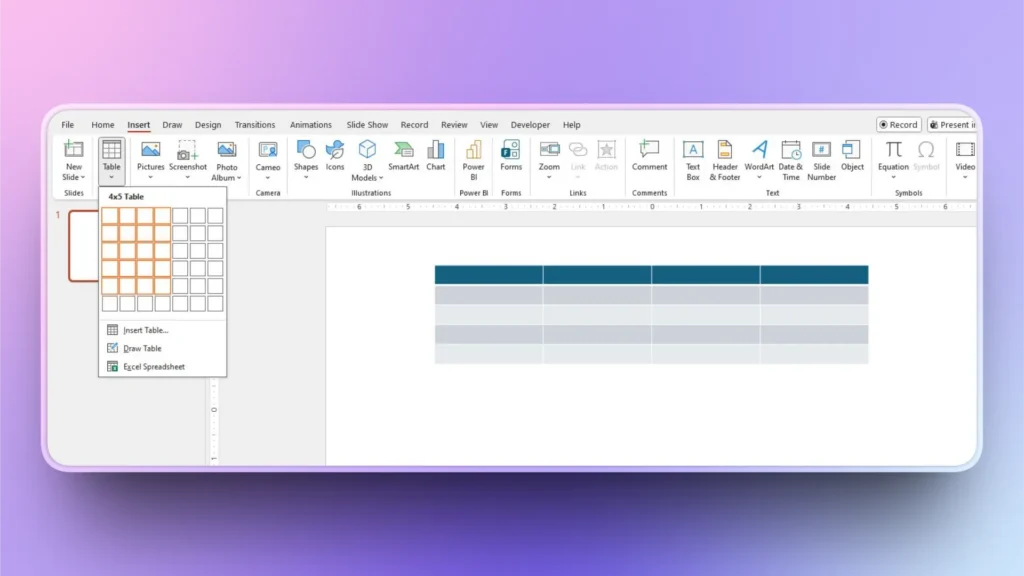
Step 2: Design your Table
Select the table and then go to the Table Design tab in the top ribbon. Here, you can change color, add borders, and apply different styles to the table.
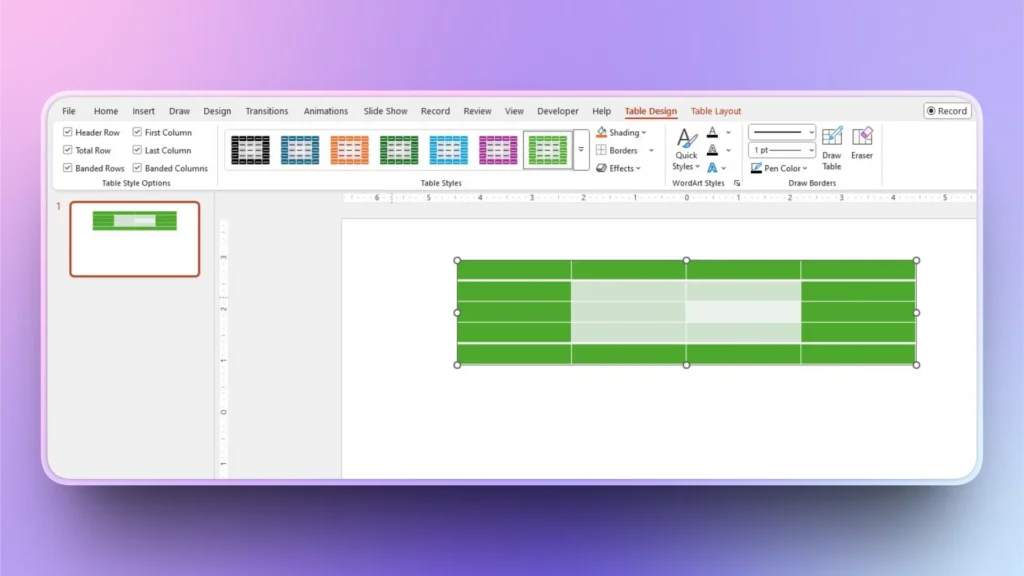
Creative PowerPoint Table Designs
As you can see, the default table design is simple and clean. For custom table designs, you need some design experience to manipulate the available tools. We will also discuss some popular PowerPoint table design templates that can make your job easier.
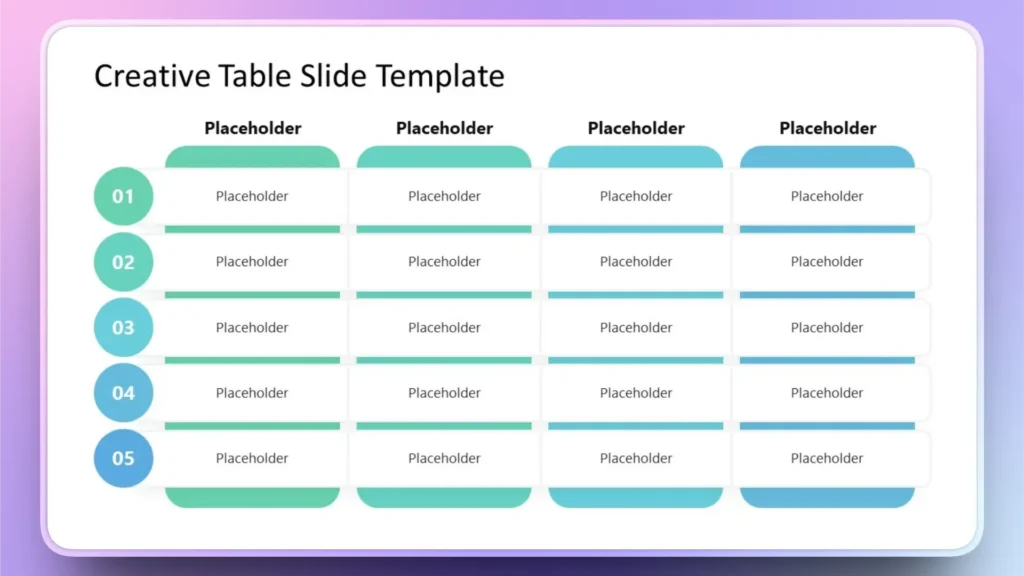
1. Creative PowerPoint Table Template
This is an ideal table design for presentations with colorful themes. The design is simple yet creative. You can design this table by yourself or download a similar template from online resources.
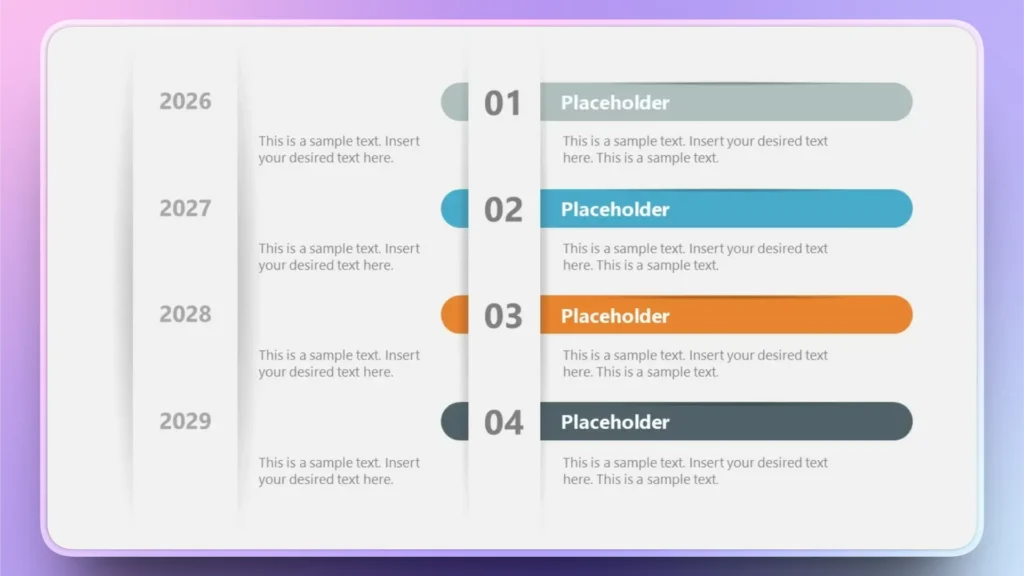
2. Item Vertical Track Record PowerPoint Table Design
This table design allows managers and team leaders to assign different roles and tasks to team members. You can add the name of the member, assigned tasks, and other details as needed.
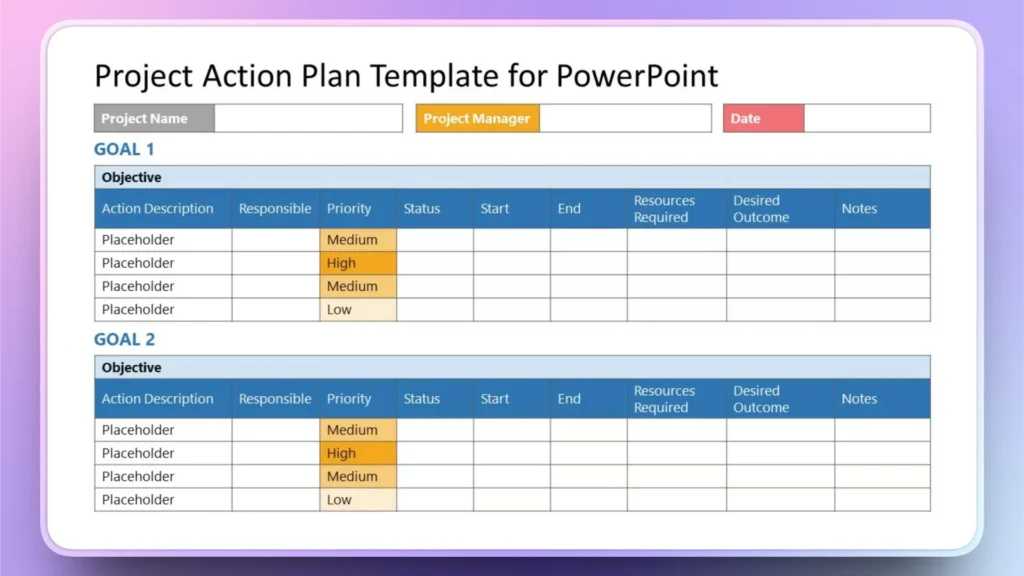
3. Project Action Plan Table Design
While working on a bigger task or project, managers need to keep a record of the project’s progress. This table can also be quite helpful in the smooth planning of the project actions.
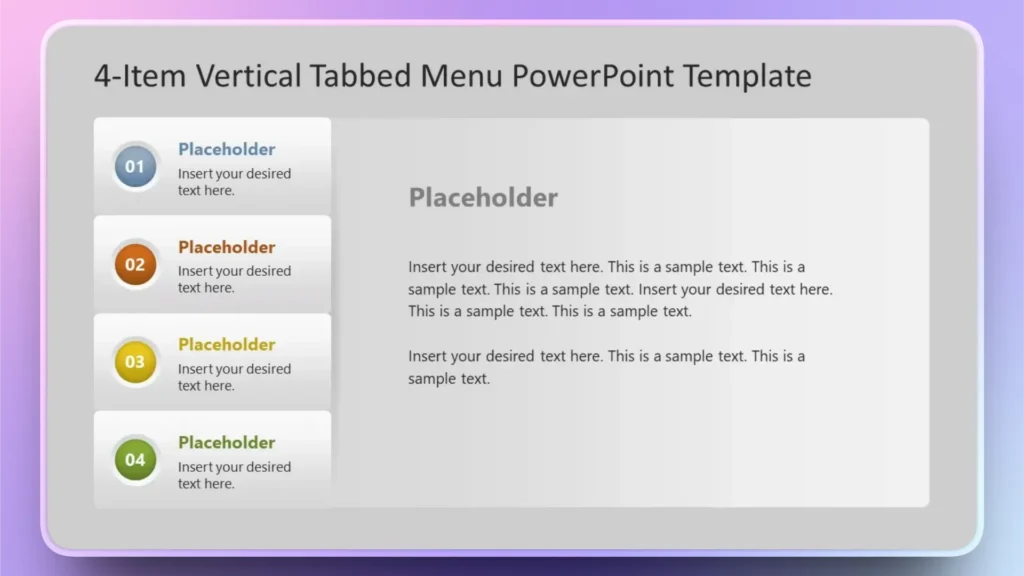
4. Tabbed PowerPoint Table Design
This table design is fully customizable according to project needs. You can add a summary of the project in a paragraph and add multiple items or team members to the same table.
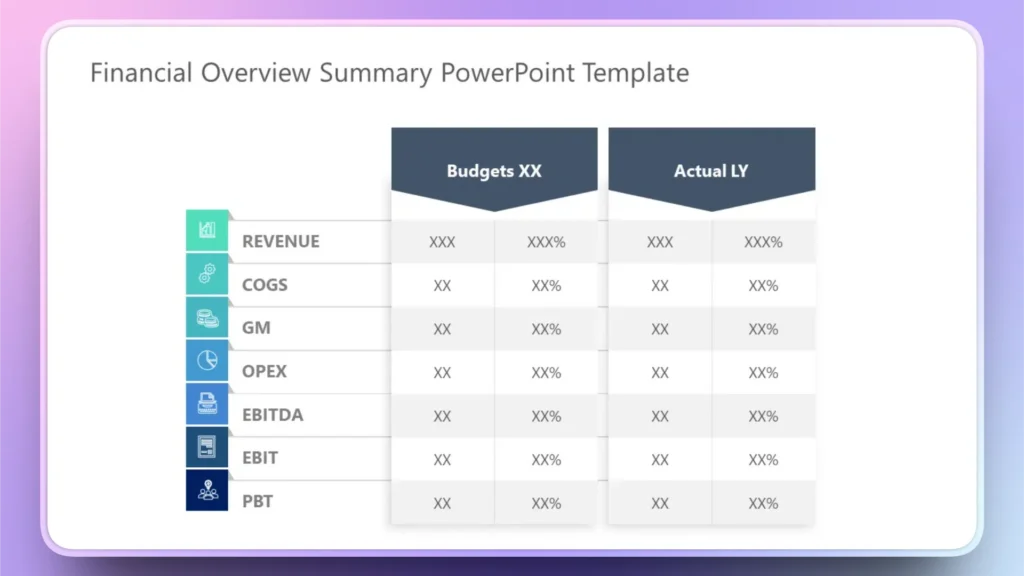
5. Financial Overview Table Design
Managing a budget can be complicated with a normal table design. This table design is specially meant to ensure smooth handling of expenses, revenue, and other aspects of budgeting. You can add small icons and text to make it more interesting and interactive.
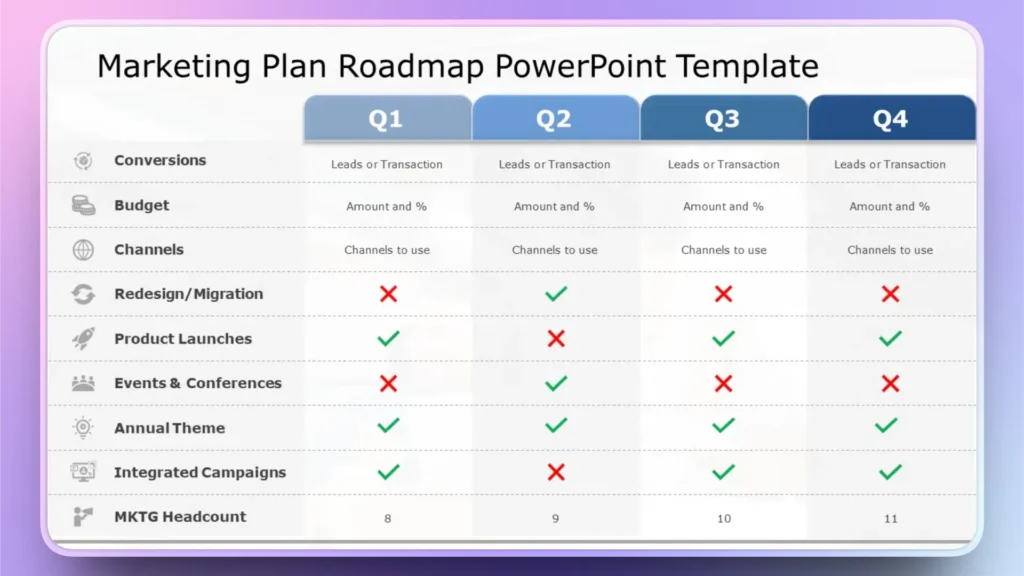
6. Marketing Roadmap Table Design
This is a multipurpose table design that can present up to four different stages of a project. Marketing teams can use this PowerPoint table design for quarterly marketing goals and milestones.
7. Pricing Table Design
You have all seen this type of table design on websites to show the available packages and pricing options. Making this type of creative PowerPoint table design is easy, as you just have to correctly choose the color scheme for the table.

8. Product Comparison Table
This is one of the most creative PowerPoint table designs, easy to make but time-consuming. You can add different elements and features of the products for easy comparison.

How to Add Creative PowerPoint Table Design with Twistly?
Twistly is a complete AI PowerPoint assistant and PPT maker. From making complete presentations from scratch to creating individual slides, Twistly does everything within seconds.
You can add different types of table designs to your presentation by changing the AI PowerPoint template. For every template by Twistly, the table design will be different.
In this section, we will learn how to add a creative PowerPoint table design to your presentation without any manual data gathering or designing.
Step 1: Open Twistly in PowerPoint
Open a new or existing PowerPoint presentation and launch Twistly. From the dashboard, select the ” Add a Slide option.
Now, select your template, select the type of layout, and then choose Table layout as shown in the image below.

Step 2: Define your Table
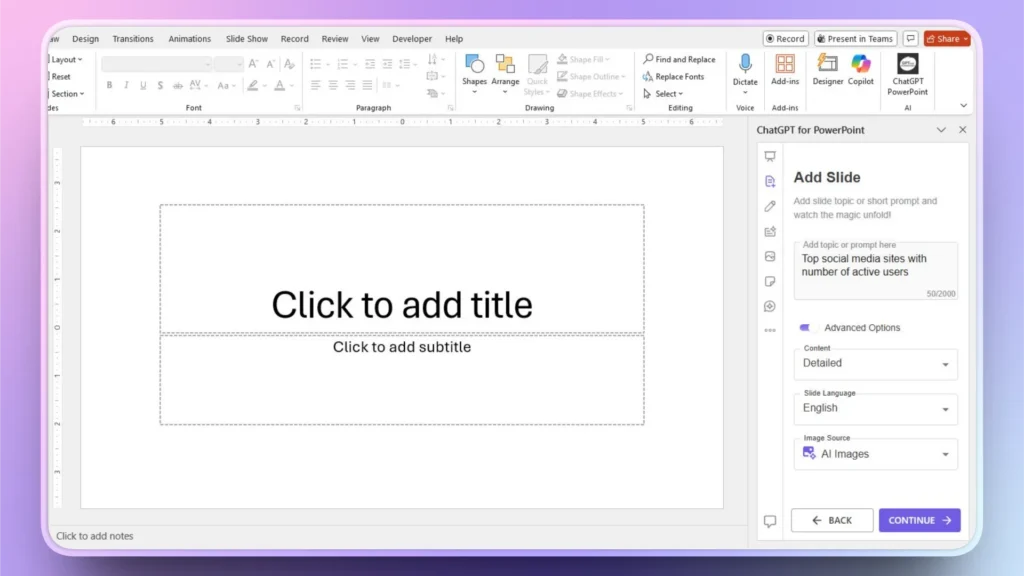
Enter data available for the table or simply use an AI prompt for the table. Let’s say we want a table for the best top social media apps with the number of active users. Twistly will fetch the data automatically to the table.
Step 3: Review or Edit your Table
Within seconds, your table will be ready so that you can edit, customize, or present right away. It is advised to verify the AI-generated data before the final presentation.

Custom ChatGPT for PowerPoint Presentations
Are you tired of spending hours on simple and boring presentations? Do you want a custom AI agent that works just like ChatGPT or Gemini? Download Twistly now and enjoy ChatGPT-like capabilities for presentations in PowerPoint.
The best thing about Twistly is the free trial version that lets you experience the amazing AI features for PowerPoint presentations. As Twistly lives inside PowerPoint, you don’t need to switch between different tabs and apps.
Download Twistly now and start making attractive presentations with AI, for free. Free trial is valid for a limited time only.
Create PowerPoint
Slides with AI
Build AI-powered presentations from
any prompt, doc, or video


Final Words
You can use any of these creative PowerPoint table designs or simply describe the type of table design you want by Twistly. This AI add-in is a complete AI PPT maker that allows you to enjoy AI features and native PowerPoint tools at the same time. Twistly saves you time and ensures your slides look professional.












Start Making AI Presentations in Seconds
Instant Access
Begin exploring Twistly’s full suite of features immediately
No Commitments
No credit card required, and you can cancel anytime
Dedicated Support
Our team is here to assist you every step of the way during your trial.