


Para crear una presentación impactante no hace falta llenar cada diapositiva con largos ensayos y párrafos. Una presentación ideal sirve de ayuda al presentador.
Confiar únicamente en las diapositivas afecta a la presencia escénica del presentador. Twistly es conocido por tener plantillas PowerPoint AI optimizadas que son perfectas para diapositivas de contenido ligero y de gran impacto.
Diseñar diapositivas minimalistas pero atractivas es el sueño de todo usuario de PowerPoint. En este artículo, aprenderemos a diseñar diapositivas con poco contenido y de gran impacto con Twistly. Antes de entrar en detalles, veamos qué se entiende por diapositivas de contenido ligero.
¿Por qué son más eficaces las diapositivas con poco contenido?
La idea de las diapositivas ligeras de contenido no sirve para todos los temas o presentaciones. A veces hay que explicar conceptos en detalle, con más datos y texto. Pero para una presentación normal, el público quiere una comunicación rápida, sin distracciones y fluida.
Añadir demasiados datos y texto a las diapositivas dificulta que los espectadores capten la idea principal. En las diapositivas con poco contenido, destaca solo la información más importante.
De este modo, el público puede determinar fácilmente qué información es la más importante. Aparte de esto, he aquí otras razones prácticas por las que las diapositivas con poco contenido funcionan mejor que las diapositivas con mucho contenido.
- Carga cognitiva reducida
- Ideas y conceptos clave destacados
- Mejora del atractivo visual y la estética
- Una narración mejor y más interactiva
¿Cómo diseñar diapositivas ligeras en contenido con Twistly?
En este artículo, vamos a discutir el proceso detallado de hacer diapositivas atractivas y de contenido ligero con Twistly. Incluso si usted es un novato sin experiencia con presentaciones de PowerPoint, Twistly le ayudará a crear diapositivas profesionales y atractivas con la ayuda de AI.
Todo lo que tienes que hacer es instalar el complemento Twistly para tu PowerPoint. Puede descargar e instalar Twistly haciendo clic en el siguiente enlace.
Crear PowerPoint
Diapositivas con IA
Cree presentaciones basadas en IA a partir de
cualquier mensaje, documento o vídeo


Una vez que haya terminado con el proceso de instalación, siga estas instrucciones para hacer diapositivas de contenido ligero con Twistly.
Paso 1: Abra PowerPoint e inicie Twistly
Inicie una presentación de PowerPoint en blanco y haga clic en el icono Twistly de la esquina superior derecha. Aparecerá un panel dedicado a Twistly. Aquí tienes diferentes métodos de entrada para hacer una presentación:
- Un tema
- Texto
- Enlace YouTube
- Fichero o documento
Elige el método de entrada que prefieras y pasa al siguiente paso.

Paso 2: Introduzca el tema o los datos de PowerPoint
Elija cualquier método de entrada y creemos una presentación sobre un tema. Ahora, proporcione el tema para la presentación y seleccione otros ajustes. Puede definir la longitud del contenido, cambiar el idioma, cambiar la configuración de la imagen y establecer el tono y el estilo de la presentación.

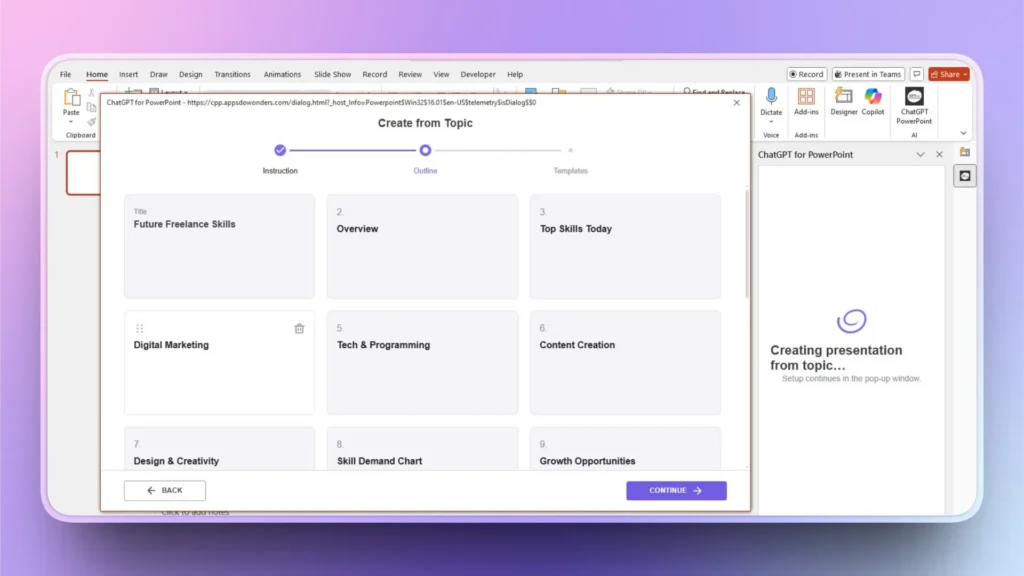
Paso 3: Revisar el esquema de diapositivas
Twistly generará un esquema para las diapositivas. En este paso puede ver los títulos de las diapositivas, eliminarlas, reorganizarlas o añadirlas.
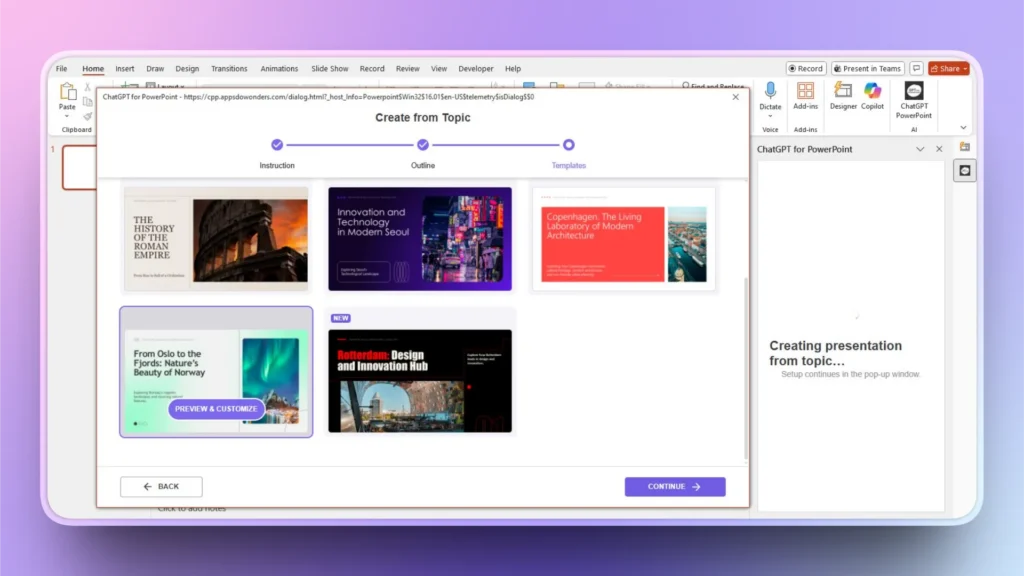
Paso 4: Seleccionar una plantilla PowerPoint AI
Twistly cuenta con una impresionante biblioteca de plantillas AI. Se trata de plantillas únicas y totalmente optimizadas para diapositivas de contenido ligero y gran impacto. Seleccione cualquier plantilla que le guste y pulse Continuar.
Los usuarios también pueden cambiar el color de la plantilla para que el color de la presentación coincida con la marca general.
Paso 5: Revisar, editar o presentar su presentación
En cuestión de segundos, sus diapositivas de contenido ligero y gran impacto estarán listas. Puede editar estas diapositivas utilizando las funciones de Twistly AI o las herramientas de PowerPoint.
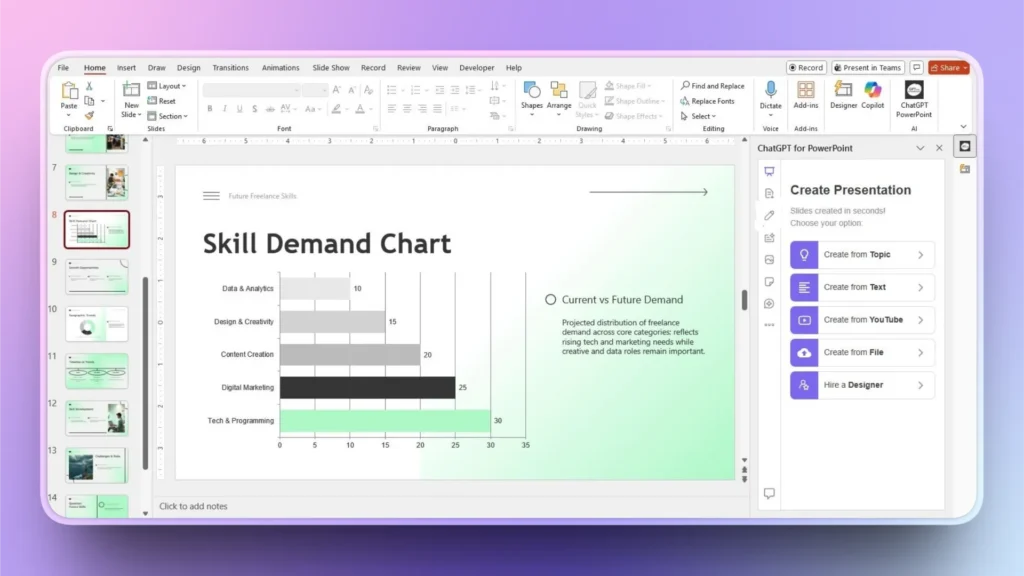
Todo este proceso no lleva más de uno o dos minutos. Por término medio, los usuarios pueden hacer una presentación profesional con Twistly en menos de 90 segundos después de proporcionar el tema.
¿Cómo mejorar el contenido de las diapositivas con Twistly?
Has creado una presentación con Twistly, pero algo no parece estar bien. Puede ocurrir, y no hay nada de malo en editar el contenido. Puedes reescribir el texto, hacerlo más largo, corregir errores gramaticales y realizar otras tareas relacionadas con el contenido, todo dentro de Twistly.
Siga estos pasos para realizar cualquier tipo de edición o cambio en el contenido de cualquier diapositiva.
Paso 1: Seleccionar Diapositiva >> Reescribir Texto
Abra el panel de Twistly, seleccione la diapositiva de destino y, a continuación, elija la opción Reescribir texto de la ventana de Twistly.
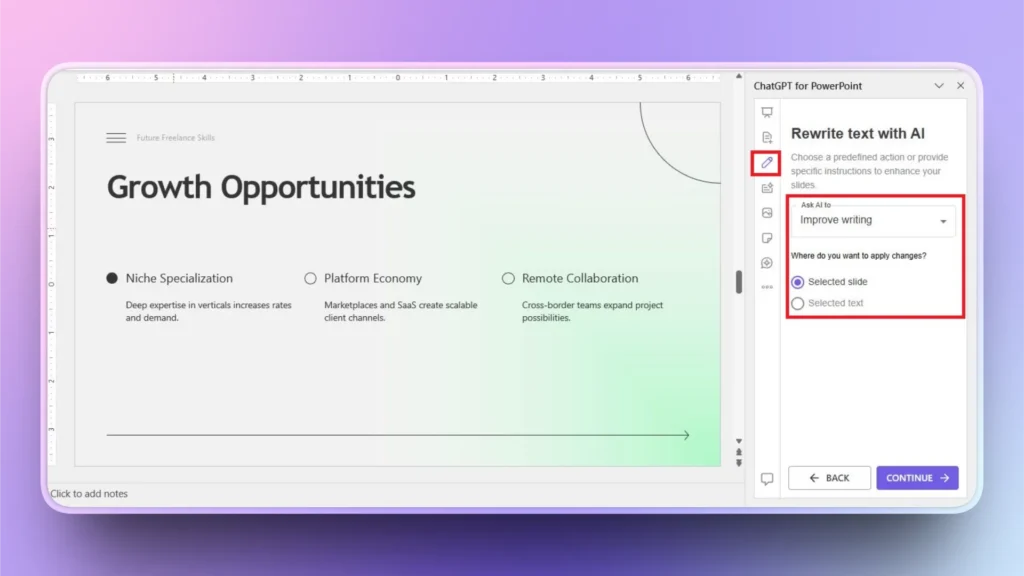
Paso 2: Pedir a la IA que optimice el texto
En el menú desplegable, elija la acción que desea realizar en esta diapositiva. Digamos que queremos hacer el texto más largo para esta diapositiva.
También puede aplicar los cambios al texto seleccionado o a toda la diapositiva.
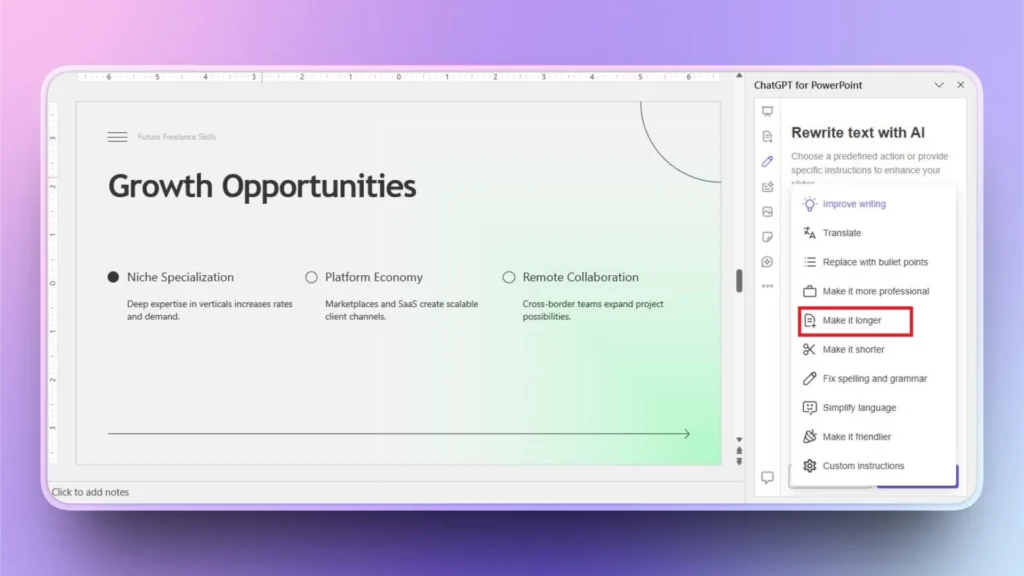
Paso 3: Su texto mejorado está listo
En unos segundos estará lista una nueva versión del texto de la diapositiva. Puede ver claramente que el texto es más detallado, pulido y sigue siendo relevante para el tema de la diapositiva.

Consejos para diapositivas con poco contenido y de gran impacto
Twistly está diseñado para satisfacer las necesidades de la diversidad de usuarios de PowerPoint. Millones de personas utilizan Twistly para generar presentaciones para aulas, clases en línea, reuniones de negocios, lanzamientos de inversiones, campañas de marketing y muchas otras tareas.
Hay para todos los gustos. Siempre que creas que una presentación necesita retoques o ediciones adicionales, deja que Twistly haga el trabajo duro por ti. Sigue estos consejos para crear diapositivas ligeras en contenido y de gran impacto:
- Cíñete a la regla de “una diapositiva, un mensaje” para conseguir la máxima participación.
- Utiliza la función de reescritura de Twistly para mejorar, ampliar u optimizar tu texto.
- Elija una plantilla de PowerPoint que se adapte al tema y a la audiencia
- Mezcla texto e imágenes
- Incluya gráficos siempre que sea posible. Twistly también puede encargarse de los cuadros y gráficos.
- Añade sólo imágenes de alta calidad
- Mantener un esquema de color coherente en todas las diapositivas
Conclusión
Twistly tiene plantillas PowerPoint AI que están diseñadas para diapositivas de contenido ligero y de alto impacto sobre cualquier tema de presentación. No a todos los usuarios se les da bien diseñar diapositivas profesionales, e incluso los diseñadores profesionales odian el laborioso proceso de elaboración.
Descarga Twistly ahora y solicita tu versión de prueba gratuita. Para desbloquear todas las funciones premium y las funciones similares a ChatGPT para PowerPoint, actualiza tu suscripción a Twistly en cualquier momento.
Crear diapositivas de PowerPoint con IA
Crea presentaciones basadas en IA a partir de cualquier mensaje, documento o vídeo












Empieza a hacer presentaciones con IA en segundos
Acceso instantáneo
Empieza a explorar inmediatamente todas las funciones de Twistly
Sin compromisos
No necesita tarjeta de crédito y puede cancelar en cualquier momento
Asistencia dedicada
Nuestro equipo está aquí para ayudarle en cada paso del camino durante su juicio.