


Clearing the cache of a web browser can resolve many issues and troubles. Similarly, Android phone apps also have a Clear Cache option. Did you know that you can clear PowerPoint cache, too?
When do you need to clear the PowerPoint cache? Lagging software, unexpected crashes, syncing problems, and similar problems indicate that clearing the PowerPoint cache might resolve the issues.
PowerPoint also stores temporary files to speed up the file processing, and sometimes the cache becomes overloaded and needs manual deletion of unnecessary files.
What is PowerPoint Cache?
PowerPoint cache is a temporary storage area on your computer that saves active presentation data, images, and add-in resources to speed up loading times and improve performance.
These files are temporary files, but are necessary for the ongoing processing. Cache files are stored in:
- Speed up file loading
- Save AutoRecover versions
- Store cloud-synced copies
- Keep thumbnails and preview data
The core purpose of cache files is to speed up the process and improve software performance, but they can also trigger random errors and issues.
How to Clear PowerPoint Document Cache?
PowerPoint has two types of cached data, document cache and add-in cache. In this section, we will learn how to clear the PowerPoint document cache. The process is simple and takes only a few clicks.
Primer paso: Abrir PowerPoint >> File >> Options.
Segundo paso: Haga clic en Save >> scroll down to Cache Settings >> click >> Delete Cached Files.
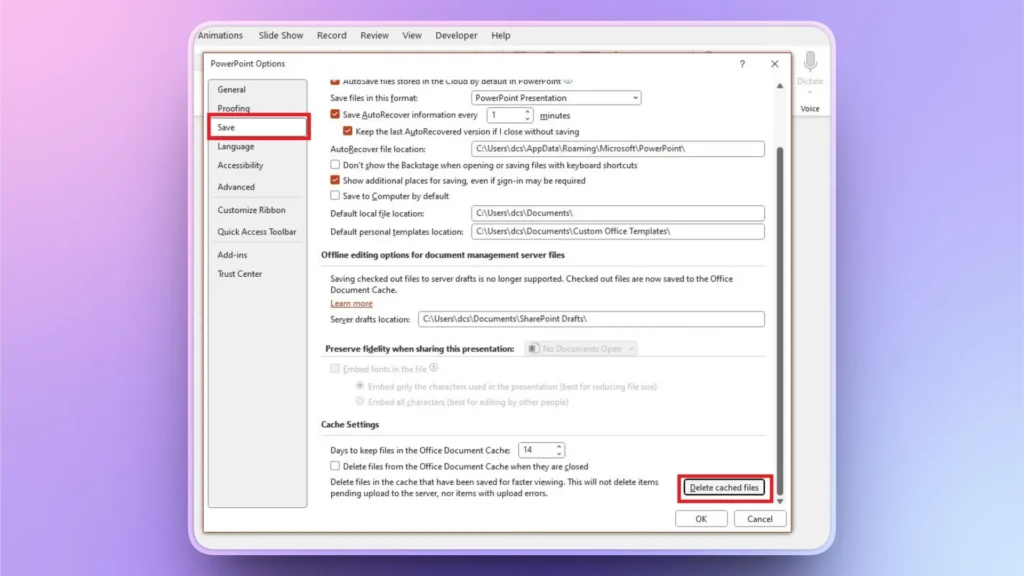
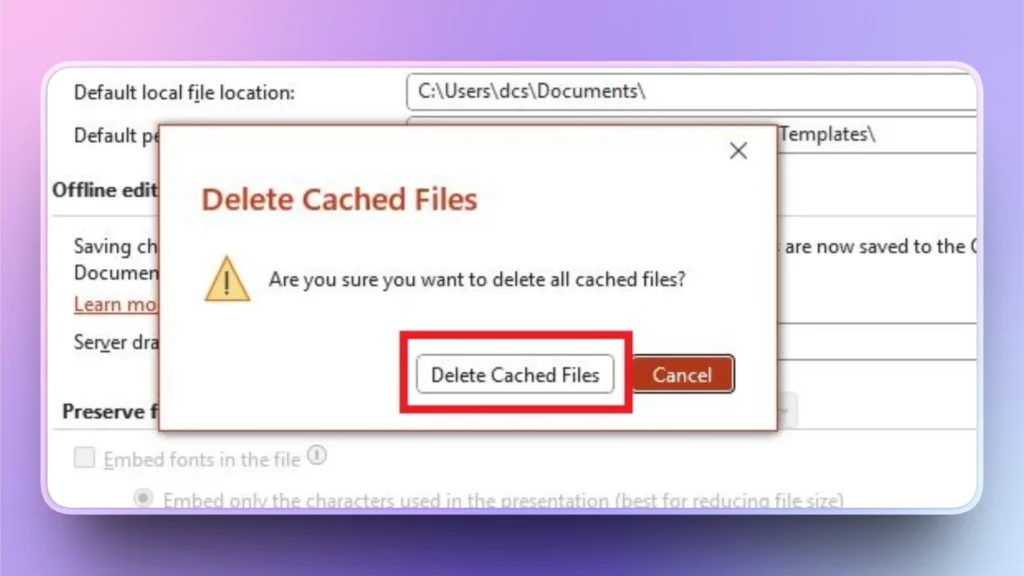
Tercer paso: Verify your action, and all cached documents will be removed from your computer, which might resolve the issue.
How to Clear PowerPoint Add-in Cache?
Add-ins like Twistly are quite useful features for every user. If you have any issues with the add-in, you can instruct PowerPoint to automatically clear the add-in cache after you close the program.
This way, add-in cached files are automatically deleted to ensure a smoother and faster experience. Here is how to clear the PowerPoint add-in cache.
Primer paso: Abrir PowerPoint >> File >> Options.
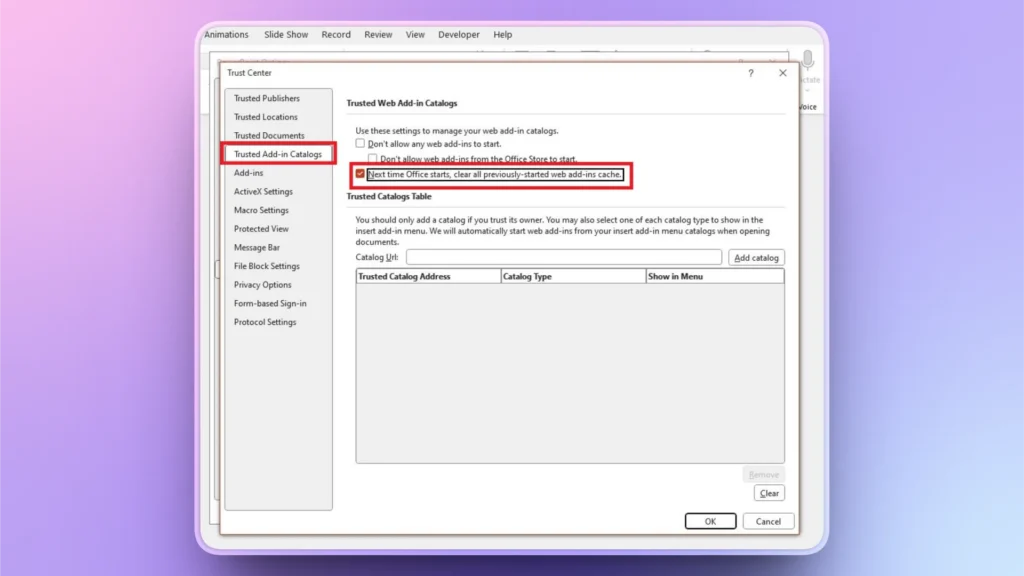
Segundo paso: Haga clic en the Trust Center option from the left menu and then click the Trust Center Settings botón.
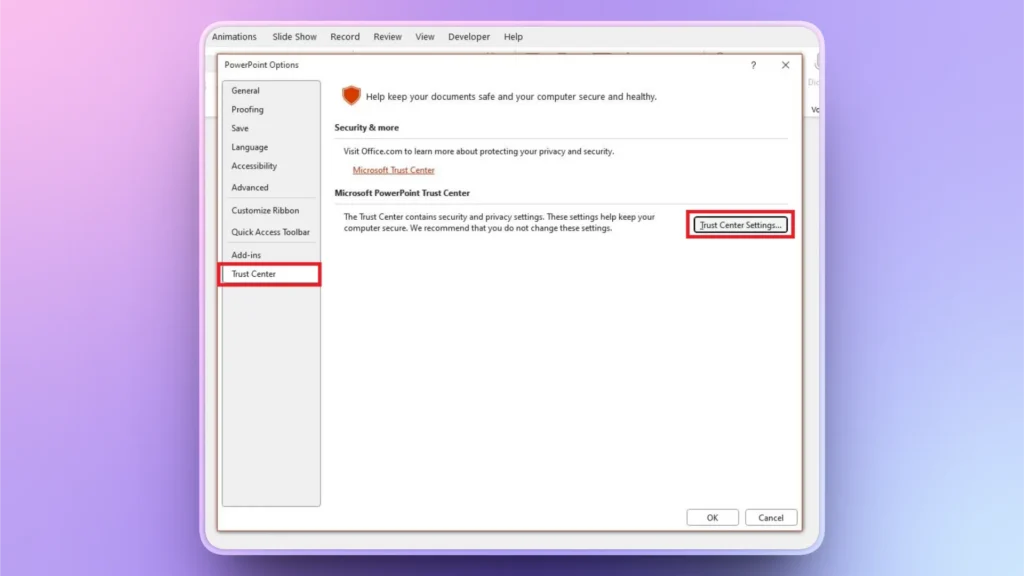
Tercer paso: In the next window, click Trusted Add-in Catalogs and check the box as shown in the image below. This will automatically delete all cache when you restart PowerPoint.
How to Clear Office Document Cache?
If you don’t want to follow the above methods and want to delete files directly from your computer, the Upload Center, you can do that too. The process is easy. Here is how to clear the PowerPoint cache directly from your computer.
Primer paso: Press Windows + R keys or type Run in the search bar.
Segundo paso: Type “%localappdata%\Microsoft\Office\16.0\” in the Run bar and press Enter.
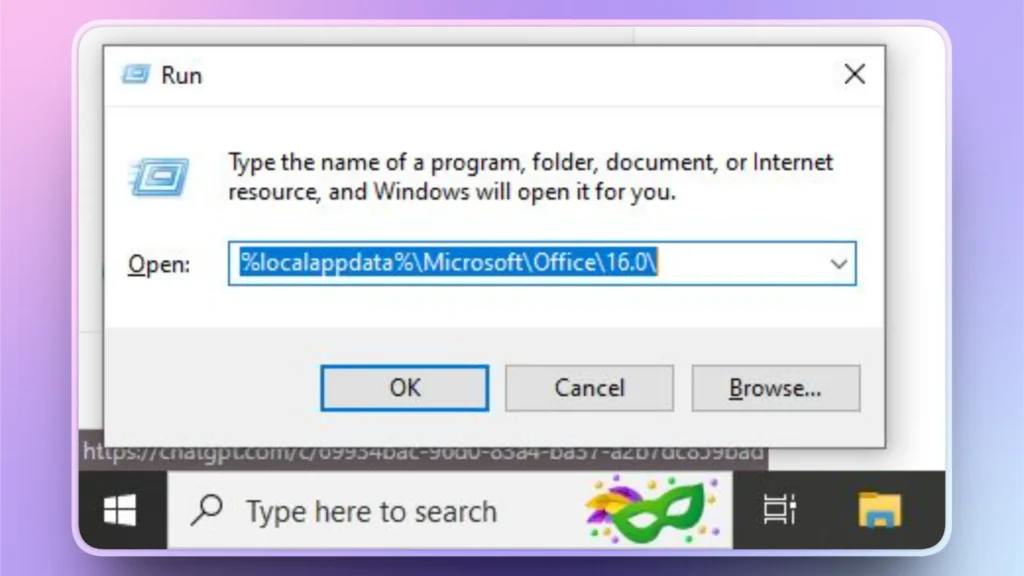
Tercer paso: In the new windows, search for the OfficeFileCache folder and open it.
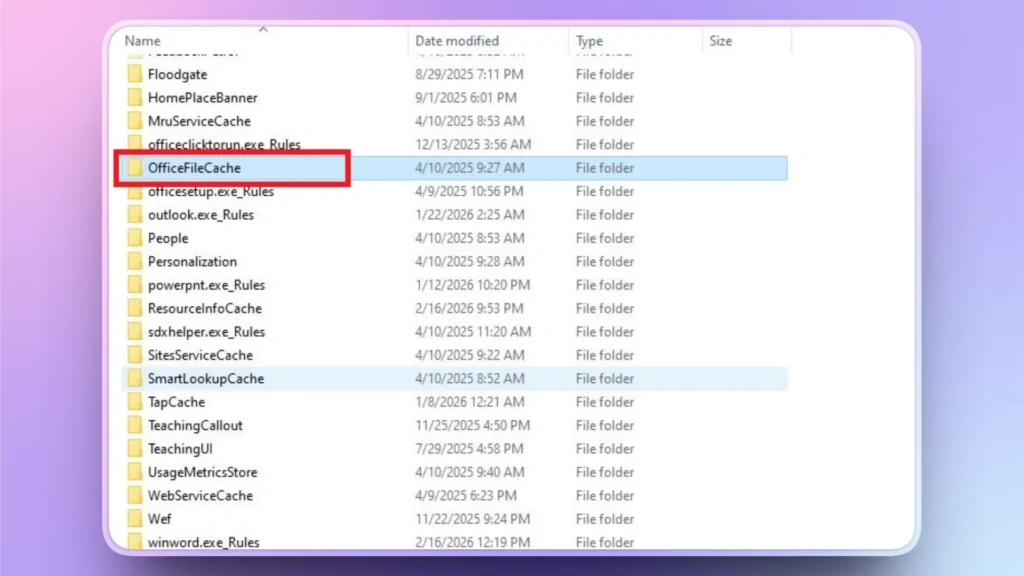
Paso 4: Delete all files inside this folder. Don’t delete the parent folder, just all files inside it.
Will Clearing Cache Delete my Saved Presentations?
You might be wondering if you accidentally deleted cached files. Well, clearing the cache will not delete or remove your saved or existing presentations.
Clearing the cache may remove unsaved AutoRecover versions of some presentations. It is advised to save your current and important presentations before clearing the cache.
How to Deal with Mistakenly Deleted PowerPoint Presentations?
You were working on an important presentation, mistakenly deleted the file, and now you are panicking. Did this ever happen to you? There are some options to recover deleted files, but as you have already cleared the PowerPoint cache, you have a narrow chance of recovering deleted files.
What’s the Best Solution Here?
If file recovery options are limited, the best solution is to make a new one without wasting much time. Wait, won’t making a new presentation from scratch take hours?
Yes, a new presentation will certainly take a few hours to make if you follow the same old methods. With our recommended tool, you can make instant PowerPoint presentations within 90 seconds.
How to Make Instant PowerPoint Presentations?
PowerPoint has no impressive AI features for users, but we have filled this gap with Twistly. It is an AI add-in for PowerPoint that lives inside PowerPoint and works just like a custom ChatGPT for PowerPoint.
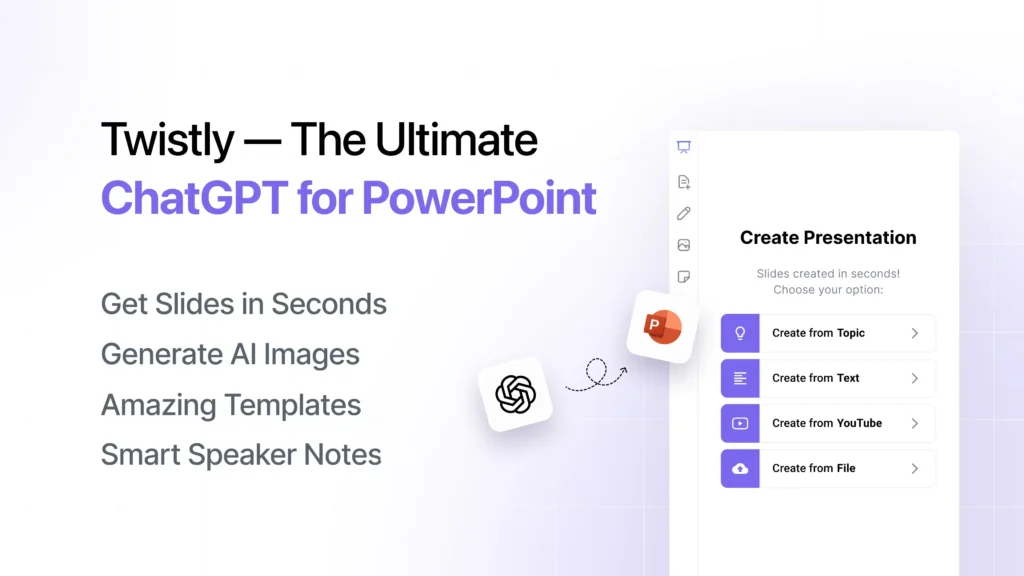
Without wasting time on manual editing, writing, designing, and formatting, users simply input their topic, choose a template, and Twistly takes care of everything else. Steps to make an instant presentation with Twistly are simple.
- Open PowerPoint, launch Twistly, and choose whether to make a presentation or edit existing slides.
- Enter presentation topic, upload file, paste text, or write AI prompt
- Review the outline for the possible presentation slides and pick a template
- Review your final slides and make changes if needed.
In these simple steps, you can make a new presentation from scratch and handle the deleted file situation professionally.
You can also use Twistly to improve or polish your existing presentations because there are so many other cool AI features that you cannot afford to miss in 2026.
¿Cómo conseguir Twistly gratis?
Twistly is a premium and paid add-in for PowerPoint, but for our readers, we have a free trial version. Use the link below to download the free trial version and experience the true power of AI for making amazing presentations.
Once you have made your first presentation with Twistly, you won’t be able to stop yourself from upgrading to the premium version to unlock all AI features. Give it a try now and boost your workplace productivity and communication skills.
Crear PowerPoint
Diapositivas con IA
Cree presentaciones basadas en IA a partir de
cualquier mensaje, documento o vídeo


Palabras finales
Clearing the cache in PowerPoint is a simple yet powerful troubleshooting step. You can try any of these methods to clear the PowerPoint cache. Most problems are resolved after clearing the cache, but if the problem remains the same, try opening a new file. Sometimes the files can also be corrupt.
Save hours of manual editing and writing with Twistly and try new AI features of Twistly that are essential for every PowerPoint user. Download your free trial now.
Empieza a hacer presentaciones con IA en segundos
Acceso instantáneo
Empieza a explorar inmediatamente todas las funciones de Twistly
Sin compromisos
No necesita tarjeta de crédito y puede cancelar en cualquier momento
Asistencia dedicada
Nuestro equipo está aquí para ayudarle en cada paso del camino durante su juicio.