


Añadir un mapa interactivo en PowerPoint puede convertir tus diapositivas estáticas en diapositivas atractivas. Tanto si quieres mostrar el rendimiento de tu producto en distintas regiones como si necesitas crear un mapa interactivo en PowerPoint para las clases, tenemos los pasos exactos que debes seguir.
Un mapa interactivo permite a los usuarios hacer clic en la región o ubicación del mapa y mostrar más detalles sobre ese lugar. Puedes utilizar un mapamundi para mostrar distintos países o incluso crear un mapa de determinadas regiones o ciudades dentro de un país.
Creación de un mapa interactivo en PowerPoint
Si necesitas un simple mapa del mundo sin ningún dato, puedes simplemente usar Insertar para añadir un mapa, pero nuestro objetivo es hacerlo interactivo. Añadiremos más detalles para que el mapa en nuestro tutorial sea más significativo y útil.
Paso 1: Insertar un mapa en una diapositiva en blanco
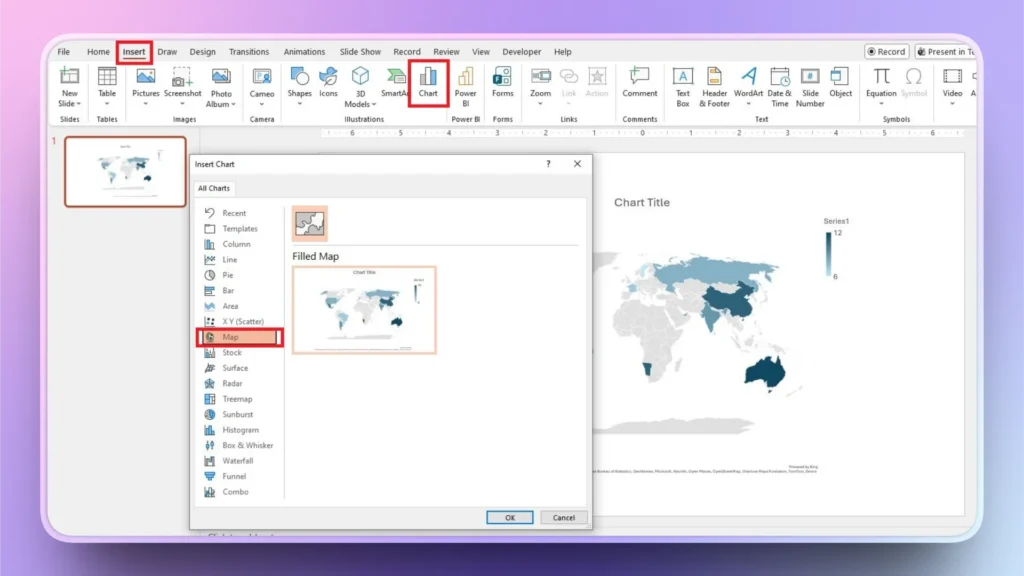
Abra PowerPoint, inicie una presentación en blanco y haga clic en la pestaña Insertar.
Ir a Gráfico >> Mapa y añadir el mapa a la diapositiva seleccionada.
Paso 2: Cambiar el título del mapa
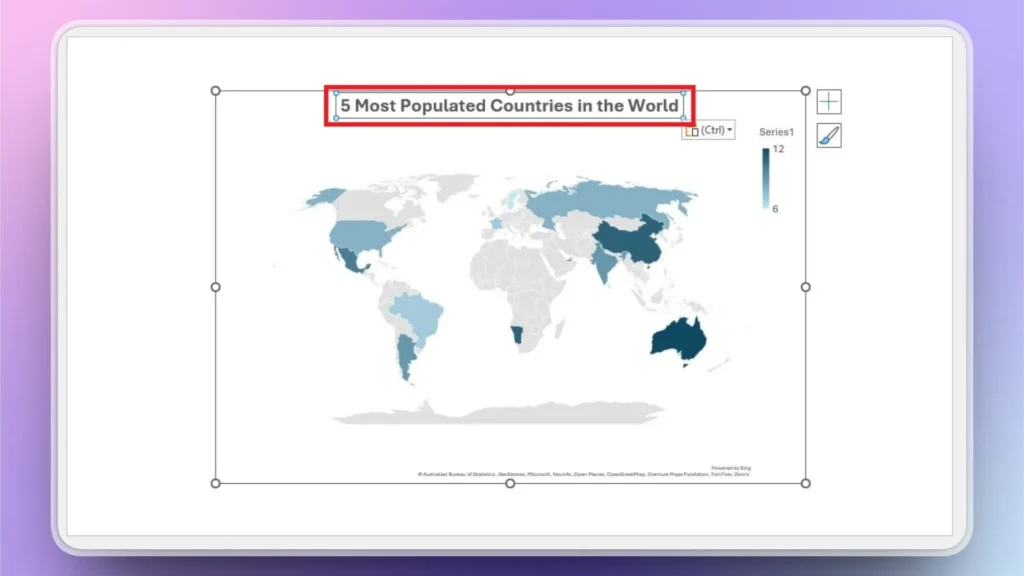
Haga clic en el Título del gráfico en la diapositiva del mapa y, a continuación, cambie el texto ficticio por el título que desee. Estamos creando un mapa para “Los 5 países más poblados del mundo,por lo que cambiaremos el título del gráfico por este título personalizado.
Paso 3: Introduzca sus datos personalizados
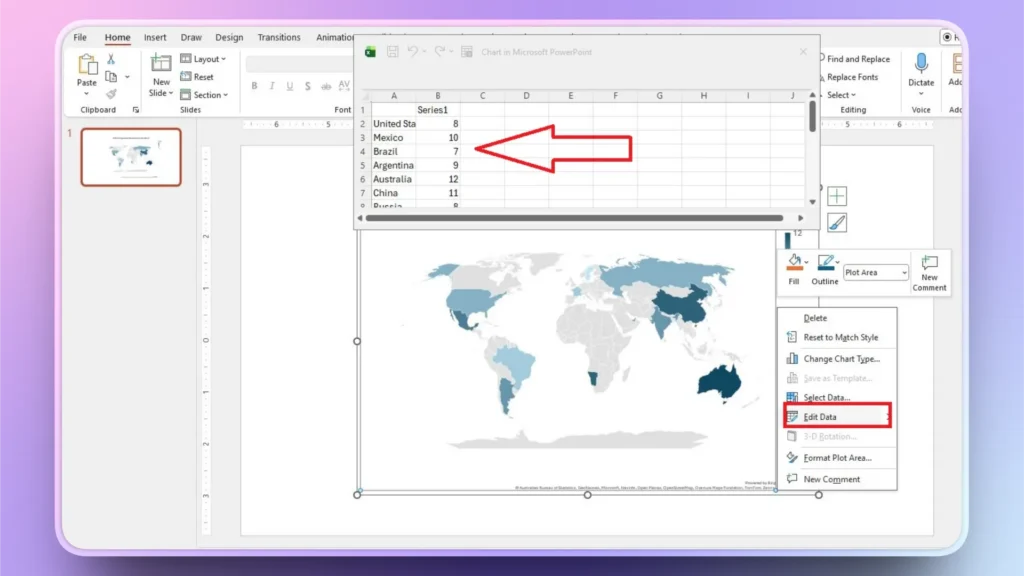
Como puedes ver, el mapa de la diapositiva tiene datos aleatorios, pero tenemos que añadir cifras reales de población para los 5 países más poblados.
Haga clic con el botón derecho del ratón en Mapa y elija el Editar datos del menú. Aparecerá una hoja de Excel en la parte superior del mapa; sustituya los valores ficticios por sus datos personalizados.
¿Cómo editar el diseño de un mapa?
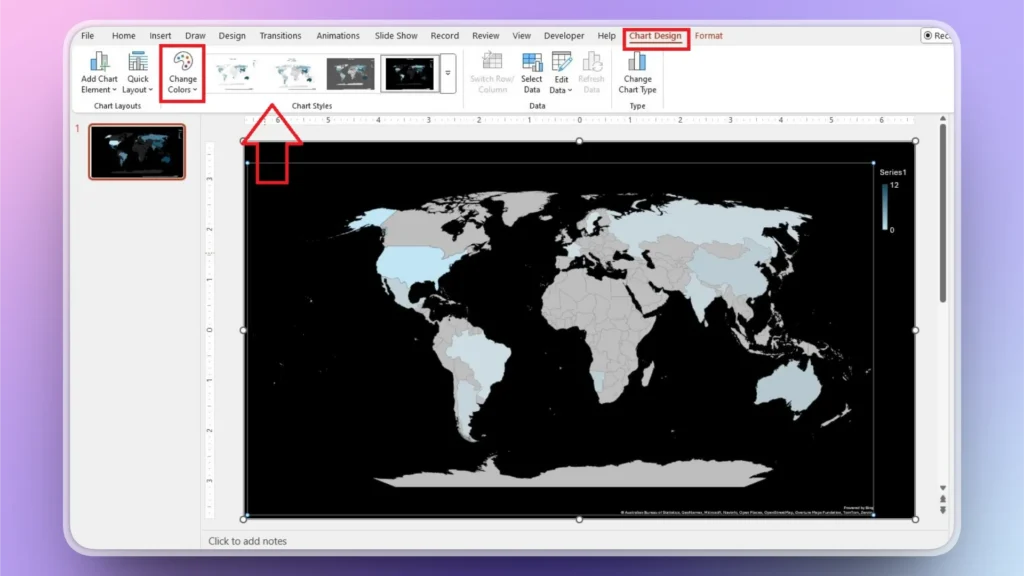
Por defecto, el mapa puede parecer bastante simple y aburrido en su diapositiva. Puede añadir diferentes colores y otros cambios al mapa desde la pestaña Diseño del gráfico.
Paso 1: Acceder a la pestaña Diseño de Gráficos
Seleccione su mapa, y la pestaña Diseño de Gráfico aparecerá en la cinta superior. Abra esta pestaña y podrá cambiar el estilo del gráfico haciendo clic en los estilos disponibles.
También puede establecer colores personalizados para el mapa utilizando la opción Cambiar color de la pestaña Diseño del gráfico.
¿Cómo crear un mapa de un país concreto?
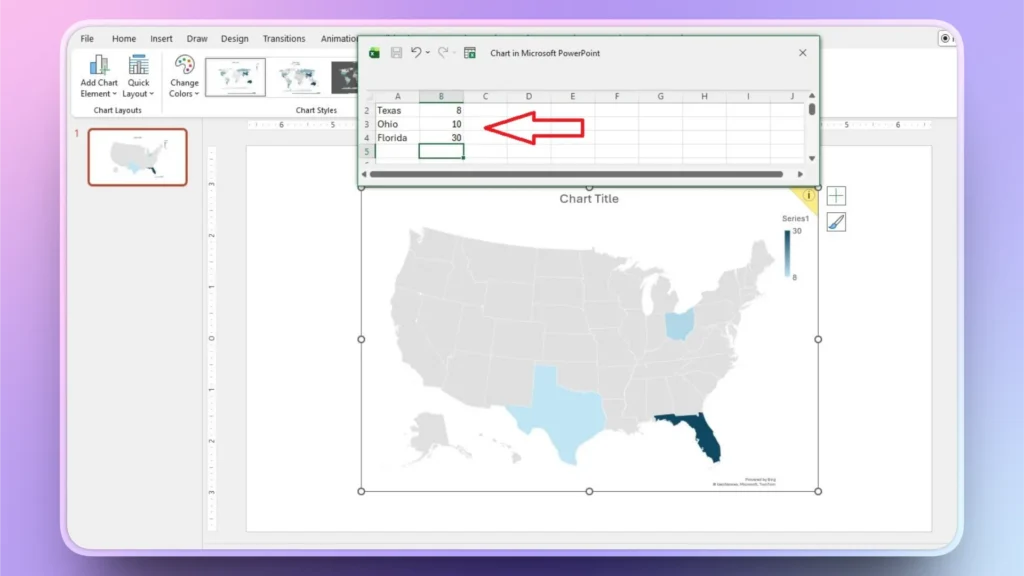
En el método anterior, puedes ver que hemos insertado el mapa del mundo. ¿Qué pasa si quieres añadir un mapa de un país específico? Imagine que quiere crear un mapa para todos los estados de EE.UU.. No necesita agregar un mapa personalizado a la diapositiva.
Sólo tiene que seguir los mismos pasos para insertar un mapa y, en la hoja de Excel, borrar todas las celdas existentes en la hoja y, a continuación, introducir el nombre de cualquier estado y el valor correspondiente.
Vaya a la siguiente celda e introduzca el nombre de cualquier otro estado, y PowerPoint añadirá automáticamente un mapa de los EE.UU. con todos los estados. PowerPoint identificará automáticamente que está trabajando en el mapa de los EE.UU. solamente, en lugar de un mapa mundial.
Método alternativo para añadir un mapa a PowerPoint
El uso del mapa integrado da a tu presentación un aspecto más profesional, pero también puedes utilizar otros métodos para acciones rápidas. Los mapas estáticos son fáciles de añadir a las diapositivas. Basta con visitar Google Maps y luego hacer una captura de pantalla de la ubicación específica en el mapa.
De este modo, puede añadir un mapa personalizado a la diapositiva como una imagen. Puede utilizar cuadros de texto y otros elementos para explicar el mapa o cualquier ubicación específica en el mapa. Este no es un método profesional para insertar un mapa en PowerPoint, pero de alguna manera se puede hacer el trabajo.
Ventajas de utilizar mapas interactivos en PowerPoint
Las presentaciones de ventas y marketing pueden utilizar mapas interactivos para obtener informes más detallados. Los usuarios también pueden utilizar mapas interactivos en sus presentaciones para temas geoespecíficos o proyectos de clase. Entre las principales ventajas de utilizar un mapa interactivo se incluyen los siguientes puntos del mapa:
- Facilita la comprensión de los datos geográficos
- Mantiene el interés del público
- Reduce el desorden de las diapositivas
- Permite la navegación no lineal
- Mejora la narración
Utilice plantillas de mapas fácilmente disponibles para PPT
Otra forma sencilla de crear un mapa interactivo en PowerPoint es descargar y editar plantillas fácilmente disponibles. Los sitios y tiendas en línea pueden ofrecer muchas plantillas en las que los usuarios pueden simplemente editar un mapa existente sin hacer muchos cambios.
Este método funciona mejor si puedes encontrar plantillas gratuitas porque la mayoría de las plantillas útiles son de pago y requieren una suscripción o cargos para su uso.
¿Cómo crear un mapa estático con IA para PowerPoint?
¿Necesitas un mapa instantáneo de un país concreto para tu presentación de PowerPoint? Existe una herramienta de IA llamada Twistly que puede ayudarte a generar imágenes de IA para presentaciones de PowerPoint.
Utilizar Twistly es como utilizar ChatGPT para PowerPoint. El generador de imágenes AI en Twistly puede ayudarle a generar un mapa de cualquier ciudad dentro de PowerPoint.
Paso 1: Abrir Twistly y añadir una imagen
En su presentación de PowerPoint, inicie Twistly y haga clic en la opción Añadir Imagen,>> Introduzca su imagen AI >> Establecer Orientación >> elija la imagen >> Insertar en Diapositiva.
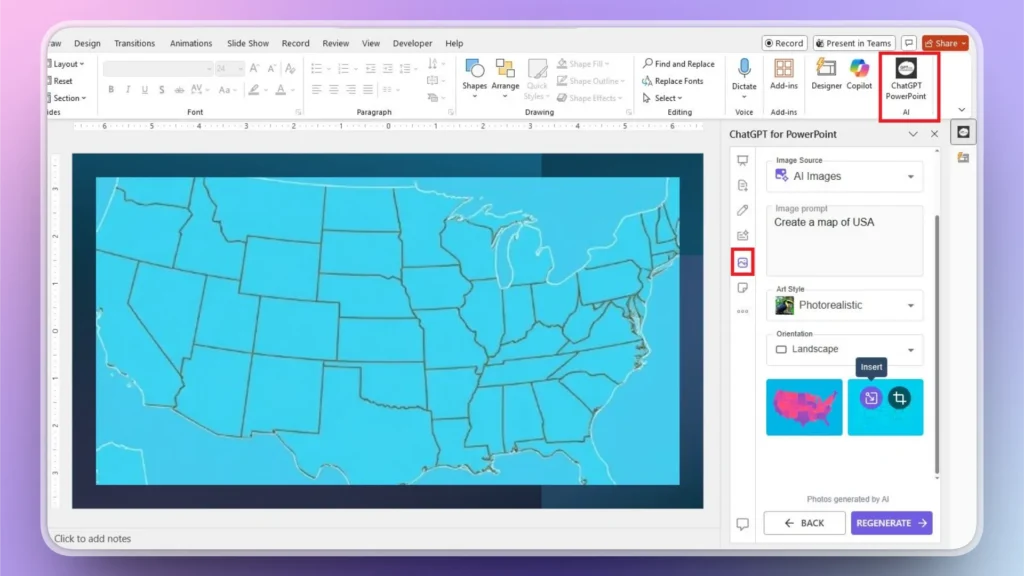
Si hay algún error o equivocación en la imagen, haz clic en Regenerar y Twistly te dará más ideas para la imagen. Sin necesidad de edición ni formateo manual, puede generar e insertar una imagen AI personalizada en sus diapositivas con Twistly.
Palabras finales
Crear un mapa interactivo en PowerPoint no requiere codificación ni herramientas avanzadas. Puede utilizar la herramienta Gráfico de la pestaña Insertar para mapas. Para otras personalizaciones, utilice la hoja de Excel para añadir valores, datos y otros detalles al mapa.
No se limite a los métodos convencionales porque herramientas de IA como Twistly están redefiniendo el futuro de las presentaciones de PowerPoint. Ahora puedes crear una presentación entera en menos de dos minutos.
Si quieres probar Twistly para PowerPoint, utiliza el siguiente enlace para descargar la versión de prueba gratuita. Experimenta la potencia de ChatGPT para presentaciones e impresiona a todos. Sé inteligente, elige Twistly.
Crear PowerPoint
Diapositivas con IA
Cree presentaciones basadas en IA a partir de
cualquier mensaje, documento o vídeo













Empieza a hacer presentaciones con IA en segundos
Acceso instantáneo
Empieza a explorar inmediatamente todas las funciones de Twistly
Sin compromisos
No necesita tarjeta de crédito y puede cancelar en cualquier momento
Asistencia dedicada
Nuestro equipo está aquí para ayudarle en cada paso del camino durante su juicio.