


Crear un efecto Glassmorphism en PowerPoint puede parecer difícil, pero vale la pena seguir el proceso. El efecto de vidrio esmerilado es un concepto bastante popular en diseños de presentaciones y diseños de interfaz de usuario. Vamos a crear Glassmorphism en PowerPoint utilizando bordes suaves, desenfoque, transparencia, y otras características de PowerPoint.
Si no sabes lo que es el efecto Glassmorphism, probablemente ya lo hayas visto en MacOS, Windows y otras interfaces modernas. Sin necesidad de utilizar ninguna herramienta complicada como Adobe o Figma, vamos a crear Glassmorphism en PowerPoint mediante el uso de herramientas simples.
Nota: Ten en cuenta que puede que el resultado de tus esfuerzos no sea perfecto en los primeros intentos, pero al final lo conseguirás. Así pues, sigue practicando y visita Twistly Blog para consultar otras guías y tutoriales de PowerPoint.
¿Qué es el cristalmorfismo en PowerPoint?
La idea del efecto Glassmorphism en PowerPoint es parecida a la de otras plataformas o programas, ya que este efecto imita una superficie de cristal translúcido superpuesta sobre un fondo colorido. Un efecto Glassmorphism diseñado profesionalmente puede parecerse a la imagen de abajo.
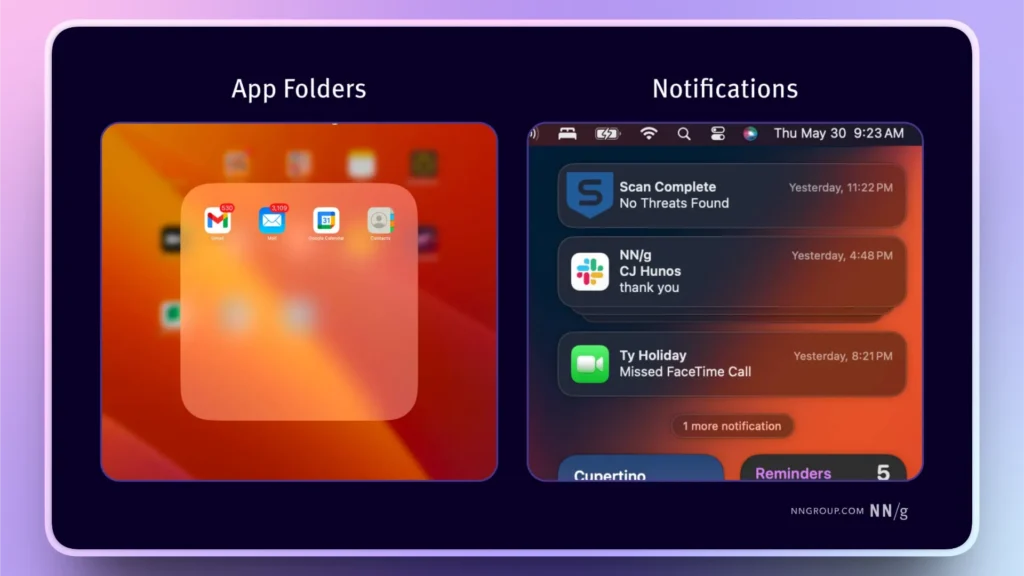
Sombras suaves, transparencia, y algunas otras características de PowerPoint se utilizan para crear efectos glassmorphic en PowerPoint. Vamos a empezar con los pasos detallados sobre cómo lograr este hito en su viaje de PowerPoint.
Creación de Glassmorphism en PowerPoint
Usted puede encontrar muchos videos tutoriales en YouTube explicando el proceso de creación de Glassmorphism en PowerPoint. En este tutorial, vamos a mantener las cosas simples para la audiencia para que puedan seguir fácilmente las instrucciones paso a paso para obtener los resultados deseados.
Nuestras guías paso a paso están diseñadas para que sean fáciles de seguir para los principiantes, y también añadimos elementos visuales para que el proceso sea más fácil de seguir. Así que empecemos con las cosas increíbles.
Paso 1: Añadir un fondo difuminado
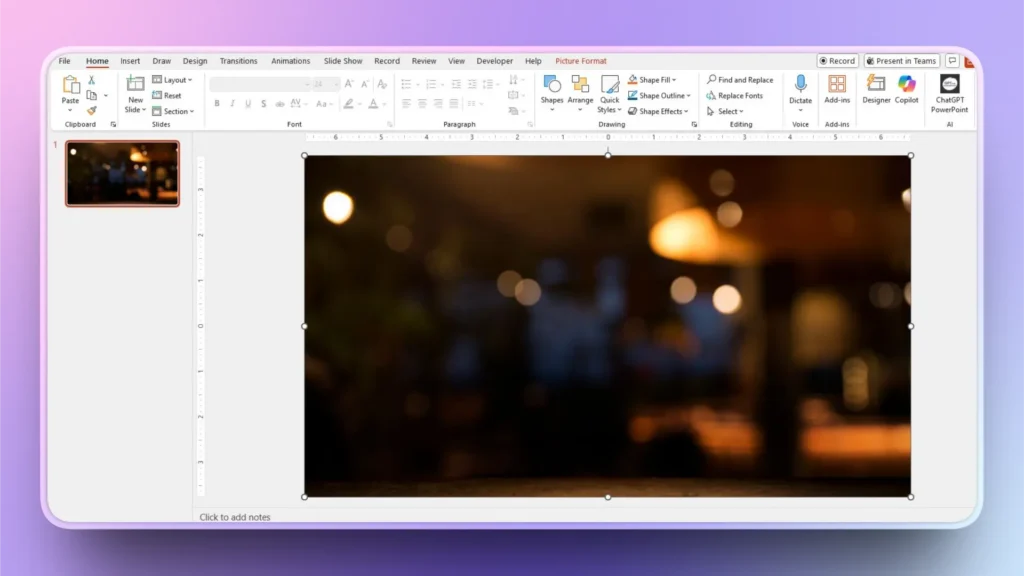
Glassmorphism funciona mejor si tiene un fondo borroso o un fondo degradado. Vamos a añadir una imagen de fondo borroso para este tutorial.
Puede elegir diferentes colores de degradado según su elección.
Paso 2: Insertar una forma
Necesitamos una forma que actúe como un panel de cristal. Utilizaremos un rectángulo redondeado para un efecto de cristal más definido. Ir a Inserte y luego dibuja la forma sobre el fondo.
Paso 3: Aplicar transparencia
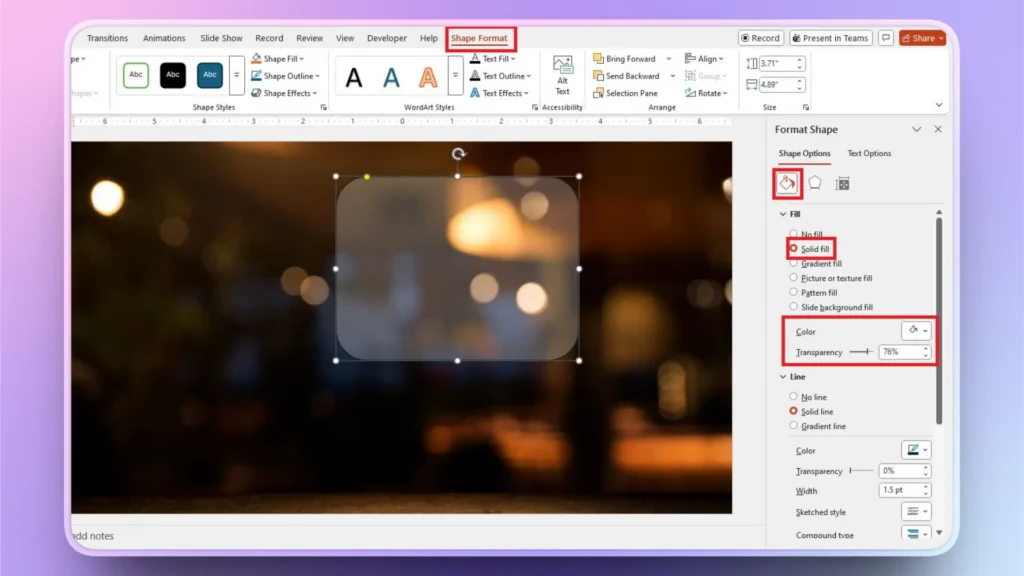
Seleccione el rectángulo redondeado y vaya a Formato de forma >> Formato de forma. En el Relleno seleccione Relleno sólido. Realice los cambios que se indican a continuación:
- Color: Blanco o gris muy claro
- Transparencia: 70%-85%
Paso 4: Añadir un borde suave
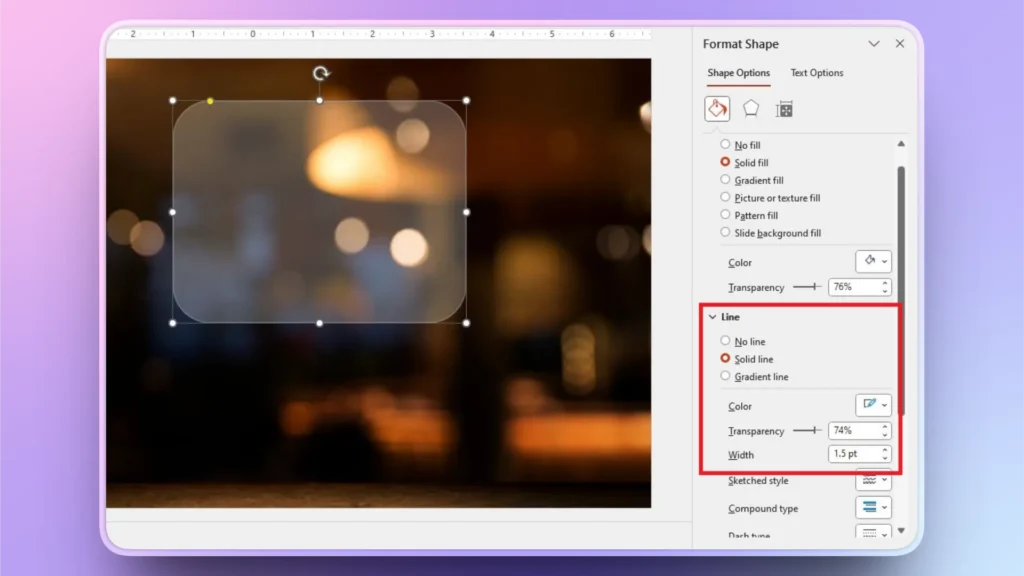
Ahora, vaya a la opción Línea en el Formato de forma en la pantalla de la derecha. Ahora vamos a crear un borde reflectante del vidrio. Puede establecer:
- Color: Blanco o gris claro
- Transparencia: 60%-80%
- Anchura: 0,5-1 pt
Paso 5: Añadir una sombra
Para obtener un efecto más detallado, añadiremos una sombra al panel de cristal para darle profundidad. En la pestaña Formato de forma, vaya a Efectos >> Sombra >> Exterior >> Sombra suave. Ahora, ajuste los valores a
- Transparencia: 60%-80%
- Desenfoque: 15-30 pt
- Distancia: 3-6 pt
Paso 6: Añadir texto o iconos
Ya está listo su panel de cristal, que imita el efecto Glassmorphism de PowerPoint. El siguiente paso es añadir texto, iconos y otros elementos a su panel de cristal.
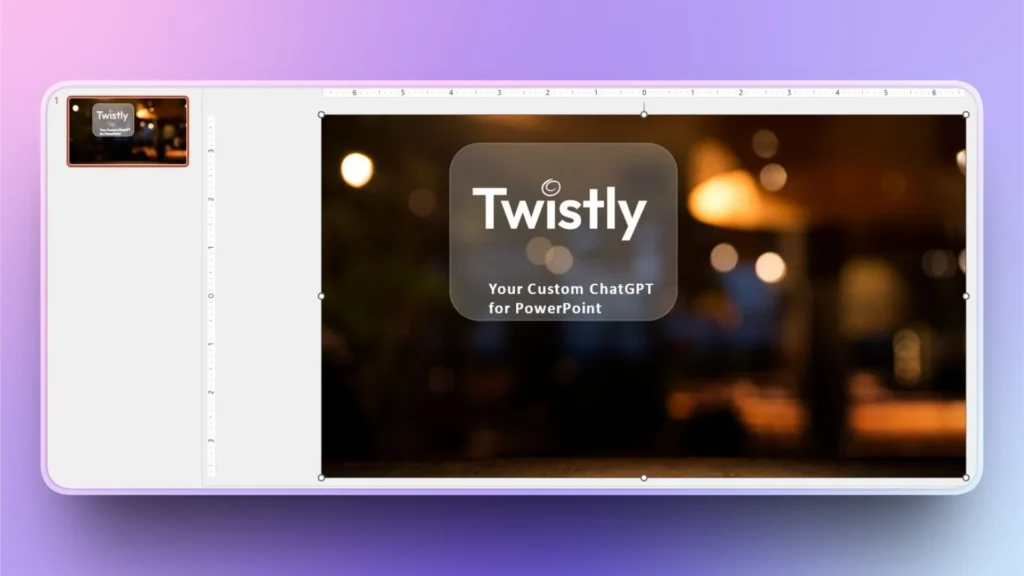
Hay más pasos y métodos avanzados para hacer que el panel de cristal sea más sensible, pero deja eso para los expertos. Una vez que haya alcanzado este nivel de efectos en PowerPoint, el dominio de otras formas avanzadas será más fácil para usted.
¿Por qué crear Glassmorphism en PowerPoint?
Hacer que tu presentación de PowerPoint sea única y atractiva es el sueño de todo usuario. Existen plantillas y temas en línea, pero restan libertad de personalización.
Para una experiencia más personalizada, la creación de estos efectos puede ser una gran manera de mejorar la participación de la audiencia. Este efecto puede ser una gran herramienta visual para:
- Presentaciones de productos
- Demostraciones y presentaciones de startups
- Conceptos UI/UX modernos
- Informes y diseños avanzados de cuadros de mando
El efecto Glassmorphic añade un aspecto premium y moderno a su presentación. Sin desorden, puede ayudar a desviar la atención de la audiencia hacia los puntos más importantes.
Si todavía no has utilizado este efecto en tus presentaciones, sigue estos sencillos pasos para crear Glassmorphism en PowerPoint.
¿Cómo simplificar las presentaciones de PowerPoint con IA?
Si eres un nuevo usuario de PowerPoint o utilizas PowerPoint más a menudo para el trabajo o proyectos personales, estos tutoriales pueden parecer demasiado complicados de seguir. Incluso en 2026, crear una presentación básica en PowerPoint puede llevar horas, manualmente.
Pero hemos conseguido reducir las horas de trabajo a unos pocos segundos con Twistly. ¿Qué es Twistly y qué puedes hacer con Twistly? Repasemos uno de los mejores creadores de presentaciones con IA en 2026.
¿Qué es Twistly?
Twistly es un complemento para PowerPoint que puede instalar directamente en su software PowerPoint desde el sitio web oficial de Twistly, Microsoft AppSource o la biblioteca de complementos.
Vive dentro de PowerPoint, por lo que no necesitas cambiar entre diferentes aplicaciones o sitios web.

Es igual que ChatGPT para PowerPoint, ya que los modelos avanzados de IA de Twistly permiten a los usuarios:
- Hacer presentaciones a partir de temas, instrucciones de IA, documentos o texto
- Añadir diapositivas con IA, en unos pocos clics
- Cree diapositivas con diseños automáticos, formato, imágenes y otros elementos
- Genere imágenes personalizadas para las diapositivas o encuentre imágenes relevantes en sitios de imágenes de archivo gratuitas.
- Mejore o edite presentaciones existentes con IA
- Realice en cuestión de segundos otras acciones útiles con IA que manualmente le llevarían horas
¿Cómo conseguir Twistly gratis?
Para los usuarios de PowerPoint, Twistly es el complemento más útil que ofrece funciones similares a ChatGPT para las presentaciones. Se trata de una herramienta de pago, pero nuestros lectores pueden obtener la versión de prueba gratuita de Twistly a través del siguiente enlace.
Esta versión de prueba le dará una experiencia en tiempo real de todas las características premium sin gastar dinero.
Pero cuidado, esta versión de prueba terminará pronto, y estarás encantado de pasarte a la versión completa y premium, como miles de otros felices usuarios de la familia Twistly.
Crear diapositivas de PowerPoint con IA
Crea presentaciones basadas en IA a partir de cualquier mensaje, documento o vídeo

Conclusión
Puede crear Glassmorphism en PowerPoint utilizando una imagen borrosa, transparencia, forma y otras características básicas, siguiendo estos pasos.
Si estás cansado de dedicar horas a cada simple edición o elemento de las presentaciones de PowerPoint, descarga Twistly y crea presentaciones instantáneas con IA.











Empieza a hacer presentaciones con IA en segundos
Acceso instantáneo
Empieza a explorar inmediatamente todas las funciones de Twistly
Sin compromisos
No necesita tarjeta de crédito y puede cancelar en cualquier momento
Asistencia dedicada
Nuestro equipo está aquí para ayudarle en cada paso del camino durante su juicio.