


¿Cómo utilizar la IA para crear diapositivas interactivas para seminarios web?

Una presentación de seminario web ideal es algo más que unas diapositivas atractivas, sino una herramienta de comunicación para mantener el interés de su audiencia. De principio a fin, las diapositivas interactivas para seminarios web deben ofrecer el mismo nivel de calidad y valor. Diseñar este tipo de diapositivas interactivas para seminarios web no es fácil.
Existen ciertas normas de diseño y formato que los profesionales del marketing y los presentadores deben seguir. Cómo utilizar la IA para crear diapositivas de webinars interactivos que le permitan realizar el máximo trabajo en menos tiempo?
Desde sesiones de formación empresarial, presentaciones de productos y sesiones educativas hasta seminarios de marketing, las herramientas de IA pueden ser un gran recurso para una gran variedad de eventos y ocasiones.
La importancia de las diapositivas interactivas
Las diapositivas normales y genéricas no sirven para las sesiones en línea, ya que atraer a un público a distancia es más difícil que interactuar con el público en directo. Sus diapositivas deben tener sondeos, preguntas y formularios de encuesta para que los participantes no pierdan la concentración. Algunas de las ventajas de las diapositivas interactivas para seminarios web son:
- Mayor participación y atención del público
- Mejor transmisión del mensaje y de los conocimientos
- Perspectivas significativas y comentarios de los participantes en el seminario web
- Mejora de los índices de conversión
- Mayor conexión con el presentador y el público
Si crees que conseguir estos resultados te parece imposible, prueba herramientas de IA como Twistly, que ofrecen soluciones todo en uno para todos los proyectos de presentación.
Creación de diapositivas interactivas para seminarios web con IA
Las diapositivas de los seminarios web basadas en IA van más allá de las presentaciones convencionales. Herramientas como Twistly generan contenido y añaden imágenes basándose en el contexto de las diapositivas. Cuando necesitas convertir datos en gráficos o cambiar un párrafo complejo por una lista de viñetas, todo esto sucede con un clic.
Twistly es un popular complemento de IA para PowerPoint que funciona dentro de PowerPoint. Los usuarios no necesitan cambiar entre varias aplicaciones o sitios web. En una sola pantalla, tienen ChatGPT completo para PowerPoint.
Como dispone de la herramienta de IA adecuada para ayudarle a crear diapositivas interactivas para seminarios web, a continuación se indican algunos pasos que puede seguir según el tema y el público. Los usuarios pueden hacer ciertos cambios en estos pasos según su público objetivo o la naturaleza del webinar.
Paso 1: Defina su público y el objetivo del seminario web
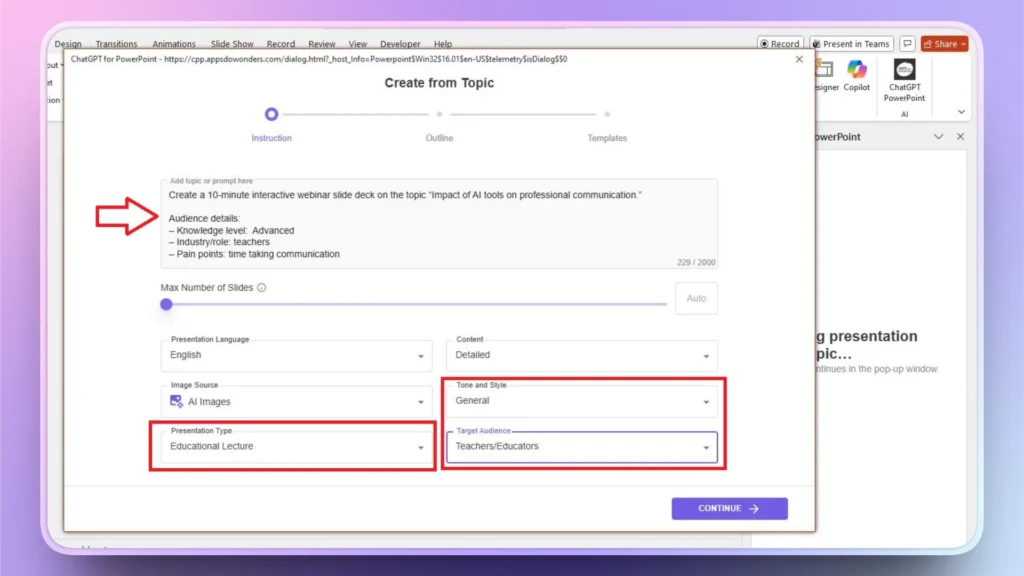
Incluso las herramientas de IA más recientes, como Twistly, necesitan algún tipo de directrices e instrucciones para comprender tus objetivos. Mientras escribes tu comando o tema de la presentación en Twistly, no olvides definir tu audiencia.
Este factor ayuda mucho a crear contenidos más personalizados y adecuados para su audiencia. ¿Su seminario web es promocional, educativo o informativo? ¿Qué tipo de acción desea una vez finalizado el seminario?
La definición de estos aspectos ayudará a Twistly a ajustar el tono y el estilo del contenido y otros elementos utilizados en las diapositivas del seminario web. Puede definir fácilmente estos factores mientras escribe su comando en la ventana de Twistly.
Paso 2: Generar el esquema del seminario web para las diapositivas
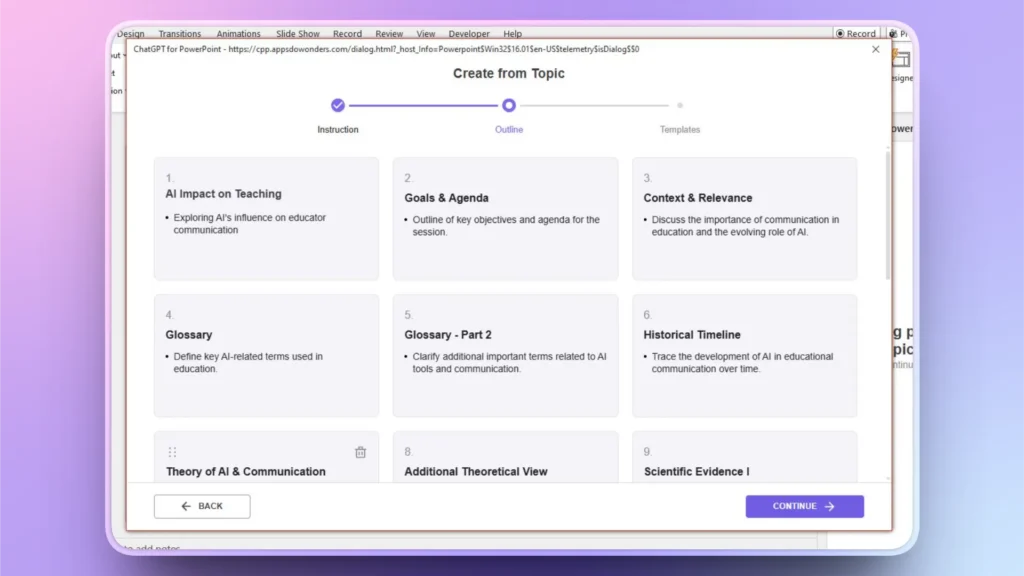
Una vez definidos los factores clave, el siguiente paso es idear un posible esquema para las diapositivas. Las diapositivas de un seminario web interactivo deben aportar valor añadido y ser informativas. El flujo de la información en la presentación de diapositivas debe ser lógico.
Twistly te sugerirá un esquema para las posibles diapositivas de la presentación. Léalo y, si lo desea, puede eliminar cualquier diapositiva, cambiarla de posición o añadirla al esquema. Si todo parece correcto, haz clic en Continuar para pasar al siguiente paso.
Paso 3: Haga que sus diapositivas sean visualmente atractivas
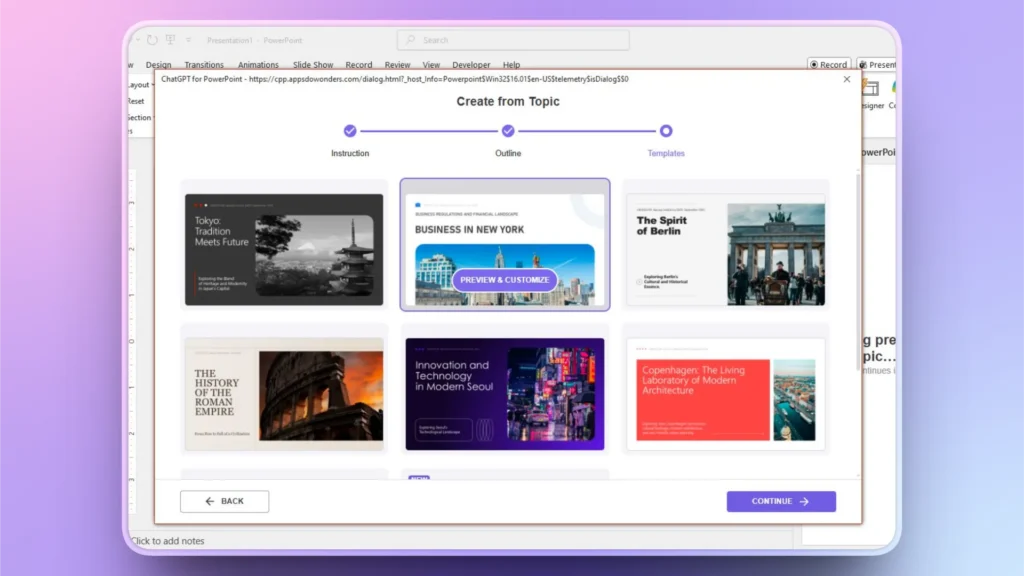
Una vez confirmado el esquema de las diapositivas, el siguiente paso es hacerlas visualmente atractivas. No es necesario que diseñes las diapositivas desde cero, ya que Twistly cuenta con plantillas de PowerPoint AI optimizadas que son perfectas para webinars.
Haz clic y previsualiza las diapositivas de cualquier plantilla de PowerPoint disponible, y no tendrás que preocuparte por las imágenes, tablas, gráficos o cualquier otro elemento para las diapositivas.
Cuando seleccione la plantilla, todo estará ya incluido en ella, y Twistly formateará e insertará tablas, imágenes, texto y gráficos automáticamente en las diapositivas.
Paso 4: Revisar las diapositivas antes de la presentación
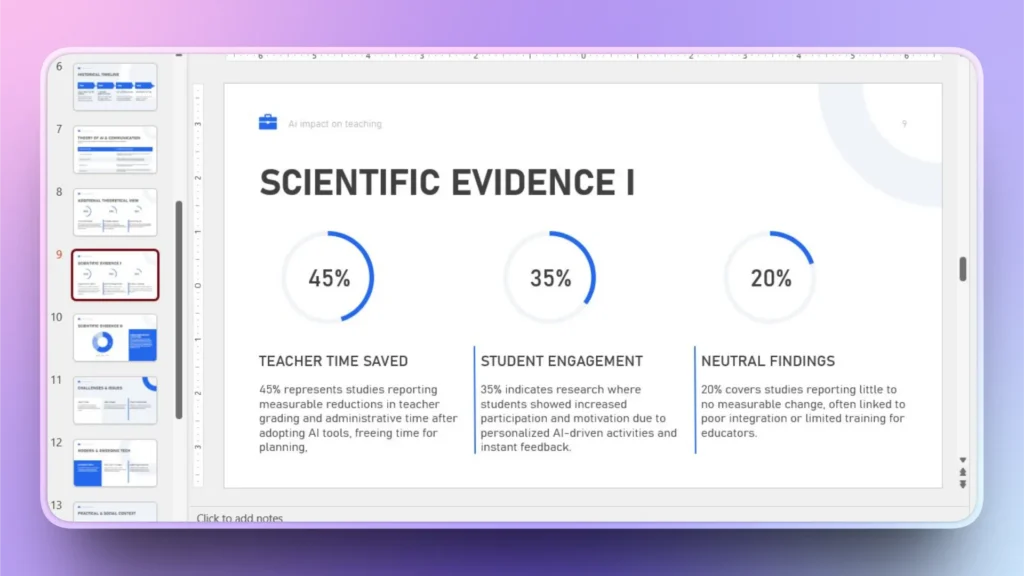
Twistly generará todas las diapositivas en 60-90 segundos, y usted podrá revisar, editar u optimizar estas diapositivas de webinar interactivas generadas por IA con funciones de IA. Siempre se recomienda la revisión manual para obtener mejores resultados.
Si necesitas hacer algún cambio, como añadir una nueva imagen, cambiar el texto o añadir una nueva diapositiva con más información, sólo tienes que pedirle a Twistly que lo haga. Con unos pocos clics, puede realizar cualquiera de estas acciones para su presentación existente.
Localizar diapositivas de seminarios web con Twistly
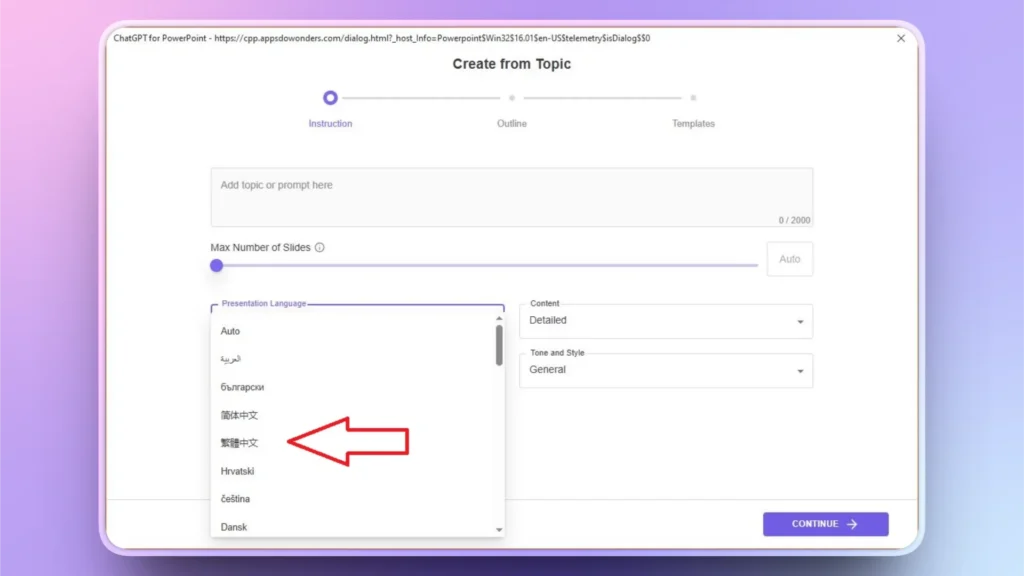
Si su seminario web incluye audiencias de otros países que no hablan su idioma, puede crear fácilmente diapositivas de presentación de PowerPoint en varios idiomas con Twistly.
Hacer presentaciones en diferentes idiomas ayuda a atraer a más usuarios. No es necesario ser un experto en otros idiomas, ya que los datos se introducen en inglés o en cualquier otro idioma compatible y los resultados se generan en el idioma seleccionado.
Todo lo que tiene que hacer es cambiar el idioma deseado mientras proporciona la entrada o un tema para la presentación, como se muestra en el primer paso. Todos los demás pasos son iguales para hacer presentaciones en cualquier otro idioma.
Prueba Twistly gratis - Oferta exclusiva
Para nuestros lectores, está disponible una versión de prueba gratuita de Twistly sin necesidad de tarjeta de crédito. Puede empezar a utilizar Twistly para crear diapositivas interactivas para seminarios web con AI o para cualquier otro tipo de presentación de PowerPoint. Algunas otras razones para aprovechar esta increíble oferta incluyen:
- Funciona de forma nativa en PowerPoint
- Crea webinars completos a partir de múltiples métodos de entrada
- Sugiere la colocación de diapositivas interactivas
- Mantiene el control total del diseño y los contenidos
- Ideal para seminarios web en directo
Crear diapositivas de PowerPoint con IA
Crea presentaciones basadas en IA a partir de cualquier mensaje, documento o vídeo

Conclusión
Twistly permite la solución más inteligente de utilizar IA para crear diapositivas de webinar interactivas para cualquier evento o sesión de formación online. Generar una cubierta de presentación de webinar completa no lleva más de unos minutos.
Deje que AI se encargue de la parte de presentación de su próximo seminario web para que usted pueda centrarse en otros asuntos que pueden ayudarle a conseguir los mejores resultados y atraer a nuevas audiencias para su empresa o servicio.












Empieza a hacer presentaciones con IA en segundos
Acceso instantáneo
Empieza a explorar inmediatamente todas las funciones de Twistly
Sin compromisos
No necesita tarjeta de crédito y puede cancelar en cualquier momento
Asistencia dedicada
Nuestro equipo está aquí para ayudarle en cada paso del camino durante su juicio.