



Las listas de viñetas simples para presentaciones de PowerPoint son comunes. Todas las presentaciones tienen el mismo tipo de lista. ¿Cómo hacer su presentación más atractiva con formas creativas de mostrar una lista en PowerPoint? Las listas, los textos y las diapositivas en general no tienen por qué ser aburridos.
En Twistly Blog, ayudamos a los lectores con consejos prácticos y sugerencias para hacer diapositivas atractivas y atractivas con el menor esfuerzo. En este blog, aprenderemos algunas formas creativas de mostrar una lista en PowerPoint y cómo añadir listas a las diapositivas con IA.
Diapositivas atractivas para un máximo compromiso
Cada elemento de una presentación de PowerPoint tiene un propósito especial. Las listas con viñetas (o listas con viñetas) son listas ordenadas verticalmente donde cada elemento comienza con un símbolo distinto (como -, -, o un cuadrado) en lugar de números. Una lista con números se denomina lista numerada.
Las listas son mejores que los párrafos largos, ya que facilitan a los usuarios el tratamiento de los datos. Los elementos de una lista sólo ofrecen la información más importante. Utilizar los mismos tipos de listas también puede hacer que sus diapositivas resulten aburridas y sosas.
Formas creativas de mostrar una lista en PowerPoint
En este artículo, aprenderemos cómo hacer que tus diapositivas sean más atractivas utilizando formas creativas de mostrar una lista en PowerPoint. La idea es mantener el engagement haciendo las listas más atractivas y creativas.
1. Listas de viñetas basadas en iconos
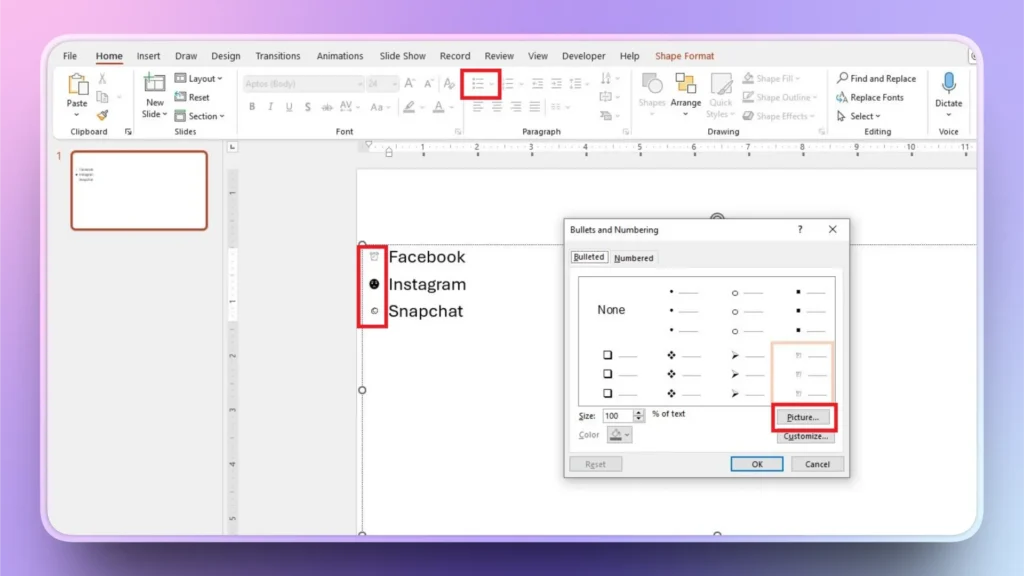
En lugar de utilizar viñetas tradicionales, utilice iconos que definan el significado de ese elemento de la lista. Puede añadir cualquier imagen, icono o forma en lugar de viñetas para la lista. Aquí se explica cómo añadir listas de viñetas basadas en iconos.
Seleccione el elemento en la Lista >> Viñetas y Numeración en la pestaña Párrafo >> haga clic en la Imagen botón.
Ahora, seleccione cualquier opción que desee utilizar. PowerPoint le permite cargar imágenes personalizadas o utilizar iconos de una biblioteca de PowerPoint en línea.
2. Utilizar una metáfora ilustrativa
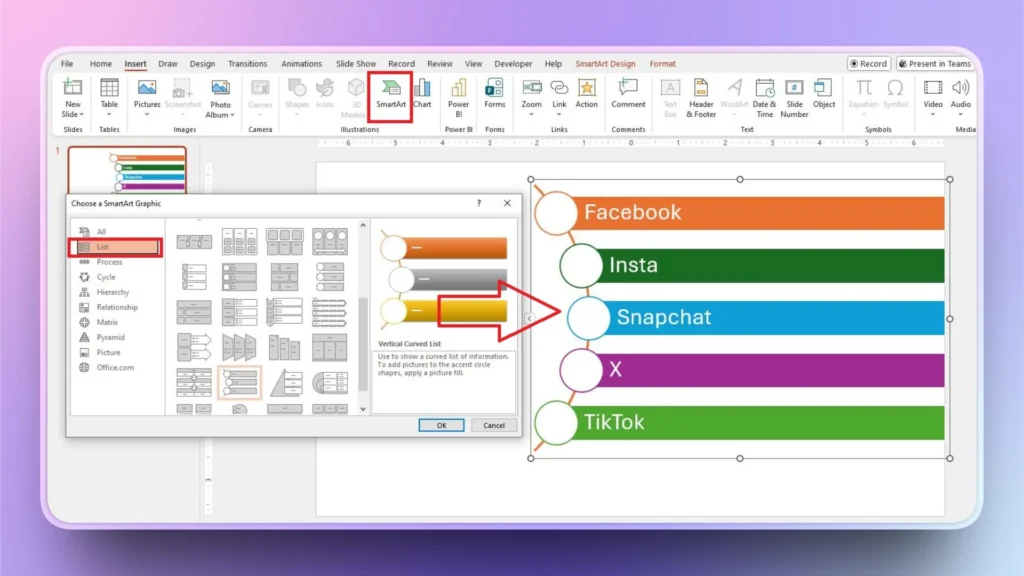
Puede utilizar la función SmartArt de PowerPoint para añadir ilustraciones a sus diapositivas y crear así listas visualmente atractivas. Al igual que una lista normal, puede añadir, eliminar o editar elementos de la lista fácilmente. He aquí cómo crear una lista visualmente atractiva en PowerPoint utilizando SmartArt.
- Haga clic en SmartArt en la pestaña Insertar
- Seleccione Listas en el menú de la izquierda y, a continuación, seleccione el SmartArt que desee
- Añadir una lista a la diapositiva, añadir elementos y aplicar estilo a la lista
3. Desglose la lista: un elemento por lista
Esta es una forma creativa de mostrar una lista corta con elementos detallados. Si la lista tiene pocos elementos pero cada uno de ellos necesita más explicaciones que las listas habituales, puede hacer una diapositiva distinta para cada elemento.
Si estamos hablando de los tres mejores creadores de presentaciones AI para PowerPoint, podemos hacer una diapositiva para Twistly como el mejor complemento para PowerPoint, y luego añadir la siguiente herramienta a la segunda diapositiva, y luego hacer lo siguiente.
4. Utilizar diferentes formas de viñetas
Deshágase de las viñetas convencionales y utilice formas de viñeta únicas y personalizadas para los elementos de una lista. Es muy fácil añadir formas personalizadas a una lista con viñetas. Sólo tiene que seleccionar los elementos de la lista y luego elegir la forma deseada o icono para los elementos de la lista, como se muestra a continuación.

5. Añadir infografía
Existen herramientas y sitios en línea que le permiten hacer infografías personalizadas con los datos que usted proporcione. Utiliza la plantilla disponible o acude a las apps de infografía y crea infografías útiles con los elementos de tu lista.
6. Lista cronológica vertical
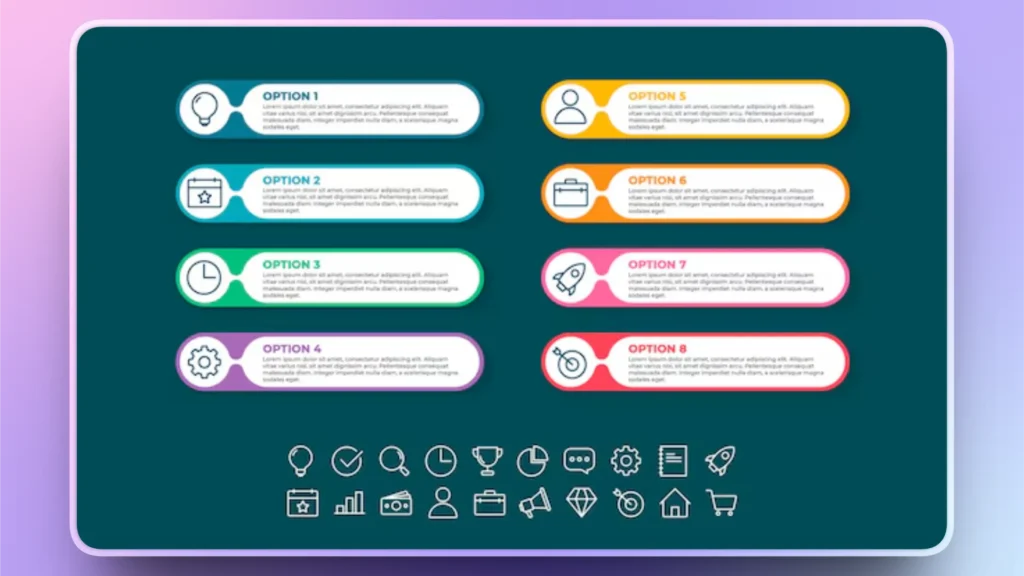
Una línea de tiempo vertical también es una forma interesante de mostrar una lista en PowerPoint. Las líneas de tiempo suelen ser eficaces para representar pasos, fases o etapas de un proceso. En lugar de utilizar listas con viñetas simples, utilice líneas de tiempo verticales de SmartArt.
7. Texto e imagen
Añada varias imágenes a la diapositiva y, a continuación, añada una breve descripción para cada una de ellas, y coloque estos elementos de forma que los usuarios puedan identificar fácilmente la finalidad de cada imagen como elemento de la lista.
8. Añadir lista con Twistly
Cuando se trata de diapositivas interactivas en PowerPoint, no hay mejor opción que Twistly. A diferencia de otras formas creativas de mostrar una lista en PowerPoint, Twistly no requiere ninguna edición o escritura manual.
Cuando haces una lista visualmente atractiva en PowerPoint con Twistly, éste no sólo crea una lista, sino que también escribe el contenido de acuerdo con tus indicaciones de IA.
¿Cómo añadir una lista creativa en PowerPoint con Twistly?
Twistly dispone de muchos diseños de diapositivas para distintos tipos de presentaciones y temas. Los usuarios pueden seleccionar cualquier diseño y proporcionar los detalles o una simple descripción. Twistly generará automáticamente el contenido de la lista y diseñará la lista final.
Siga estos sencillos pasos para añadir una lista visualmente atractiva de forma creativa.
Paso 1: Abrir Twistly en PowerPoint
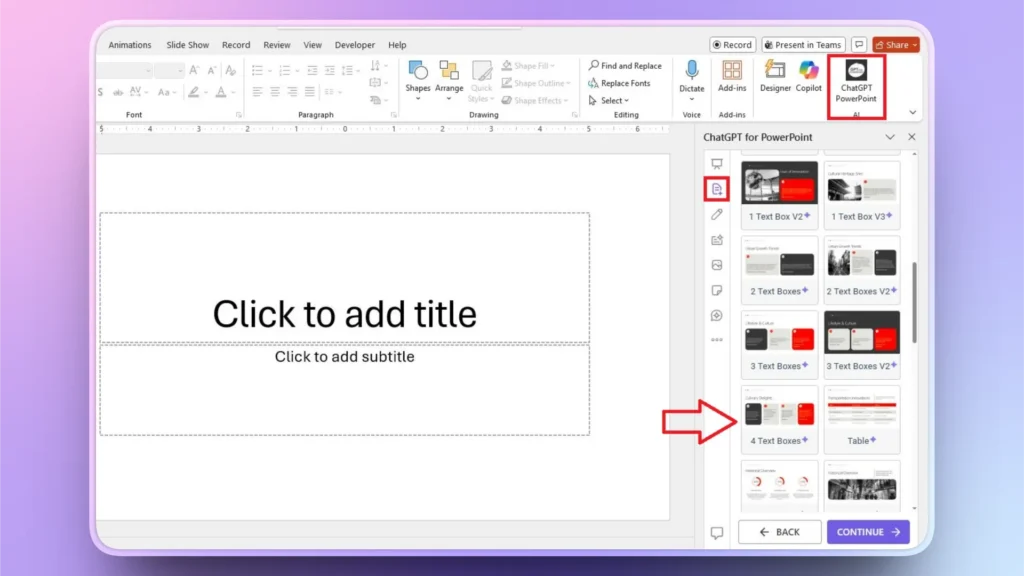
Abra una presentación de PowerPoint nueva o existente e inicie Twistly. Haga clic en la opción ” Añadir diapositiva del menú de la izquierda y seleccione cualquier diseño que le parezca adecuado para la lista.
Paso 2: Describa su lista
Proporcione detalles básicos sobre lo que debe añadir a la lista, o simplemente proporcione un aviso de IA para crear una lista.
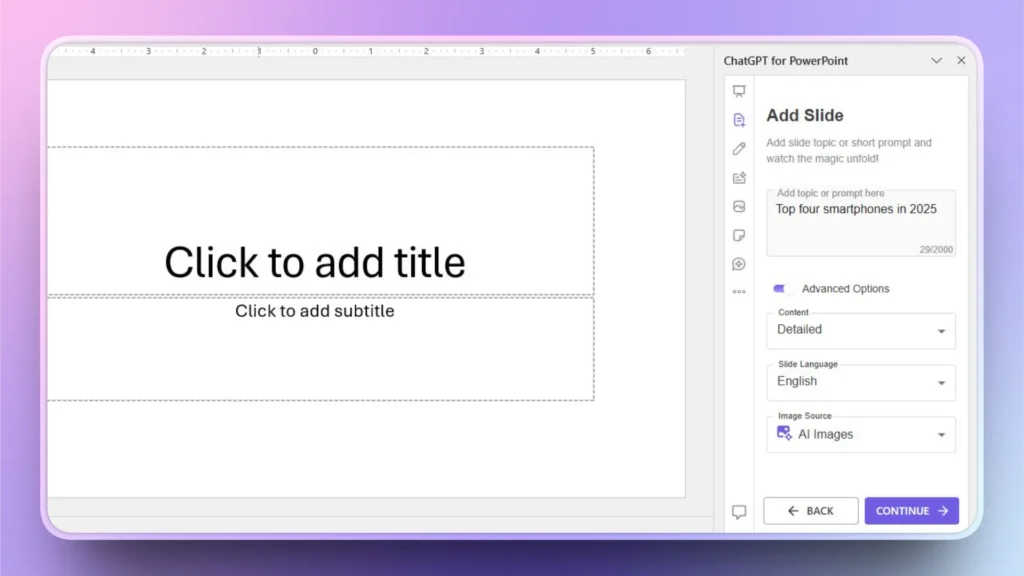
Paso 3: Revise su lista
Twistly generará una diapositiva completa con los cuatro elementos que se le soliciten. Además de crear elementos visualmente atractivos para la lista, Twistly también ha generado otros detalles relevantes para cada elemento de la lista.
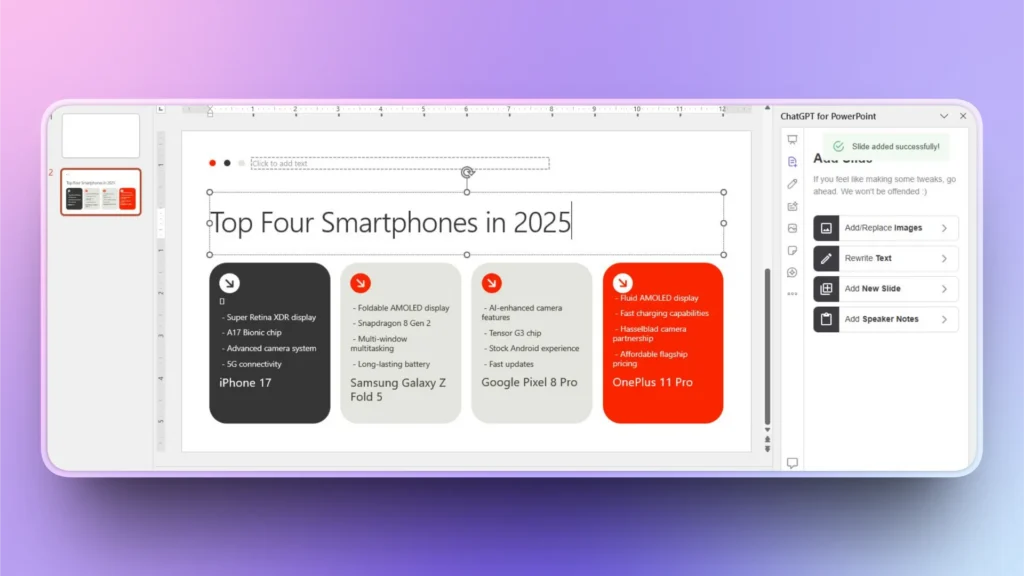
Conclusión
Su lista no tiene por qué ser aburrida o repetitiva. Utilice estas formas creativas de mostrar una lista en PowerPoint de manera única y atractiva. Con poco esfuerzo, puede convertir sus diapositivas aburridas en diapositivas atractivas. Pero el reto consiste en utilizar las funciones de PowerPoint de forma eficaz.
En 2026, la IA ha hecho que las tareas complicadas sean más fáciles y sencillas para los usuarios. Ahora, puede descargar Twistly gratis y disfrutar de una versión de prueba gratuita, y disfrutar del verdadero poder de ChatGPT personalizado para PowerPoint.
No pierdas el tiempo con las formas convencionales de utilizar PowerPoint. Eleva tus presentaciones con Twistly. Consigue tu versión de prueba gratuita del mejor creador de presentaciones AI en 2026.
Crear PowerPoint
Diapositivas con IA
Cree presentaciones basadas en IA a partir de
cualquier mensaje, documento o vídeo














Empieza a hacer presentaciones con IA en segundos
Acceso instantáneo
Empieza a explorar inmediatamente todas las funciones de Twistly
Sin compromisos
No necesita tarjeta de crédito y puede cancelar en cualquier momento
Asistencia dedicada
Nuestro equipo está aquí para ayudarle en cada paso del camino durante su juicio.