



Una diapositiva de felicitación establece el tono de celebración, logro y agradecimiento. Añadir una diapositiva de felicitación al final de la presentación puede atraer fácilmente la atención de los espectadores. Al anunciar los resultados de cualquier competición, las diapositivas de felicitación pueden utilizarse para anunciar hitos o logros.
Hay diferentes maneras de hacer una felicitación diapositiva de PowerPoint. Desde formas manuales hasta el uso de plantillas y AI, discutiremos todos los métodos posibles para hacer una diapositiva de PowerPoint de felicitación para su próxima presentación.
Método 1: Crear manualmente una diapositiva de PowerPoint de felicitación
Esta opción para hacer una diapositiva de felicitación en PowerPoint funciona mejor para diseñadores profesionales y experimentados. Los usuarios profesionales quieren más flexibilidad y novedad, y por eso crear una diapositiva de felicitación manualmente puede ser la mejor opción para usted.
Siga estos pasos para hacer una diapositiva de felicitación en PowerPoint, desde cero, manualmente.
Paso 1: Añada un título “Felicidades” en negrita a la diapositiva
Abra PowerPoint, inicie una nueva diapositiva en blanco y añada un titular. Vaya a Insertar >> Cuadro de texto >>, coloque un cuadro de texto en la diapositiva y escriba el texto. Puedes utilizar cualquier frase que se adapte a la ocasión, como:
¡Felicidades!
¡Enhorabuena al equipo!
¡Enhorabuena por su logro!
Utilice una fuente más grande, ponga el texto en negrita y utilice cualquier familia de fuentes que le guste.
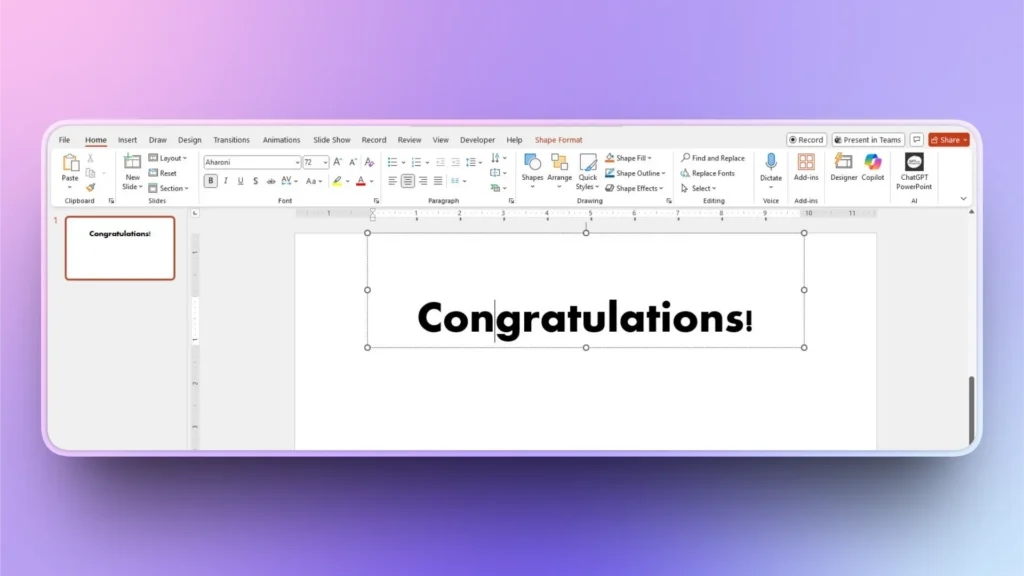
Paso 2: Añadir subtexto a la diapositiva
Añadir subtexto a la diapositiva proporciona una experiencia más personalizada. Puedes añadir el nombre del destinatario o el hito alcanzado por el equipo o la persona.
Puedes colocar, diseñar o dar estilo al texto según tus necesidades. Mantendremos las cosas simples para que los nuevos usuarios puedan entender fácilmente el concepto.
Paso 3: Insertar iconos o elementos visuales relevantes
En este paso, puede añadir iconos, imágenes o incluso un fondo personalizado para su diapositiva. Estamos utilizando una imagen de fondo para esta diapositiva.
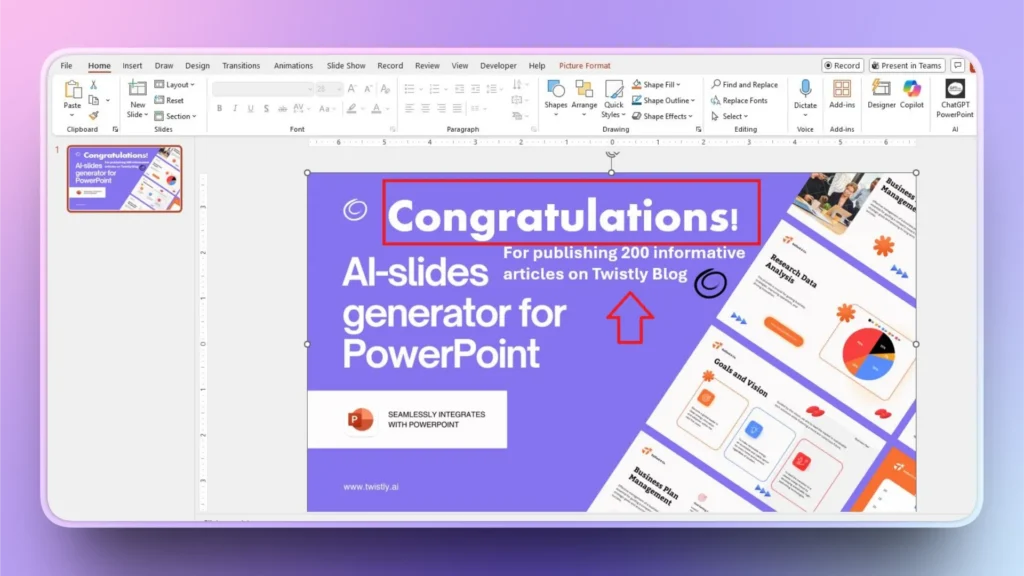
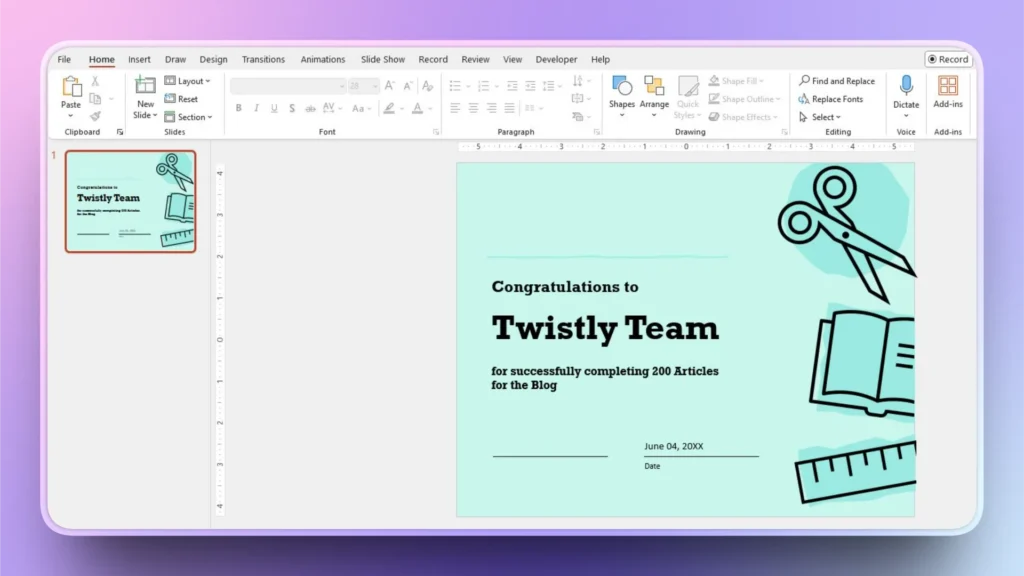
Este es el aspecto que puede tener una diapositiva de felicitación con un título personalizado, una imagen de fondo, un icono de la empresa y un breve párrafo sobre el hito.
Método 2: Hacer una diapositiva de felicitación con una plantilla
PowerPoint tiene diferentes plantillas que los usuarios pueden utilizar para diapositivas rápidas. También puede utilizar los recursos en línea y sitios para descargar plantillas de diapositivas de PowerPoint Felicitaciones. He aquí cómo hacer una diapositiva de PowerPoint Felicitaciones utilizando plantillas.
Paso 1: Iniciar una nueva presentación de PowerPoint
Abre PowerPoint, haz clic en Nuevo y busca la plantilla de diapositivas “Felicidades” en la barra de búsqueda. Te dará algunas plantillas de diapositivas relevantes que puedes usar con poca edición.
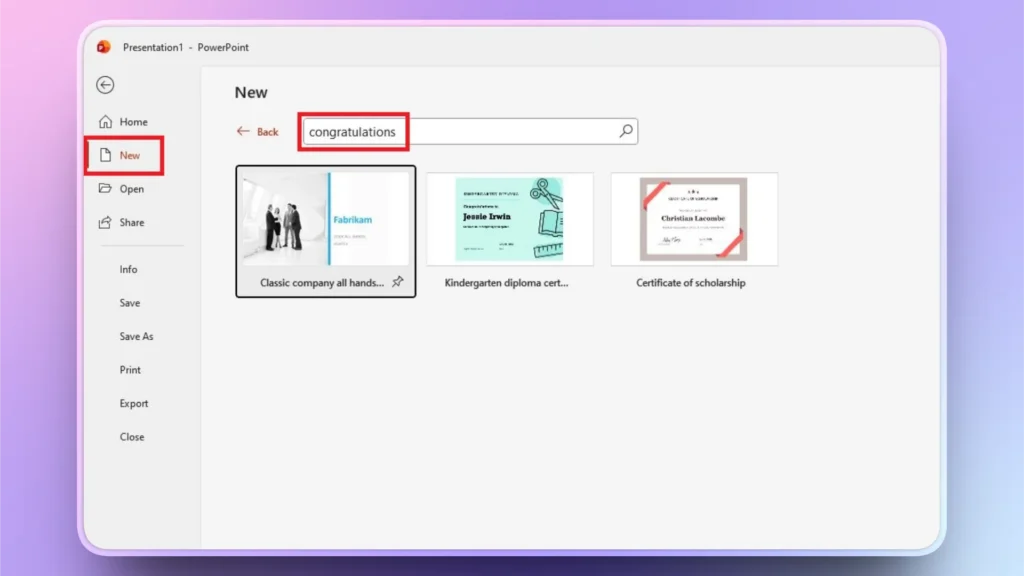
Paso 2: Crear una diapositiva a partir de una plantilla
Seleccione cualquier plantilla que le guste y haga clic en el botón Crear. PowerPoint abrirá esa plantilla en una nueva ventana, donde podrá editar la plantilla con datos personalizados.
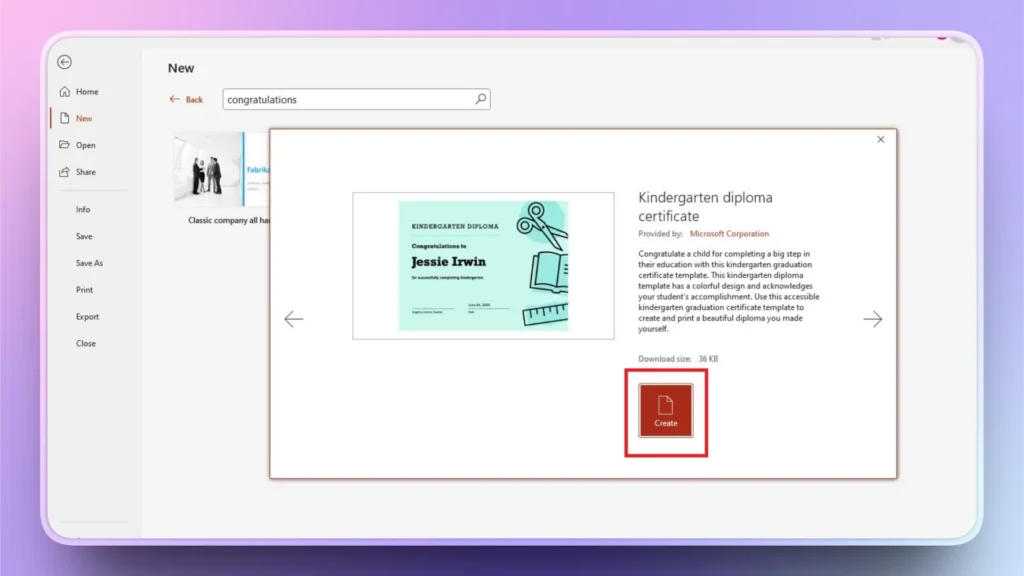
Paso 3: Finalizar la diapositiva de felicitación
Una vez abierta la diapositiva, edite la plantilla de diapositiva y añada o elimine los elementos que desee. Te llevará algún tiempo y tendrás opciones limitadas.
Método 3: Utilizar Twistly para crear diapositivas de PowerPoint
Ambos métodos implican la edición manual. Para un usuario común, pasar horas creando una presentación sencilla parece poco práctico. Si desea crear diapositivas instantáneas en PowerPoint con IA, necesita Twistly para PowerPoint.
¿Qué es Twistly?
Twistly es uno de los creadores de presentaciones de IA para PowerPoint más populares. A diferencia de los creadores de PPT de IA independientes, Twistly funciona dentro de PowerPoint, ofreciendo la potencia combinada de las herramientas de IA y PowerPoint.
Los usuarios pueden instalar el complemento Twistly en su software PowerPoint e integrar funciones similares a ChatGPT en PowerPoint. Desde la creación de presentaciones completas hasta la generación de diapositivas, Twistly tiene un montón de casos de uso útiles para los usuarios de PowerPoint.

Ventajas de Twistly para crear diapositivas
Twistly está respaldado por los últimos modelos de IA que garantizan una generación de contenidos y diseños de diapositivas precisos y relevantes para las presentaciones de PowerPoint. Los usuarios no necesitan experiencia previa ni conocimientos de diseño para utilizar Twistly y crear presentaciones y diapositivas.
La integración fluida de la IA dentro de PowerPoint permite a los usuarios disfrutar de todas las funciones y capacidades premium. En lugar de limitar tu creatividad y flexibilidad, potencia PowerPoint con ChatGPT para presentaciones.
Estas son algunas de las ventajas de crear diapositivas con Twistly:
- Genera contenidos precisos y relevantes con los últimos modelos de IA.
- Crea diapositivas bien diseñadas sin necesidad de tener experiencia en diseño.
- Funciona sin problemas dentro de PowerPoint con integración directa de IA.
- Potencie la creatividad y la flexibilidad en lugar de limitarlas.
- Permite a los usuarios crear presentaciones completas de forma rápida y eficaz.
- Facilita la conversión de ideas o texto en diapositivas estructuradas.
¿Cómo hacer una diapositiva de PowerPoint con Twistly?
Millones de usuarios de PowerPoint confían en Twistly para sus presentaciones diarias. Añadir una diapositiva personalizada a tu presentación nueva o existente es muy sencillo. Siga estos pasos para crear una diapositiva de PowerPoint con Twistly.
Paso 1: Abra PowerPoint e inicie Twistly
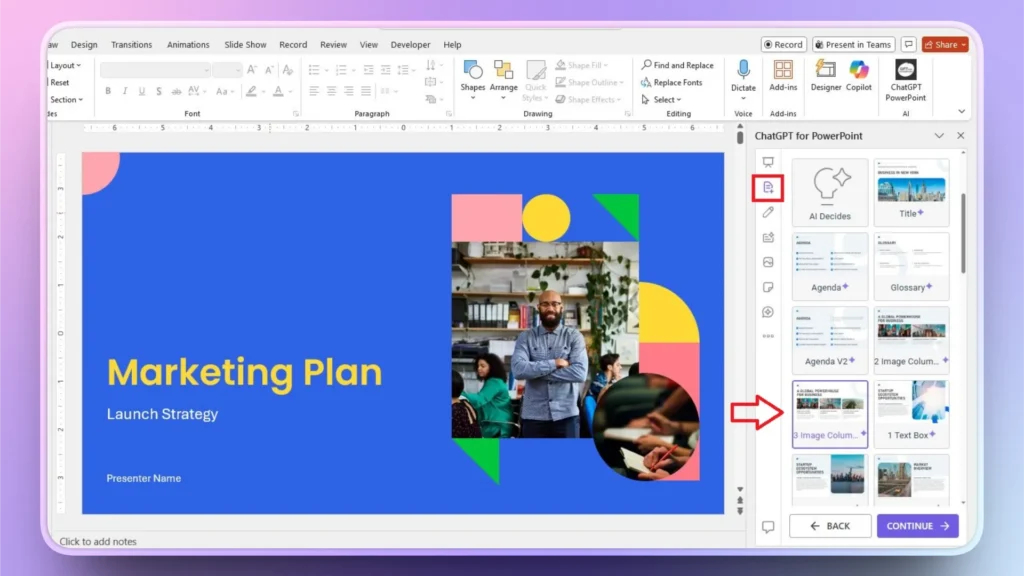
Abra la presentación de PowerPoint e inicie Twistly desde la parte derecha de la cinta superior. Verá un panel específico en el lado derecho.
Pulse el botón “Añadir diapositiva” y, a continuación, seleccione cualquier diseño de diapositiva que desee añadir a la presentación.
Paso 2: Crear una diapositiva con IA
Proporcione los detalles sobre la diapositiva o introduzca la solicitud de IA para la diapositiva. Haga clic en Continuar y espere unos segundos mientras Twistly hace su magia.
En unos instantes, tu diapositiva personalizada con contenido generado por IA se insertará en tu presentación.

Descargar Twistly es gratis
ChatGPT para PowerPoint (Twistly) es un creador de presentaciones AI premium y de pago para usuarios de PowerPoint. Pero somos conscientes de la necesidad de una versión de prueba gratuita para nuestros lectores. Durante un tiempo limitado, los nuevos usuarios pueden probar una versión de prueba de Twistly de forma gratuita.
Sólo tienes que hacer clic en el siguiente enlace y solicitar tu versión de prueba gratuita de Twistly. Esta versión es sólo por tiempo limitado. Una vez caducada, tendrás que actualizar a la versión premium para desbloquear todas las demás funciones.
Crear PowerPoint
Diapositivas con IA
Cree presentaciones basadas en IA a partir de
cualquier mensaje, documento o vídeo


Palabras finales
Puede hacer una diapositiva de felicitación en PowerPoint utilizando el método manual, una plantilla o Twistly para PowerPoint. Una simple diapositiva de felicitación puede marcar una gran diferencia a la hora de aumentar el atractivo visual y el significado de su presentación. Utiliza Twistly para elevar tu experiencia PowerPoint con ChatGPT para presentaciones.












Empieza a hacer presentaciones con IA en segundos
Acceso instantáneo
Empieza a explorar inmediatamente todas las funciones de Twistly
Sin compromisos
No necesita tarjeta de crédito y puede cancelar en cualquier momento
Asistencia dedicada
Nuestro equipo está aquí para ayudarle en cada paso del camino durante su juicio.