



Descifrar datos complicados puede ser todo un reto para el presentador y el público. Las tablas son un elemento útil en las presentaciones para presentar los datos de forma homogénea y significativa. Pero las tablas también tienen algo malo.
La gente sigue añadiendo el mismo diseño de tabla a cada diapositiva. En este artículo, hablaremos de diseños creativos de tablas de PowerPoint que pueden hacer que sus diapositivas parezcan más profesionales y atractivas. Por defecto, puede cambiar el número de filas y columnas de las tablas, pero las opciones de diseño son bastante limitadas.
Un diseño creativo de tablas en PowerPoint no sólo tiene un aspecto estupendo, sino que también hace que los datos sean fáciles de digerir para los lectores. También aprenderemos a hacer las tablas más atractivas y atractivas con IA en PowerPoint.
¿Cómo añadir una tabla a un PowerPoint?
Si eres totalmente novato en PowerPoint, tienes dos opciones: aprender PowerPoint desde cero dedicándole meses, o simplemente utilizar Twistly para potenciar tus presentaciones con IA.
¿Qué es Twistly y cómo funciona? Cubriremos estos detalles en las próximas secciones. Por ahora, repasemos los pasos básicos para añadir una tabla a una diapositiva de PowerPoint.
Paso 1: Dibujar una tabla
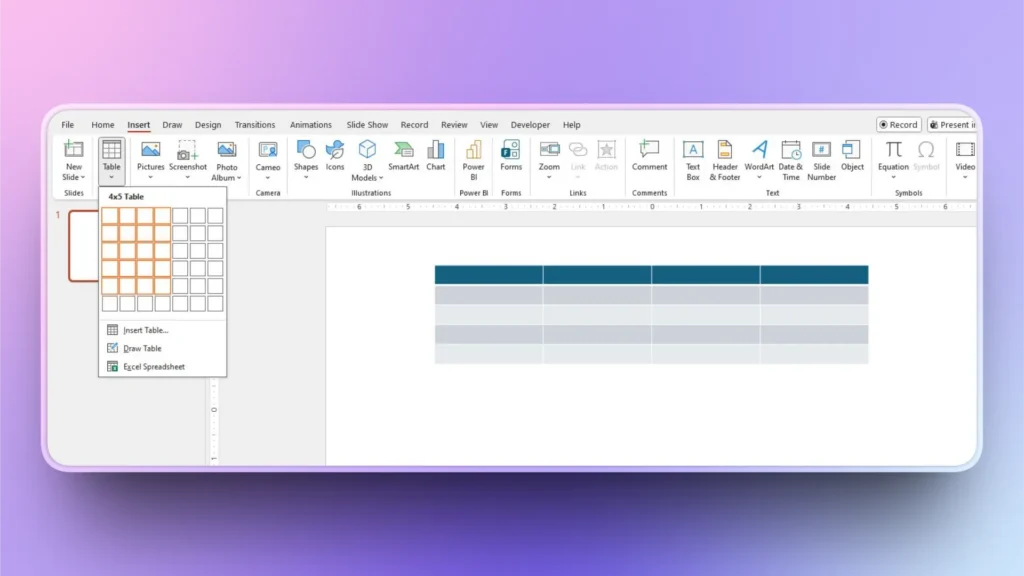
Vaya a su deslizar >> pestaña Insertar >> Tabla >> seleccionar filas y columnas, y su tabla se añadirá a la diapositiva.
También puede añadir un número personalizado de filas y columnas para la tabla utilizando la función Insertar tabla en el menú desplegable.
Paso 2: Diseñe su mesa
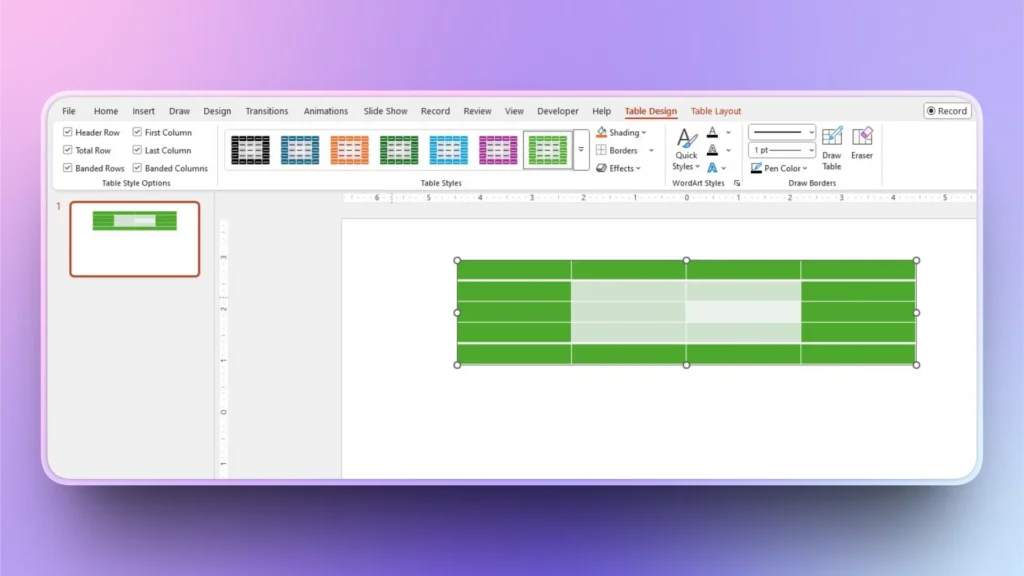
Seleccione la tabla y, a continuación, vaya a la pestaña Diseño de tabla de la cinta superior. Aquí puede cambiar el color, añadir bordes y aplicar diferentes estilos a la tabla.
Diseños creativos de mesas PowerPoint
Como puede ver, el diseño de mesa por defecto es sencillo y limpio. Para diseños de tablas personalizados, necesita algo de experiencia en diseño para manipular las herramientas disponibles. También hablaremos de algunas plantillas populares de diseño de tablas de PowerPoint que pueden facilitarle el trabajo.
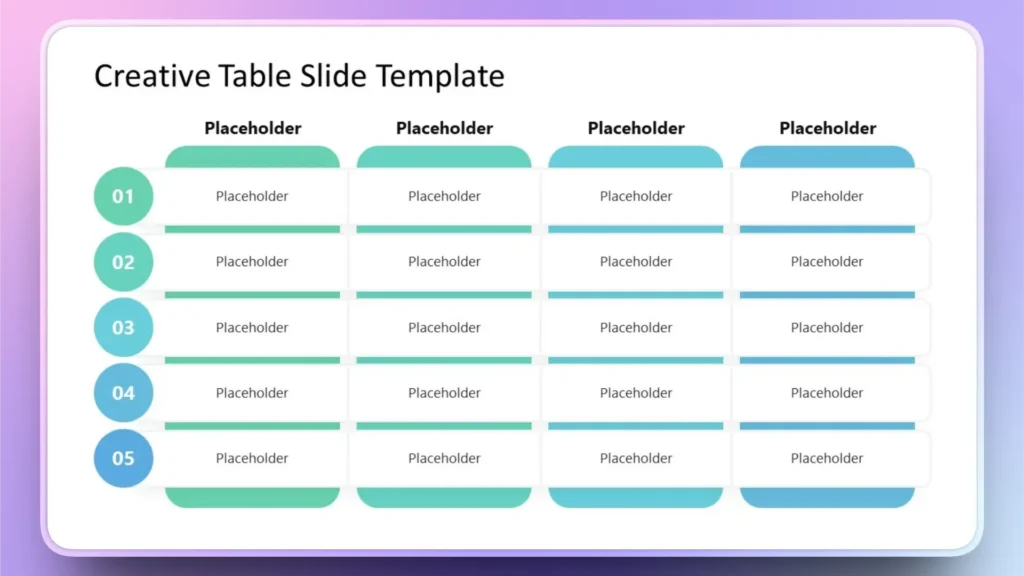
1. Plantilla de tabla creativa de PowerPoint
Este es un diseño de mesa ideal para presentaciones con temas coloridos. El diseño es sencillo pero creativo. Puede diseñar esta mesa usted mismo o descargar una plantilla similar de recursos en línea.
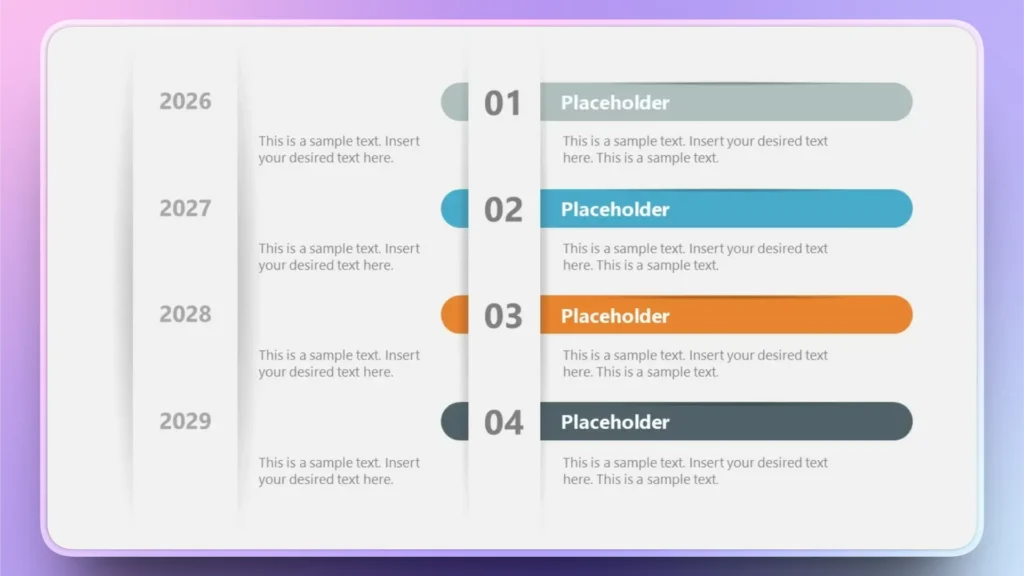
2. Item Vertical Track Record PowerPoint Table Design
Este diseño de tabla permite a los gestores y jefes de equipo asignar distintas funciones y tareas a los miembros del equipo. Puede añadir el nombre del miembro, las tareas asignadas y otros detalles según sea necesario.
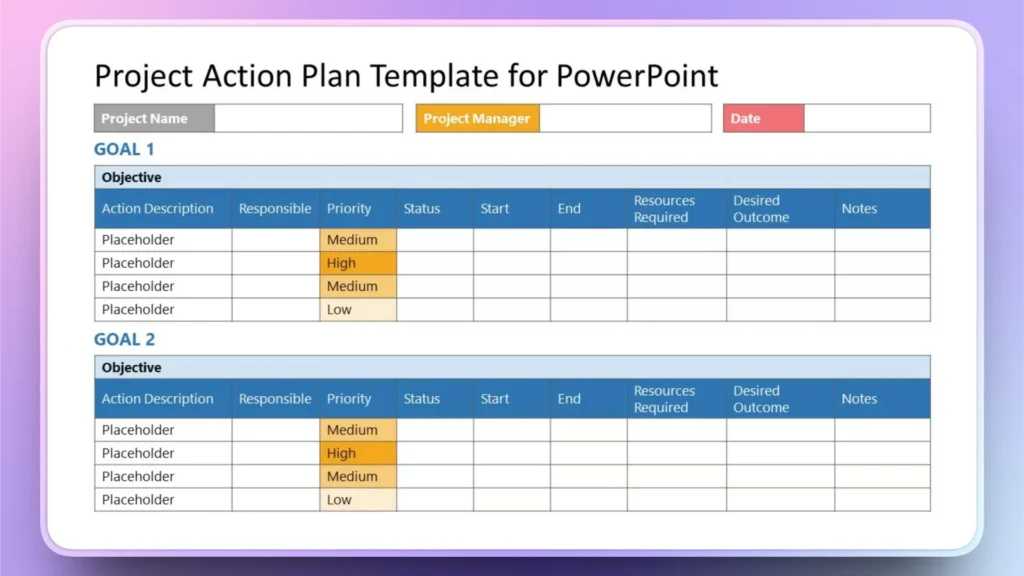
3. Diseño del cuadro del plan de acción del proyecto
Mientras se trabaja en una tarea o proyecto de mayor envergadura, los gestores necesitan llevar un registro del progreso del proyecto. Esta tabla también puede ser muy útil para planificar sin problemas las acciones del proyecto.
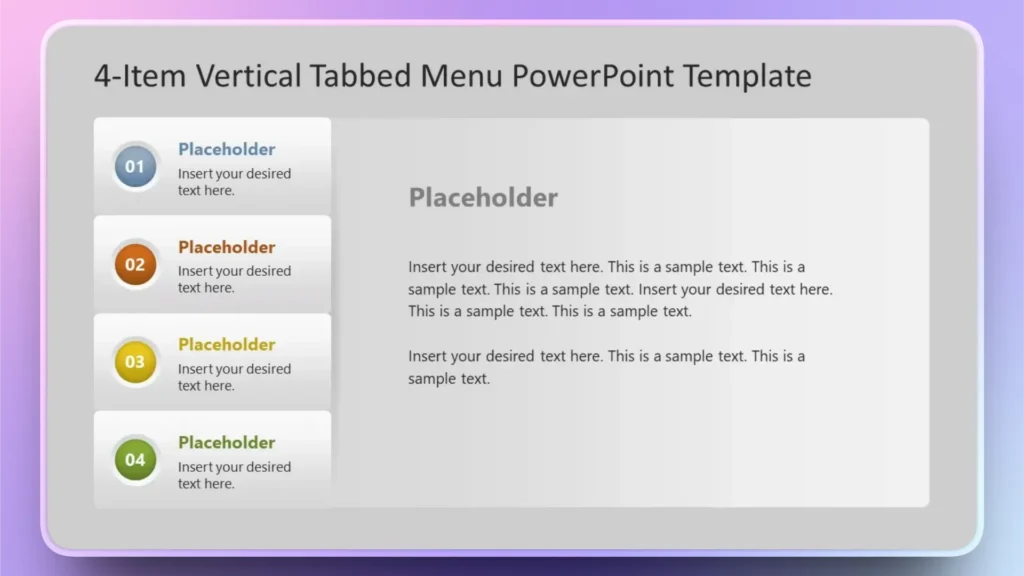
4. Diseño de tablas PowerPoint con pestañas
Este diseño de tabla es totalmente personalizable según las necesidades del proyecto. Puede añadir un resumen del proyecto en un párrafo y añadir varios elementos o miembros del equipo a la misma tabla.
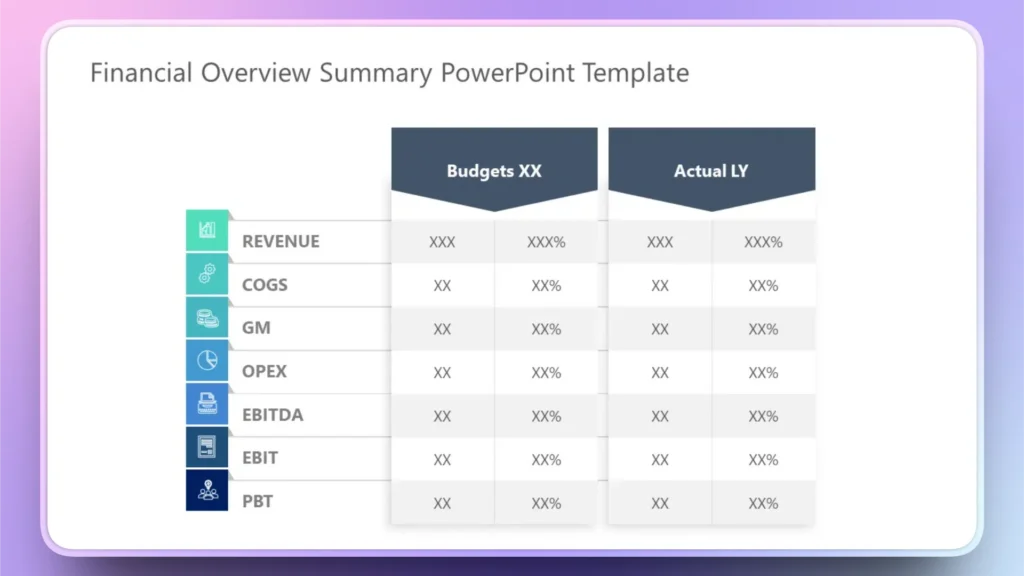
5. Diseño del cuadro sinóptico financiero
Gestionar un presupuesto puede resultar complicado con un diseño de tabla normal. Este diseño de tabla está especialmente pensado para garantizar una gestión fluida de los gastos, los ingresos y otros aspectos de la elaboración de presupuestos. Puede añadir pequeños iconos y texto para hacerla más interesante e interactiva.
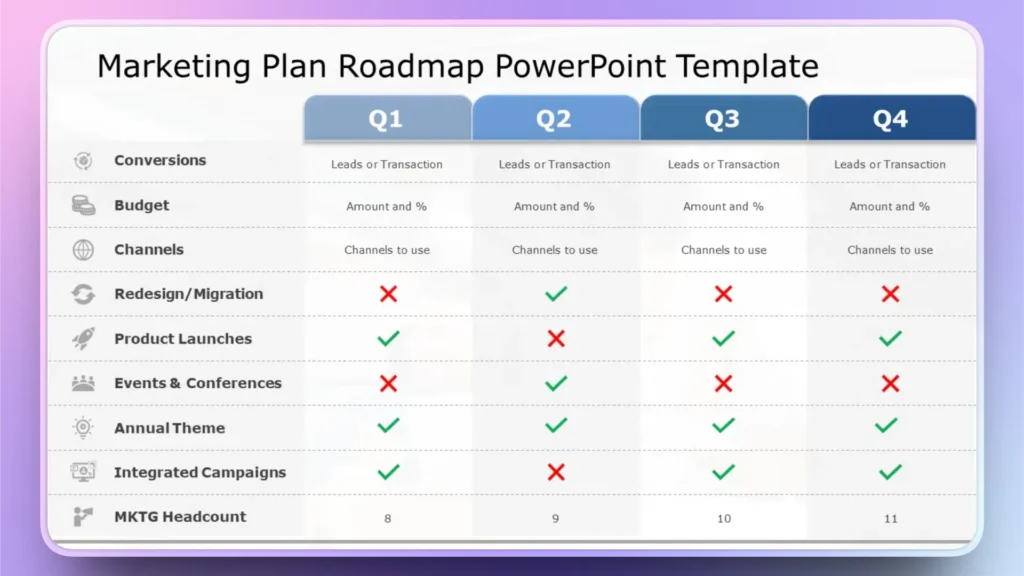
6. Diseño de la tabla de la hoja de ruta de marketing
Este es un diseño de tabla multipropósito que puede presentar hasta cuatro etapas diferentes de un proyecto. Los equipos de marketing pueden utilizar este diseño de tabla de PowerPoint para los objetivos e hitos trimestrales de marketing.
7. Diseño de la tabla de precios
Todos ustedes han visto este tipo de diseño de tabla en sitios web para mostrar los paquetes disponibles y las opciones de precios. Hacer este tipo de diseño creativo de mesa PowerPoint es fácil, ya que sólo tiene que elegir correctamente la combinación de colores para la mesa.

8. Tabla comparativa de productos
Este es uno de los diseños de mesa PowerPoint más creativos, fácil de hacer pero que requiere mucho tiempo. Puede añadir diferentes elementos y características de los productos para facilitar la comparación.

¿Cómo añadir un diseño creativo a una mesa de PowerPoint con Twistly?
Twistly es un completo asistente de PowerPoint y creador de PPT. Desde hacer presentaciones completas desde cero hasta crear diapositivas individuales, Twistly lo hace todo en cuestión de segundos.
Puede añadir diferentes tipos de diseños de mesa a su presentación cambiando la plantilla AI PowerPoint. Para cada plantilla de Twistly, el diseño de la tabla será diferente.
En esta sección, aprenderemos cómo añadir un diseño creativo de tabla PowerPoint a su presentación sin necesidad de recopilar o diseñar datos manualmente.
Paso 1: Abrir Twistly en PowerPoint
Abra una presentación de PowerPoint nueva o existente e inicie Twistly. En el panel de control, seleccione la opción ” Añadir una diapositiva opción.
Ahora, seleccione su plantilla, seleccione el tipo de diseño y, a continuación, elija Diseño de tabla, como se muestra en la imagen siguiente.

Paso 2: Defina su mesa
Introduzca los datos disponibles para la tabla o simplemente utilice un indicador de IA para la tabla. Digamos que queremos una tabla para las mejores aplicaciones de redes sociales con el número de usuarios activos. Twistly obtendrá los datos automáticamente para la tabla.
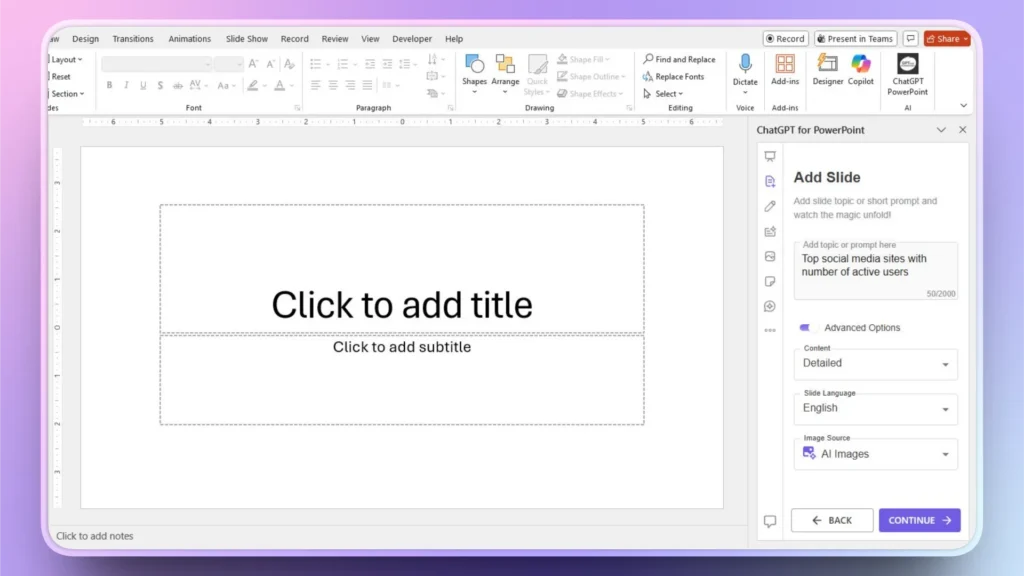
Paso 3: Revisar o editar la tabla
En cuestión de segundos, su tabla estará lista para que pueda editarla, personalizarla o presentarla de inmediato. Se aconseja verificar los datos generados por la IA antes de la presentación final.

ChatGPT personalizado para presentaciones PowerPoint
¿Está cansado de pasar horas en presentaciones simples y aburridas? ¿Quieres un agente de IA personalizado que funcione igual que ChatGPT o Gemini? Descarga Twistly ahora y disfruta de capacidades similares a ChatGPT para presentaciones en PowerPoint.
Lo mejor de Twistly es la versión de prueba gratuita que te permite experimentar las increíbles funciones de IA para presentaciones de PowerPoint. Como Twistly está integrado en PowerPoint, no es necesario cambiar entre distintas pestañas y aplicaciones.
Descarga Twistly ahora y empieza a hacer atractivas presentaciones con AI, gratis. La prueba gratuita solo es válida durante un tiempo limitado.
Crear PowerPoint
Diapositivas con IA
Cree presentaciones basadas en IA a partir de
cualquier mensaje, documento o vídeo


Palabras finales
Puede utilizar cualquiera de estos diseños creativos de mesa de PowerPoint o simplemente describir el tipo de diseño de mesa que desee mediante Twistly. Este complemento AI es un completo creador de PPT AI que te permite disfrutar de las características AI y de las herramientas nativas de PowerPoint al mismo tiempo. Twistly le ahorra tiempo y garantiza que sus diapositivas tengan un aspecto profesional.












Empieza a hacer presentaciones con IA en segundos
Acceso instantáneo
Empieza a explorar inmediatamente todas las funciones de Twistly
Sin compromisos
No necesita tarjeta de crédito y puede cancelar en cualquier momento
Asistencia dedicada
Nuestro equipo está aquí para ayudarle en cada paso del camino durante su juicio.