
AI for PowerPoint
Twistly – AI Presentation Maker
for Microsoft PowerPoint
Create professional slides with Twistly directly inside PowerPoint.
Trusted by Students & Professors From The Best Universities


AI Presentation Maker
That Transforms Your Workflow
Install Twistly — Your AI Presentation Maker

Type your Topic, Upload File or Paste Text

Get your Slides Ready in Seconds!

Advanced Features of Twistly
AI Presentation Maker

Create from Any Source
Instantly transform existing PDFs, Word documents, text files, or simple text prompts into fully structured, professional presentations in seconds, saving you hours of manual work.

Smart Design & Formatting
Let our AI automatically structure your slides, perfectly align elements, and apply professional layouts, so you never have to waste time manually tweaking text boxes again.

One-Click Text Editing
Instantly rewrite, summarize, or expand your slide copy with built-in AI tools, ensuring your presentation’s core message is always perfectly clear, concise, and highly impactful.

AI Image Generation
Generate custom, high-quality images directly within your slides without leaving PowerPoint. Perfect for visualizing concepts and matching your presentation’s unique message and visual branding.

Translation & Speaker Notes
Instantly translate your entire presentation into multiple languages with a single click, and automatically generate detailed, comprehensive speaker notes to prepare you for any audience.

Native PowerPoint Export
Export your finished deck as a completely editable, perfectly formatted native .pptx file. No broken layouts or weird formatting, just a presentation ready to share anywhere.
Twistly vs PowerPoint vs Gamma
Criteria
Twistly
PowerPoint
Gamma
Native plugin
Yes (bult-in)
Yes
No (web only)
Output format
100% native .pptx
100% native .pptx
Exported .pptx
Brand templates
Custom templates
Manual setup
Forced web themes
Document import
Yes (PDF, DOC, TXT)
Manual paste
Yes
Smart layout
Yes (AI-aligned)
Manual tweaks
Yes (web locked)
Deck translation
Yes (entire deck)
Manual/external
Limited
Speaker notes & images
Yes (automatic)
Manual creation
Limited
AI images
Yes (in-slide)
Requires add-ins
Yes
Learning curve
None
None
Built-in AI features
Tailored for Students, Educators and
Professionals
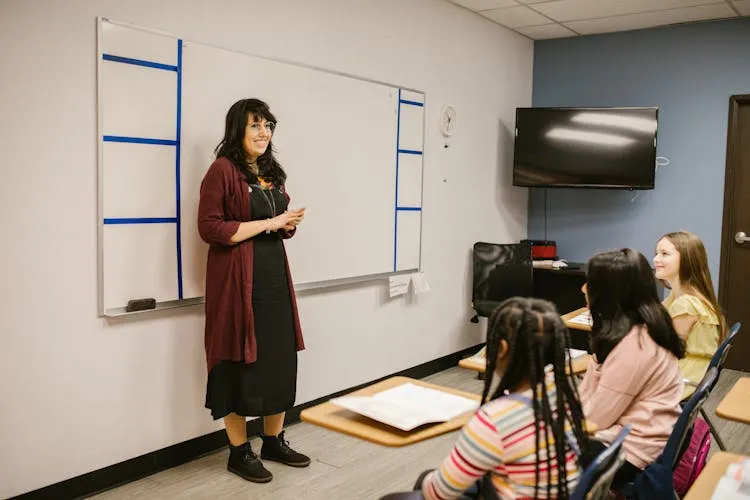
Streamline Lesson Prep
Teachers constantly create presentations for lessons, lectures, and course materials. This repetitive work takes valuable time away from teaching itself.
With AI, you can instantly turn your knowledge into structured, visually clear slides, saving hours on preparation while improving student engagement. Boost classroom focus by letting Twistly handle the heavy lifting of slide design.

Ace Every Assignment
Transform complex research and study notes into polished, academic presentations in seconds. Twistly helps students organize their thoughts and meet tight deadlines without sacrificing quality.
Whether it is a thesis defense or a group project, our AI ensures your slides look professional and keep your peers engaged throughout the entire presentation.

Create High-Impact Campaigns
Bridge the gap between strategy and visual storytelling with data-driven slide generation. Marketers can quickly build pitch decks, campaign reports, and brand presentations that capture attention.
Use Twistly to automate the layout process, allowing you to focus more on creative messaging and less on moving text boxes around to find the perfect fit.

Close Deals Faster
Deliver personalized, persuasive pitches to every prospect without spending all day on design. Twistly allows sales professionals to generate tailored decks that address specific client needs instantly.
Professional, high-quality visuals help build immediate credibility, ensuring your value proposition remains the hero of the conversation and helping your team hit those ambitious revenue targets.

Simplify Corporate Training
Modernize your onboarding and internal communications with consistent, clear, and engaging slide decks. Twistly makes it easy for HR professionals to communicate vital information effectively.
Ensure every employee stays informed and aligned by generating professional materials that reflect your company culture and brand standards with ease.
Frequently asked questions
Join thousands of professionals saving time with Twistly.