



Las imágenes son una parte importante de las presentaciones. Como la presentación de PowerPoint es una ayuda visual, las formas, imágenes e infografías deben optimizarse para una mejor experiencia. ¿Se puede difuminar una imagen en PowerPoint para que parezca más envolvente? Sí, PowerPoint tiene las herramientas para hacer una foto menos o más transparente.
El proceso para difuminar imágenes en PowerPoint es ligeramente diferente para las versiones más recientes y más antiguas. En esta guía, vamos a discutir cómo desenfocar una imagen, cómo desenfocar cualquier parte determinada de la imagen y cómo cambiar la transparencia de una imagen.
Manipulación de imágenes en PowerPoint
Si se te da bien el diseño gráfico con otras herramientas como Adobe, estupendo. Las imágenes diseñadas a medida añaden mucho valor a la singularidad de la presentación.
Para un usuario normal, las funciones integradas de PowerPoint son suficientes para la manipulación básica de imágenes. Estas son algunas tareas comunes que puede realizar para cambiar una imagen según sus necesidades.
Añadir imágenes personalizadas a las diapositivas con AI
Crea presentaciones basadas en IA a partir de cualquier mensaje, documento o vídeo

Desenfocar una imagen en PPT
En primer lugar, es necesario insertar una imagen en la diapositiva que desea difuminar para la presentación. ¿Sabes cómo insertar una imagen en PowerPoint? Si no es así, vamos a empezar con los pasos más básicos.
Primer paso: Abra su diapositiva de PowerPoint e inserte una imagen de su ordenador que desee desenfocar.
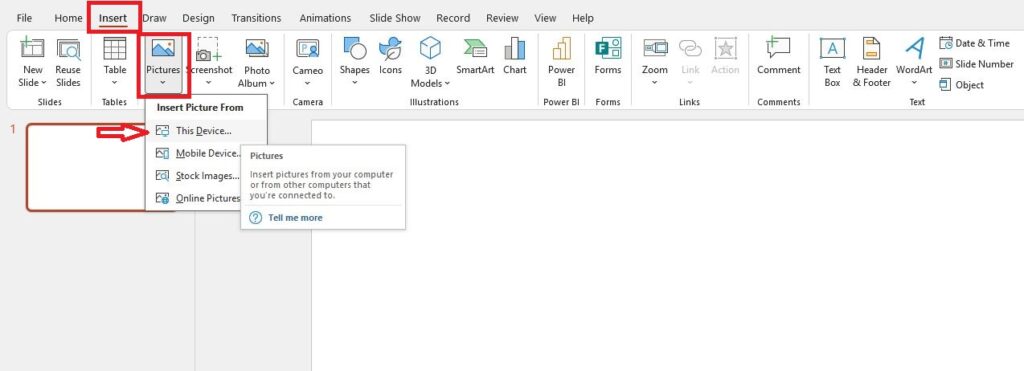
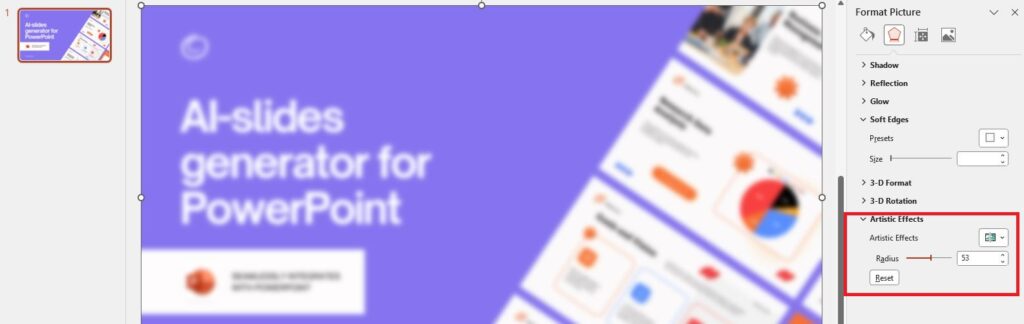
Segundo paso: Seleccione la imagen que ha añadido y haga clic en el botón Efectos artísticos del botón Formato de imagen ficha.
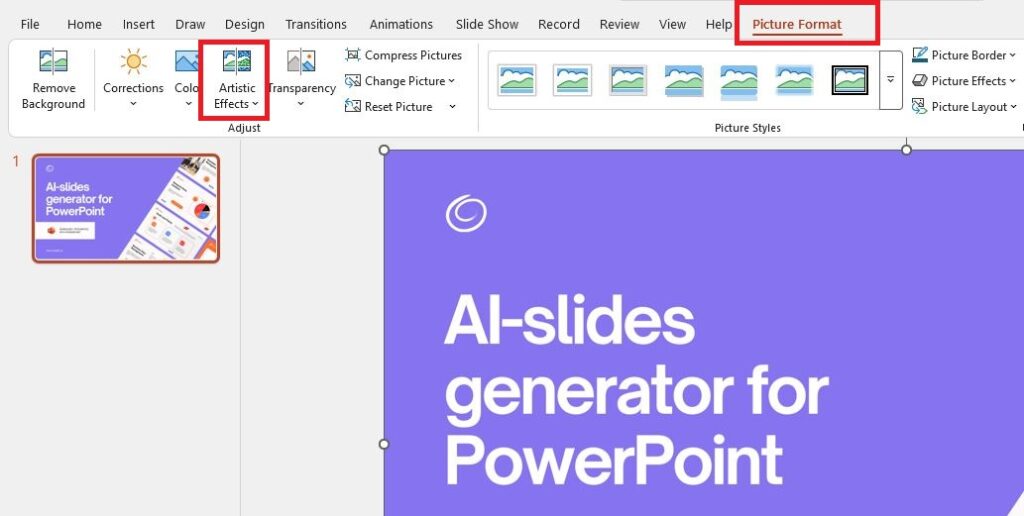
Tercer paso: Haga clic en Efectos artísticos y elija la opción Desenfoque del menú. Verás las miniaturas de diferentes efectos en esta ventana emergente.
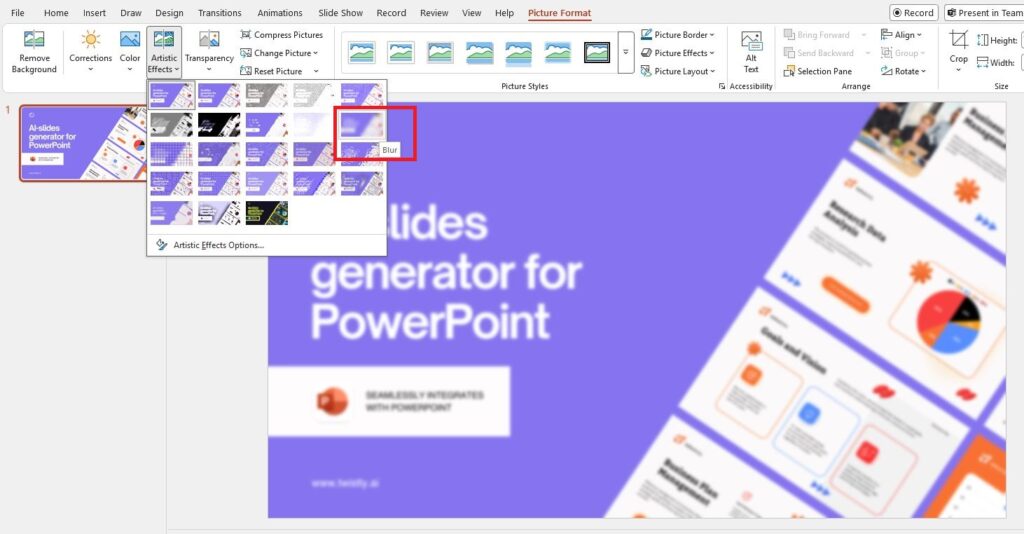
Verá que el efecto Desenfoque ha difuminado toda la imagen y también puede cambiar la intensidad del efecto de desenfoque haciendo clic en las “Opciones de efectos artísticos” debajo de las miniaturas.
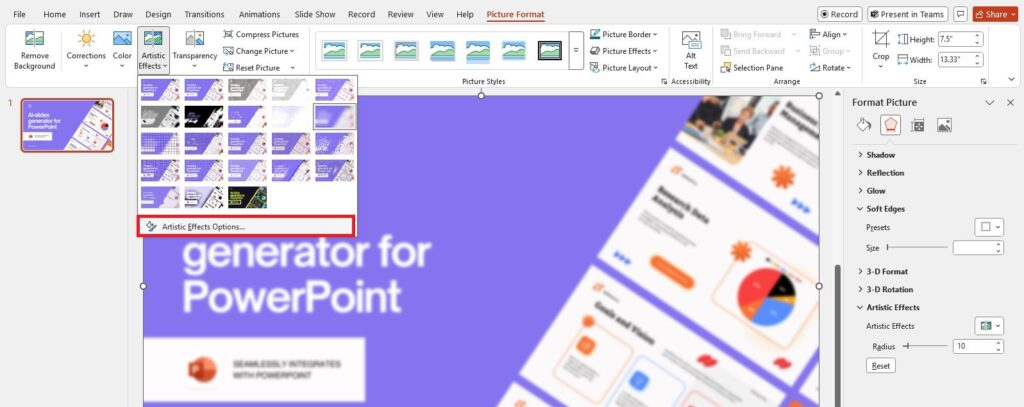
Paso 4: Cambie la Barra de Radio para disminuir o aumentar el radio de la imagen desenfocada en PowerPoint.
¿Cómo cambiar la transparencia de una imagen?
Al hacer una imagen borrosa en PowerPoint, es posible que haya visto una opción relacionada con la transparencia de una imagen. Si quieres revisar la guía detallada sobre cómo hacer transparente una imagen, visita el blog. Para cambiar la transparencia de una imagen, sigue estos pasos.
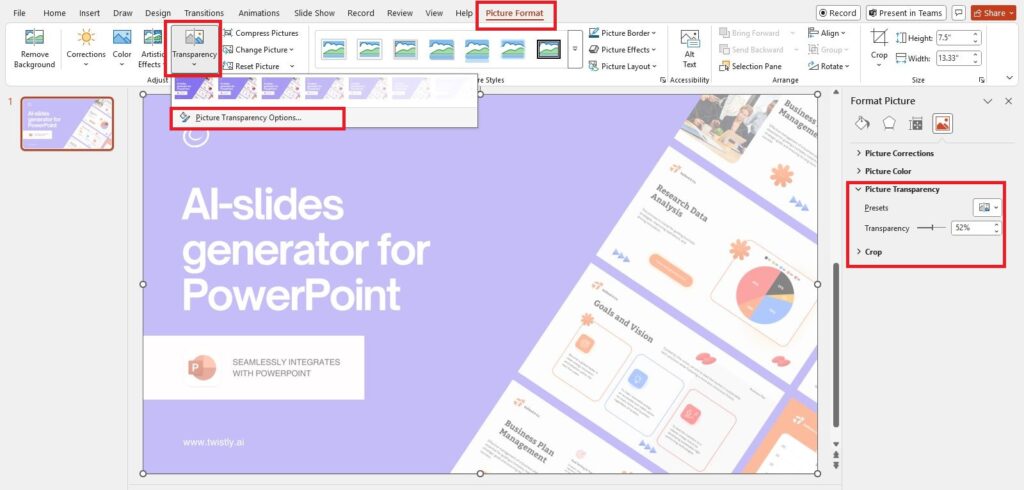
Primer paso: Inserte una imagen en la diapositiva o seleccione el botón Transparencia de la Formato de imagen ficha.
Segundo paso: Selecciona cualquiera de los preajustes disponibles para cambiar la transparencia o haz clic en “Opciones de transparencia de imagen” para explorar más opciones.
Diferencia entre desenfoque y transparencia
La transparencia se refiere a la capacidad de ver a través de un objeto o capa, mientras que el desenfoque se refiere a la reducción de la nitidez o claridad en una imagen u objeto. Hemos explorado ambas opciones para manipular una imagen en PowerPoint.
También puede azular cierta parte de la imagen utilizando los efectos artísticos, pero eso es de alguna manera un proceso complicado. Cuando necesite hacer cambios tan importantes, es mejor editar imágenes con herramientas y software dedicados como Adobe.
Optimice las diapositivas con visuales AI personalizados
Añadir una imagen, editarla, ajustarla según el tema y luego hacer otros cambios puede ser agitado para alguien que simplemente quiere hacer una presentación. Hay una manera mejor y más fácil de añadir y optimizar imágenes para diapositivas de presentación?
Sí, Complemento Twistly AI para PowerPoint no sólo encuentra y añade imágenes personalizadas a las diapositivas, sino que también las optimiza de acuerdo con el tema del PPT. Una vez añadidas las imágenes, puede editar cualquier imagen, reemplazar, añadir o eliminar imágenes en las diapositivas.
¿Cómo añade Twistly imágenes a PPT?
Primeros pasos con Twistly es más fácil que utilizar cualquier complicada herramienta online para hacer presentaciones. Todo lo que tienes que hacer es instalar Twistly y entonces funciona igual que tu ChatGPT para PowerPoint. Introduces el tema o la pregunta para crear diapositivas profesionales.
Twistly utiliza las capacidades de la IA para escribir contenidos atractivos para las diapositivas y, una vez que confirmas el esquema y seleccionas el tema para la presentación, Twistly encuentra imágenes de fuentes en línea que no requieren licencia.
Cuando haga clic en una imagen, escriba la imagen que desea buscar y, a continuación, añada a las diapositivas la imagen que desee de los medios disponibles.
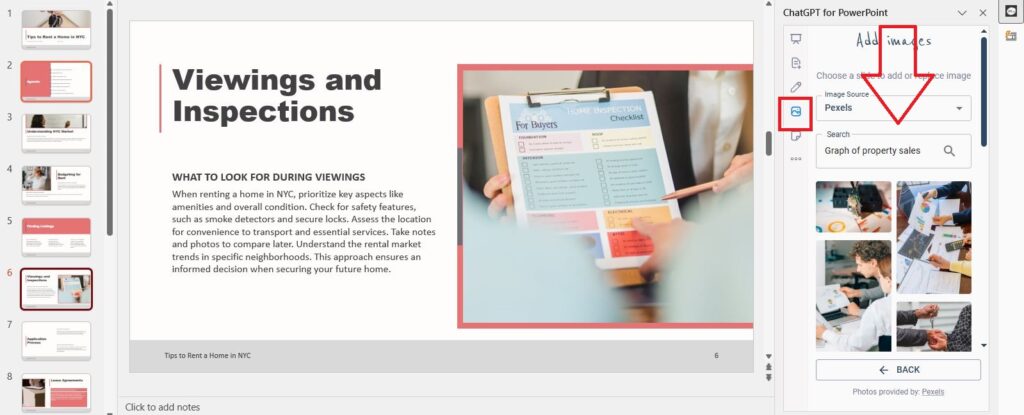
Las imágenes se añaden a las diapositivas y luego se ajustan automáticamente para que el contenido de las diapositivas siga siendo destacado y fácil de leer. Desde el ajuste de la diapositiva hasta el cambio de orientación, Twistly lo hace todo en unos instantes.
Visuales personalizados para presentaciones
Las capacidades de IA y las funciones avanzadas de su ChatGPT para PowerPoint no se limitan a añadir imágenes únicamente. Si tus PPT necesitan formas, tablas, listas, líneas de tiempo o gráficos, Twistly lo hace todo automáticamente. Deja que la IA se encargue de las cosas importantes relacionadas con tus presentaciones importantes.
Céntrate en ideas más grandes. Déjenos la IA a nosotros.
ChatGPT para Excel - donde sus datos se encuentran con nuestra inteligencia AI.
Pruébelo gratis
Conclusión
Puede desenfocar una imagen en PowerPoint, cambiar el nivel de transparencia o manipular la imagen según la plantilla de PowerPoint con estos pasos.
Si no se te da bien el diseño gráfico y no quieres perder horas editando imágenes para tus presentaciones, prueba gratis el complemento Twistly para PowerPoint. Deja que la IA se encargue de los elementos visuales y multimedia de tus diapositivas.
Preguntas más frecuentes










Empieza a hacer presentaciones con IA en segundos
Acceso instantáneo
Empieza a explorar inmediatamente todas las funciones de Twistly
Sin compromisos
No necesitas tarjeta de crédito y puedes cancelar cuando quieras
Asistencia dedicada
Nuestro equipo te ayudará en cada paso durante tu periodo de prueba