


How to Convert PDF to PowerPoint with AI (Editable Slides)
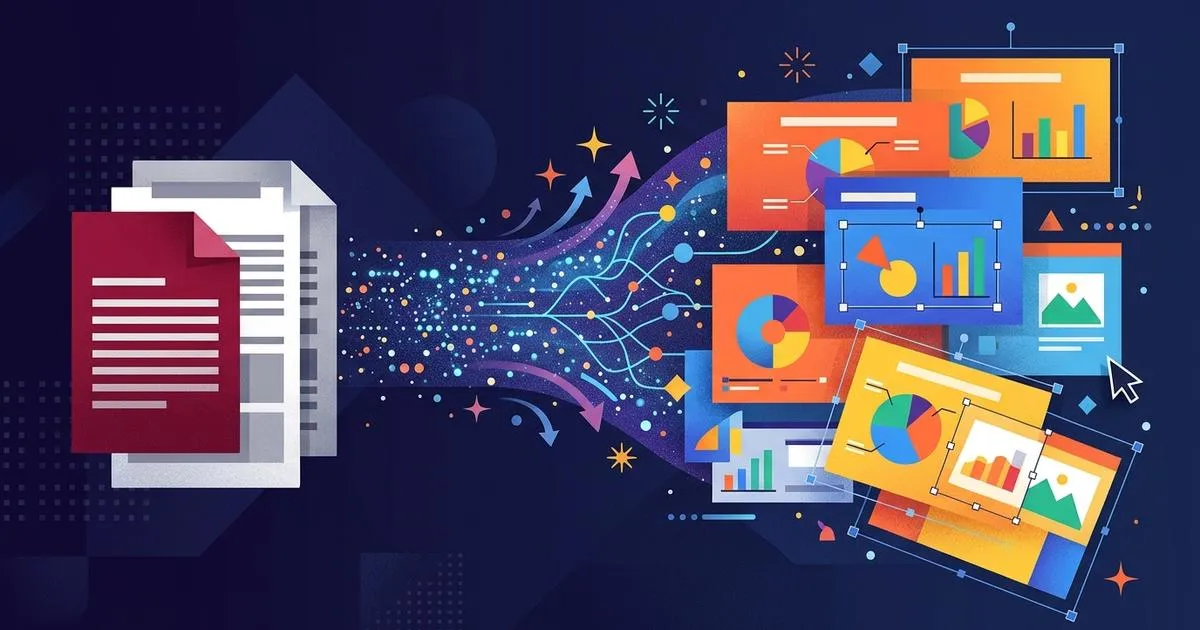
If you want to know how to convert PDF to PowerPoint without ending up with slides you can’t edit, the method matters more than the tool. A classic converter copies each PDF page onto a slide, and the result often looks right but behaves badly: loose text boxes, swapped fonts and tables that are no longer tables. An AI presentation maker reads the document instead and rebuilds it as a real presentation, with titles, bullet points, editable tables and charts.
PDFs are everywhere. Adobe says people open more than 400 billion PDFs in Acrobat every year (Adobe Newsroom, September 2026). So sooner or later, most people need to convert PDF to PowerPoint for a meeting, a class or a pitch. This guide covers each route: the AI method with Twistly, other AI tools, Adobe Acrobat, free converters and PowerPoint’s own options. It ends with fixes for the problems people hit most often.
Disclosure: Twistly publishes this guide and makes the AI converter featured in it. Other tools are described from their official documentation as of November 10, 2026.
Key Takeaways
- There are two ways to turn a PDF into slides: page-for-page conversion, which copies the layout, and AI generation, which rebuilds the content as a new, editable deck.
- Page-for-page conversion breaks because a PDF stores where text sits on the page, not how it is structured, so headings, tables and columns don’t survive cleanly.
- Twistly’s PDF to PPT AI converter turns a PDF into an editable .pptx with native tables and charts, and lets you review the outline before any slides are built.
- Free converters work for quick, text-based files. Scanned PDFs need text recognition (OCR): Acrobat runs it during export, while most other tools need a searchable copy first.
Converting a PDF vs. making a PPT from a PDF with AI
There are two very different jobs hiding behind “convert PDF to PowerPoint”, and choosing the right one saves most of the cleanup.
Format conversion maps each PDF page to one slide and tries to recreate the page layout. Adobe’s online converter works this way: each PDF page becomes one slide (Adobe Acrobat online, retrieved 2026-11-10). It’s the right choice when you need an exact copy of the pages, such as a brochure you only want to annotate.
AI generation reads the document and writes a new presentation from it. It condenses each section into slide points, keeps the order of the argument and builds charts and tables as native PowerPoint objects. That’s the right choice when the PDF is a report, a paper or a proposal and you need slides people can actually present and edit.
Why does page-for-page conversion struggle? Microsoft explains it in its guide to opening PDFs in Word: a PDF records where text and graphics sit on the page, not how they relate as paragraphs, tables or columns. That’s why conversion “works best with files that are mostly text”, and pages heavy with charts or graphics may come through as images with text you can’t edit (Microsoft Support, retrieved 2026-11-10). The same limit applies when the target is PowerPoint. A converter has to guess the structure, and an AI model can read it.
If you want a PDF to editable PowerPoint, the kind where every title, bullet, table cell and chart value can be changed, AI generation is usually the shorter path. It also helps to decide how many slides your presentation should have before you start.
How to convert PDF to PPT using AI (with Twistly)
The fastest way to make a PPT from a PDF using AI is to upload the file to an AI presentation maker that reads the content and outputs a native .pptx. Here’s the process in Twistly’s PDF to PPT AI converter, which runs in the browser on Windows, Mac or Chromebook, so you don’t need PowerPoint installed to create the deck.
Step 1: Upload your PDF
Abrir Twistly Online and upload the PDF. Twistly shows the document’s word count against your plan’s limit, so you know right away whether the whole file fits. Text-based PDFs give the best results. If your file is a scan, make a searchable copy first (see the troubleshooting section below).
Step 2: Choose the slide count and visuals
Pick a slide count, or leave it on Auto and let the AI decide based on the document’s length. Choose an image source and an art style for any AI-generated images. Where they fit, Twistly reuses the images from your PDF.
Step 3: Pick a template
Choose one of the 50+ templates, or select AI Choice to let Twistly match a design to your content. You sign in with Google or Microsoft at this point to continue.
Step 4: Edit the outline before slides are built
Before the deck is generated, you get an outline of the real slides. You can edit table cells and chart data here, not just text:
- Fix titles and body text
- Drag slides into a new order or delete the ones you don’t need
- Edit table cells, or paste a table in from Excel, Word or Google Sheets
- Correct chart values and labels, or switch the chart type
- Swap a slide between text, diagram and chart layouts
Tables from the PDF arrive as editable PowerPoint tables, not pictures, and every chart data point is an editable row. Page numbers and footers are dropped, and crowded sections are split across two slides (for example “Results 1/2”) instead of being shrunk until nobody can read them.
Check: each slide appears as its own card in the outline, and tables show as editable grids rather than images.
Step 5: Download the editable .pptx
Generate the deck, then download it as a .pptx or a PDF, or export it to Google Slides. The .pptx opens in PowerPoint, Keynote and Google Slides, and the text, diagrams, tables and charts stay editable.
Check: open the .pptx in PowerPoint, click a chart and confirm that Editar datos is available, then click into a table cell and type.
A few tips from Twistly’s documentation (Twistly Help Center, retrieved 2026-11-10):
- Landscape PDFs (often exported slide decks) give you a choice: Redesign my presentation keeps your structure and images and applies a new template, while Create new from this file rewrites the content into a fresh presentation.
- Long PDFs over 50 pages: image extraction is less reliable, so splitting the file by chapter gives better results.
- Don’t leave the outline open too long. Extracted images are held only temporarily. After about 15 minutes, some slides may fall back to stock or AI images.
- Language: the slides match the PDF’s language automatically.
You can try it free with 3 presentations and no credit card. If your source is a Word file rather than a PDF, the Word to PPT AI converter works the same way.
Other AI tools that turn a PDF into slides
Several other AI tools can make a PPT from a PDF. Each one comes with trade-offs.
- Copilot in PowerPoint. Copilot can turn templates, files or PDFs into presentations, and the feature requires a Microsoft 365 Copilot (work) license (Microsoft Support, retrieved 2026-11-10). When Microsoft announced PDF support in June 2025, it said the file must be stored in OneDrive or SharePoint. You pick Create a presentation from a file, review an outline and then generate the slides (Microsoft 365 Insider Blog, June 2025).
- Gamma. Gamma offers two import modes: Import as-is, which keeps the original layout, and Create something new, which rewrites and restyles the content (Gamma Help Center, retrieved 2026-11-10). The result lives in Gamma’s own format, and you export it to get a PowerPoint file.
- Adobe Acrobat Stylize. Announced in September 2026, Stylize reorganizes the content of a source document into Adobe Express templates to create presentations (Adobe Newsroom, September 2026).
- ChatGPT. ChatGPT can summarize a PDF and draft slide-by-slide text. Check what your plan offers for creating files, and review the layout and editability of anything it produces.
When Twistly is the better fit
- Compared with Copilot: you don’t need a Microsoft 365 Copilot (work) license, and you upload the PDF from your computer instead of moving it to OneDrive or SharePoint first.
- Compared with Gamma: you work toward a PowerPoint file from the start, with tables and charts built as native PowerPoint objects you can keep editing in PowerPoint.
- Compared with page-for-page converters: the content is restructured into slides, and the outline step lets you correct text, slide order, table cells and chart data before the deck exists.
- Nothing to install: Twistly Online runs in the browser on Windows, Mac or Chromebook, and the finished .pptx opens in PowerPoint, Keynote and Google Slides.
How to convert a PDF to PowerPoint with Adobe Acrobat
Adobe Acrobat is the classic converter. Use it when you want a page-for-page copy of the PDF rather than a redesigned deck.
- Open the PDF in Acrobat.
- Ir a File > Export To > Microsoft PowerPoint Presentation.
- Choose where to save the file and click Guardar.
The new file opens in PowerPoint with editable text, images you can reposition and grouped graphics you can ungroup (Adobe Experience League, updated 2026-04-23). Newer Acrobat versions also offer this through the Export PDF tool, so the menu path may differ slightly in your version. If the PDF contains scanned text, Acrobat runs OCR automatically during the export (Adobe Acrobat, retrieved 2026-11-10).
Exporting to PowerPoint is a paid feature of Acrobat Standard, Pro and Studio (Adobe Acrobat pricing, retrieved 2026-11-10). Because it copies page layouts, the output inherits the structure problems described above. Expect to rebuild tables and tidy text boxes on complex pages.
How to convert PDF to PowerPoint for free
If you need to convert a PDF to PowerPoint for free, these tools handle text-based PDFs well. Check the privacy terms before you upload anything confidential.
| Free tool | Lo que obtienes | Limits and privacy notes |
|---|---|---|
| Twistly free PDF to PowerPoint converter | Page-for-page .pptx with editable text boxes, a slide master, five layouts and a theme | No signup and no watermark; one file up to 100 MB per conversion |
| Adobe Acrobat online | One slide per PDF page | Limited free use; files are deleted unless you sign in to save them |
| iLovePDF | PDF to PPTX conversion | Free plan: 1 file and 15 MB per task; OCR for scanned PDFs is Premium only |
| Smallpdf | PDF to PPT conversion | No account needed; files are deleted one hour after processing |
Free converters copy the page. They don’t restructure it. If you want a free AI result that rebuilds the content into a real deck, Twistly’s free plan covers 3 AI-generated presentations.
Can PowerPoint open a PDF directly?
PowerPoint can’t turn a PDF into editable slides on its own. It gives you two ways to place PDF content on a slide (Microsoft Support, retrieved 2026-11-10):
- As a picture: open the PDF, then in PowerPoint go to Insert > Screenshot > Screen Clipping and drag around the part you need.
- As an object: close the PDF, then choose Insert > Object > Create from file > Browse. Double-clicking the object opens the full PDF. Microsoft notes that this method reduces the PDF’s quality.
Neither method works in PowerPoint for the web, and neither gives you text you can edit. There’s also a workaround through Word: open the PDF in Word, which makes an editable copy, then move the content into slides. Microsoft says this works best for files that are mostly text.
Which method should you use?
Match the method to the result you need:
| Method | Editable output | Scanned PDFs | Opción gratuita | Main requirement |
|---|---|---|---|---|
| Twistly’s PDF to PPT AI converter | Yes: text, tables, charts and diagrams | Make a searchable copy first | 3 free presentations | A browser |
| Copilot in PowerPoint | Sí | Not documented | No | Microsoft 365 Copilot (work) license, file in OneDrive or SharePoint |
| Adobe Acrobat desktop | Partly: text boxes and images | Runs OCR automatically | No | Acrobat Standard, Pro or Studio |
| Free online converters | Partly: text boxes | iLovePDF OCR is Premium only | Yes, with limits | Upload to a third-party site |
| PowerPoint Insert | No: picture or object | No | Included with PowerPoint | PowerPoint desktop |
If you’re presenting the content, pick AI generation. If you only need the pages to look identical, pick a converter.
Fixing common PDF-to-PPT problems
Most conversion problems fall into a handful of patterns, and each has a quick fix.
- The slides come out blank. The PDF is probably a scan with no text layer. Create a searchable copy with an OCR tool (Acrobat’s text recognition does this), then convert that copy. Twistly’s free converter returns blank slides for image-only PDFs, and iLovePDF only offers OCR on Premium.
- The slides are portrait. Page-for-page converters inherit the PDF’s page size, so an A4 page becomes a portrait slide of roughly 8.27 × 11.69 inches. Change it under Design > Slide Size in PowerPoint.
- The fonts changed. Fonts that aren’t embedded in the PDF get replaced; the substitute is often Arial, according to Twistly’s free PDF to PowerPoint converter notes (retrieved 2026-11-10). Install the original font or apply a theme font after converting.
- Tables turned into loose text. Page-for-page converters often lose the table grid. AI generation rebuilds tables as native PowerPoint tables.
- The PDF is password-protected. Remove the password in the app that created the file, then upload the unprotected copy.
Once the deck is built, the usual next problem is too much text per slide. Twistly’s guide to the most common mistakes people make with AI-generated slides and its advice on how many slides a presentation should have help with the final edit.
Preguntas más frecuentes
What is the quickest way to convert a PDF to PPT?
Upload the PDF to a converter or an AI presentation maker and download the .pptx. For an exact page copy, use Adobe Acrobat’s File > Export To > Microsoft PowerPoint Presentation or a free online converter. For editable slides with native tables and charts, upload the PDF to Twistly, choose a template, review the outline and download the deck.
Are AI-generated slides from a PDF editable?
They are when the tool outputs native PowerPoint objects. Twistly’s output keeps titles, body text, diagrams, tables and chart data editable in the .pptx. Picture-based methods, such as PowerPoint’s Screen Clipping, are not editable.
Can I convert a PDF to Google Slides?
Convert the PDF to a .pptx first, then open that file in Google Slides. If you build the deck in Twistly, you can also export it straight to Google Slides.
Can ChatGPT convert a PDF to PowerPoint?
ChatGPT can read a PDF and draft slide-by-slide content. Whether it can also produce a finished file depends on your plan and the features available to you, so check the result for layout and editable tables and charts. A dedicated AI presentation maker such as Twistly is built to produce a designed, editable .pptx from the PDF.
Is there a free PDF to PowerPoint AI tool?
Yes. Twistly’s free plan includes 3 AI-generated presentations with no credit card. For basic page-for-page conversion, Twistly’s free PDF to PowerPoint converter needs no signup and adds no watermark.
Turn your PDF into an editable deck in Twistly Online.
Upload a PDF, review the outline and download a .pptx with editable text, tables and charts. Your first 3 presentations are free, with no credit card.
Conclusión
Converting a PDF to PowerPoint comes down to one choice: copy the pages or rebuild the content. Page-for-page converters like Acrobat and free online tools are fine for quick, text-based files.
When you need slides you can present and edit, with native tables, charts and a clear structure, an AI presentation maker does the work in one pass.
Upload your next PDF to Twistly Online, review the outline and download an editable deck. Before you present it, run through Twistly’s checklist of mistakes people make with AI-generated slides.






Empieza a hacer presentaciones con IA en segundos
Acceso instantáneo
Empieza a explorar inmediatamente todas las funciones de Twistly
Sin compromisos
No necesitas tarjeta de crédito y puedes cancelar cuando quieras
Asistencia dedicada
Nuestro equipo te ayudará en cada paso durante tu periodo de prueba