


¿Cómo imprimir diapositivas de PowerPoint a página completa?
Para imprimir diapositivas de PowerPoint a página completa, ve a Archivo >> Imprimir >> Diapositivas de página completa y marca la casilla “Ajustar al tamaño del papel”. Esta opción es útil si tus diapositivas impresas se ven más pequeñas y quieres imprimirlas sin márgenes.
Muchos usuarios no saben cómo imprimir diapositivas para que ocupen toda la página, y en este artículo te explicamos el proceso paso a paso con imágenes. La mayoría de las impresoras no imprimen sin bordes, ya que la opción de márgenes requiere ajustes manuales para reducir los márgenes blancos.
Por qué las diapositivas no ocupan toda la página
PowerPoint usa márgenes estándar de forma predeterminada, y este ajuste impide imprimir de borde a borde. Además, la mayoría de las impresoras no admiten la impresión sin bordes. Estos son los motivos más habituales por los que las diapositivas de PowerPoint no ocupan toda la página:
- El tamaño de la diapositiva no coincide con el del papel
- Los márgenes de la impresora impiden imprimir a página completa
- «Ajustar al tamaño del papel» no está activado
- Se usa el diseño de documentos en lugar de diapositivas de página completa
Antes de resolver el problema para imprimir a página completa, asegúrate de que ninguno de estos motivos está causando el fallo. Ahora veamos las posibles soluciones para imprimir diapositivas de PowerPoint a página completa.
Método 1: Imprimir diapositivas de página completa
La página Imprimir de PowerPoint ofrece distintas opciones y tamaños de página entre los que elegir. Según tus necesidades y el tamaño de la diapositiva, puedes imprimir una o varias diapositivas en una sola página. Como queremos que la diapositiva ocupe toda la página, así es como se configura la impresora con estos ajustes.
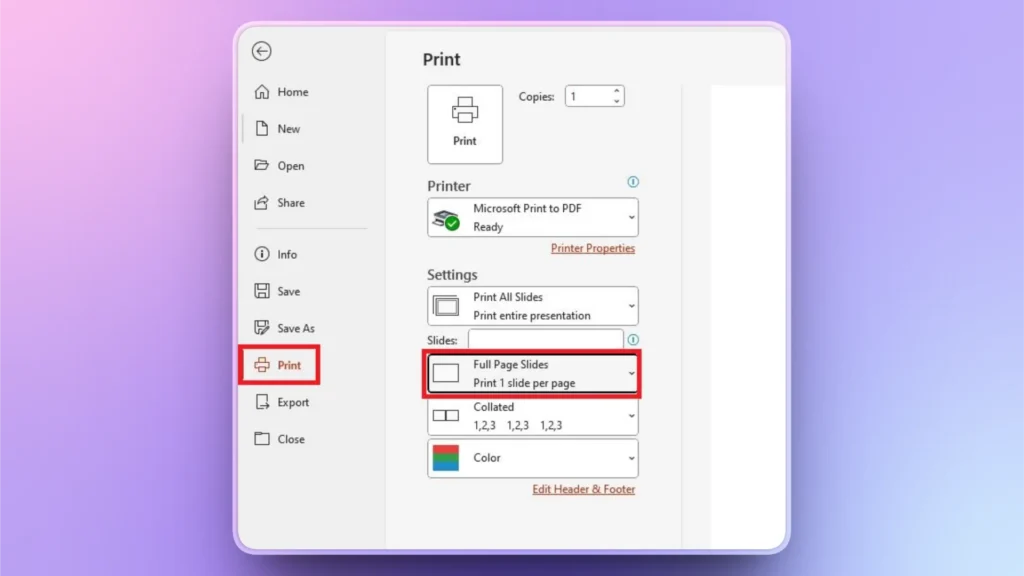
Paso 1: Abre Imprimir >> Diapositivas de página completa
Abre la presentación de PowerPoint de la que quieres imprimir diapositivas. Ve a Archivo >> Imprimir >> Diapositivas de página completa.
Paso 2: Ajustar al tamaño del papel
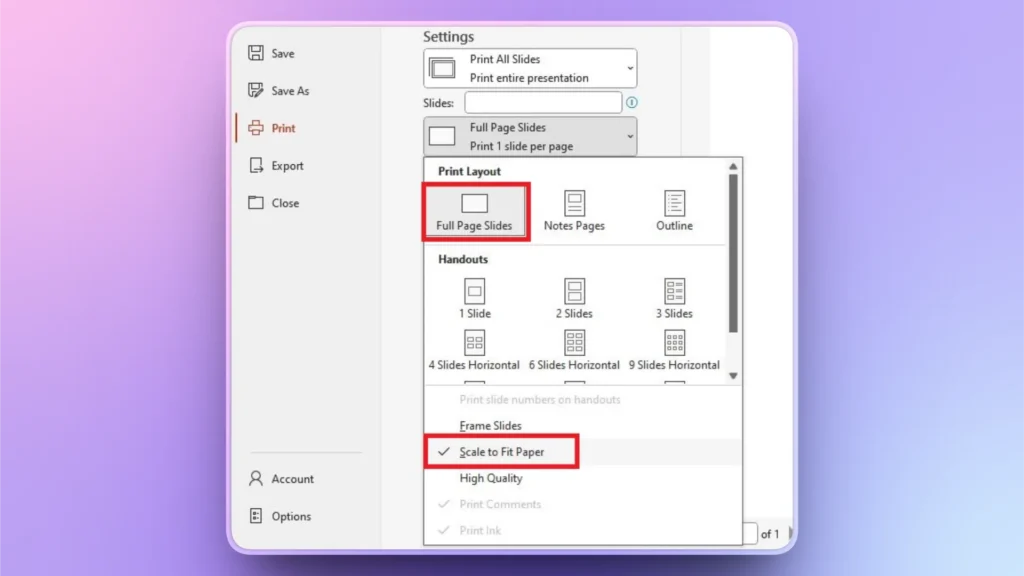
Aun así, las diapositivas de página completa pueden imprimirse con algunos márgenes blancos. Haz clic en el menú Diseño de impresión, elige Diapositivas de página completa y marca también la opción “Ajustar al tamaño del papel”. Con estos ajustes se reducen al mínimo los bordes blancos al imprimir las diapositivas.
Método 2: Ajustar el tamaño de la diapositiva al tamaño del papel
Con un tamaño de diapositiva Panorámica (16:9), verás bordes blancos si la imprimes en papel A4. El papel A4 mide 8,27 x 11,69 pulgadas, y puedes cambiar el tamaño de la diapositiva a esas dimensiones. Así es como se ajusta el tamaño de la diapositiva al tamaño del papel.
Paso 1: Ajusta el tamaño de la diapositiva
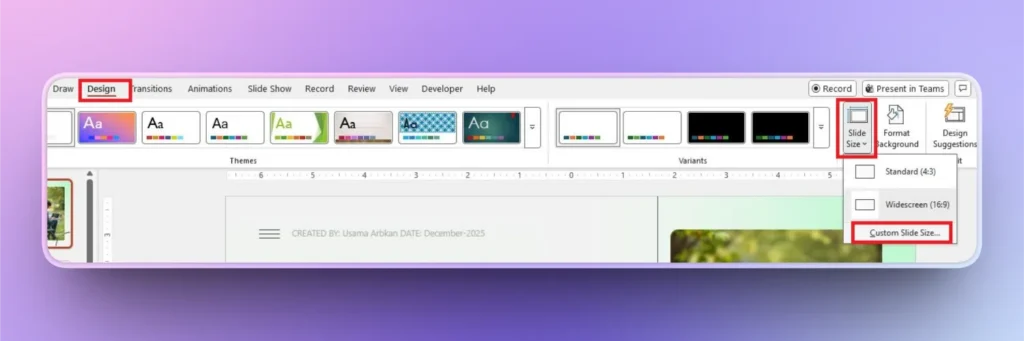
Abre tu presentación de PowerPoint, ve a la pestaña Diseño y haz clic en la opción Tamaño de diapositiva del grupo Personalizar. Puedes elegir Estándar o Panorámica como tamaño de diapositiva, pero como necesitamos unas dimensiones personalizadas, usaremos la opción Personalizar tamaño de diapositiva.
Paso 2: Configura el tamaño de diapositiva para papel A4
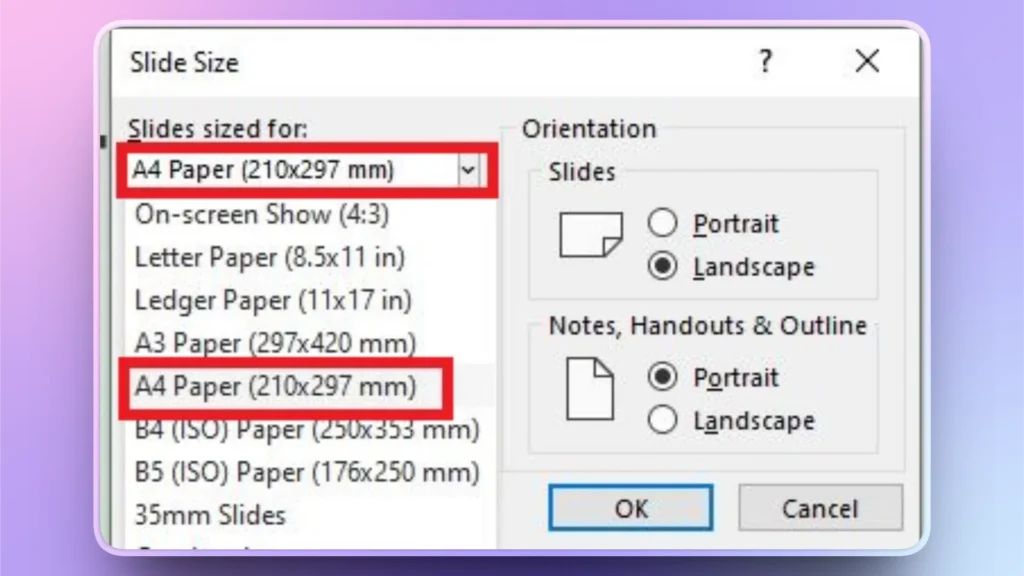
Aparecerá una nueva ventana en la que puedes ajustar el tamaño de la diapositiva. Haz clic en el menú desplegable, elige Papel A4 y confirma tu selección haciendo clic en Aceptar.
Paso 3: Elige Asegurar el ajuste
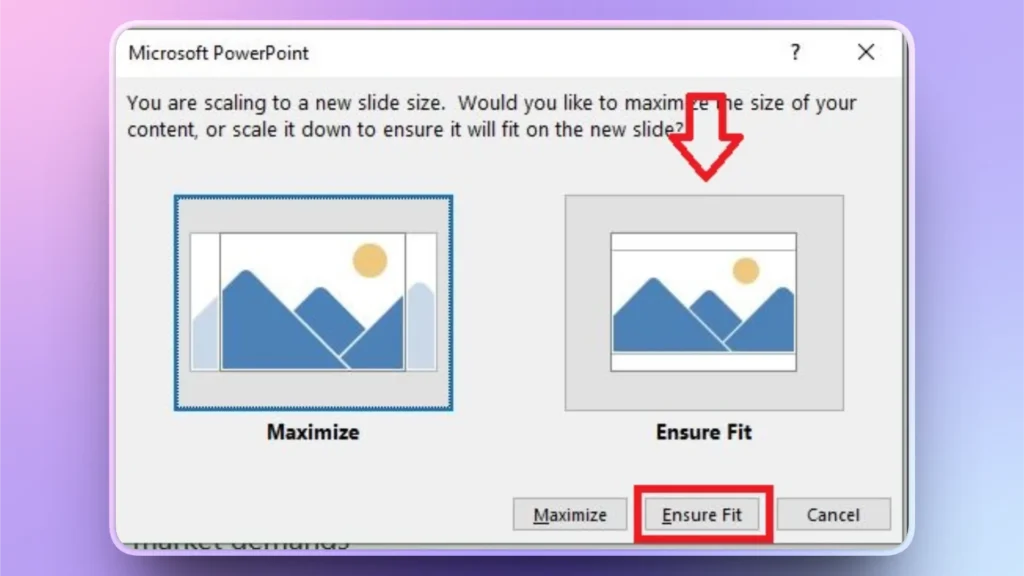
PowerPoint te pedirá que elijas entre maximizar el tamaño del contenido o asegurar el ajuste. Para una vista más ordenada, elige Asegurar el ajuste y PowerPoint ajustará automáticamente el contenido de la diapositiva al tamaño de la página.
Guarda estos ajustes e imprime la diapositiva. Con este método es mucho más probable que consigas imprimir las diapositivas de PowerPoint a página completa.
Optimiza el diseño de las diapositivas para una impresión limpia
Aunque hayas hecho todos estos cambios siguiendo el método 1 (imprimir diapositivas de página completa) y el método 2 (ajustar el tamaño de la diapositiva al del papel), puede que las diapositivas impresas sigan sin quedar bien.
El tamaño de la diapositiva es importante para una impresión limpia, pero el diseño también cuenta. Las diapositivas mal formateadas o recargadas no quedan bien en papel. Si te cuesta optimizar el diseño de tus diapositivas para imprimirlas, deja que la IA te ayude.
¿Qué es Twistly para PowerPoint?
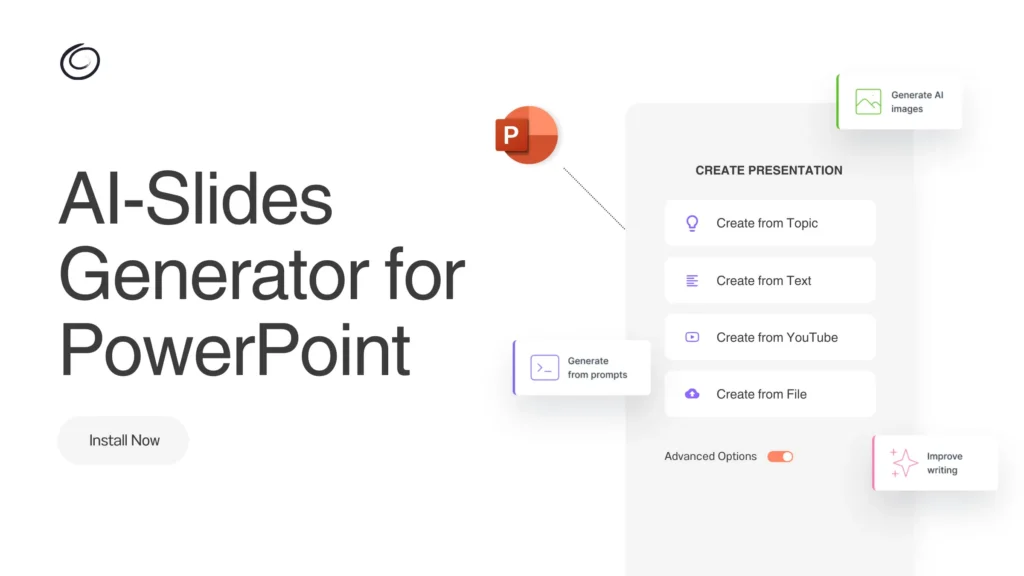
Twistly es un complemento con IA diseñado específicamente para crear y mejorar presentaciones dentro de Microsoft PowerPoint. Te ayuda a crear diapositivas limpias, equilibradas y listas para imprimir con un mínimo esfuerzo.
Optimiza las diapositivas para imprimir con IA
Twistly puede ayudarte a rediseñar las diapositivas para que tengan un aspecto y una estructura más ordenados. Este complemento funciona igual que ChatGPT para PowerPoint y puede:
- Equilibrar automáticamente el diseño
- Mejorar la jerarquía del texto
- Reducir la saturación
- Mejorar la alineación
Para añadir diapositivas nuevas, puedes elegir cualquier diseño de diapositiva entre las opciones disponibles, y la IA generará diapositivas listas para imprimir que se ven igual de bien en pantalla que en papel.
Consigue Twistly gratis
La estructura de las diapositivas y un formato ordenado son solo algunas de las muchas funciones de IA útiles que ofrece Twistly. Twistly incluye muchas otras herramientas y funciones excelentes que pueden cambiar por completo tu forma de crear presentaciones en PowerPoint.
¿Quieres invertir en una herramienta que merezca cada céntimo? Consigue ahora la versión de prueba gratuita de Twistly y descubre sus funciones antes de comprar. La versión de prueba es totalmente gratuita y puedes empezar ahora mismo.
Crear PowerPoint
Diapositivas con IA
Cree presentaciones basadas en IA a partir de
cualquier mensaje, documento o vídeo


Conclusión
Para imprimir diapositivas de PowerPoint a página completa, puedes activar la opción Ajustar al tamaño del papel o cambiar el tamaño de la diapositiva para que coincida con el del papel. Con estos cambios, podrás imprimir las diapositivas con el menor margen blanco posible. Si tu impresora admite la impresión sin bordes, mejor aún.
Aunque el escalado sea correcto, los diseños mal estructurados, el texto recargado o los elementos visuales de baja resolución pueden hacer que las diapositivas impresas parezcan poco profesionales. Twistly puede resolver todos estos problemas y darte diapositivas bien estructuradas y optimizadas para una impresión limpia.










Empieza a hacer presentaciones con IA en segundos
Acceso instantáneo
Empieza a explorar inmediatamente todas las funciones de Twistly
Sin compromisos
No necesitas tarjeta de crédito y puedes cancelar cuando quieras
Asistencia dedicada
Nuestro equipo te ayudará en cada paso durante tu periodo de prueba