


Borrar la caché de un navegador web puede resolver muchos problemas. Del mismo modo, las apps de los móviles Android también tienen la opción Borrar caché. ¿Sabías que también puedes borrar la caché de PowerPoint?
¿Cuándo hay que borrar la caché de PowerPoint? Si el programa va lento, se cierra de forma inesperada, tiene problemas de sincronización o fallos similares, borrar la caché de PowerPoint podría solucionarlos.
PowerPoint también guarda archivos temporales para acelerar el procesamiento de los archivos y, a veces, la caché se satura y hay que eliminar a mano los archivos innecesarios.
¿Qué es la caché de PowerPoint?
La caché de PowerPoint es un área de almacenamiento temporal de tu ordenador que guarda los datos de las presentaciones activas, las imágenes y los recursos de los complementos para acelerar la carga y mejorar el rendimiento.
Son archivos temporales, pero necesarios para el procesamiento en curso. Los archivos de caché se guardan para:
- Acelerar la carga de archivos
- Guardar versiones de Autorrecuperación
- Almacenar copias sincronizadas en la nube
- Conservar miniaturas y datos de vista previa
El objetivo principal de los archivos de caché es acelerar el proceso y mejorar el rendimiento del programa, pero también pueden provocar errores y fallos aleatorios.
¿Cómo borrar la caché de documentos de PowerPoint?
PowerPoint tiene dos tipos de datos en caché: la caché de documentos y la caché de complementos. En esta sección veremos cómo borrar la caché de documentos de PowerPoint. El proceso es sencillo y solo requiere unos clics.
Primer paso: Abrir PowerPoint >> Archivo >> Opciones.
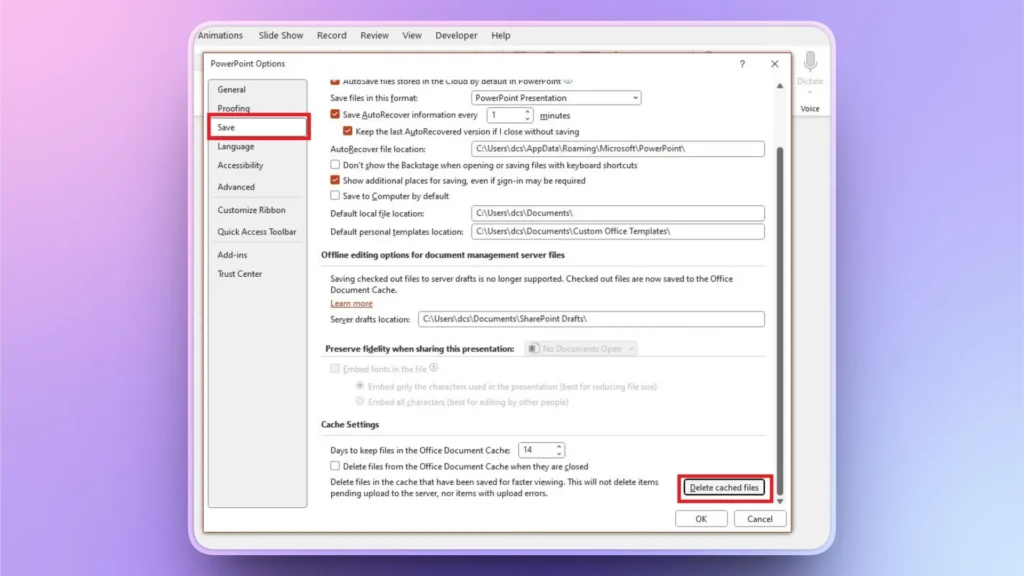
Segundo paso: Haga clic en Guardar >> desplázate hasta Configuración de caché >> haz clic en >> Eliminar archivos almacenados en caché.
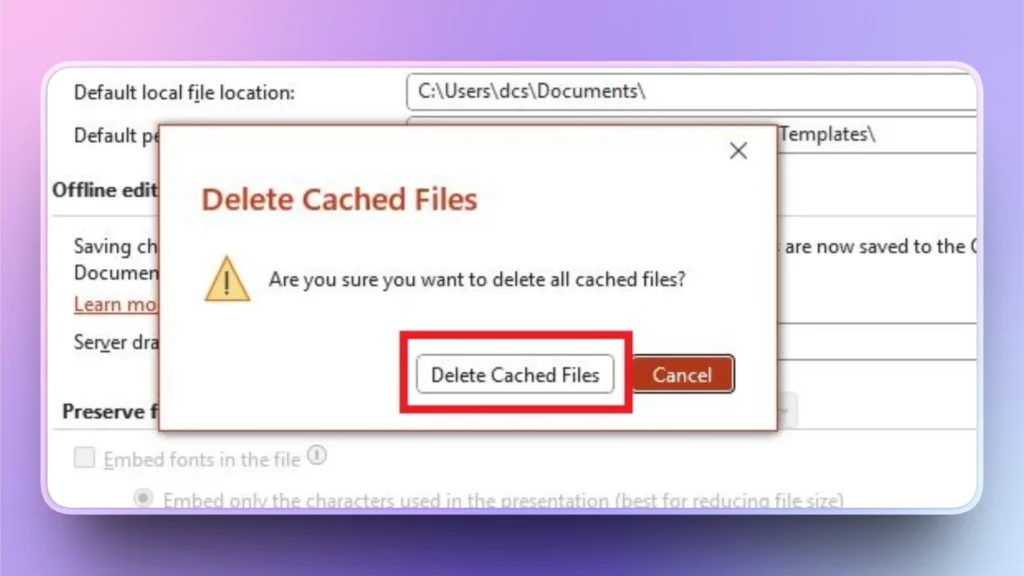
Tercer paso: Confirma la acción y todos los documentos almacenados en caché se eliminarán de tu ordenador, lo que podría resolver el problema.
¿Cómo borrar la caché de complementos de PowerPoint?
Los complementos como Twistly son muy útiles para cualquier usuario. Si tienes algún problema con un complemento, puedes indicar a PowerPoint que borre automáticamente la caché de complementos al cerrar el programa.
Así, los archivos de caché de los complementos se eliminan automáticamente para que todo funcione de forma más fluida y rápida. Así es como se borra la caché de complementos de PowerPoint.
Primer paso: Abrir PowerPoint >> Archivo >> Opciones.
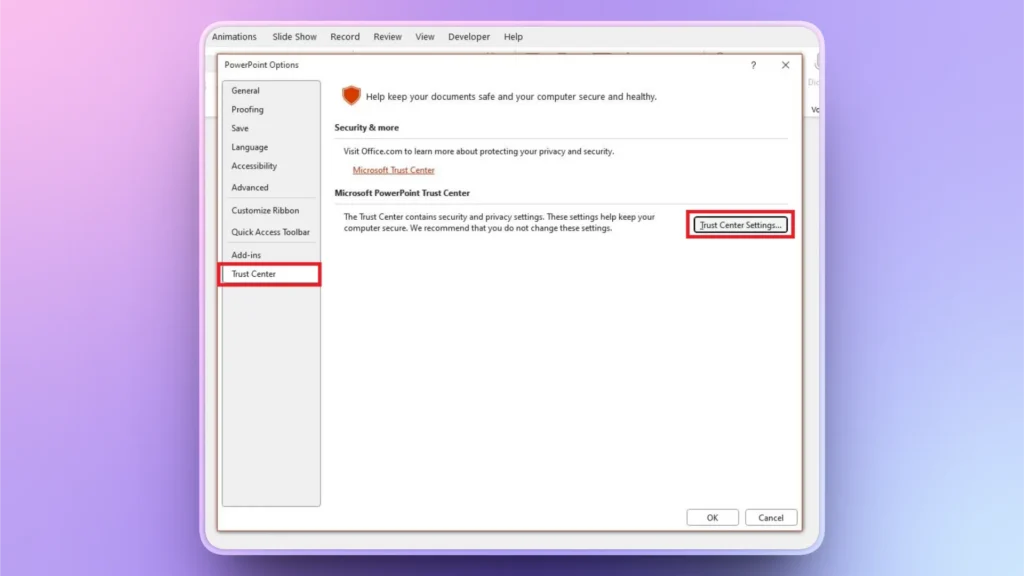
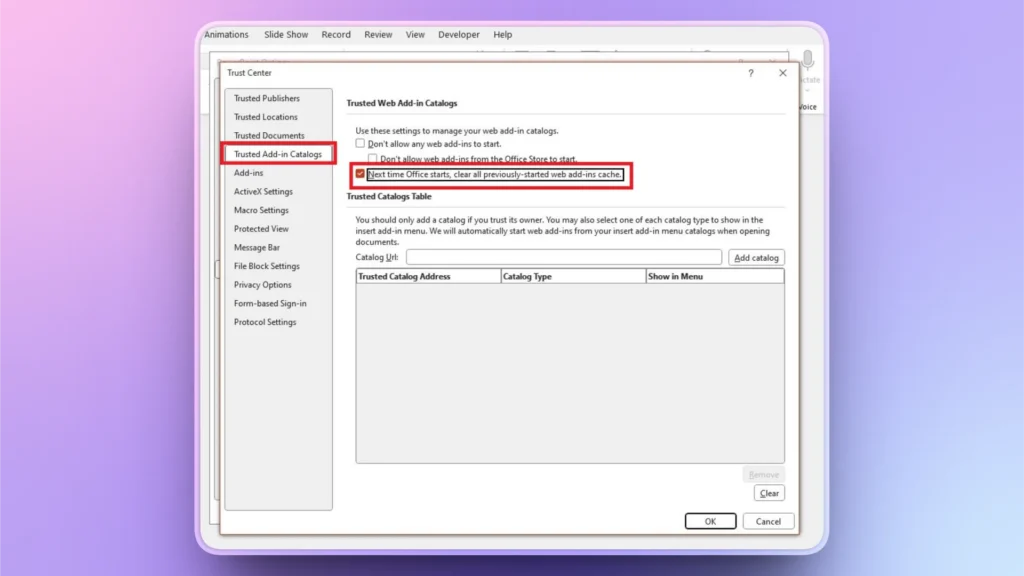
Segundo paso: Haga clic en Centro de confianza en el menú de la izquierda y, después, haz clic en Configuración del Centro de confianza botón.
Tercer paso: En la siguiente ventana, haz clic en Catálogos de complementos de confianza y marca la casilla como se muestra en la imagen de abajo. Así se eliminará automáticamente toda la caché cuando reinicies PowerPoint.
¿Cómo borrar la caché de documentos de Office?
Si no quieres seguir los métodos anteriores y prefieres eliminar los archivos directamente de tu ordenador o del Centro de carga, también puedes hacerlo. El proceso es fácil. Así es como se borra la caché de PowerPoint directamente desde tu ordenador.
Primer paso: Pulsa las teclas Windows + R o escribe Ejecutar en la barra de búsqueda.
Segundo paso: Escribe “%localappdata%\Microsoft\Office\16.0\” en la ventana Ejecutar y pulsa Intro.
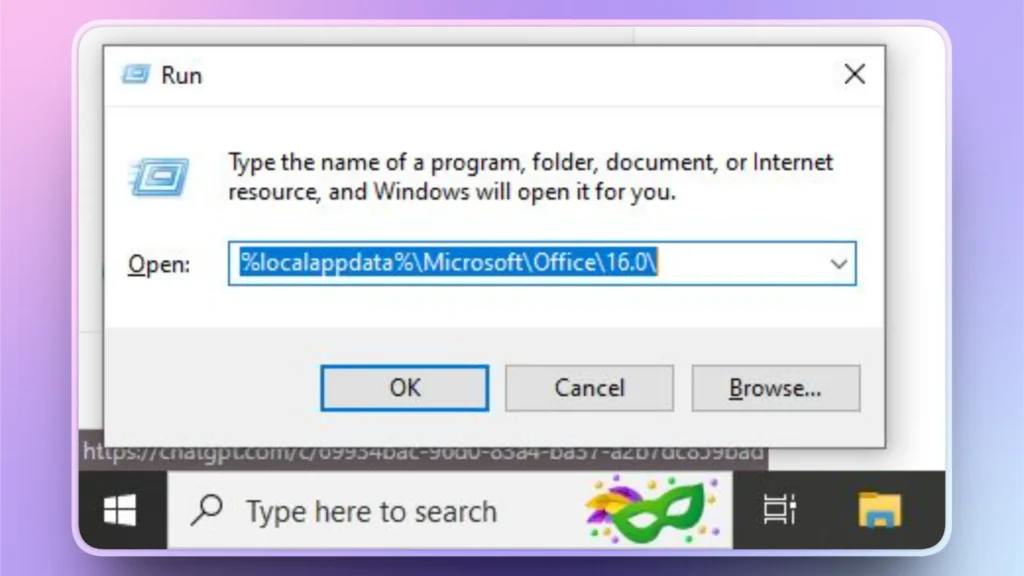
Tercer paso: En la nueva ventana, busca la carpeta OfficeFileCache y ábrela.
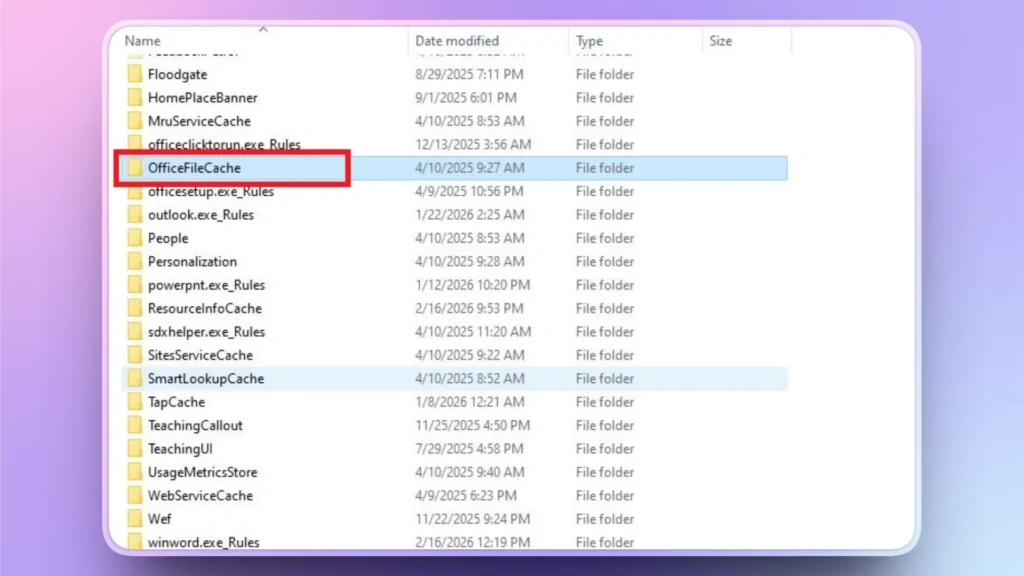
Paso 4: Elimina todos los archivos de esta carpeta. No elimines la carpeta principal, solo todos los archivos que contiene.
¿Se borrarán mis presentaciones guardadas al borrar la caché?
Puede que te preguntes qué pasa si has eliminado archivos en caché sin querer. Pues bien, borrar la caché no elimina tus presentaciones guardadas o existentes.
Borrar la caché puede eliminar versiones de Autorrecuperación no guardadas de algunas presentaciones. Se recomienda guardar tus presentaciones actuales e importantes antes de borrar la caché.
¿Qué hacer si has eliminado presentaciones de PowerPoint por error?
Estabas trabajando en una presentación importante, eliminaste el archivo por error y ahora cunde el pánico. ¿Te ha pasado alguna vez? Hay algunas opciones para recuperar archivos eliminados, pero como ya has borrado la caché de PowerPoint, las posibilidades de recuperarlos son escasas.
¿Cuál es la mejor solución?
Si las opciones de recuperación son limitadas, lo mejor es crear una nueva sin perder mucho tiempo. Un momento, ¿crear una presentación nueva desde cero no lleva horas?
Sí, una presentación nueva te llevará sin duda unas cuantas horas si sigues los métodos de siempre. Con la herramienta que te recomendamos, puedes crear presentaciones de PowerPoint al instante en 90 segundos.
¿Cómo crear presentaciones de PowerPoint al instante?
PowerPoint no ofrece funciones de IA destacables, pero hemos cubierto ese vacío con Twistly. Es un complemento de IA que funciona dentro de PowerPoint como un ChatGPT personalizado para PowerPoint.

Sin perder tiempo editando, redactando, diseñando y dando formato a mano, solo tienes que introducir tu tema y elegir una plantilla: Twistly se encarga de todo lo demás. Los pasos para crear una presentación al instante con Twistly son sencillos.
- Abre PowerPoint, inicia Twistly y elige si quieres crear una presentación o editar diapositivas existentes.
- Introduce el tema de la presentación, sube un archivo, pega un texto o escribe una indicación para la IA
- Revisa el esquema de las diapositivas propuestas y elige una plantilla
- Revisa las diapositivas finales y haz cambios si es necesario.
Con estos sencillos pasos, puedes crear una presentación nueva desde cero y resolver de forma profesional el problema del archivo eliminado.
También puedes usar Twistly para mejorar o pulir tus presentaciones actuales, porque tiene muchas otras funciones de IA geniales que no te puedes perder en 2026.
¿Cómo conseguir Twistly gratis?
Twistly es un complemento premium y de pago para PowerPoint, pero para nuestros lectores tenemos una versión de prueba gratuita. Usa el enlace de abajo para descargarla y descubre el verdadero potencial de la IA para crear presentaciones increíbles.
Cuando hayas creado tu primera presentación con Twistly, no podrás resistirte a pasarte a la versión premium para desbloquear todas las funciones de IA. Pruébalo ahora y mejora tu productividad y tus habilidades de comunicación en el trabajo.
Crear PowerPoint
Diapositivas con IA
Cree presentaciones basadas en IA a partir de
cualquier mensaje, documento o vídeo


Palabras finales
Borrar la caché de PowerPoint es un paso sencillo pero eficaz para solucionar problemas. Puedes probar cualquiera de estos métodos para borrar la caché de PowerPoint. La mayoría de los problemas se resuelven al borrar la caché, pero si el problema persiste, prueba a abrir un archivo nuevo. A veces los archivos también pueden estar dañados.
Ahorra horas de edición y redacción manual con Twistly y prueba sus nuevas funciones de IA, imprescindibles para cualquier usuario de PowerPoint. Descarga ya tu prueba gratuita.











Empieza a hacer presentaciones con IA en segundos
Acceso instantáneo
Empieza a explorar inmediatamente todas las funciones de Twistly
Sin compromisos
No necesitas tarjeta de crédito y puedes cancelar cuando quieras
Asistencia dedicada
Nuestro equipo te ayudará en cada paso durante tu periodo de prueba