


¿Cómo crear un gráfico de cascada para informes financieros en PowerPoint?

En los informes financieros, los gráficos de cascada son una importante herramienta visual. Los gráficos de cascada se utilizan para indicar cómo el valor inicial se ve afectado por los valores positivos y negativos de los datos. Estos tipos de gráficos se utilizan para desgloses de costes, análisis de beneficios, crecimiento de ingresos y desviaciones presupuestarias.
Puede crear fácilmente un gráfico de cascada para informes financieros en PowerPoint utilizando el diseño de gráfico disponible. En este artículo, aprenderemos a añadir un gráfico, editarlo y optimizarlo según las necesidades de nuestro proyecto.
Si estás cansado de diseñar gráficos manualmente, tenemos una herramienta exclusiva para ti que puede convertir cualquier dato en un gráfico visualmente atractivo con sólo dos clics. Por lo tanto, dar a este artículo completo de una lectura, y nos comprometemos a elevar su experiencia de PowerPoint con AI.
Conceptos básicos de un gráfico de cascada para informes financieros
El uso de un gráfico de cascada no se limita a los informes financieros y las presentaciones profesionales, sino que también puede utilizar la misma herramienta para medir sus gastos diarios y otros costes.
Un gráfico de cascada también se conoce como gráfico puente. Este gráfico muestra el efecto acumulativo de valores positivos y negativos secuenciales. Es una herramienta visual para representar:
- Ingresos, gastos y beneficio neto
- Rendimiento presupuestario frente a rendimiento real
- Cambios financieros interanuales
- Análisis de la estructura de costes
Para las presentaciones de informes financieros, estos gráficos aclaran el movimiento de los valores. Se pueden detectar fácilmente los contribuyentes a las pérdidas y ganancias. Las tablas densas pueden complicar el análisis, mientras que los gráficos en cascada o en puente ofrecen una imagen clara a primera vista.
¿Cómo crear un gráfico de cascada en PowerPoint?
Puede insertar fácilmente un gráfico de cascada desde la pestaña Insertar, pero ese gráfico no funcionará como se espera cuando añada los valores reales. En este tutorial, insertaremos un gráfico de cascada de muestra y luego lo editaremos para nuestros valores personalizados.
Paso 1: Prepare sus datos financieros
Debe disponer de un conjunto de datos estructurado que desee utilizar para un gráfico de cascada. Para este ejemplo, utilizaremos los datos de muestra de un proyecto en el que se indican el capital inicial y otros costes. Esta tabla se utilizará como datos de muestra para el gráfico de cascada.
| Categoría | Valor |
| Ingresos iniciales | 500 |
| Crecimiento de las ventas | 120 |
| Costes de comercialización | -80 |
| Gastos de explotación | -140 |
| Impuesto | -60 |
| Beneficio neto | 340 |
En esta tabla, los números positivos son las ganancias y los números negativos indican las pérdidas/gastos. Puede utilizar sus propios datos reales, ya que sólo estamos utilizando valores aleatorios para este tutorial.
Paso 2: Insertar un Gráfico de Cascada en la Diapositiva
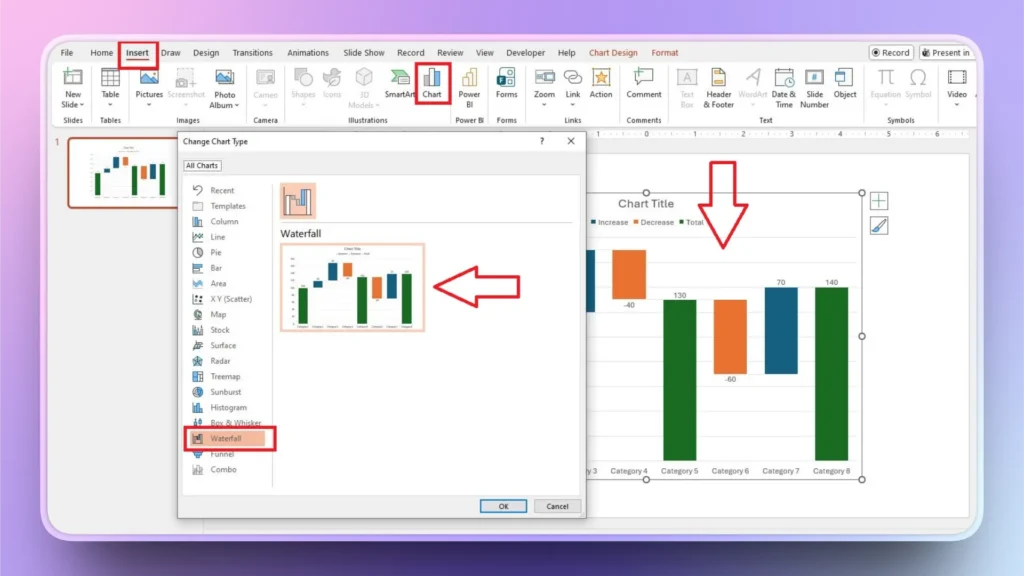
Abra PowerPoint e inicie una presentación en blanco. Vaya a la sección Pestaña Insertar >> Ilustraciones >> Gráfico >> Cascada y haga clic en Ok. Se añadirá a la diapositiva un gráfico de cascada de muestra con valores ficticios, como se muestra en la imagen siguiente.
Paso 3: Introduzca sus datos reales
En la ventana emergente de Excel, sustituya los valores ficticios por sus conjuntos de datos reales. Puede abrir esta hoja de Excel haciendo clic en el gráfico y, a continuación, en la opción Editar datos. El gráfico se actualizará automáticamente a medida que introduzcas los valores.
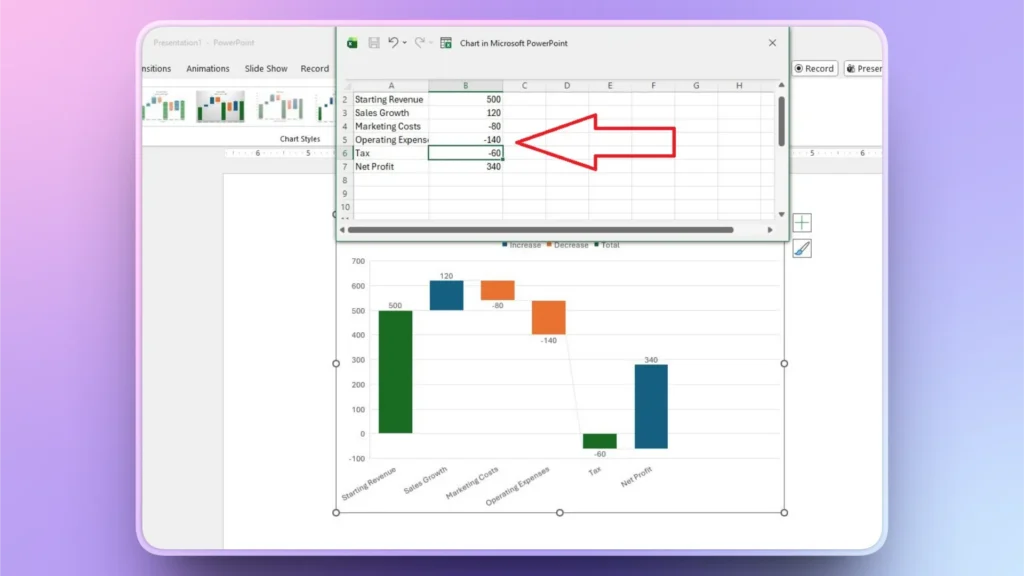
Como puede ver, con nuestros valores reales, el gráfico no se ve bien. Vamos a solucionar este problema en el siguiente paso.
Paso 4: Fijar barras totales
Es necesario definir los valores inicial y final del gráfico. En este ejemplo, tenemos los Ingresos iniciales como valor inicial y el Beneficio neto como valor final.
Seleccione la barra de totales y, a continuación, haga clic con el botón derecho del ratón en el botón barra >> haga clic en Establecer como total, y verás que el gráfico tiene ahora un aspecto mejor y más detallado.
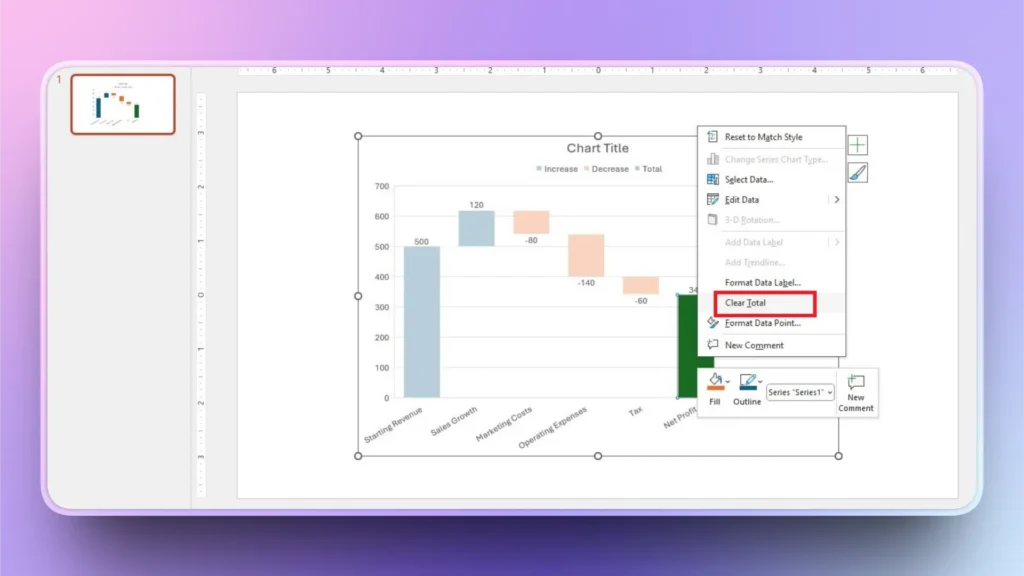
Como ya hemos fijado el total, ahora muestra el “Claro Total”. Anteriormente, esta opción era “Fijar como Total.”
¿Cómo crear un gráfico con IA en cuestión de segundos?
Si todavía estás leyendo, significa que estás ansioso por saber cómo crear increíbles tablas y gráficos en PowerPoint con IA. Tenemos sólo la herramienta adecuada AI para PowerPoint que va a cambiar totalmente su experiencia de presentación, y la herramienta se llama Twistly.
¿Qué es Twistly?
Twistly es un complemento de IA para PowerPoint que funciona igual que ChatGPT para PowerPoint y puede generar diapositivas individuales o presentaciones completas a partir de temas, indicaciones de IA, texto y documentos.
Puedes pegar datos estructurados, una tabla o una lista en Twistly, y AI convertirá automáticamente esos datos en un gráfico visualmente atractivo. Hay muchos diseños de diapositivas que puedes elegir en Twistly.
Crear PowerPoint
Diapositivas con IA
Cree presentaciones basadas en IA a partir de
cualquier mensaje, documento o vídeo


Creación de gráficos AI con Twistly
Vamos a repasar los sencillos pasos para crear gráficos en PowerPoint con AI. Asegúrese de tener instalado el complemento Twistly para PowerPoint.
Paso 1: Abra PowerPoint e inicie Twistly
Estamos utilizando aquí la misma presentación que utilizamos anteriormente para crear un gráfico de cascada para informes financieros en PowerPoint.
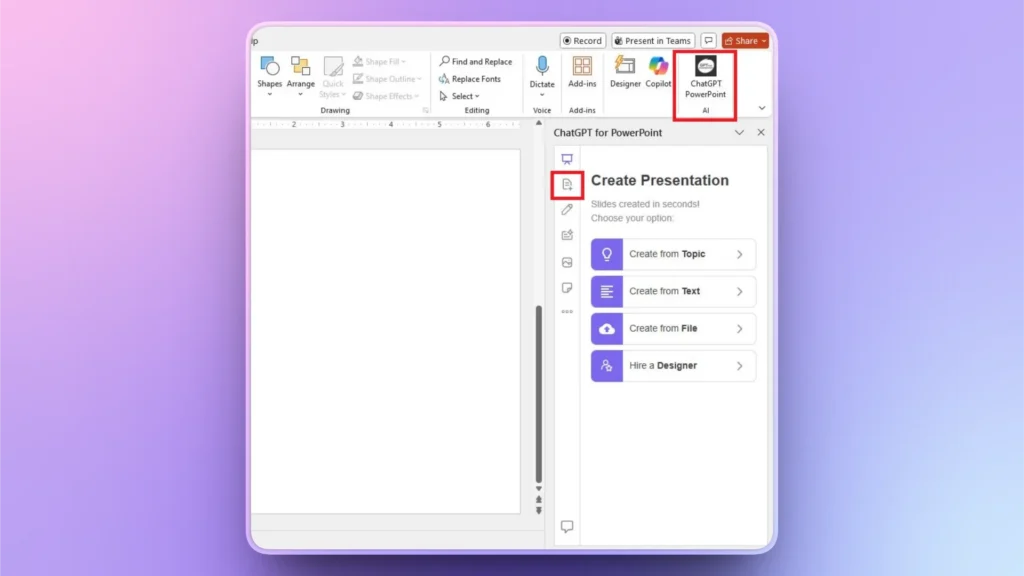
Haga clic en el icono Twistly de la esquina superior derecha y, a continuación, seleccione la segunda opción, Añadir diapositiva, como se muestra en la imagen siguiente.
Paso 2: Seleccionar el diseño de la diapositiva
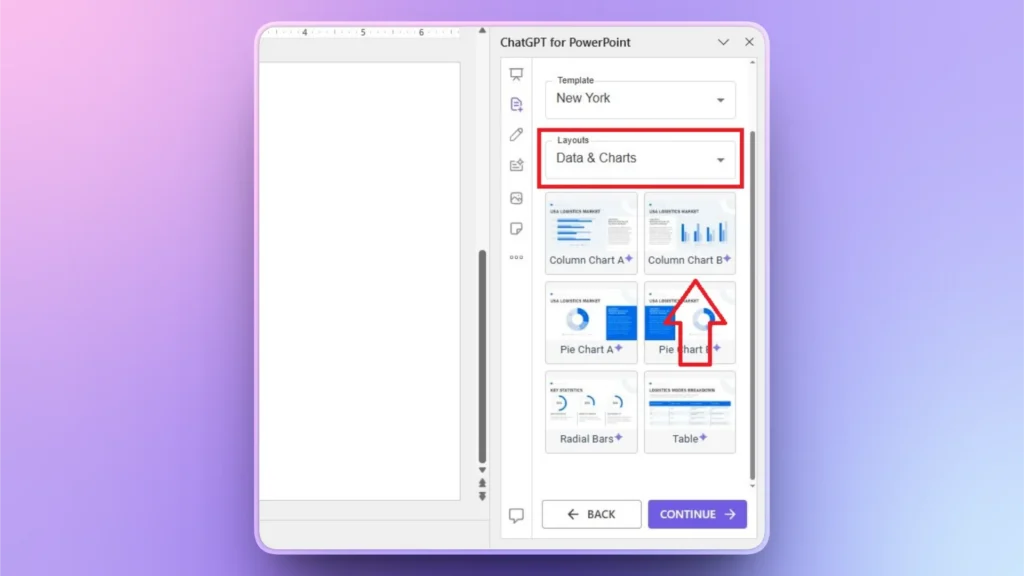
Seleccione Gráficos y datos en el menú Diseño y, a continuación, seleccione cualquier diseño de gráfico o cuadro que desee crear con AI.
Paso 3: Introduzca sus datos
En el siguiente paso, pegue sus datos estructurados y explique qué hacer con los datos. Puedes utilizar un inglés sencillo para explicar tus requisitos. AI creará un gráfico según el contexto de los datos y las indicaciones.

Paso 4: Revise su gráfico de IA
En unos segundos, Twistly le ofrecerá un gráfico detallado basado en sus datos. En la imagen, puede ver que el gráfico generado por la IA es igual que el gráfico de cascada que creamos anteriormente.
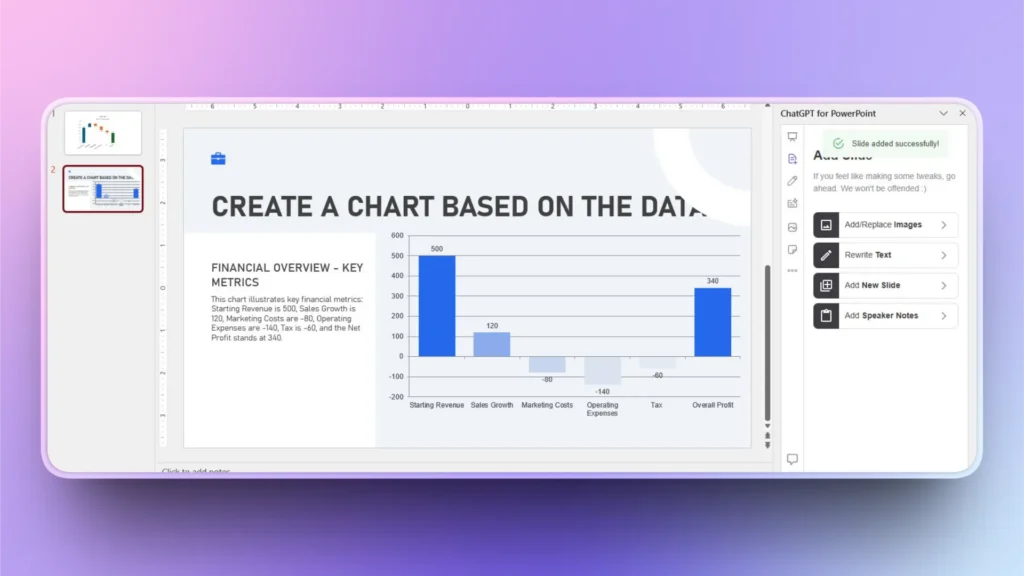
Además de crear un gráfico preciso en cuestión de segundos, Twistly también explica el gráfico en texto. Twistly es mucho mejor que los métodos manuales en todos los aspectos.
Conclusión
Puedes crear un gráfico en cascada para informes financieros con plantillas de gráficos ya preparadas o pedirle a Twistly que convierta los datos en un gráfico en cascada con IA. Hemos explicado formas manuales y automáticas de crear un gráfico en cascada.
Si valora su tiempo y quiere ahorrar su valioso tiempo, descargue la versión de prueba gratuita de Twistly y empiece a crear gráficos complejos con IA en cuestión de segundos.
Crear diapositivas de PowerPoint con IA
Crea presentaciones basadas en IA a partir de cualquier mensaje, documento o vídeo













Empieza a hacer presentaciones con IA en segundos
Acceso instantáneo
Empieza a explorar inmediatamente todas las funciones de Twistly
Sin compromisos
No necesitas tarjeta de crédito y puedes cancelar cuando quieras
Asistencia dedicada
Nuestro equipo te ayudará en cada paso durante tu periodo de prueba